1. Pengenalan
This manual provides detailed instructions for the setup, operation, and maintenance of your POLONO D810 Portable Thermal Printer. Please read this manual thoroughly before using the printer to ensure proper function and longevity of the device.
The POLONO D810 is a compact, inkless thermal printer designed for portability and convenience, supporting both US Letter and A4 thermal paper sizes. It connects wirelessly via Bluetooth to iOS and Android devices, and via USB to Windows and Mac computers.
2. Kandungan Pakej
Sahkan bahawa semua item terdapat dalam pakej anda:
- POLONO D810 Inkless Printer
- 20 sheets of US Letter thermal paper
- Manual Pengguna (dokumen ini)
- Guide Card
- USB Drive (containing drivers for PC)
- Type-C Cable (charging adapter not included)
3. Pencetak Atasview
Familiarize yourself with the main components of your D810 printer:
- Butang Kuasa: Used to turn the printer on/off.
- USB Interface / Power Interface: For connecting to a computer or charging the device.
- Paper Entry: The slot where thermal paper is inserted for printing.
- Paper Size Switch: Adjusts the printer for different paper widths (216mm for US Letter, 210mm for A4).
- Open Key for Lower Cover: Releases the lower cover for maintenance or paper loading.

Image: POLONO D810 printer connected to a laptop and a smartphone, illustrating its universal compatibility.
4. Persediaan dan Penggunaan Pertama
4.1. Mengecas Pencetak
Before initial use, fully charge the printer using the provided Type-C cable. Connect the cable to the USB/Power Interface on the printer and to a suitable USB power adapter (not included). The indicator light will show charging status.
4.2. Memuatkan Kertas Termal
- Tekan butang kuasa untuk menghidupkan pencetak.
- Ensure the paper size switch is set correctly for your paper (216 for US Letter, 210 for A4).
- Gently insert the thermal paper into the Paper Entry slot. The side of the paper with black markings (if present) should face downwards.
- Align the two ends of the paper to ensure they are on the same straight line to prevent printing offset. The printer will automatically feed the paper into position.

Image: Visual guide for loading thermal paper into the printer, emphasizing correct alignment and orientation.
Penting: This printer uses thermal paper only. Do not use regular copy paper. Always match the paper size setting on your phone/PC to the paper used.
4.3. Pemasangan Perisian
4.3.1. For Mobile Devices (iOS/Android)
- Download the "Labelnize" app from the Google Play Store (for Android) or the Apple App Store (for iOS 13 or above).
- Pastikan Bluetooth didayakan pada peranti mudah alih anda.
- Open the Labelnize app and follow the on-screen prompts to connect to your D810 printer via Bluetooth.

Image: Step-by-step guide for Bluetooth connection via the Labelnize app.
4.3.2. For Computers (Windows/Mac)
For PC users, drivers must be installed. The D810 printer does not support Bluetooth connection with computers; a USB connection is required.
- Connect the D810 printer to your laptop or desktop computer using the provided USB cable.
- Install the necessary drivers from the included USB drive or download them from the official POLONO webtapak: polono.com.
- Once drivers are installed, you can select the D810 printer from your computer's print options.

Image: Guide for USB connection and driver installation for computer printing.
5. Arahan Operasi
5.1. Printing from Mobile App (Labelnize)
- Ensure your D810 printer is powered on and connected via Bluetooth to the Labelnize app.
- In the app, select the appropriate paper size (e.g., US Letter Fold, Letter, Tattoo Paper) from the "Select Paper" option.
- Pilih yang file you wish to print (e.g., documents, images, PDFs). The app supports various file types including Word, PPT, PDF, and TXT.
- Adjust print settings such as density and number of copies as needed.
- Tap "Print" to initiate printing.

Image: The Labelnize app interface demonstrating support for multiple document types.
Video: Official guide on how to use the D810 Portable Printer with a phone, demonstrating app connection and printing process.
5.2. Printing from Computer
- Connect the D810 printer to your computer via USB.
- Buka dokumen atau imej yang ingin anda cetak pada komputer anda.
- Go to the print menu (usually File > Cetak).
- Select "POLONO D810" as your printer.
- Adjust print settings as required (e.g., paper size, orientation). Ensure the paper size setting matches the physical paper loaded in the printer.
- Klik "Cetak".
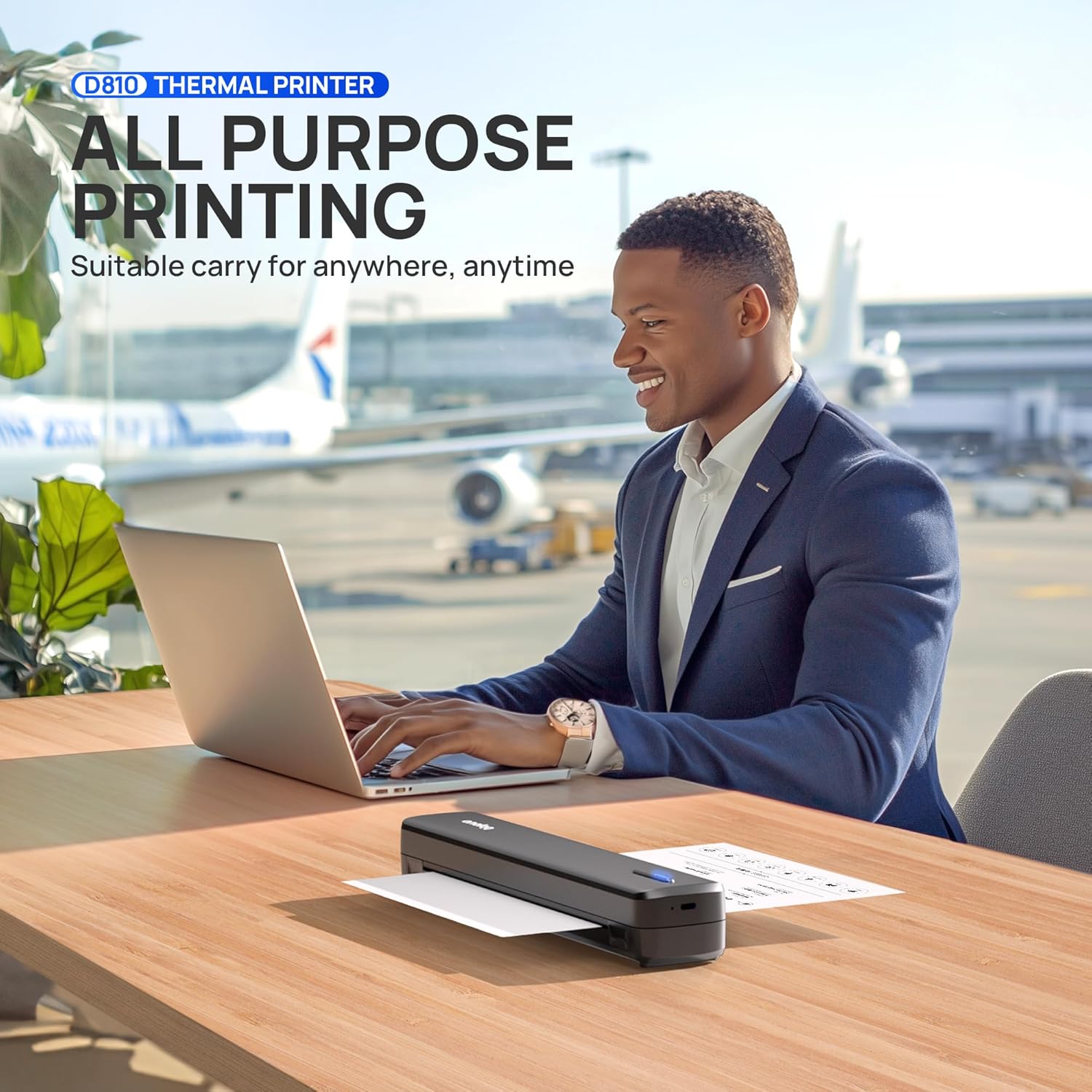
Image: The POLONO D810 printer in use with a laptop, suitable for various printing needs.
The D810 printer delivers crisp, high-resolution black and white prints. It is suitable for office documents, inventory lists, business checks, and more.
6. Penyelenggaraan
Proper maintenance ensures optimal performance and extends the life of your printer.
- Pembersihan: Regularly wipe the exterior of the printer with a soft, dry cloth. For the thermal print head, use a specialized thermal printer cleaning pen or isopropyl alcohol on a cotton swab. Ensure the printer is off and cooled down before cleaning the print head.
- Storan: Simpan pencetak di tempat yang sejuk dan kering jauh dari cahaya matahari langsung dan suhu yang melampau.
- Penjagaan Bateri: To maintain battery health, avoid fully discharging the printer frequently. If storing for an extended period, charge the battery to about 50% every few months.
- kertas: Always use high-quality thermal paper to prevent damage to the print head and ensure clear prints.
7. Penyelesaian masalah
If you encounter issues with your POLONO D810 printer, refer to the following common solutions:
| Masalah | Kemungkinan Punca | Penyelesaian |
|---|---|---|
| Pencetak tidak dihidupkan. | Masalah bateri atau kuasa lemah. | Charge the printer using the Type-C cable. Ensure the power adapter is working. |
| Tidak dapat menyambung melalui Bluetooth. | Bluetooth is off, app issue, or printer not discoverable. | Ensure Bluetooth is enabled on your device. Restart the Labelnize app and the printer. Check if the printer is in pairing mode. |
| Poor print quality or blank pages. | Incorrect paper loading, low print density, or non-thermal paper used. | Verify thermal paper is loaded correctly (black markings facing down). Adjust print density in the app/driver. Ensure you are using thermal paper. Clean the print head if necessary. |
| Kertas jem. | Pemuatan kertas yang tidak betul atau objek asing. | Turn off the printer. Open the lower cover using the open key. Carefully remove any jammed paper. Ensure paper is loaded straight. |
| Computer cannot detect printer via USB. | Drivers not installed or USB cable issue. | Install drivers from the provided USB drive or polono.com. Try a different USB port or cable. Restart both printer and computer. |
8. Spesifikasi
| Ciri | Perincian |
|---|---|
| Jenama | POLONO |
| Nama Model | D810 |
| Teknologi Percetakan | terma |
| Teknologi Ketersambungan | Bluetooth, USB |
| Output Pencetak | Monochrome (Black & White) |
| Kelajuan Cetakan Maks (Monokrom) | 4 Pages per second |
| Resolusi Salinan Maks (Hitam & Putih) | 300 dpi |
| Ukuran Media yang Disokong | US Letter (8.5"x11"), A4 |
| Kapasiti Helaian Input Maks | 20 helai |
| Berat Barang | 1.85 paun |
| Dimensi Produk | 12.99 x 3.22 x 3.64 inci |
| Ciri Khas | Portable, Inkless |
9. Waranti dan Sokongan
For warranty information, technical support, or further assistance, please visit the official POLONO webtapak atau hubungi perkhidmatan pelanggan.
- rasmi Webtapak: polono.com
- Refer to the included Guide Card for quick support contacts.


