1. Pengenalan
This manual provides essential information for the safe and efficient use of your Acer Nitro EDB323QU S3 31.5-inch Gaming Monitor. Please read this manual thoroughly before operating the device and retain it for future reference. This monitor is designed to deliver a high-performance visual experience with its WQHD resolution, high refresh rate, and rapid response time, suitable for gaming and multimedia applications.
2. Maklumat Keselamatan
- Sentiasa letakkan monitor di atas permukaan yang stabil dan rata untuk mengelakkannya daripada jatuh.
- Pastikan pengudaraan yang betul di sekitar monitor untuk mengelakkan terlalu panas. Jangan halang bukaan pengudaraan.
- Gunakan hanya penyesuai kuasa dan kabel yang dibekalkan bersama monitor.
- Jangan dedahkan monitor kepada hujan atau kelembapan untuk mengelakkan renjatan elektrik atau kebakaran.
- Elakkan meletakkan monitor berhampiran sumber haba atau dalam cahaya matahari langsung.
- Putuskan sambungan kabel kuasa dari soket sebelum membersihkan monitor.
- Jangan cuba servis monitor sendiri. Rujuk semua servis kepada kakitangan perkhidmatan yang berkelayakan.
3. Kandungan Pakej
Sahkan bahawa semua item terdapat dalam pakej anda:
- Acer Nitro EDB323QU S3 Monitor
- Stand Monitor (Asas dan Leher)
- Kord Kuasa
- Kabel HDMI
- DisplayPort Cable
- Manual Pengguna (dokumen ini)
4. Persediaan
4.1 Memasang Pendirian
- Carefully remove the monitor from its packaging, keeping it protected.
- Pasangkan leher pendirian pada panel monitor. Pastikan ia klik dengan selamat pada tempatnya atau diikat dengan skru jika disediakan.
- Attach the stand base to the stand neck. Tighten the thumb screw or screws from the bottom of the base.

Imej: Depan view of the Acer Nitro EDB323QU S3 monitor with its stand fully assembled.
4.2 Menyambung Monitor
Sambungkan monitor ke komputer anda menggunakan salah satu kaedah berikut:
- Sambungan HDMI: Sambungkan satu hujung kabel HDMI ke port HDMI pada komputer anda dan hujung yang satu lagi ke port HDMI pada monitor.
- Sambungan DisplayPort: Sambungkan satu hujung kabel DisplayPort ke DisplayPort pada komputer anda dan hujung yang satu lagi ke DisplayPort pada monitor.

Imej: Belakang view of the monitor, highlighting the input ports and VESA mount area.
4.3 Menghidupkan
- Connect the power cord to the monitor's power input.
- Palamkan hujung kord kuasa yang lain ke dalam salur keluar elektrik yang dibumikan.
- Tekan butang kuasa pada monitor untuk menghidupkannya.
5. Mengendalikan Monitor
5.1 Navigasi Menu Paparan Pada Skrin (OSD).
The OSD menu allows you to adjust various monitor settings. Typically, buttons are located on the back or bottom right side of the monitor.
- Press any OSD button to activate the menu.
- Use the navigation buttons (usually directional) to move through menu options.
- Press the 'Select' or 'Enter' button to confirm a selection.
- Tekan butang 'Keluar' atau 'Kembali' untuk kembali ke menu sebelumnya atau keluar dari OSD.

Imej: Sisi view monitor, yang menunjukkan lokasi butang kawalan OSD.
5.2 Tetapan Gambar
Common adjustable settings include:
- Kecerahan: Melaraskan kecerahan keseluruhan skrin.
- Kontras: Melaraskan perbezaan antara kawasan terang dan gelap.
- Suhu Warna: Memilih mod warna pratetap (cth., Hangat, Sejuk, Pengguna).
- Sumber Input: Manually select between HDMI and DisplayPort inputs.
5.3 Ciri-ciri Permainan
- AMD FreeSync: This technology synchronizes the monitor's refresh rate with your GPU's frame rate to eliminate screen tearing and stuttering. Ensure FreeSync is enabled in both the monitor OSD and your graphics card settings.
- Visual Response Boost (VRB): Reduces motion blur by rapidly turning the backlight on and off. This feature can be enabled via the OSD menu.
5.4 Eye Protection Features (Acer VisionCare)
The monitor includes features to reduce eye strain:
- Perisai Cahaya Biru: Reduces the emission of blue light, which can be adjusted through the OSD.
- Tanpa Kelipan: Eliminates screen flickering, providing a more comfortable viewing experience. This feature is typically always active.
6. Penyelenggaraan
6.1 Membersihkan Monitor
- Sentiasa cabut plag monitor dari salur keluar kuasa sebelum membersihkan.
- Gunakan kain lembut dan tidak berbulu sedikit dampdisapu dengan air atau pembersih skrin yang lembut dan tidak melelas.
- Jangan sembur pembersih terus ke skrin. Sapukan pada kain terlebih dahulu.
- Elakkan menggunakan bahan kimia, pelarut atau bahan kasar yang keras, kerana ini boleh merosakkan skrin atauasing.
6.2 Penyimpanan
If storing the monitor for an extended period, ensure it is powered off, unplugged, and stored in a cool, dry place, preferably in its original packaging to protect it from dust and physical damage.
7. Penyelesaian masalah
Jika anda menghadapi masalah dengan monitor anda, rujuk kepada penyelesaian biasa berikut:
- Tiada Kuasa: Ensure the power cord is securely connected to both the monitor and a working electrical outlet. Check if the power indicator light is on.
- Tiada isyarat: Verify that the video cable (HDMI or DisplayPort) is securely connected to both the monitor and your computer. Ensure the correct input source is selected in the monitor's OSD menu.
- Imej Kabur atau Herot: Check the display resolution settings on your computer to ensure they match the monitor's native resolution (2560 x 1440).
- Skrin berkelip: Ensure the video cable is properly connected. If using AMD FreeSync, verify it is enabled correctly in both monitor and graphics card settings.
- Butang Tidak Menjawab: Unplug the monitor, wait for 30 seconds, and then plug it back in to reset the internal controls.
8. Spesifikasi
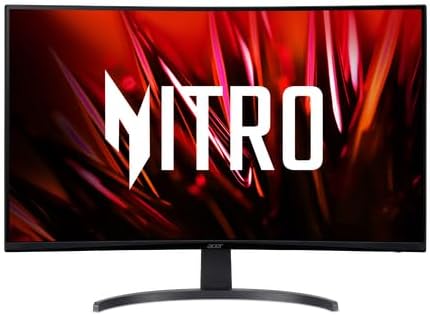
Imej: Depan view of the Acer Nitro EDB323QU S3 monitor.
| Ciri | Perincian |
|---|---|
| Nombor Model | EDB323QU S3 |
| Saiz Skrin | 31.5 Inci |
| Resolusi | 2560 x 1440 (WQHD) |
| Nisbah Aspek | 16:9 |
| Kadar Segar Semula | 165Hz (as per product title, feature bullets state 100Hz, using title's 165Hz for gaming focus) |
| Masa Tindak Balas | Peningkatan Respons Visual 1ms (VRB) |
| Jenis Panel | VA |
| Teknologi Penyegerakan Adaptif | AMD FreeSync |
| Ketersambungan | HDMI, DisplayPort |
| Perlindungan Mata | BlueLightShield, Flickerless |
| Melekap | Sesuai dengan VESA |
| Dimensi Produk | 9.2 x 28.1 x 20.1 inci |
| Berat Barang | 17.2 paun |
9. Waranti dan Sokongan
For warranty information or technical support, please refer to the warranty card included with your product or visit the official Acer support webtapak. Simpan resit pembelian anda sebagai bukti pembelian untuk tuntutan waranti.