pengenalan
This manual provides essential information for the safe and efficient operation of your GooDee 4K UHD Smart Projector. Please read it thoroughly before using the device and retain it for future reference. This projector integrates Google TV, AI voice control, advanced connectivity, and automatic image adjustments for a premium viewpengalaman dalam.
Apa yang ada dalam Kotak
Sahkan bahawa semua item ada semasa menyahkotak:
- Kord Kuasa
- Kabel HDMI
- Penutup Kanta Projektor
- Alat Kawalan Jauh
- Manual Pengguna
Produk Selesaiview
Familiarize yourself with the physical components and features of your projector.
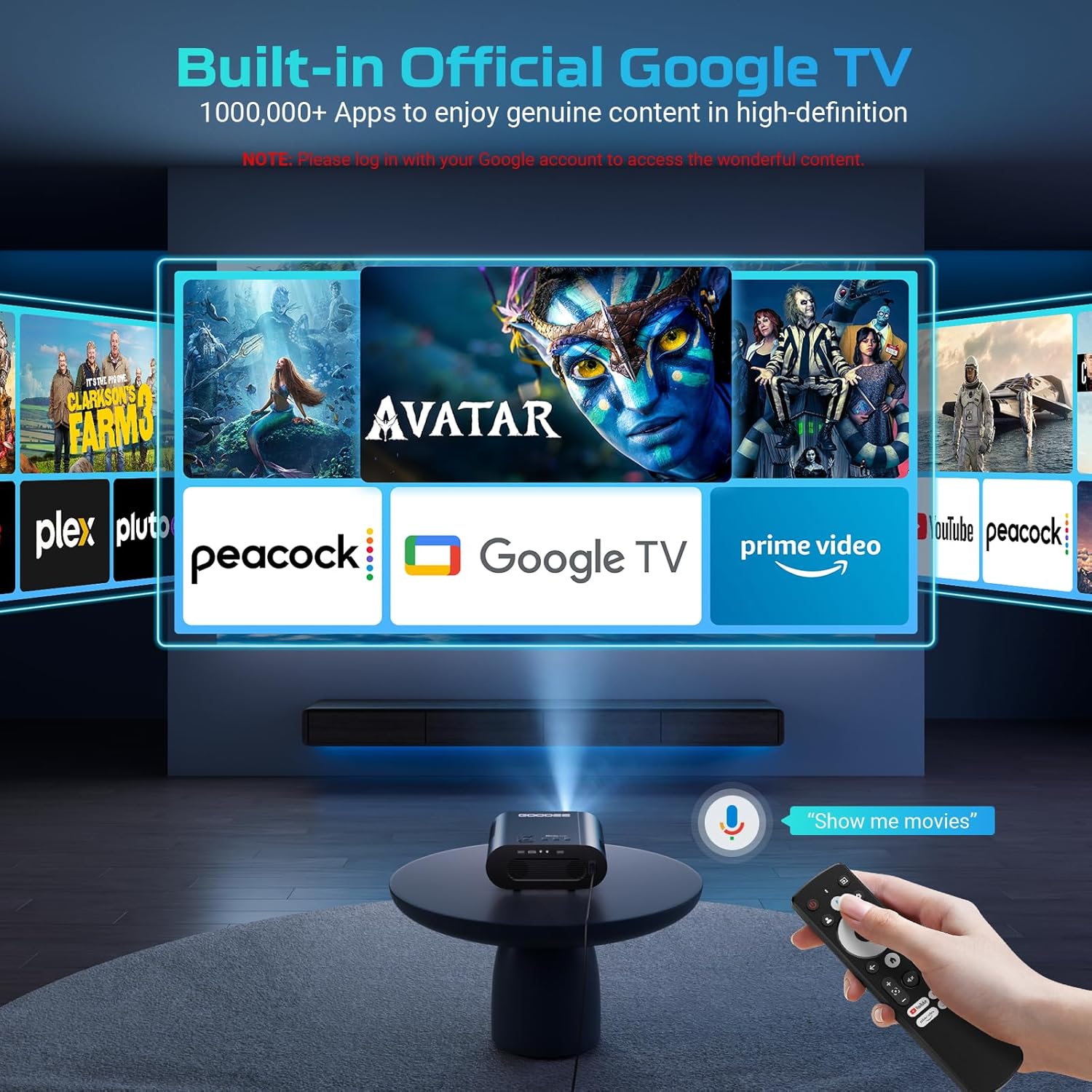
Imej: The GooDee 4K UHD Smart Projector, showcasing its compact design and the Google TV interface projected onto a large screen, with the remote control visible in the foreground.
Pelabuhan dan Sambungan

Imej: A terperinci view of the projector's rear panel, highlighting the HDMI, USB, and audio output ports for connecting external devices.
- Input HDMI: Supports 4K resolution for connecting external media players, gaming consoles, or laptops.
- Port USB (x2): For connecting USB flash drives to play media directly.
- Output Audio (3.5mm): Untuk menyambungkan fon kepala atau pembesar suara luaran.
- Input AV: Untuk menyambungkan peranti lama menggunakan kabel AV.
- Input Kuasa: Standard AC 100-240V, 50/60Hz.
Kawalan dan Pelarasan
- Manual Focus/Keystone Dials: Located on the top of the projector for fine-tuning image clarity and shape.
- Kawalan Jauh: Full-function remote with dedicated buttons for popular streaming apps (Netflix, YouTube, Prime Video) and Google Assistant voice control.
- Benang Pemasangan: A 1/4-inch thread on the bottom allows for tripod or ceiling mounting. An adjustable bolt is also present for desktop angle adjustment.
Panduan Persediaan
Follow these steps for initial setup and configuration.
1. Kuasa Awal Hidup
- Sambungkan kord kuasa ke projektor dan salur keluar kuasa.
- Tekan butang kuasa pada projektor atau alat kawalan jauh untuk menghidupkan peranti.
- The projector will boot up and display the initial setup screen.
2. Menyambung ke Wi-Fi
- On the setup screen, select your preferred language.
- Navigate to the Wi-Fi settings and select your home network.
- Enter your Wi-Fi password using the on-screen keyboard and remote control.
- Once connected, the projector will guide you through Google TV setup, including signing in with your Google account.

Imej: The projector displaying the Google TV home screen, showing popular streaming applications like YouTube, Prime Video, and Hulu, indicating successful Wi-Fi and Google TV setup.
3. Image Adjustment (Auto Focus & Keystone)
The projector features Smart AI Setup for automatic image correction.
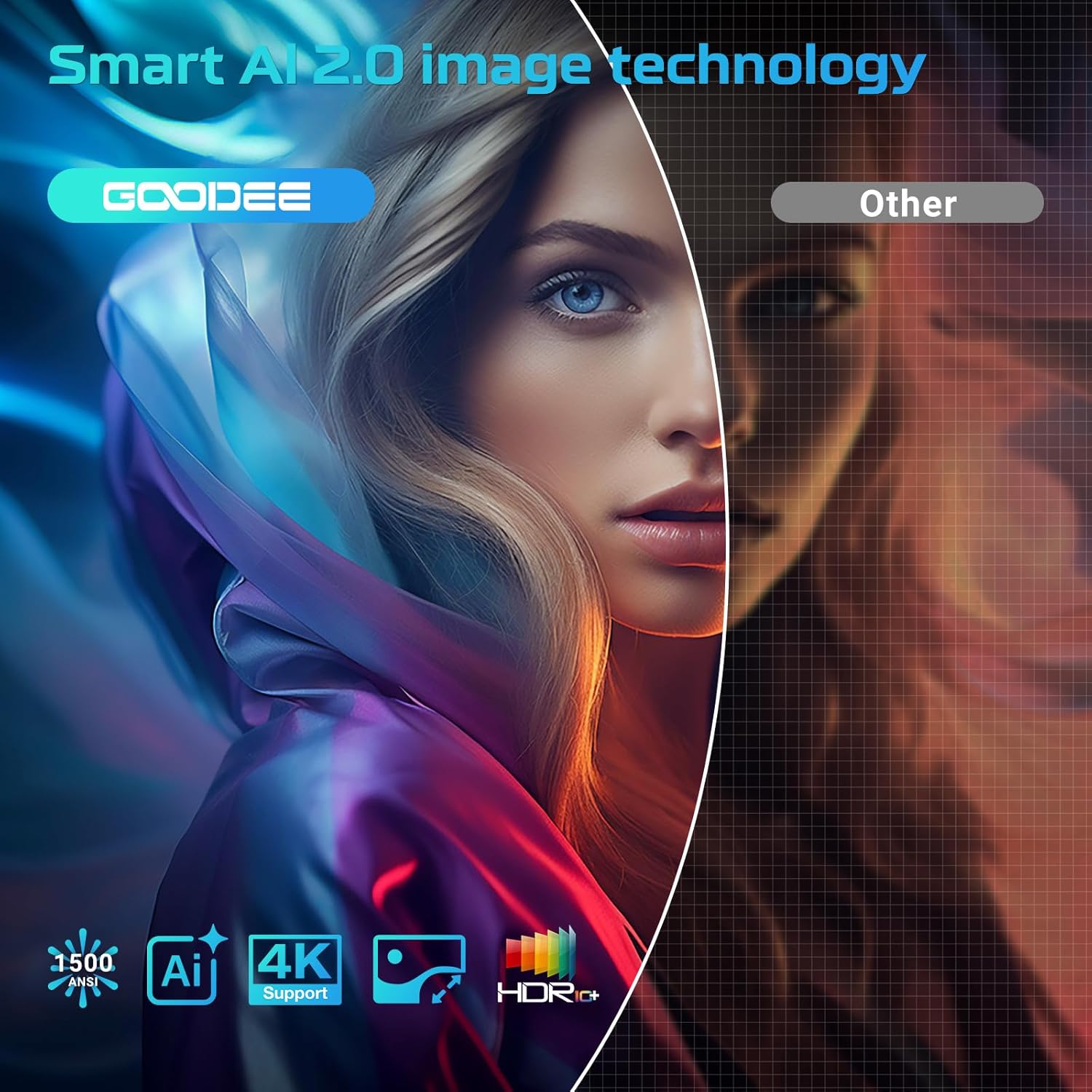
Imej: The projector demonstrating its AI Auto Focus and Auto Keystone Correction features, ensuring a clear and perfectly shaped image on the screen.
- The projector will automatically detect and correct image distortion and focus upon startup or movement.
- For manual adjustments, use the focus and keystone dials on the projector or the corresponding buttons on the remote control.
- Zoom & Shift: Adjust the screen size from 50% to 100% and reposition the image using the remote control settings.
4. Menyambung Peranti Luaran
- HDMI: Connect your device to the HDMI port. The projector will automatically switch to the HDMI input.
- USB: Insert a USB flash drive into a USB port. The media player app will usually launch automatically.
- Bluetooth: Navigate to the Bluetooth settings in the Google TV menu to pair with external Bluetooth speakers or headphones.
Arahan Operasi
Maksimumkan anda viewing experience with the projector's smart features.
Antara Muka Google TV
The projector comes with officially authorized Google TV, providing access to over 1,000,000 applications.
Video: An official GooDee video demonstrating the Google TV interface and its seamless navigation, highlighting the integration of various streaming services and apps.
- The home screen displays recommended content and your installed apps.
- Navigate using the directional pad on the remote control.
- Access the App Store to download additional applications.
AI Smart Voice Assistant
Use your voice to control the projector and access content quickly.

Imej: A user holding the remote control and speaking into it, demonstrating the AI Smart Voice Assistant feature to control the projector and search for content.
- Press and hold the voice control button (microphone icon) on your remote.
- Speak your command clearly, such as "Open Netflix," "Cari untuk movies," or "Adjust volume."
- The projector will execute the command or display relevant search results.
Aplikasi Penstriman
Enjoy a wide range of entertainment directly from your projector.
- Popular apps like YouTube, Prime Video, Hulu, and Disney+ are readily available.
- Ensure you are logged into your respective accounts for full access to content.
Image & Sound Settings
Sesuaikan anda viewpengalaman dalam dan mendengar.
Tetapan Gambar
- Access picture settings via the Google TV menu.
- Choose from preset modes: Standard, Vivid, Movie, or Game.
- Utilize the Custom mode to manually adjust Contrast, Saturation, Sharpness, Color Temperature, and Gamma.
Tetapan Bunyi

Imej: The projector highlighting its Bluetooth 5.2 and Dolby Audio capabilities, showing a cinematic setup with external speakers for an immersive sound experience.
- The projector features dual 15W speakers with Dolby Audio for 360° surround sound.
- Select from sound modes: Standard, Movie, Music, or Sport.
- Adjust advanced sound controls, including surround sound and expert settings.
Penyelenggaraan
Penyelenggaraan yang betul memastikan jangka hayat dan prestasi optimum projektor anda.
- Pembersihan Kanta: Use the provided lens cloth to gently wipe the projector lens. Avoid abrasive materials or harsh chemicals.
- Penyingkiran habuk: Regularly clean the air inlet and outlet vents to prevent dust buildup, which can affect performance and lead to overheating.
- Storan: When not in use, cover the lens with the provided lens cap and store the projector in a cool, dry place.
Menyelesaikan masalah
Rujuk bahagian ini untuk penyelesaian kepada isu biasa.
| Isu | Penyelesaian yang Mungkin |
|---|---|
| Imej Kabur | Adjust the focus manually using the dial or remote. Ensure the projector is placed at an optimal distance from the screen. |
| Distorted Image (Trapezoid) | Use the auto keystone correction feature or manually adjust keystone via the remote control settings. |
| Tiada Sambungan Wi-Fi | Check your Wi-Fi password and ensure the projector is within range of your router. Restart the projector and router if necessary. |
| Tiada Bunyi | Check volume levels on the projector and any connected external audio devices. Ensure correct audio output settings are selected. |
| Alat Kawalan Jauh Tidak Bertindak Balas | Ensure batteries are correctly inserted and charged. Re-pair the remote control if necessary (refer to remote's specific instructions). |
Spesifikasi
| Ciri | Perincian |
|---|---|
| Dimensi Produk | 16.9 x 31.6 x 12.7 inci |
| Berat Barang | 4.24 paun |
| Resolusi Paparan | 1920 x 1080 (Native 1080P, 4K support) |
| Teknologi Ketersambungan | Dual-Band Wi-Fi 6, Bluetooth 5.2, HDMI, USB, AV |
| Ciri Khas | Built-in Google TV, AI Smart Voice Assistant, Auto Focus, Auto Keystone Correction, Dolby Audio, 50%-100% Zoom |
| Penggunaan yang Disyorkan | Home Cinema, Indoor/Outdoor Entertainment |
Waranti dan Sokongan
For warranty information, technical support, or service inquiries, please refer to the contact details provided in your product packaging or visit the official GooDee webtapak.


