pengenalan
Thank you for choosing the ProtoArc KM310 Wireless Mechanical Keyboard and Mouse. This combo offers a responsive typing experience with low-profile linear red switches and versatile multi-device connectivity. The ergonomic mouse is designed for comfort and precision. This manual provides detailed instructions for setup, operation, maintenance, and troubleshooting to ensure optimal performance.
Apa yang ada dalam Kotak

Image: Contents of the ProtoArc KM310 package, including the keyboard, mouse, charging cable, and user manual.
- Papan Kekunci Mekanikal Wayarles ProtoArc KM310
- Tetikus Tanpa Wayar ProtoArc
- Kabel Pengecas USB-C
- Manual Pengguna
Produk Selesaiview
Ciri Papan Kekunci

Imej: Dari dekat view of the ProtoArc KM310 keyboard, highlighting its low-profile keys and linear red switches.
- Rendah-Profile Kunci Mekanikal: Equipped with linear red switches for a smooth, quiet, and responsive typing experience.
- Aluminum Top Case: Provides durability and a sleek, modern aesthetic.
- Kaki Tilt Boleh Laras: Ergonomically designed with 2-stage foot mats offering 6° and 9° tilt options for comfortable typing.
- Reka Letak Saiz Penuh: A 108-key layout suitable for office and business use.
Ciri Tetikus

Image: The ProtoArc KM310 mouse being held, showcasing its ergonomic design for a natural grip.
- 63G Ultra-Lightweight: Reduces hand fatigue during extended use and enhances portability.
- Reka bentuk ergonomik: Contoured shape for a comfortable and natural grip.
- DPI boleh laras: Three DPI levels (1000/1600/2400) for tailored control and precision.
- Klik Senyap: Direka untuk operasi yang senyap.
- Butang Maju/Mundur: Integrated for seamless browsing.
Ketersambungan & Kuasa
- Kesambungan Berbilang Peranti: Connects up to 3 devices via 2.4G USB receiver or Dual Bluetooth (BT1, BT2).
- Boleh dicas semula: Both keyboard and mouse feature Type-C charging. The mouse's USB receiver is stored on its bottom.
- Hayat Bateri yang Panjang: Up to 150-200 days standby time; 2-3 hours for a full charge.
Arahan Persediaan
1. Mengecas Peranti

Image: The keyboard and mouse are shown connected to power sources via USB-C cables for charging.
- Connect the provided USB-C charging cable to the charging port on the keyboard (located on the top edge) and the mouse (located on the front edge).
- Pasangkan hujung kabel yang satu lagi ke sumber kuasa USB (cth., port USB komputer, penyesuai dinding USB).
- The indicator lights will show charging status. Allow 2-3 hours for a full charge.
2. Menyambung ke Peranti

Image: A desk setup showing the ProtoArc KM310 keyboard and mouse connected to a laptop, monitor, and tablet, illustrating multi-device capability.
The KM310 combo supports three connection modes: 2.4G wireless via USB receiver, Bluetooth 1 (BT1), and Bluetooth 2 (BT2).
2.1. Sambungan Wayarles 2.4G
- Cari penerima USB yang disimpan di dalam petak di bahagian bawah tetikus.
- Palamkan penerima USB ke dalam port USB yang tersedia pada komputer anda.
- Hidupkan papan kekunci dan tetikus menggunakan suis kuasa masing-masing.
- The devices should connect automatically.
2.2. Sambungan Bluetooth (BT1 / BT2)
- Hidupkan papan kekunci dan tetikus.
- Pada papan kekunci, tekan butang BT1 or BT2 key (usually located on the number pad, indicated by orange keycaps) to select the desired Bluetooth channel. The indicator light will flash.
- On your device (computer, tablet, etc.), go to Bluetooth settings and search for "ProtoArc KM310 Keyboard" and "ProtoArc KM310 Mouse".
- Select the devices to pair. The indicator light will stop flashing once connected.
- Repeat for a second Bluetooth device using the other BT channel.
2.3. Bertukar Antara Peranti
To switch between connected devices, simply press the corresponding connection key on the keyboard (2.4G, BT1, or BT2) and the channel switch button on the bottom of the mouse.
Arahan Operasi
Penggunaan Papan Kekunci
- Menaip: Yang rendah-profile linear red switches provide a responsive and quiet typing experience.
- Keserasian Sistem Pengendalian: The keyboard is compatible with Windows and Mac OS. Keys like 'Win' and 'Alt' also show 'Option' and 'Cmd' for Mac users.
- Melaraskan Kecondongan: Use the adjustable tilt legs on the underside of the keyboard to set your preferred typing angle (6° or 9°).
Penggunaan Tetikus
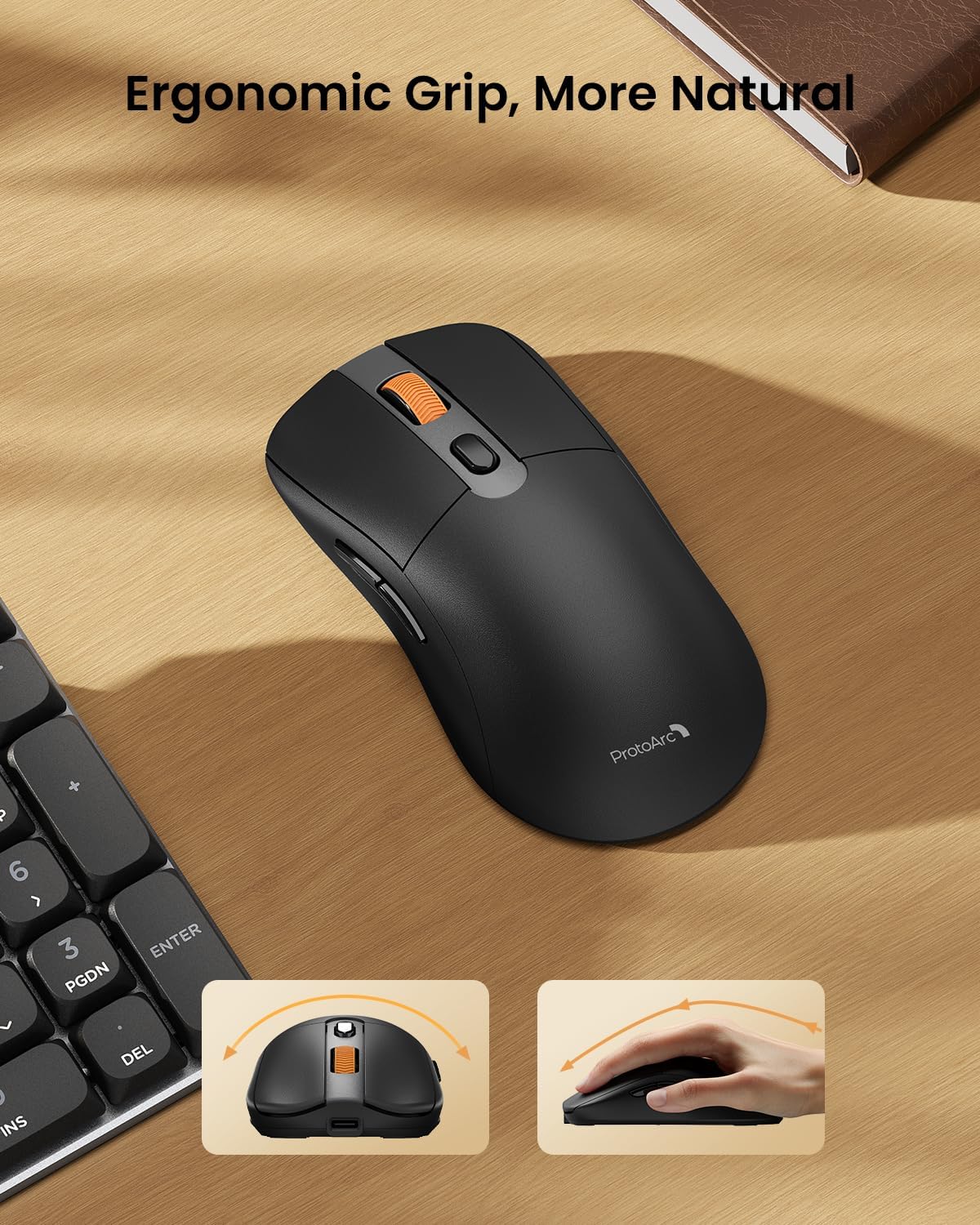
Image: A close-up of the ProtoArc KM310 mouse, illustrating the three adjustable DPI settings (1000, 1600, 2400).
- Pelarasan DPI: Press the DPI switch button (usually located near the scroll wheel) to cycle through the 3 DPI levels (1000/1600/2400) to match your preference for cursor speed and precision.
- Butang Navigasi: Gunakan butang ke hadapan dan ke belakang di sisi tetikus untuk navigasi pantas dalam web pelayar atau file penjelajah.
- Klik Senyap: Tetikus ini mempunyai butang klik senyap untuk persekitaran kerja yang senyap.
Penyelenggaraan
- Pembersihan: Gunakan kain lembut dan kering untuk mengelap papan kekunci dan tetikus. Untuk kotoran degil, gunakan sedikit kainamp kain dengan sabun lembut boleh digunakan, memastikan tiada cecair memasuki peranti.
- Penjagaan Bateri: Recharge the devices when the battery indicator is low. Avoid prolonged exposure to extreme temperatures.
- Storan: When not in use for extended periods, turn off the devices to conserve battery life. Store the USB receiver inside the mouse to prevent loss.
Menyelesaikan masalah
Keyboard/Mouse Not Turning On or Stopping Working
- Periksa Bateri: Ensure both the keyboard and mouse are sufficiently charged. Connect them to a power source using the USB-C cable.
- Pasangkan Semula Peranti:
- For 2.4G connection, ensure the USB receiver is securely plugged in and the devices are set to 2.4G mode.
- For Bluetooth connection, ensure the devices are set to the correct BT channel (BT1 or BT2) and re-pair them through your device's Bluetooth settings.
- Cuba Kabel Berbeza: If charging issues persist, try using a different USB-C cable to rule out a faulty cable.
- Gangguan: Move the devices closer to your computer or away from other wireless devices that might cause interference.
- Hubungi Sokongan: If the issue persists, please contact ProtoArc customer support for further assistance.
Spesifikasi
| Nombor Model | KM310 |
| Jenama | ProtoArc |
| warna | Kelabu Angkasa |
| Teknologi Ketersambungan | Bluetooth, USB (2.4G Wireless) |
| Ciri Khas | Pro Rendahfile Keys, Linear Red Switches, Ergonomic Design, Ultra-Light Mouse, Ergonomic Mouse |
| Peranti Serasi | Laptop, Personal Computer, Tablet (Windows 7/8/10, Mac OS X 10.12, Android 4.3 or higher) |
| Berat Barang | 2.31 paun |
| Dimensi Pakej | 17.68 x 8.07 x 2.05 inci |
Waranti & Sokongan
The ProtoArc KM310 Mechanical Keyboard and Mouse combo comes with a Waranti 2 Tahun.
For any questions, technical support, or warranty claims, please contact ProtoArc customer service:
- e-mel: support@protoarc.com
- telefon: +1 866-287-8188
Video Produk Rasmi
Video: Tayangan video produk rasmicasing the features and design of the ProtoArc KM310 Aluminum Mechanical Keyboard and Mouse.


