pengenalan
This manual provides essential information for setting up, operating, maintaining, and troubleshooting your HP ProStudio 4 AiO G1i All-in-One Computer. This system integrates a powerful Intel Core Ultra 5 processor, 16 GB DDR5 RAM, and a 512 GB NVMe SSD into a compact 23.8-inch Full HD display, running on Windows 11 Pro. It is designed for business use, offering advanced performance and security features.
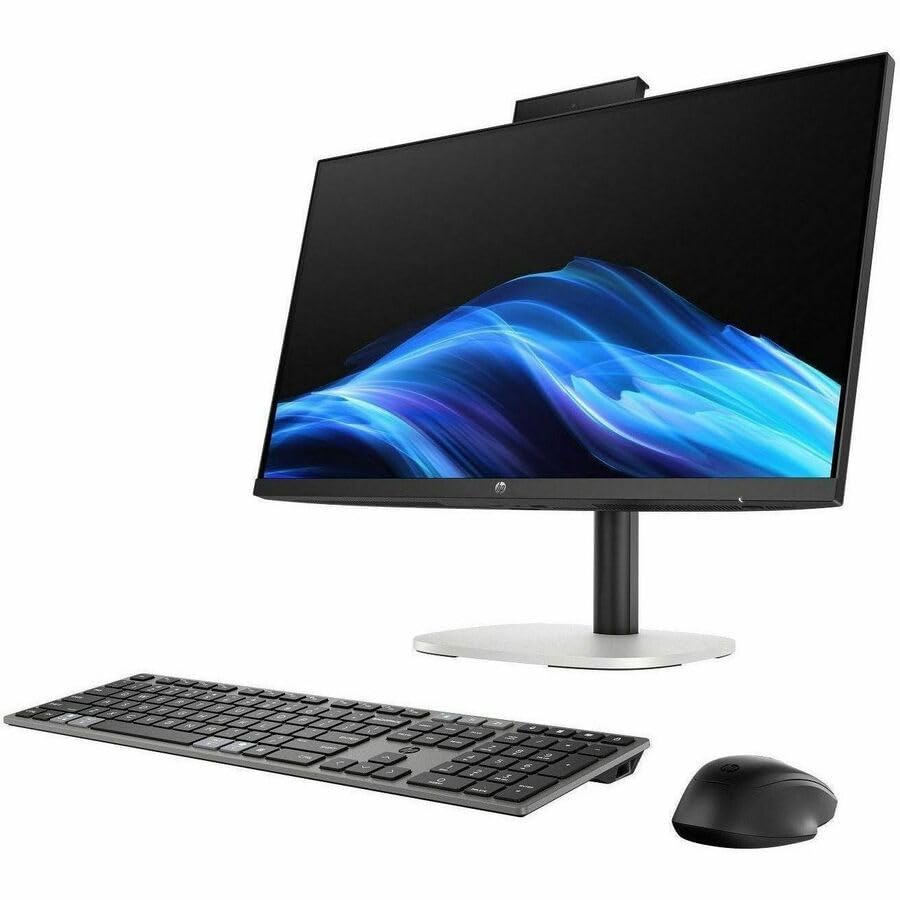
Imej: Depan view of the HP ProStudio 4 AiO G1i All-in-One Computer, showcasing reka bentuknya yang anggun.
Apa yang ada dalam Kotak
Sahkan bahawa semua komponen terdapat dalam pembungkusan sebelum meneruskan dengan persediaan.
- HP ProStudio 4 All-in-One G1i 23.8 inch Desktop AI PC Wolf Pro Security Edition
- Penyesuai Kuasa
- HP 125 v2 Wired Keyboard
- Tetikus Berwayar HP 125

Image: The HP ProStudio 4 AiO G1i All-in-One Computer displayed with its accompanying wired keyboard and mouse.
Arahan Persediaan
- Buka pembungkusan Sistem: Carefully remove the All-in-One computer and all accessories from the packaging. Place the computer on a stable, flat surface.
- Sambungkan Papan Kekunci dan Tetikus: Plug the USB cables from the HP 125 v2 Wired Keyboard and HP 125 Wired Mouse into the available USB ports on the rear of the All-in-One computer.
- Sambungkan Kuasa: Connect the power adapter cable to the power input port on the rear of the computer, then plug the power adapter into a wall outlet.
- Hidupkan kuasa: Press the power button, typically located on the side or bottom edge of the display, to turn on the computer.
- Persediaan Awal: Ikut arahan pada skrin untuk melengkapkan persediaan awal Windows 11 Pro, termasuk pemilihan bahasa, sambungan rangkaian dan penciptaan akaun pengguna.

Imej: Belakang view of the HP ProStudio 4 AiO G1i, highlighting the various input/output ports for connecting peripherals and power.
Arahan Operasi
Hidupkan/Mati Kuasa
- Untuk Menghidupkan: Press the power button. The system will boot up to the Windows 11 Pro desktop.
- Untuk Mematikan: Klik butang Mula, kemudian Kuasa, dan pilih "Matikan."
- Untuk Mulakan Semula: Klik butang Mula, kemudian Kuasa, dan pilih "Mulakan semula."
- Untuk Tidur: Click the Start button, then Power, and select "Sleep."
Menggunakan Windows 11 Pro
Your HP ProStudio 4 AiO G1i comes pre-installed with Windows 11 Pro. Familiarize yourself with the operating system's interface, including the Start menu, taskbar, and settings. For detailed information on Windows 11 Pro features, refer to the official Microsoft documentation.
AI Capabilities and vPro Technology
This system features an Intel Core Ultra 5 processor with integrated AI capabilities, designed to enhance performance for AI-driven applications and tasks. Intel vPro Technology provides hardware-enhanced security and manageability features, ideal for business environments. Consult your IT administrator for specific vPro functionalities within your organization.

Image: Two individuals interacting with the HP ProStudio 4 AiO G1i in a professional office environment, demonstrating its use in collaborative settings.
Penyelenggaraan
- Membersihkan Paparan: Gunakan kain lembut dan tidak berbulu sedikit dampened with water or a non-abrasive screen cleaner. Avoid spraying liquids directly onto the screen.
- Cleaning the Chassis: Wipe the exterior surfaces with a soft, dry cloth. Do not use harsh chemicals or abrasive materials.
- Kemas Kini Perisian: Regularly check for and install Windows updates and HP driver updates to ensure optimal performance and security.
- Pengudaraan: Ensure that the ventilation openings on the computer are not blocked to prevent overheating.
Menyelesaikan masalah
Isu dan Penyelesaian Biasa
- Tiada Kuasa:
- Verify the power adapter is securely connected to both the computer and a working electrical outlet.
- Uji saluran keluar dengan peranti lain.
- Tiada Paparan:
- Pastikan komputer dihidupkan.
- Adjust the display brightness settings.
- If an external monitor is connected, ensure it is properly configured.
- Papan Kekunci/Tetikus Tidak Membalas:
- Check USB cable connections to the computer.
- Try connecting the keyboard/mouse to different USB ports.
- Mulakan semula komputer.
- Kelembapan Sistem:
- Tutup aplikasi yang tidak perlu.
- Check for background processes consuming high resources using Task Manager.
- Pastikan ruang kosong yang mencukupi pada SSD.
- Run a system scan for malware.
Spesifikasi
| Ciri | Perincian |
|---|---|
| Nombor Model | C72RZUT#ABA |
| Saiz Paparan | 23.8 Inci |
| Resolusi Skrin | 1920 x 1080 (HD Penuh) |
| Pemproses | Intel Core Ultra 5 (Tetradeca-core, 14 Core), 5 GHz |
| RAM | 16 GB DDR5 |
| Penyimpanan | 512 GB PCI Express NVMe SSD |
| Grafik | Bersepadu |
| Sistem Operasi | Windows 11 Pro |
| Kesambungan Wayarles | 802.11ax, Bluetooth |
| Dimensi (LxWxH) | 18.7 x 7.9 x 29.3 inci |
| Berat Barang | 13.89 paun |
Waranti dan Sokongan
Your HP ProStudio 4 AiO G1i All-in-One Computer is covered by HP's standard warranty. For detailed warranty information, please refer to the warranty documentation included with your product or visit the official HP support webtapak.
For technical assistance, driver downloads, or further support, please visit the HP support website or contact HP customer service. Have your product model number (C72RZUT#ABA) and serial number ready when contacting support.