1. Produk Lebihview
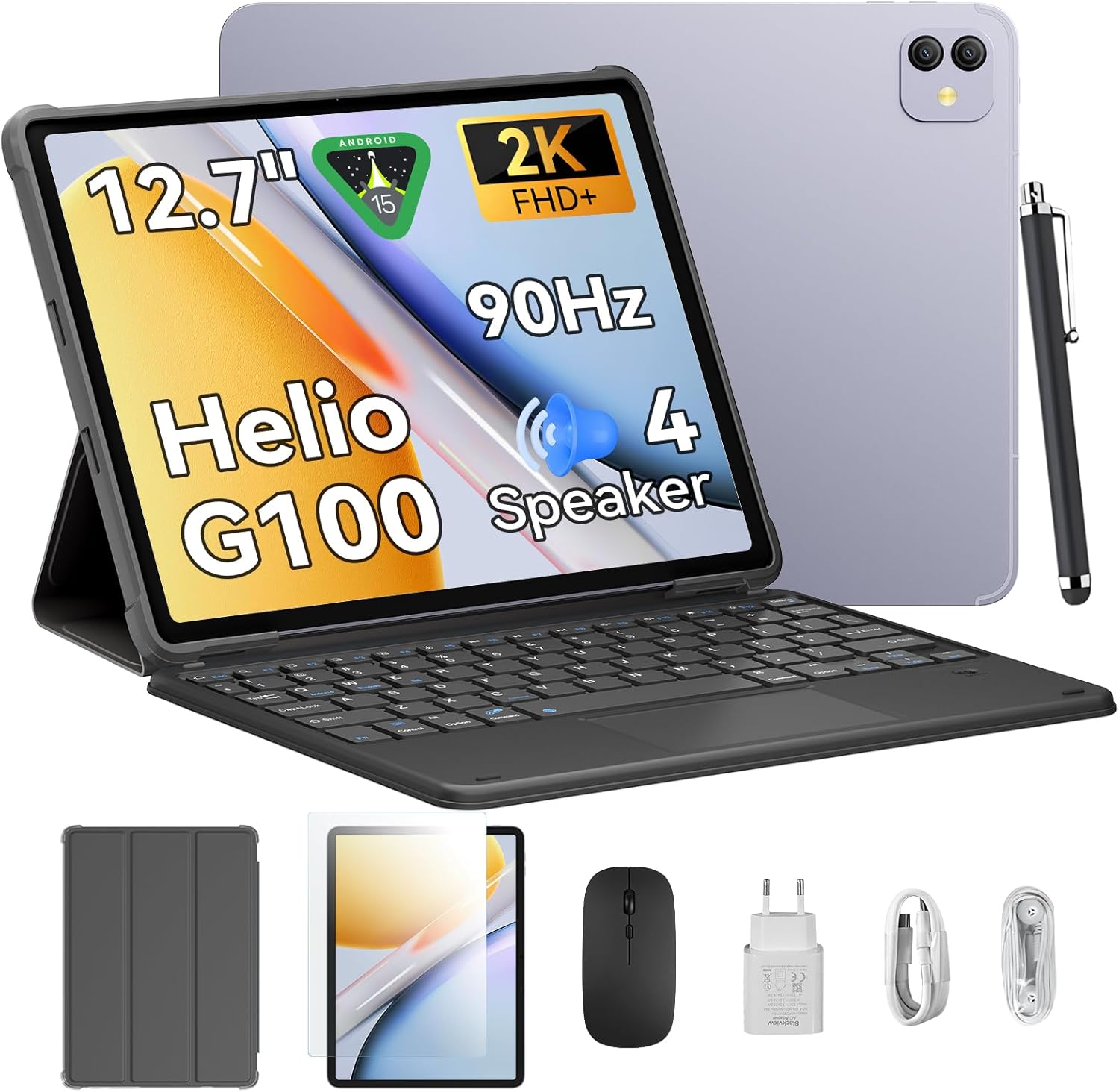
Si Hitamview Link8 is a 12.7-inch Android 15 tablet designed for versatile use, from entertainment to productivity. It features a 2K+ 90Hz display, a Helio G100 Octa-Core processor, up to 18GB RAM (6GB physical + 12GB virtual), 256GB internal storage, and an 8400mAh battery. The tablet comes with a 16MP camera and supports 2.4G/5G WiFi and GPS. Included accessories enhance its functionality, making it suitable for various tasks.
2. Persediaan
2.1 Membuka Kotak dan Pemeriksaan Awal
Keluarkan semua item dari bungkusan dengan berhati-hati. Sahkan bahawa semua komponen hadir:
- Hitamview Link8 Tablet
- papan kekunci
- Stylus
- tetikus
- Penyesuai Kuasa
- Kabel USB-C
- fon telinga
- Kes Pelindung
- Pelindung Skrin
Inspect the tablet and accessories for any visible damage.
2.2 Mengecas Tablet
Before first use, fully charge the tablet. Connect the USB-C cable to the tablet's charging port and the power adapter. Plug the adapter into a wall outlet. The charging indicator will typically appear on the screen.
2.3 Menghidupkan/Mematikan
- Untuk Menghidupkan: Press and hold the Power button (usually located on the side) until the Blackview logo muncul di skrin.
- Untuk Mematikan: Press and hold the Power button until the power options menu appears. Select "Power off."
- Untuk Mulakan Semula: From the power options menu, select "Restart."
2.4 Persediaan Awal
Setelah dihidupkan pertama, tablet akan membimbing anda melalui proses persediaan awal:
- Pilih bahasa pilihan anda.
- Sambung ke rangkaian Wi-Fi.
- Review dan terima terma dan syarat.
- Sign in with your Google account or create a new one. This is essential for downloading apps from the Google Play Store.
- Sediakan kunci skrin (PIN, corak, kata laluan atau cap jari).
- Pulihkan data daripada peranti sebelumnya (pilihan).
2.5 Menyambung Aksesori
Si Hitamview Link8 supports various accessories for enhanced productivity:
- papan kekunci: The included keyboard typically connects via Bluetooth. Enable Bluetooth on your tablet (Settings > Connected devices > Bluetooth), put the keyboard in pairing mode, and select it from the list of available devices.
- Stylus: The stylus may connect via Bluetooth or be passive. Refer to the stylus-specific instructions for pairing if required.
- tetikus: The included mouse usually connects via Bluetooth. Follow the same Bluetooth pairing steps as for the keyboard.
3. Arahan Operasi
3.1 Navigasi Asas
- Gerak isyarat sentuh: Ketik untuk memilih, leret untuk menatal, cubit untuk mengezum.
- Skrin Utama: Access apps, widgets, and customize layout.
- Panel Pemberitahuan: Leret ke bawah dari bahagian atas skrin ke view pemberitahuan dan tetapan pantas.
- Laci Apl: Leret ke atas dari bahagian bawah skrin untuk mengakses semua aplikasi yang dipasang.
3.2 Tetapan Paparan
Navigasi ke Tetapan > Paparan to adjust:
- Kecerahan: Manually adjust or enable adaptive brightness.
- Kadar Segar Semula: The tablet supports a 90Hz refresh rate for smoother visuals. You can often switch between standard (60Hz) and high (90Hz) refresh rates to balance performance and battery life.
- Resolusi Skrin: The 2K+ display offers high clarity. Resolution settings are usually automatic but can sometimes be adjusted.
- Tema Gelap: Enable for a darker interface, which can reduce eye strain and save battery.
3.3 Prestasi dan Penyimpanan
The tablet is powered by the Helio G100 Octa-Core processor and features 6GB of physical RAM, expandable with up to 12GB of virtual RAM for a total of 18GB. It includes 256GB of internal storage. To optimize performance:
- Tutup aplikasi yang tidak digunakan yang berjalan di latar belakang.
- Regularly clear cache for apps.
- Urus storan dengan memadam yang tidak perlu files or moving them to cloud storage.
3.4 Ketersambungan
- Wi-Fi: Supports 2.4G and 5G networks for stable and fast internet access. Connect via Tetapan > Rangkaian & Internet > Wi-Fi.
- Bluetooth: For connecting wireless accessories like headphones, keyboards, and mice. Enable via Tetapan > Peranti yang disambungkan > Bluetooth.
- GPS: The tablet includes GPS for location services and navigation. Ensure location services are enabled in Tetapan> Lokasi.
3.5 Penggunaan Kamera
The tablet is equipped with a 16MP camera. Open the Camera app to take photos or record videos. Explore various modes and settings available within the app.
3.6 Audio
The tablet features quad stereo speakers for an immersive audio experience. Adjust volume using the physical volume buttons or through Tetapan > Bunyi & getaran.
3.7 Pengurusan Bateri
Bateri 8400mAh menyediakan penggunaan yang lebih lama. Untuk memaksimumkan hayat bateri:
- Kurangkan kecerahan skrin.
- Lumpuhkan Wi-Fi, Bluetooth dan GPS apabila tidak digunakan.
- Tutup aplikasi latar belakang.
- Enable battery saver mode (Tetapan > Bateri).
4. Penyelenggaraan
4.1 Membersihkan Tablet
Gunakan kain lembut dan tidak berbulu untuk membersihkan skrin dan badan tablet. Untuk calitan degil, sedikit dampen kain dengan air atau larutan pembersih skrin. Elakkan bahan kimia yang keras atau bahan yang melelas.
4.2 Kemas Kini Perisian
Semak dan pasang kemas kini perisian secara kerap untuk memastikan prestasi optimum, keselamatan dan akses kepada ciri baharu. Pergi ke Tetapan > Sistem > Kemas kini sistem.
4.3 Pengurusan Storan
Semula secara berkalaview your tablet's storage usage (Tetapan > Storan). Delete unnecessary apps, photos, videos, and files to free up space and maintain performance.
4.4 Penjagaan Bateri
To prolong battery lifespan, avoid extreme temperatures and do not leave the tablet fully charged or fully discharged for extended periods.
5. Penyelesaian masalah
This section addresses common issues you might encounter with your Blackview Link8 tablet.
5.1 Tablet Tidak Dihidupkan
- Ensure the tablet is charged. Connect it to the charger and wait a few minutes before attempting to power on.
- Tekan dan tahan butang Kuasa selama sekurang-kurangnya 10-15 saat untuk memaksa mulakan semula.
5.2 Skrin Tidak Responsif
- Restart the tablet by holding the Power button.
- If the screen is completely frozen, perform a force restart (see 5.1).
5.3 Isu Sambungan Wi-Fi
- Ensure Wi-Fi is enabled on the tablet.
- Mulakan semula penghala Wi-Fi anda.
- Forget the network (Tetapan > Rangkaian & Internet > Wi-Fi, tap on network, then "Forget") and reconnect.
5.4 Prestasi Perlahan
- Tutup apl yang tidak digunakan.
- Kosongkan cache aplikasi (Tetapan > Apl > [Nama Apl] > Storan & cache > Kosongkan cache).
- Check available storage and free up space if necessary.
- Mulakan semula tablet.
5.5 Tetapan Semula Kilang (Pilihan Terakhir)
Jika masalah berterusan, tetapan semula kilang mungkin dapat menyelesaikannya. Amaran: Ini akan memadamkan semua data pada tablet anda. Sandarkan data penting sebelum meneruskan.
Pergi ke Tetapan > Sistem > Tetapkan semula pilihan > Padam semua data (tetapan semula kilang). Ikut gesaan pada skrin.
6. Spesifikasi
| Ciri | Spesifikasi |
|---|---|
| Nama Model | Pautan8 |
| Sistem Operasi | Android 15 |
| Saiz Skrin | 12.7 Inci |
| Resolusi Skrin Maks | 2160*1600 Pixels (2K+) |
| Kadar Segar Semula | 90Hz |
| Pemproses | Helio G100 Octa-Core |
| RAM | 6GB (boleh dikembangkan kepada 18GB dengan RAM maya) |
| Storan Dalaman | 256GB |
| Kapasiti Bateri | 8400mAh |
| Purata Hayat Bateri | 24 Jam (bergantung kepada penggunaan) |
| Kamera | 16MP |
| Ketersambungan | 2.4G/5G WiFi, Bluetooth, GPS |
| Dimensi Produk (LxWxH) | 8 x 11.1 x 0.33 inci |
| Berat Barang | 4.77 paun |
7. Waranti dan Sokongan
7.1 Maklumat Waranti
Please refer to the warranty card included with your product or visit the official Blackview website for detailed warranty terms and conditions. Standard warranty typically covers manufacturing defects for a specified period from the date of purchase.
7.2 Sokongan Pelanggan
For technical assistance, troubleshooting beyond this manual, or warranty claims, please contact Blackview customer support. You can usually find contact information on the official Blackview webtapak atau melalui peruncit tempat anda membeli produk tersebut.
Lawati Hitamview Kedai di Amazon untuk mendapatkan lebih banyak maklumat produk dan sumber sokongan.


