1. Pengenalan
This manual provides essential instructions for the setup, operation, and maintenance of your Blackview MP60 Mini PC. Please read this guide thoroughly before using the device to ensure optimal performance and longevity. The Blackview MP60 is a compact desktop computer designed for various applications, including home office, business, education, and multimedia entertainment.

Imej: Depan view daripada Hitamview MP60 Mini PC, highlighting its compact design and Intel N150 processor branding.
2. Apa yang ada di dalam Kotak
Sahkan bahawa semua item terdapat dalam pakej:
- 1 x Hitamview PC Mini MP60
- 1 x Penyesuai kuasa
- 1 x kabel HDMI
- 1 x Manual pengguna (dokumen ini)
- 1 x VESA mount with screws
3. Produk Lebihview
3.1 Ciri-ciri Utama
- Pemproses: Intel N150 (4 Cores, 4 Threads, up to 3.6GHz)
- Ingatan: 16GB DDR4 RAM (Dual Channel SODIMM DDR4, Max 32GB Expansion Support)
- Storan: 512GB PCIe SSD (Max 2TB expansion via M.2 SSD or 2.5" SATA HDD/SSD)
- Sistem pengendalian: Prapasang Windows 11 Pro
- Grafik: Intel UHD Graphics, supporting Dual 4K@60Hz display output
- Ketersambungan: Wi-Fi 5 (802.11ac), Gigabit Ethernet, Bluetooth 4.2
- Pelabuhan: 2x USB 3.0, 2x USB 2.0, 2x HDMI, 1x RJ45 LAN, 1x DC Jack, 1x 3.5mm Audio Jack
- Reka bentuk: Ultra-compact (5" × 5" × 2", 0.86 lbs), VESA mount compatible
- penyejukan: Efficient cooling system with a whisper-quiet fan (<38dB under demanding tasks)

Image: An infographic detailing the Blackview MP60's core specifications: Intel N150 processor, 16GB DDR4 RAM, 512GB SSD, Windows 11, multi-port design, ultra-compact size, silent operation, and efficient heat dissipation.
3.2 Pelabuhan dan Penunjuk
Familiarize yourself with the available ports and indicators on your Mini PC:
- Panel Depan: Power button, 2x USB 3.0 ports, 2x USB 2.0 ports, 3.5mm Audio Jack (Headphone/Microphone combo)
- Panel belakang: DC Power Input, 2x HDMI ports, 1x RJ45 Gigabit Ethernet port
- Penunjuk LED: Blue for power-on, Red for sleep mode.

Image: A visual representation of the Blackview MP60's front and rear ports, including USB, HDMI, LAN, DC power, and audio jack.
4. Panduan Persediaan
4.1 Sambungan Awal
- Paparan Sambungkan: Use the provided HDMI cable to connect the Mini PC to your monitor or TV. The MP60 supports dual displays; connect a second monitor if desired.
- Sambung Peranti: Plug in your USB keyboard and mouse to the available USB ports.
- Sambungkan Kuasa: Sambungkan penyesuai kuasa ke port input DC pada Mini PC, kemudian pasangkan penyesuai ke soket kuasa.
- Sambungan Rangkaian (Pilihan): For a wired internet connection, connect an Ethernet cable to the RJ45 LAN port. For wireless, Wi-Fi will be configured during the initial Windows setup.
4.2 But Pertama dan Persediaan Windows
- Press the power button on the front of the Mini PC. The LED indicator will turn blue.
- Follow the on-screen instructions to complete the Windows 11 Pro initial setup. This includes selecting your region, keyboard layout, connecting to a Wi-Fi network (if not using Ethernet), and creating a user account.
- Once setup is complete, your Blackview MP60 Mini PC is ready for use.
4.3 Pemasangan Pemasangan VESA (Pilihan)
The included VESA mount allows you to attach the Mini PC to the back of a compatible monitor or to a wall mount.
- Attach the VESA bracket to the back of your monitor using the provided screws. Ensure the monitor has standard VESA mounting holes.
- Slide the Blackview MP60 Mini PC onto the mounted bracket until it clicks securely into place.

Imej: Si Hitamview MP60 Mini PC demonstrating its small form factor and how it can be discreetly mounted behind a monitor using the VESA bracket.
5. Arahan Operasi
5.1 Mod Hidup/Mati dan Tidur
- Hidupkan kuasa: Press the power button. The LED will turn blue.
- Mod tidur: Briefly press the power button or select 'Sleep' from the Windows Start menu. The LED will turn red.
- Tutup: Pilih 'Tutup' daripada menu Mula Windows.
- Force Shut Down: If the system is unresponsive, press and hold the power button for approximately 5-10 seconds until the device powers off. Use this only as a last resort.
5.2 Menyambung Peranti
Utilize the various ports to connect your devices:
- Peranti USB: Connect external hard drives, USB flash drives, printers, or other USB accessories to the USB 3.0 or USB 2.0 ports.
- Peranti Audio: Sambungkan fon kepala atau pembesar suara luaran ke bicu audio 3.5mm.
- Peranti Bluetooth: Pair Bluetooth-enabled keyboards, mice, headphones, or other devices via Windows Bluetooth settings.
5.3 Persediaan Paparan Dwi
Si Hitamview MP60 supports two 4K displays simultaneously via its two HDMI ports, enhancing productivity for tasks like financial analysis, creative design, or coding.
- Connect both monitors to the HDMI ports on the Mini PC.
- In Windows, right-click on the desktop and select 'Display settings'.
- Configure your display preferences (e.g., extend desktop, duplicate displays) as needed.

Image: A workstation featuring two 4K monitors connected to the Blackview MP60, illustrating its dual display capability for enhanced multitasking.
5.4 Pengembangan Storan
Si Hitamview MP60 allows for easy storage expansion:
- The device supports an additional 2.5-inch SATA HDD/SSD (256GB/512GB/up to 2TB).
- To install, carefully remove the bottom cover of the Mini PC.
- Connect the 2.5-inch drive to the SATA connector and secure it in the designated bay.
- Reattach the bottom cover.

Imej: Meletup view illustrating the removable storage base and the process of installing an additional 2.5-inch SATA HDD/SSD into the Blackview MP60 Mini PC.
6. Penyelenggaraan
6.1 Pembersihan
- Bersihkan bahagian luar Mini PC dengan kerap menggunakan kain lembut dan kering.
- Use compressed air to gently clear dust from ventilation openings to maintain optimal airflow and cooling efficiency.
- Do not use liquid cleaners or solvents directly on the device.
6.2 Kemas Kini Perisian
- Keep your Windows 11 Pro operating system updated to ensure security and performance. Access Windows Update through 'Settings > Windows Update'.
- Regularly update device drivers (e.g., graphics, chipset) from the Blackview sokongan website or through Windows Update.
6.3 Pelesapan Haba
Si Hitamview MP60 features an efficient cooling system. To ensure proper heat dissipation:
- Ensure the Mini PC is placed in a well-ventilated area.
- Jangan sekat bukaan pengudaraan.
- Avoid placing the device on soft surfaces that can obstruct airflow.
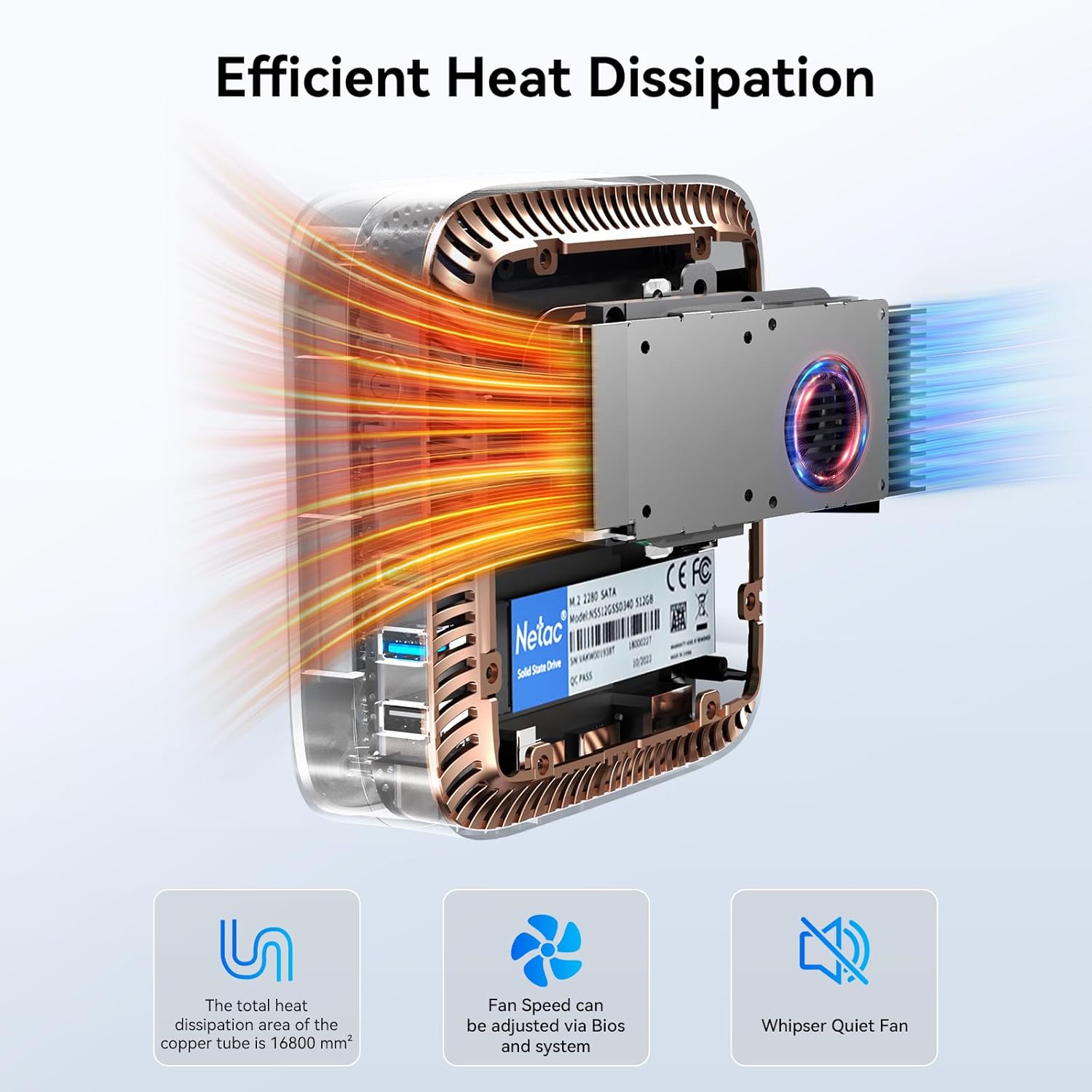
Imej: Satu dalaman view daripada Hitamview MP60, highlighting its efficient cooling system with a copper tube and fan designed for optimal heat dissipation.
7. Penyelesaian masalah
This section addresses common issues you might encounter with your Blackview MP60 Mini PC.
| Masalah | Kemungkinan Punca | Penyelesaian |
|---|---|---|
| Tiada paparan pada monitor | Kabel HDMI longgar, sumber input pada monitor salah, masalah kuasa. | Check HDMI cable connections. Ensure monitor is on and set to the correct input. Verify power adapter is securely connected to both the PC and outlet. |
| Mini PC does not power on | No power, faulty power adapter. | Ensure power adapter is correctly connected and the power outlet is functional. Try a different power outlet. |
| Tiada output audio | Incorrect audio settings, loose cable, driver issue. | Check audio cable connections. Verify audio output device in Windows Sound settings. Update audio drivers if necessary. |
| Slow Wi-Fi connection | Weak signal, router issues, interference. | Ensure the Mini PC is within range of your Wi-Fi router. Restart your router. Check for other devices causing interference. Consider a wired Ethernet connection for maximum speed. |
| Sistem membeku atau ranap | Overheating, software conflict, insufficient resources. | Ensure proper ventilation. Close unnecessary applications. Check for Windows updates and driver updates. If persistent, consider a system restore or reinstall. |
8. Spesifikasi
Detailed technical specifications for the Blackview MP60 Mini PC:
| Ciri | Perincian |
|---|---|
| Pemproses | Intel N150 (3.6 GHz Celeron) |
| RAM | 16 GB DDR4 SDRAM |
| Penyimpanan | 512 GB SSD (Expandable up to 2TB) |
| Pemproses bersama Grafik | Intel Processor N150 (Integrated) |
| Sistem Operasi | Windows 11 Pro |
| Resolusi Skrin Maks | 4096 x 2160 Piksel (4K) |
| Jenis Wayarles | Wi-Fi 5 (802.11ac), Bluetooth 4.2 |
| Port USB | 2x USB 3.0, 2x USB 2.0 |
| Output Video | 2x HDMI |
| LAN | Gigabit Ethernet |
| Berat Barang | 2.38 paun (kira-kira 1.08 kg) |
| Dimensi Pakej | 9.76 x 7.63 x 2.59 inci |
| warna | Hitam |
9. Waranti dan Sokongan
Hitamview provides comprehensive support for your MP60 Mini PC:
- Waranti 3 Tahun Tanpa Risau: Hitam Andaview MP60 Mini PC is covered by an industry-leading 3-year warranty.
- Sokongan Teknikal Seumur Hidup: Access to dedicated technical support for the lifetime of your product.
- USA Support: Dedicated support services available in the USA.
- Sokongan Selepas jualan: For any questions or issues, contact Blackview customer service through your purchase platform's "Account Service" or "Order History." Responses are typically provided within 24 hours.

Image: An infographic detailing Blackview's after-sales support, including 3 years of quality support, 24-hour customer service, and lifetime technical support.


