1. Pengenalan
Thank you for choosing the SGIN C10 10.1-inch Kids Tablet. This device is designed to provide an engaging and safe digital experience for children, featuring parental controls and educational content. This manual will guide you through the setup, operation, and maintenance of your tablet to ensure optimal performance and user safety.
2. Produk Lebihview
2.1 Kandungan Pakej
Selepas membongkar, sila pastikan semua item yang disenaraikan di bawah ada:
- SGIN C10 10.1-inch Tablet
- Kes Pelindung
- Pengecas
- Kabel USB
- Manual Arahan

Image: Diagram showing the tablet's ports and buttons, along with the included accessories: tablet, protective case, charger, USB cable, and instruction manual.
2.2 Komponen Tablet
Familiarize yourself with the physical components of your SGIN C10 tablet:
- Butang Kuasa: Located on the side, used to turn the tablet on/off or put it to sleep.
- Butang Kelantangan: Laraskan tahap output audio.
- Jack fon kepala: Untuk menyambungkan fon kepala berwayar.
- Port USB: Untuk pengecasan dan pemindahan data.
- Slot Kad TF: For expanding storage with a microSD card.
- Kamera Depan: Untuk panggilan video dan swafoto.
- Kamera Belakang: Untuk mengambil gambar dan video.
- Penceramah: Untuk output audio.
- Skrin Sentuh HD IPS 10.1-inci: Paparan utama untuk interaksi.
- Sarung Pelindung dengan Penyangga: Provides protection and allows for hands-free viewing.
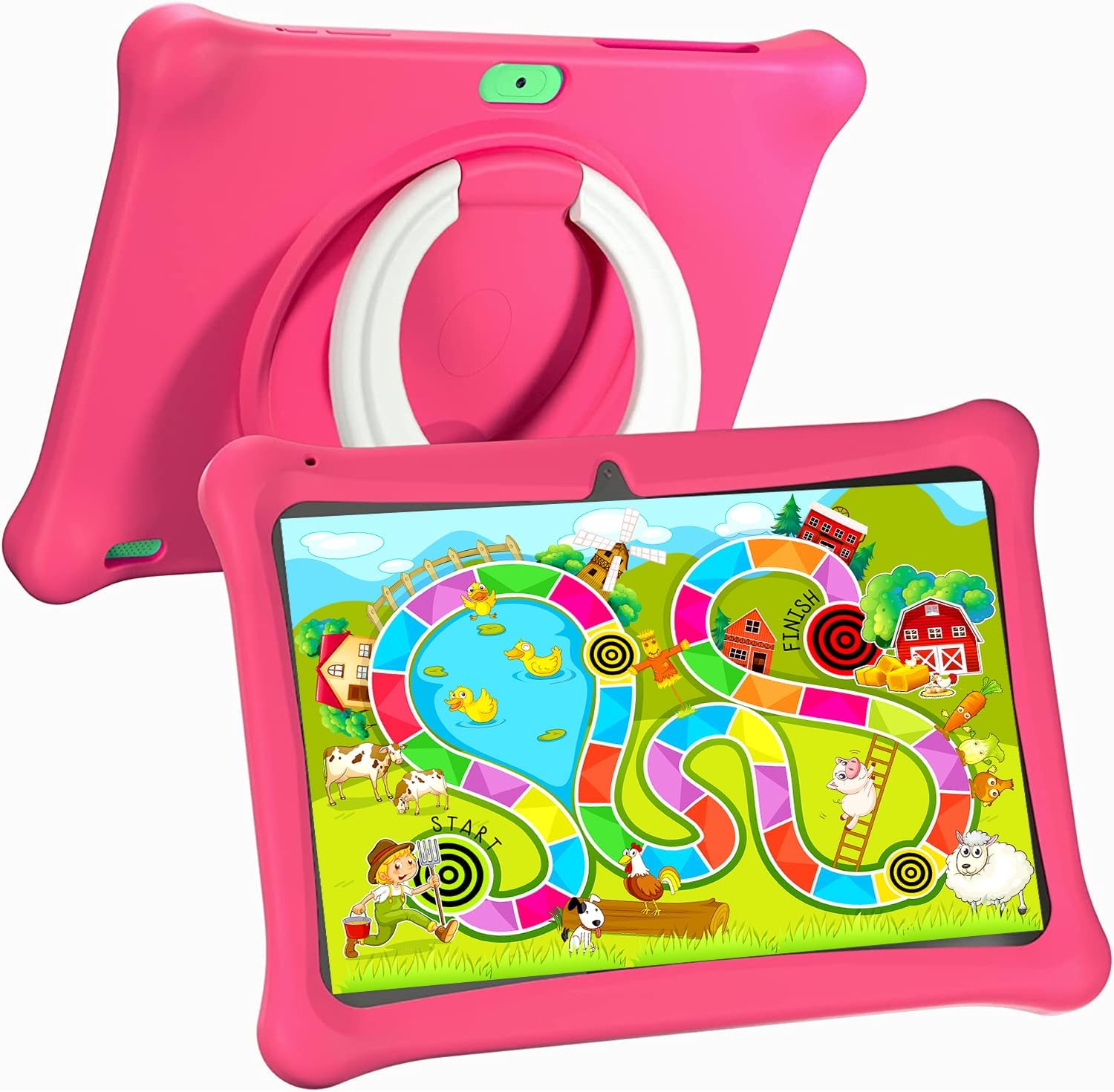
Image: The SGIN C10 tablet in its pink protective case, displaying a colorful educational game on its screen. The rear of the tablet shows the integrated stand.
2.3 Ciri-ciri Utama
- Prestasi Tinggi: Equipped with a 1.6GHz quad-core processor, 2GB RAM, and 32GB ROM (expandable up to 32GB via TF card).
- Kid-Proof Case: Durable pink case designed to protect against dust, bumps, and drops, with heat dissipation features.
- Pre-installed iWawa Kid's Software: Offers a safe and entertaining environment with thousands of free educational games and apps.
- Parental Control System: Allows parents to manage screen time, content, and user accounts.
- Hayat Bateri yang Panjang: 5000mAh lithium battery provides 6-8 hours of usage.
- Eye Protection Screen: 1280*800 HD IPS touch screen for vibrant colors and comfortable viewing.
- Dwi Kamera: 2MP front camera and 5MP rear camera for photos and videos.

Image: Icons representing key features of the SGIN C10 tablet: Android 12, Quad-core processor, Dual Camera, 5000mAh battery, WiFi, HD Display, 2GB RAM + 32GB storage, 10 Inch screen, and Parental Control.

Image: Visual representation of the tablet's 2GB RAM and 32GB ROM (expandable via TF card), alongside a diagram of the 1.6 GHz Quad-core Processor.

Image: The 10-inch HD display showing vibrant content, and a close-up of the protective case's rotatable stand.

Image: A child using the tablet, highlighting the 5000mAh Lithium Battery, and a close-up of the tablet's dual camera system.
3. Persediaan
3.1 Pengecasan Awal
- Connect the USB cable to the tablet's USB port.
- Sambungkan hujung kabel USB yang satu lagi ke pengecas yang disediakan.
- Palamkan pengecas ke salur keluar kuasa.
- Biarkan tablet dicas sepenuhnya sebelum penggunaan pertama. Penunjuk bateri pada skrin akan menunjukkan status pengecasan.
3.2 Menghidupkan/Mematikan
- Untuk Menghidupkan: Press and hold the Power Button until the SGIN logo appears on the screen.
- Untuk Mematikan: Press and hold the Power Button until a menu appears. Select "Power off" and confirm.
- Untuk Tidur/Bangun: Briefly press the Power Button to put the tablet to sleep or wake it up.
3.3 Menyambung ke Wi-Fi
- Dari skrin utama, leret ke bawah dari atas untuk membuka panel Tetapan Pantas.
- Ketik dan tahan ikon Wi-Fi untuk membuka tetapan Wi-Fi.
- Hidupkan Wi-Fi jika ia dimatikan.
- Pilih rangkaian Wi-Fi yang anda inginkan daripada senarai.
- Masukkan kata laluan rangkaian jika digesa, kemudian ketik "Sambung".
3.4 Initial iWawa Setup
The SGIN C10 tablet comes with iWawa Kid's software pre-installed. Follow the on-screen prompts to set up the child-friendly environment and parental controls during the first launch.
4. Arahan Operasi
4.1 Navigasi Asas
- Sentuh: Ketik ikon atau pilihan untuk memilihnya.
- Leret: Seret jari anda merentasi skrin untuk menatal halaman atau senarai.
- Cubit: Gunakan dua jari untuk zum masuk atau keluar pada imej atau web muka surat.
- Butang rumah: Returns you to the home screen.
- Butang Belakang: Mengembalikan anda ke skrin sebelumnya.
- Butang Apl Terkini: Menunjukkan aplikasi yang digunakan baru-baru ini.
4.2 Menggunakan Kamera
- Buka apl Kamera daripada skrin utama atau laci apl.
- Ketik ikon suis kamera untuk menogol antara kamera hadapan dan belakang.
- Ketik butang pengatup untuk mengambil foto.
- Tap the video icon to switch to video recording mode, then tap the record button to start/stop recording.
4.3 Installing/Uninstalling Apps
- Memasang Apl: Within the iWawa environment, access the Kids Store to download free games and educational applications. Parents can also approve apps from the Google Play Store via parental controls.
- Menyahpasang Apl: From the parental control interface, select the app management option to uninstall unwanted applications.
4.4 Melaraskan Tetapan
- Kelantangan: Use the physical Volume Buttons on the side of the tablet.
- Kecerahan: Swipe down from the top of the screen to access Quick Settings and adjust the brightness slider. More detailed display settings are available in the main Settings app.
- Tetapan Lain: Access the main Settings app for Wi-Fi, Bluetooth, display, sound, storage, and other system configurations.
5. Kawalan Ibu Bapa
The SGIN C10 tablet features a robust parental control system integrated with the iWawa Kid's software, allowing you to create a safe and customized environment for your child.
5.1 Mengakses Kawalan Ibu Bapa
To access parental control settings, you will typically need to exit the iWawa Kid's interface and enter a password-protected parent mode. Follow the on-screen instructions within the iWawa app to set up and manage this access.
5.2 Key Parental Control Features
- Tetapkan Kata Laluan: Establish a secure password to prevent children from exiting the iWawa environment or altering settings.
- Screen Time Limits: Define daily usage limits and specific time periods when the tablet can be used.
- Pengurusan Kandungan: Control access to apps, games, videos, and websites. You can whitelist appropriate websites and block unwanted content.
- App Approval: Manage which applications your child can access, including those downloaded from the Kids Store or Google Play Store.
- Multiple User Accounts: Cipta pro berasinganfiles for each child, allowing personalized settings and content for individual users.
- Ad Elimination: The system helps eliminate unwanted advertisements within the child's environment.
6. Penyelenggaraan
6.1 Membersihkan Peranti
- Always power off the tablet before cleaning.
- Gunakan kain lembut dan tidak berbulu untuk mengelap skrin dan badan.
- Untuk calitan degil, sedikit dampen kain dengan air atau pembersih selamat skrin. Elakkan bahan kimia yang keras.
- Pastikan tiada kelembapan memasuki port atau bukaan.
6.2 Penjagaan Bateri
- Elakkan menyahcas sepenuhnya bateri dengan kerap.
- Do not expose the tablet to extreme temperatures.
- Gunakan hanya pengecas dan kabel yang disediakan.
6.3 Kemas Kini Perisian
Periodically check for system updates in the tablet's Settings menu under "System" or "About tablet." Keeping your software updated ensures optimal performance and security.
6.4 Pengurusan Storan
To manage storage, you can:
- Delete unused apps and files.
- Move photos and videos to a computer or cloud storage.
- Insert a TF (microSD) card into the designated slot to expand storage capacity up to 32GB.
7. Penyelesaian masalah
| Masalah | Penyelesaian yang Mungkin |
|---|---|
| Tablet tidak dihidupkan. | Pastikan bateri dicas. Sambungkan pengecas dan tunggu beberapa minit sebelum cuba menghidupkan semula. |
| Skrin tidak bertindak balas. | Restart the tablet by holding the Power Button for about 10 seconds until it powers off, then power it on again. |
| Tidak dapat menyambung ke Wi-Fi. | Check if Wi-Fi is enabled. Ensure the password is correct. Restart your Wi-Fi router. |
| Aplikasi ranap atau berjalan perlahan. | Close background apps. Clear app cache (Settings > Apps > [App Name] > Storage > Clear cache). Ensure sufficient storage space. |
| Parental controls are not working as expected. | Re-enter the parental control settings and verify all configurations (time limits, content filters, app approvals). Ensure the correct child profile sedang aktif. |
8. Spesifikasi
| Ciri | Spesifikasi |
|---|---|
| Jenama | SGIN |
| Nama Model | C10 |
| Sistem Operasi | Android |
| Saiz Skrin | 10 Inci |
| Resolusi Skrin Maks | 1280 Piksel |
| Pemproses | 1.6GHz Quad-core (Intel Processor Brand) |
| RAM | 2GB |
| Storan Dalaman (ROM) | 32GB |
| Storan Boleh Dikembangkan | Kad TF sehingga 32GB |
| Kamera Depan | 2MP |
| Kamera Belakang | 5MP |
| Kapasiti Bateri | 5000mAh |
| Ketersambungan | WiFi, Bluetooth |
| Berat Barang | 2.35 paun |
| Dimensi Produk | 1 x 1 x 1 inci |
9. Waranti dan Sokongan
For warranty information and technical support, please refer to the documentation included with your purchase or visit the official SGIN website. If you encounter issues not covered in this manual, please contact SGIN customer service for assistance.


