pengenalan
This manual provides essential instructions for setting up, operating, maintaining, and troubleshooting your BLU G35 smartphone. Please read this guide thoroughly to ensure optimal performance and longevity of your device.

Imej: Depan dan belakang view of the BLU G35 smartphone in grey.
1. Persediaan
1.1 Membuka Kotak dan Kandungan Pakej
Verify that all items are present in the package. The standard BLU G35 package includes:
- Telefon Pintar BLU G35
- Kes lasak
- Pengecas
- Kabel Jenis-C USB
- Panduan Cepat
- Pelekat
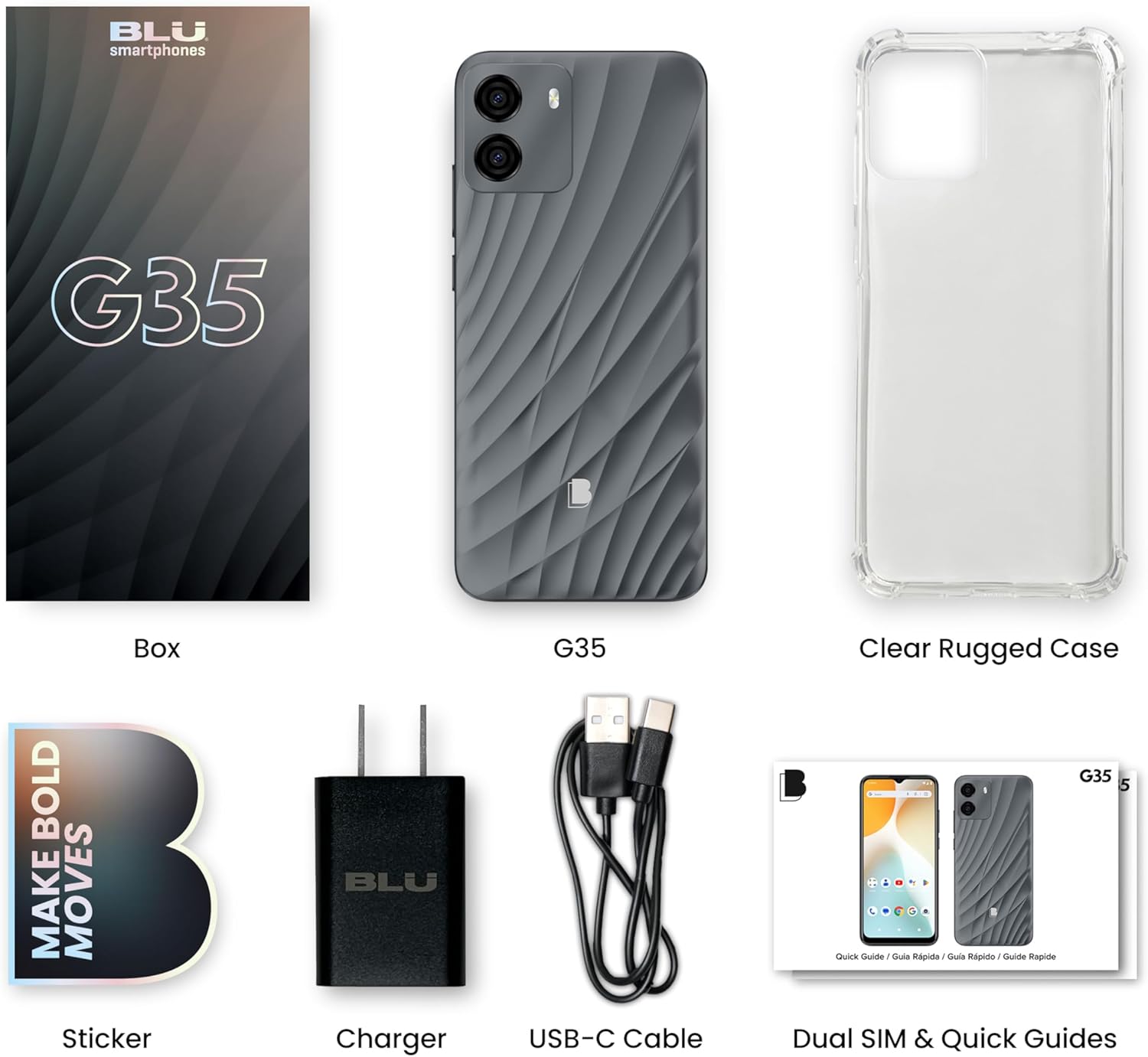
Image: All components included in the BLU G35 retail package.
1.2 Pemasangan Kad SIM
The BLU G35 supports GSM networks. To install your SIM card(s):
- Cari dulang kad SIM di sisi peranti.
- Insert the SIM ejector tool (not included, typically comes with SIM cards or can be a paperclip) into the small hole next to the tray to open it.
- Place your Nano-SIM card(s) into the tray with the gold contacts facing down. The G35 supports dual SIM functionality.
- Masukkan semula dulang dengan berhati-hati ke dalam telefon.
Nota: This device is unlocked and compatible with GSM carriers such as T-Mobile, Metro PCS, AT&T, Cricket, and Mint Mobile. It is not compatible with CDMA networks like Verizon. Please confirm network compatibility with your carrier.
1.3 Hidupkan dan Persediaan Awal
- Press and hold the Power button (located on the right side of the phone) until the BLU logo appears.
- Ikut gesaan pada skrin untuk memilih bahasa anda, menyambung ke Wi-Fi dan menyediakan akaun Google anda.
- You will be guided through setting up security features, including A.I. Face ID.
2. Arahan Operasi
2.1 Basic Device Functions
- Hidupkan/Mati Kuasa: Tekan dan tahan butang Kuasa. Pilih "Matikan" atau "Mulakan Semula" daripada menu.
- Kawalan Kelantangan: Gunakan butang Kelantangan Naik dan Kelantangan Rendah di sebelah kanan peranti.
- Kunci/Buka Kunci Skrin: Tekan butang Kuasa sebentar untuk mengunci atau membuka kunci skrin.
2.2 Paparan dan Navigasi
The BLU G35 features a 6.5-inch HD+ Infinity Display (720 x 1600 resolution, 269ppi). Navigation is primarily touch-based.
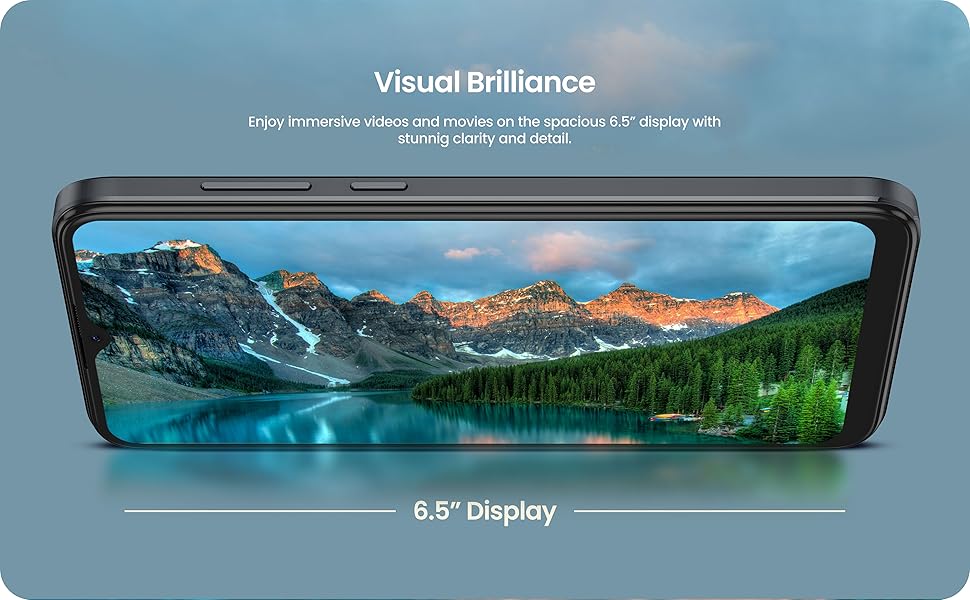
Image: The BLU G35 display showcasing a vibrant image, highlighting its 6.5-inch screen size.
- Skrin Utama: Leret ke kiri atau kanan untuk mengakses panel skrin utama yang berbeza.
- Laci Apl: Leret ke atas dari bahagian bawah skrin untuk mengakses semua aplikasi yang dipasang.
- Pemberitahuan & Tetapan Pantas: Leret ke bawah dari bahagian atas skrin ke view pemberitahuan dan togol tetapan pantas.
2.3 Penggunaan Kamera
The G35 is equipped with a dual rear camera (8MP main sensor) and a 5MP front-facing selfie camera.
Image: Close-up of the BLU G35's rear camera module and a view of the front display.
- Buka aplikasi Kamera daripada skrin utama atau laci aplikasi anda.
- Ketik butang pengatup untuk mengambil foto.
- Bertukar antara kamera hadapan dan belakang menggunakan ikon togol kamera.
- Explore different modes like Portrait, Video, and Panorama if available in the camera app.
2.4 Security Features: A.I. Face ID
The BLU G35 includes A.I. Face ID for convenient and secure unlocking.
- Pergi ke Tetapan > Keselamatan > Buka Kunci Wajah.
- Ikut arahan pada skrin untuk mendaftarkan wajah anda.
- Ensure good lighting and hold the phone at eye level during registration.
2.5 Prestasi dan Pelbagai Tugas
Powered by an efficient octa-core processor and 3GB RAM, the G35 is designed for smooth performance across various tasks.
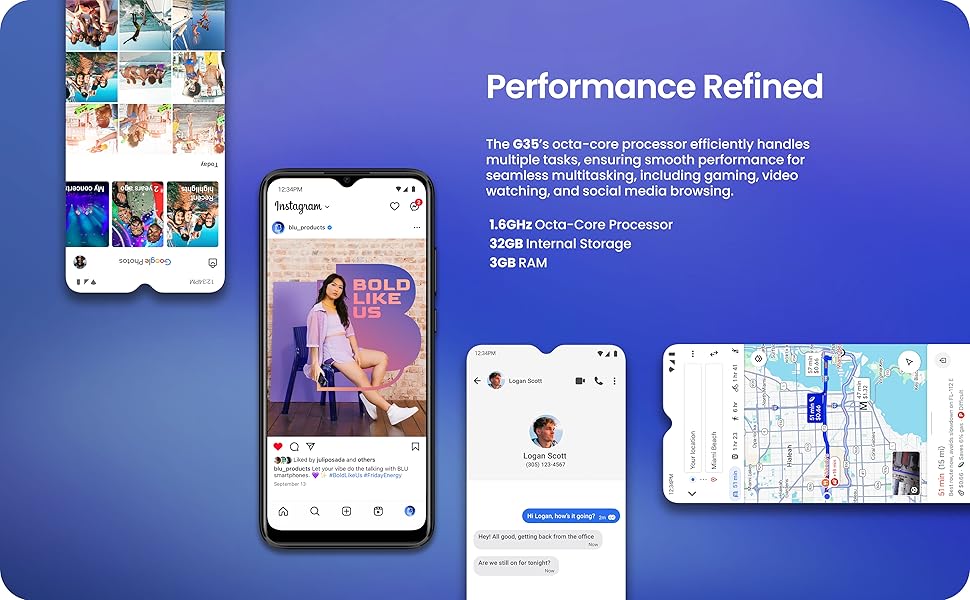
Image: The BLU G35 screen showing various applications, demonstrating its multitasking capabilities.
- Menukar Aplikasi: Leret ke atas dari bahagian bawah skrin dan tahan untuk view recent applications. Tap an app to switch, or swipe it away to close.
- Mengoptimumkan Prestasi: Close unused applications running in the background to free up RAM.
3. Penyelenggaraan
3.1 Penjagaan Bateri
The BLU G35 is equipped with a 5000mAh battery. To maximize battery life:
- Elakkan suhu yang melampau.
- Use the provided charger and USB Type-C cable.
- Jangan biarkan telefon dicas untuk tempoh yang lama selepas ia mencapai 100%.
- Adjust screen brightness and disable unnecessary features (e.g., Bluetooth, GPS) when not in use.
3.2 Membersihkan Peranti Anda
Gunakan kain lembut dan tidak berbulu untuk membersihkan skrin dan badan telefon. Elakkan bahan yang kasar atau bahan kimia yang keras.
3.3 Kemas Kini Perisian
Semak dan pasang kemas kini perisian secara kerap untuk memastikan peranti anda mempunyai ciri terkini, tampung keselamatan dan peningkatan prestasi. Pergi ke Tetapan > Sistem > Kemas kini sistem.

Image: The Android 14 operating system logo, indicating the phone's software version.
4. Penyelesaian masalah
4.1 Isu dan Penyelesaian Biasa
- Peranti tidak dihidupkan: Pastikan bateri dicas. Sambungkan pengecas dan tunggu beberapa minit sebelum cuba menghidupkan.
- Isu sambungan rangkaian:
- Periksa sama ada kad SIM anda dimasukkan dengan betul.
- Verify that mobile data is enabled in Quick Settings.
- Mulakan semula peranti.
- Confirm with your carrier that your plan is active and the device is compatible.
- Applications crashing or freezing:
- Tutup dan buka semula aplikasi.
- Kosongkan cache aplikasi (Tetapan > Aplikasi > [Nama Aplikasi] > Storan & cache > Kosongkan cache).
- Mulakan semula telefon.
- Hayat bateri pendek:
- Kurangkan kecerahan skrin.
- Lumpuhkan Wi-Fi, Bluetooth dan GPS apabila tidak digunakan.
- Tutup aplikasi latar belakang.
- Semak penggunaan bateri dalam Tetapan untuk mengenal pasti apl yang haus kuasa.
4.2 Tetapan Semula Kilang
Jika anda mengalami masalah berterusan, tetapan semula kilang boleh menyelesaikannya. Amaran: Ini akan memadamkan semua data pada telefon anda. Sandarkan data penting sebelum meneruskan.
- Pergi ke Tetapan > Sistem > Tetapkan semula pilihan.
- Pilih Padam semua data (set semula kilang).
- Sahkan keputusan anda dan masukkan PIN/kata laluan anda jika digesa.
5. Spesifikasi
| Ciri | Perincian |
|---|---|
| Nama Model | G35 |
| Nombor Model Item | G1110UU |
| Paparan | 6.5" HD+ Infinity Display (720 x 1600 resolution, 269ppi) |
| Sistem Operasi | Android 14 |
| Pemproses | Octa-core (1.6GHz ARM Cortex-A55) |
| RAM | 3GB |
| Storan Dalaman | 32GB |
| Kamera Belakang | Dual 8MP Camera with LED Flash |
| Kamera Depan | Kamera Selfie 5MP |
| Kapasiti Bateri | 5000mAh |
| Ketersambungan | 4G LTE, Wi-Fi, Bluetooth, USB Type-C |
| Keserasian Pembawa Tanpa Wayar | Unlocked GSM (T-Mobile, AT&T, Metro PCS, Cricket, Mint Mobile) |
| Keselamatan | A.I. Face ID |
| Dimensi | 7.52 x 3.7 x 2.01 inci (Pakej) |
| Berat badan | 12.6 auns |
| Komponen yang Disertakan | Phone Case, Charger, USB Type-C Cable |
6. Waranti dan Sokongan
6.1 Maklumat Waranti
The BLU G35 comes with a US Warranty. Specific terms and conditions of the warranty are typically provided with your purchase documentation or can be found on the official BLU Products webtapak. Sila simpan bukti pembelian anda untuk tuntutan waranti.
6.2 Sokongan Pelanggan
For technical assistance, troubleshooting beyond this manual, or warranty inquiries, please contact BLU Products customer support. Visit the official BLU webtapak untuk maklumat hubungan dan sumber sokongan.
Anda boleh melawat BLU Store on Amazon untuk maklumat lanjut produk.


