1. Maklumat Keselamatan
Sila baca semua arahan dengan teliti sebelum menggunakan monitor ini. Simpan manual ini untuk rujukan pada masa hadapan.
- Jangan dedahkan monitor kepada hujan atau kelembapan untuk mengelakkan kebakaran atau renjatan elektrik.
- Jangan buka monitor casing. Tiada bahagian yang boleh diservis pengguna di dalamnya. Rujuk semua servis kepada kakitangan yang berkelayakan.
- Letakkan monitor pada permukaan yang stabil dan rata untuk mengelakkannya daripada jatuh.
- Pastikan pengudaraan yang betul di sekeliling monitor. Jangan sekat bukaan pengudaraan.
- Gunakan hanya penyesuai kuasa yang dibekalkan bersama monitor.
- Cabut palam kuasa dari soket jika monitor tidak akan digunakan untuk tempoh yang lama.
2. Kandungan Pakej
Sahkan bahawa semua item terdapat dalam pakej anda:
- CRUA 34-inch Ultrawide Gaming Monitor
- Stand Monitor (Asas dan Leher)
- Penyesuai Kuasa dan Kabel
- Kabel HDMI
- Kabel DisplayPort (DP).
- Manual Pengguna
- Skru untuk Pemasangan Stand
3. Persediaan
3.1 Memasang Pendirian
- Keluarkan monitor dengan berhati-hati daripada bungkusannya, pastikan ia dilindungi pada permukaan yang lembut.
- Attach the stand neck to the monitor's rear panel using the provided screws.
- Connect the stand base to the stand neck and secure it with the designated screw.
- Letakkan monitor yang telah dipasang di atas meja yang stabil.
The monitor stand allows for tilt adjustment to find your optimal viewsudut ing.
3.2 Pemasangan Dinding (Pilihan)
This monitor supports VESA wall mounting (75x75mm). To wall mount:
- Remove the stand from the monitor if it is already attached.
- Attach a compatible VESA 75x75mm wall mount bracket (not included) to the monitor's rear panel using appropriate screws.
- Follow the instructions provided with your wall mount for secure installation.

Imej: Belakang view of the monitor highlighting the 75x75mm wall mount area and various input ports.
3.3 Menyambung ke Peranti
Connect your computer or gaming console to the monitor using one of the available ports:
- DisplayPort (DP 1.4): For optimal performance, especially for high refresh rates and FreeSync.
- HDMI (HDMI 1.4 x2): Compatible with most devices.
Connect the power adapter to the monitor's DC input and then plug it into a power outlet.
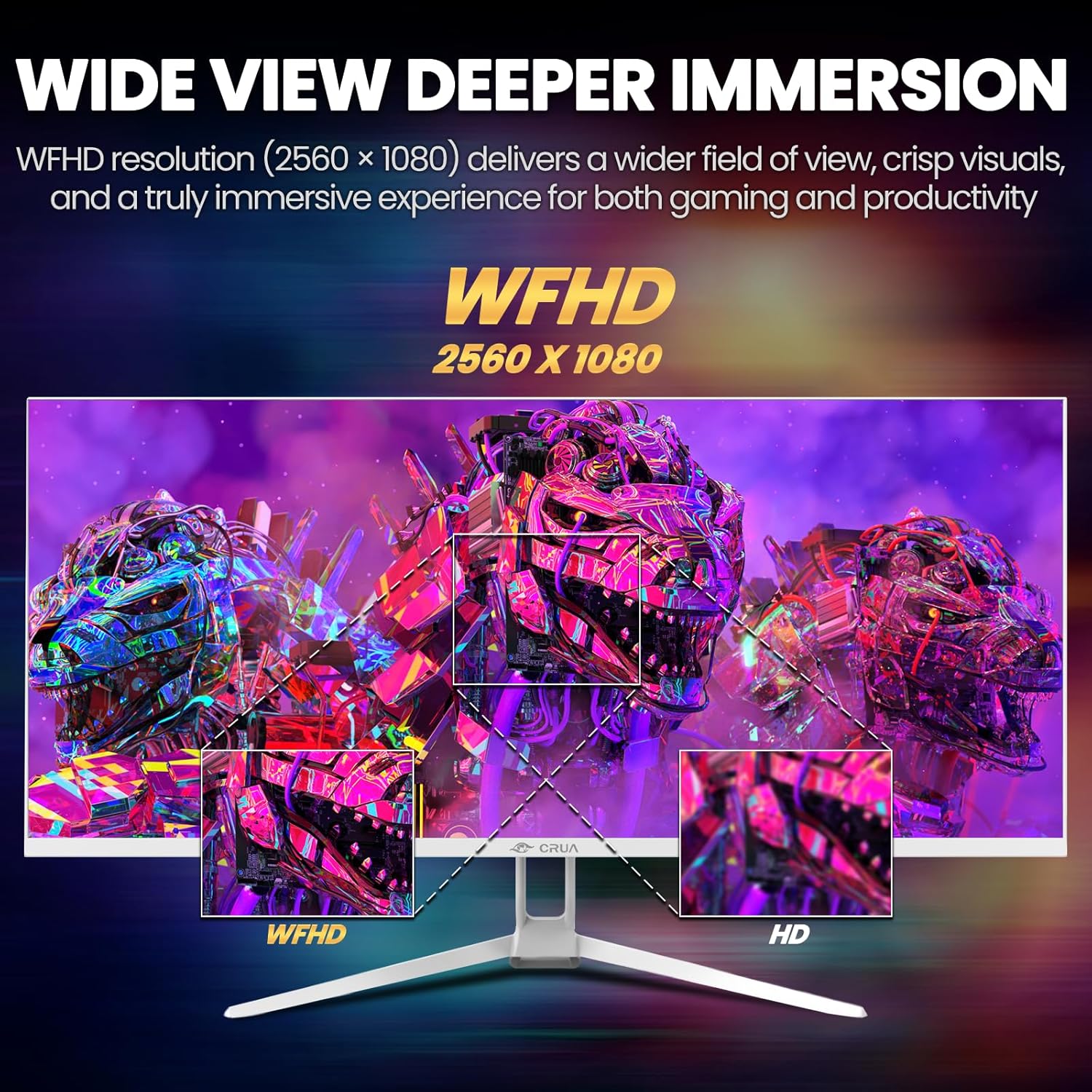
Image: A detailed diagram illustrating the monitor's connectivity options, including two HDMI 1.4 ports, one DisplayPort 1.4, an audio output, a USB charging port, and the DC power input.
4. Arahan Operasi
4.1 Hidupkan/Mati Kuasa
Press the power button, typically located on the bottom or rear of the monitor, to turn it on or off. The power indicator light will illuminate when the monitor is on.
4.2 Menu Paparan Pada Skrin (OSD).
The OSD menu allows you to adjust various monitor settings. Access it by pressing the OSD menu button (often a joystick-like button or a set of dedicated buttons) on the monitor.
- Navigasi: Use the OSD buttons or joystick to navigate through the menu options.
- Pilihan: Tekan butang pilih untuk memasuki sub-menu atau mengesahkan tetapan.
- Keluar: Use the exit button to go back or close the OSD menu.
4.3 Tetapan Gambar
Adjust visual parameters for optimal viewing:
- Kecerahan: Mengawal kecerahan keseluruhan skrin.
- Kontras: Melaraskan perbezaan antara kawasan terang dan gelap.
- Suhu Warna: Memilih mod warna pratetap (cth., Hangat, Sejuk, Pengguna).
- Penapis Cahaya Biru: Reduces blue light emission to minimize eye strain during prolonged use.
- Nisbah Aspek: Set to 21:9 for ultrawide content or other options as needed.

Image: The CRUA ultrawide monitor showcasing its 21:9 aspect ratio, demonstrating how it provides more horizontal screen space compared to a standard 16:9 display.
4.4 Tetapan Audio
The monitor includes built-in speakers. Adjust volume through the OSD menu or your connected device. An external audio output port is also available for headphones or external speakers.
4.5 AMD FreeSync
To enable AMD FreeSync for tear-free gaming, ensure your graphics card supports FreeSync and that it is enabled in your graphics card's control panel. Then, activate FreeSync within the monitor's OSD menu.

Image: A visual comparison demonstrating the effect of AMD FreeSync, showing a torn image when FreeSync is off and a smooth image when FreeSync is on, highlighting the 120Hz refresh rate.
5. Penyelenggaraan
5.1 Membersihkan Skrin
- Matikan monitor dan cabut palam kuasa.
- Gunakan kain lembut yang tidak berbulu dampdiisi dengan air atau pembersih skrin khusus.
- Wipe the screen gently. Do not press hard or use abrasive cleaners.
5.2 Penjagaan Am
- Jauhkan monitor daripada cahaya matahari langsung, sumber haba dan habuk yang berlebihan.
- Elakkan meletakkan objek berat pada monitor atau kabelnya.
- Do not spray cleaning liquids directly onto the monitor.
6. Penyelesaian masalah
Jika anda menghadapi masalah dengan monitor anda, rujuk kepada masalah dan penyelesaian biasa berikut:
| Masalah | Penyelesaian yang Mungkin |
|---|---|
| Tiada gambar di skrin | Ensure power cable is securely connected and the monitor is turned on. Check video cable (HDMI/DP) connections to both monitor and computer. Select the correct input source via the OSD menu. |
| Image is flickering or unstable | Check video cable connections. Ensure your graphics card drivers are up to date. If using FreeSync, try disabling it temporarily to see if the issue persists. Adjust refresh rate in your computer's display settings. |
| Tiada bunyi daripada pembesar suara terbina dalam | Increase volume via the OSD menu and your computer's sound settings. Ensure the correct audio output device is selected on your computer. Check if the audio cable (if used) is properly connected. |
| Warna kelihatan tidak betul | Reset picture settings to factory defaults via the OSD menu. Adjust color temperature and individual RGB values if available. |
If the problem persists after trying these solutions, please contact CRUA customer support.
7. Spesifikasi
Key technical specifications for the CRUA 34-inch Ultrawide Gaming Monitor (Model CR340AU):
| Ciri | Spesifikasi |
|---|---|
| Saiz Skrin | 34 Inci |
| Jenis Panel | IPS |
| Resolusi | 2560 x 1080 (WFHD) |
| Nisbah Aspek | 21:9 |
| Kadar Segar Semula | 120Hz |
| Masa Tindak Balas | (Not specified in provided data, typical for IPS is 1-5ms GTG) |
| Kecerahan | 350 cd/m² |
| Warna Gamut | 120% sRGB |
| Kedalaman Warna | 8-bit (16.7 Juta Warna) |
| Viewsudut | 178° (Mendatar/Menegak) |
| Penyegerakan Adaptif | AMD FreeSync |
| Ketersambungan | 2x HDMI 1.4, 1x DisplayPort 1.4, Audio Out, USB Charging, DC Power Input |
| Pembesar Suara Terbina dalam | ya |
| Lekap di dinding | VESA 75x75mm |
| Dimensi Produk | 9.4 x 24.13 x 17.47 inci |
| Berat Barang | 14.92 paun |
8. Waranti dan Sokongan
CRUA provides high-quality computer monitors and customer service. For any questions or support needs regarding your CRUA 34-inch Ultrawide Gaming Monitor, please contact CRUA customer support.
Refer to your purchase documentation or the official CRUA weblaman web untuk terma jaminan khusus dan maklumat hubungan.


