Produk Selesaiview
The BrosTrend AX900 is a versatile 2-in-1 USB adapter designed to upgrade your PC with both WiFi 6 and Bluetooth 5.4 capabilities. This compact dongle eliminates the need for multiple adapters, providing fast internet connectivity and seamless Bluetooth device pairing. It supports dual-band WiFi 6 for optimal performance and includes a pre-loaded driver for easy installation on Windows 10 and Windows 11 systems.
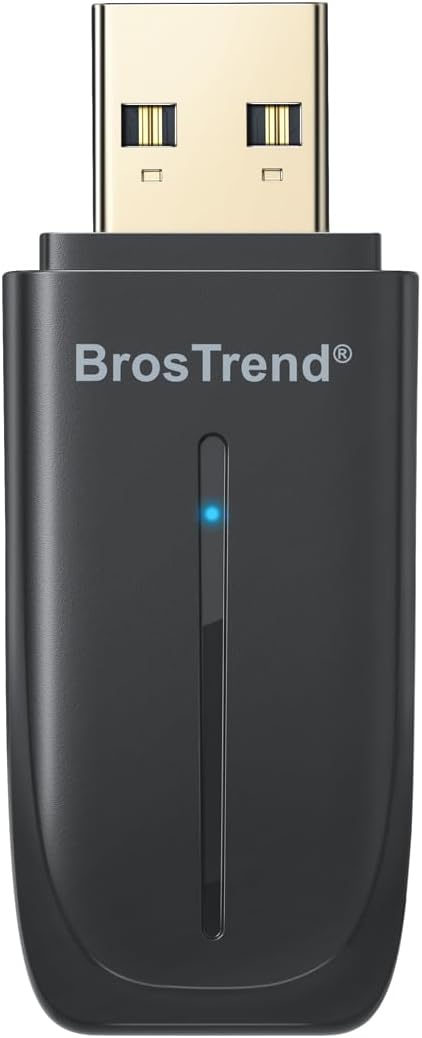
Image: BrosTrend AX900 USB WiFi 6 and Bluetooth 5.4 Adapter, front view.
Ciri-ciri Utama:
- Fungsi 2-dalam-1: Integrates WiFi 6 and Bluetooth 5.4 into a single USB adapter.
- Fast Dual-Band WiFi 6: Achieves speeds up to 600 Mbps on 5 GHz and 287 Mbps on 2.4 GHz, supporting 1024-QAM and OFDMA for smooth streaming and gaming.
- Bluetooth 5.4: Connects up to 5 Bluetooth devices (headphones, mouse, keyboard, speaker, printer) with a stable range of up to 32 feet.
- Persediaan Mudah: Features a pre-loaded driver for quick installation on Windows 11/10 without requiring a CD or downloads.
- Reka bentuk padat: Small form factor (2.04 × 0.78 × 0.35 inches) with dual-side vent holes for efficient heat dissipation and long-term reliability.
Video: Tamatview of the BrosTrend AX900 USB WiFi 6 and Bluetooth 5.4 Combo Adapter, highlighting its features and benefits.
Arahan Persediaan
Before You Start: Disable Built-in Bluetooth (If Applicable)
If your PC already has a built-in Bluetooth adapter, it is recommended to disable it first in Device Manager. This ensures that your system exclusively uses the BrosTrend adapter for Bluetooth connections, preventing potential conflicts.
- Right-click on "This PC" icon on your desktop.
- Select "Manage" or "Show more options" then "Manage".
- In the Computer Management window, navigate to "Device Manager".
- Expand the "Bluetooth" section.
- Right-click on your existing Bluetooth adapter (e.g., "Realtek Bluetooth Adapter") and select "Disable device". Confirm by clicking "Yes".
Video: A step-by-step guide on how to set up the BrosTrend AX900 USB WiFi 6 and Bluetooth 5.4 Adapter, including disabling existing Bluetooth adapters and driver installation.
Langkah 1: Sambungkan Penyesuai
Insert the BrosTrend AX900 USB WiFi 6 and Bluetooth 5.4 Adapter into an available USB port on your desktop or laptop computer. The adapter is designed to be compact and will not obstruct adjacent ports.

Image: The BrosTrend AX900 USB adapter being inserted into a USB port on a desktop computer, illustrating its compact size and ease of connection.
Langkah 2: Pasang Pemacu
The driver software is pre-loaded directly onto the adapter, eliminating the need for a CD-ROM or external downloads. Once the adapter is inserted, a pop-up notification should appear at the bottom right corner of your screen.
- Click on the pop-up notification to run the pre-loaded driver installer (e.g., "BrosTrend_WiFi_Bluetooth_Install_Setup.exe").
- Ikut gesaan pada skrin untuk melengkapkan pemasangan.
- If the pop-up does not appear, open "This PC" (or "My Computer") to locate the "CD Drive (E:) BrosTrend Setup" and double-click to run the driver installer.
- After successful installation, restart your computer to apply the changes.
Arahan Operasi
Step 3: Connect to WiFi and Bluetooth
After installing the driver and restarting your computer, you can now connect to WiFi networks and pair Bluetooth devices.
Menyambung ke WiFi:
- Click the network icon (usually a globe or WiFi symbol) on the taskbar.
- Select the desired WiFi network from the list (e.g., "MyWiFi_5GHz" or "MyWiFi_2.4GHz").
- Click "Connect" and enter the WiFi password if prompted.
- For best performance, connect your PC to the 5 GHz WiFi band to avoid congestion caused by Bluetooth and WiFi sharing the 2.4 GHz channel.

Image: A laptop displaying WiFi connectivity, indicating the BrosTrend AX900 adapter is providing fast dual-band WiFi 6 speeds.
Menyambung Peranti Bluetooth:
- Right-click the Bluetooth icon on the taskbar (or go to Settings > Bluetooth & devices).
- Select "Add a Bluetooth Device" or "Add device".
- Choose "Bluetooth" from the options.
- Pastikan peranti Bluetooth anda berada dalam mod berpasangan.
- Select your device from the list and follow any on-screen instructions to complete pairing.

Image: A laptop with the BrosTrend AX900 adapter connected, showing various Bluetooth devices like headphones, mouse, and keyboard, indicating smooth and lag-free connections.
Penyelenggaraan
The BrosTrend AX900 adapter requires minimal maintenance. Keep the device clean and free from dust. Ensure it is not exposed to extreme temperatures or moisture. Periodically check for driver updates on the BrosTrend official webtapak untuk memastikan prestasi dan keserasian yang optimum.
Menyelesaikan masalah
- Penyesuai Tidak Dikenali: Try plugging the adapter into a different USB port. Ensure your computer's USB drivers are up to date.
- Isu Sambungan WiFi: Verify that your WiFi network is active and you are entering the correct password. Ensure any built-in WiFi adapters are disabled to prevent conflicts.
- Masalah Berpasangan Bluetooth: Confirm that your Bluetooth device is in pairing mode and within range (up to 32 feet). Ensure any built-in Bluetooth adapters are disabled. Restart both your computer and the Bluetooth device.
- Kelajuan Perlahan: For optimal WiFi performance, connect to a WiFi 6 router and use the 5 GHz band. Ensure there are no physical obstructions or interference sources between the adapter and your router/Bluetooth devices.
- Driver Installation Failure: If the pre-loaded driver does not install automatically, manually navigate to "This PC" and run the installer from the virtual CD drive. If issues persist, download the latest driver from the BrosTrend webtapak.
Spesifikasi
| Ciri | Perincian |
|---|---|
| Nombor Model | AX900 WiFi 6 and Bluetooth USB Adapter |
| Dimensi Produk | 2.04"L x 0.78"W x 0.35"H (5.2 x 2 x 0.9 cm) |
| Berat Barang | 0.229 auns (6.5 Gram) |
| Antara Muka Perkakasan | USB 2.0 |
| Protokol Pautan Data | IEEE802.11ax/ac/n/a 5 GHz, IEEE802.11ax/b/g/n 2.4GHz |
| Kadar Pemindahan Data | Up to 900 Megabits Per Second (600 Mbps on 5GHz, 287 Mbps on 2.4GHz) |
| Sistem Operasi yang Serasi | Windows 10, Windows 11 (Mac and Linux NOT supported) |
| Versi Bluetooth | Bluetooth 5.4 |
| warna | Hitam |
Apa yang ada dalam Kotak
- 1 x AX900 WiFi 6 and Bluetooth 5.4 Combo USB Adapter
- 1 x Panduan Pemasangan Pantas
Waranti dan Sokongan
For warranty information and technical support, please refer to the Quick Installation Guide included in the package or visit the official BrosTrend website. If you require assistance, you can send an email to BrosTrend's support team, and they typically respond within 24 hours.
The product is also "Verified by Transparency," meaning each item has a unique code for authenticity verification using the Amazon Shopping app.


