1. Pengenalan
This user manual provides detailed instructions for the Bemi Cognita Tab 6+ E-Reader. Please read this manual carefully before using your device to ensure proper operation and to maximize your reading experience. Keep this manual for future reference.
1.1 Kandungan Pakej
- Bemi Cognita Tab 6+ E-Reader
- Kabel Pengecas USB
Pastikan semua item ada dan dalam keadaan baik semasa unboxing.
2. Peranti Lebihview
Familiarize yourself with the physical components of your Bemi Cognita Tab 6+ E-Reader.

Rajah 2.1: Depan view of the Bemi Cognita Tab 6+ E-Reader. The device features a 6-inch E-Ink display with the Bemi logo and model name visible. The screen is designed to mimic paper for a comfortable reading experience.

Rajah 2.2: Depan dan belakang view of the Bemi Cognita Tab 6+ E-Reader. This image highlights the device's thin design and the textured back cover, which provides a secure grip.

Rajah 2.3: sebelah view of the Bemi Cognita Tab 6+ E-Reader, illustrating the location of the power button and a small LED indicator. This button is used for turning the device on/off and waking it from sleep.
2.1 Komponen Utama:
- 6-inch E-Ink Touchscreen: Glare-free display for comfortable reading.
- Butang Kuasa: Located on the side for turning the device on/off and sleep/wake.
- Port USB-C: Untuk pengecasan dan pemindahan data.
- Slot Kad MicroSD: Expandable storage up to 256GB.
- Butang Kawalan Sisi: For page turning and navigation.
- SMARTlight: Adjustable front light for reading in various conditions.
3. Persediaan
3.1 Pengecasan Awal
Before first use, fully charge your Bemi Cognita Tab 6+ E-Reader. Connect the provided USB cable to the device's USB-C port and the other end to a compatible USB power adapter (not included) or a computer's USB port.
- Pengecasan penuh biasanya mengambil masa kira-kira 2-3 jam.
- Lampu penunjuk pengecasan akan menunjukkan status pengecasan.
3.2 Menghidupkan/Mematikan
- Untuk Menghidupkan: Press and hold the Power button (refer to Figure 2.3) for a few seconds until the screen activates.
- Untuk Mematikan: Press and hold the Power button until a power-off menu appears, then select "Power Off".
- Untuk Tidur/Bangun: Briefly press the Power button to put the device into sleep mode or wake it up.
3.3 Sambungan Wi-Fi
Connecting to Wi-Fi allows you to download books, transfer files, and access online services.
- From the home screen, tap the tetapan ikon.
- Pilih Wi-Fi.
- Togol suis Wi-Fi ke On.
- The device will scan for available networks. Select your desired network from the list.
- Masukkan kata laluan jika digesa, kemudian ketik Sambung.
3.4 Tatarajah Awal
Upon first power-on, you may be guided through initial setup steps, including language selection and time zone settings. Follow the on-screen prompts.
4. Arahan Operasi
4.1 Menavigasi Antara Muka
The Bemi Cognita Tab 6+ features a touch-sensitive E-Ink screen and physical side buttons for navigation.
- Gerak isyarat sentuh: Tap to select, swipe to scroll, pinch to zoom (where supported).
- Butang Sisi: Use the physical buttons on the side to turn pages forward or backward during reading.
- G-Sensor: The device automatically rotates the screen orientation based on how you hold it, accommodating both right and left-handed users.
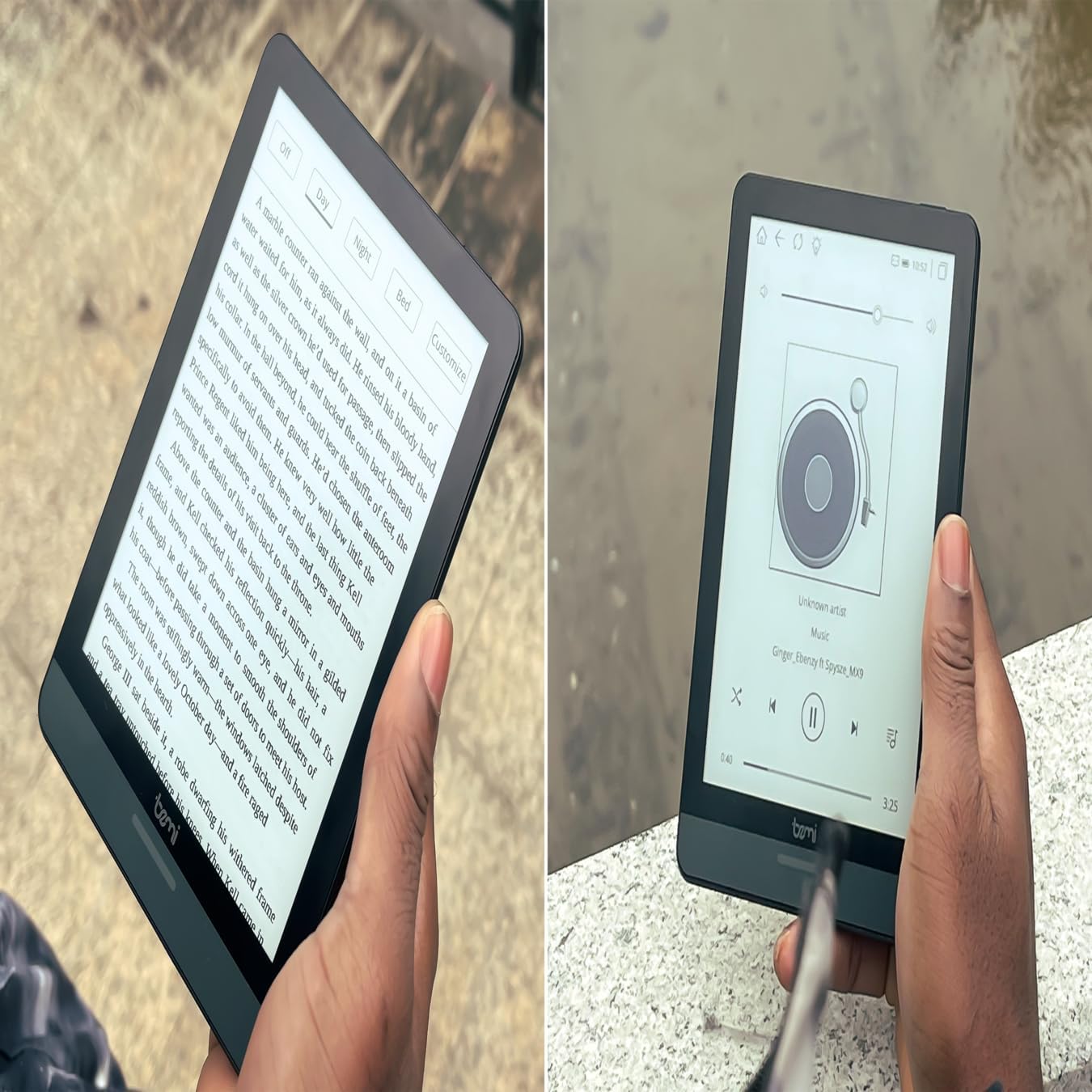
Rajah 4.1: User holding the Bemi Cognita Tab 6+ E-Reader while reading. The image shows the clear text display on the E-Ink screen, highlighting the device's readability.
4.2 Membaca Buku
To open and read a book:
- From the home screen, tap on the Perpustakaan or Buku ikon.
- Browse your collection or use the search function to find a book.
- Tap on the book cover to open it.
- Use the touch screen or side buttons to turn pages.
4.3 Adjusting SMARTlight
The SMARTlight feature allows you to adjust both the brightness and color temperature of the screen's front light.
- During reading, tap the center of the screen to bring up the reading menu.
- Carilah Cahaya or SMARTlight ikon.
- Adjust the sliders for brightness (intensity) and color temperature (warm to cool) to your preference.
4.4 Memindahkan Files
You can transfer e-books and other supported files to your device via Wi-Fi or USB cable.
- Melalui Wi-Fi: If your device supports cloud services or direct Wi-Fi transfer, follow the specific application instructions.
- Melalui Kabel USB:
- Connect your E-Reader to a computer using the provided USB cable.
- The device will appear as a removable storage drive on your computer.
- Seret dan lepas yang anda inginkan files (e.g., EPUB, PDF, MOBI) into the appropriate folders on the E-Reader (e.g., "Books" folder).
- Keluarkan peranti dari komputer anda dengan selamat sebelum memutuskan sambungan kabel.
4.5 Using MicroSD Card
To expand storage, insert a microSD card (up to 256GB) into the designated slot.
- Gently insert the microSD card with the gold contacts facing down until it clicks into place.
- Untuk mengeluarkannya, tolak kad ke dalam dengan lembut sehingga ia terkeluar.
- Files on the microSD card will be accessible through the device's file manager or library.
5. Penyelenggaraan
5.1 Membersihkan Peranti
- Use a soft, lint-free cloth to gently wipe the screen and body of the device.
- Untuk calitan degil, sedikit dampen kain dengan air atau pembersih skrin yang direka khusus untuk elektronik.
- Elakkan menggunakan bahan kimia yang keras, bahan yang melelas atau kelembapan berlebihan.
5.2 Penjagaan Bateri
- Untuk memanjangkan hayat bateri, elakkan daripada menyahcas sepenuhnya bateri dengan kerap.
- Simpan peranti di tempat yang sejuk dan kering apabila tidak digunakan untuk tempoh yang lama.
- Charge the device regularly, even if not used, to prevent deep discharge.
5.3 Penyimpanan
When not in use, store your E-Reader in a protective case to prevent scratches and damage to the screen.
6. Penyelesaian masalah
If you encounter issues with your Bemi Cognita Tab 6+, refer to the following common solutions:
| Masalah | Penyelesaian |
|---|---|
| Peranti tidak dihidupkan. | Ensure the battery is charged. Connect the device to a power source for at least 30 minutes. If it still doesn't turn on, try a hard reset by holding the power button for 10-15 seconds. |
| Skrin dibekukan atau tidak bertindak balas. | Perform a soft reset by holding the power button for 5-7 seconds until the device restarts. If the issue persists, try a hard reset. |
| Tidak dapat menyambung ke Wi-Fi. | Check if Wi-Fi is enabled in settings. Verify the Wi-Fi password. Restart your E-Reader and your Wi-Fi router. Ensure you are within range of the Wi-Fi signal. |
| Books are not appearing in the library. | Memastikan files are in a supported format (e.g., EPUB, PDF). If transferred via USB, ensure they are in the correct folder. Try refreshing the library or restarting the device. |
| Bateri cepat habis. | Reduce screen brightness. Turn off Wi-Fi and Bluetooth when not in use. Close background applications. Ensure the device is not constantly searching for networks. |
7. Spesifikasi
| Ciri | Perincian |
|---|---|
| Nama Model | Bemi Cognita Tab 6+ |
| Saiz Skrin | 6 Inches (E-Ink Carta, 1024x758, 212 ppi) |
| Memori Dalaman | 32 GB |
| Storan Boleh Dikembangkan | MicroSD card slot, up to 256 GB |
| Ketersambungan | Wi-Fi, Bluetooth |
| Sistem Operasi | Android 8.1 |
| Input Antara Muka Manusia | Touchscreen, Side Control Buttons |
| Ciri Khas | Adjustable SMARTlight, G-Sensor for auto-rotation, Glare-Free & Eye-Friendly E-Ink Display |
| Dimensi (Anggaran) | Ketebalan 7 mm |
| Komponen yang Disertakan | Kabel USB |
8. Waranti dan Sokongan
8.1 Maklumat Waranti
Your Bemi Cognita Tab 6+ E-Reader comes with a standard manufacturer's warranty. Please refer to the warranty card included in your product packaging or visit the official Bemi webtapak untuk terma dan syarat terperinci mengenai perlindungan dan tempoh waranti.
Optional protection plans may be available for extended coverage. Please check with your retailer for details.
8.2 Sokongan Pelanggan
For technical assistance, troubleshooting beyond this manual, or warranty claims, please contact Bemi customer support:
- Webtapak: www.bemi-electronics.com
- e-mel: Refer to the Bemi webtapak untuk e-mel hubungan.
- telefon: Refer to the Bemi website for contact phone numbers.
When contacting support, please have your device model (Cognita Tab 6+) and purchase information ready.


