1. Pengenalan
Manual ini memberikan arahan terperinci untuk persediaan, pengendalian dan penyelenggaraan Kit Sambungan Kamera Raspberry Pi Arducam GMSL2 8MP IMX219 anda. Kit ini membolehkan sambungan kamera jarak jauh untuk sistem Raspberry Pi, memanfaatkan teknologi GMSL2 untuk penghantaran video yang stabil dan berkualiti tinggi.

Imej 1.1: Kit Sambungan Kamera Arducam GMSL2 8MP IMX219 Raspberry Pi, menunjukkan modul kamera yang disambungkan melalui kabel sepaksi ke papan penyahserial.
2. Maklumat Keselamatan
- Pastikan semua sambungan selamat sebelum menghidupkan Raspberry Pi.
- Elakkan mendedahkan modul atau papan kamera kepada suhu, kelembapan atau elektrik statik yang melampau.
- Kendalikan komponen dengan berhati-hati bagi mengelakkan kerosakan pada penyambung dan litar yang sensitif.
- Jangan cuba mengubah suai perkakasan melebihi pemasangan yang dimaksudkan.
3. Kandungan Pakej
Sahkan bahawa semua item yang disenaraikan di bawah terdapat dalam pakej anda:
- 1 x papan Arducam GMSL2 Rx (papan penyahsiri)
- 1 x Papan Tx kamera Arducam GMSL2 (Papan Serializer)
- 1 x 1m Kabel Koaksial RF Fakra Z Perempuan ke Perempuan
- 1 x Modul Kamera Arducam IMX219 (8MP)
- 1 x Kabel FPC 22-22pin 40mm
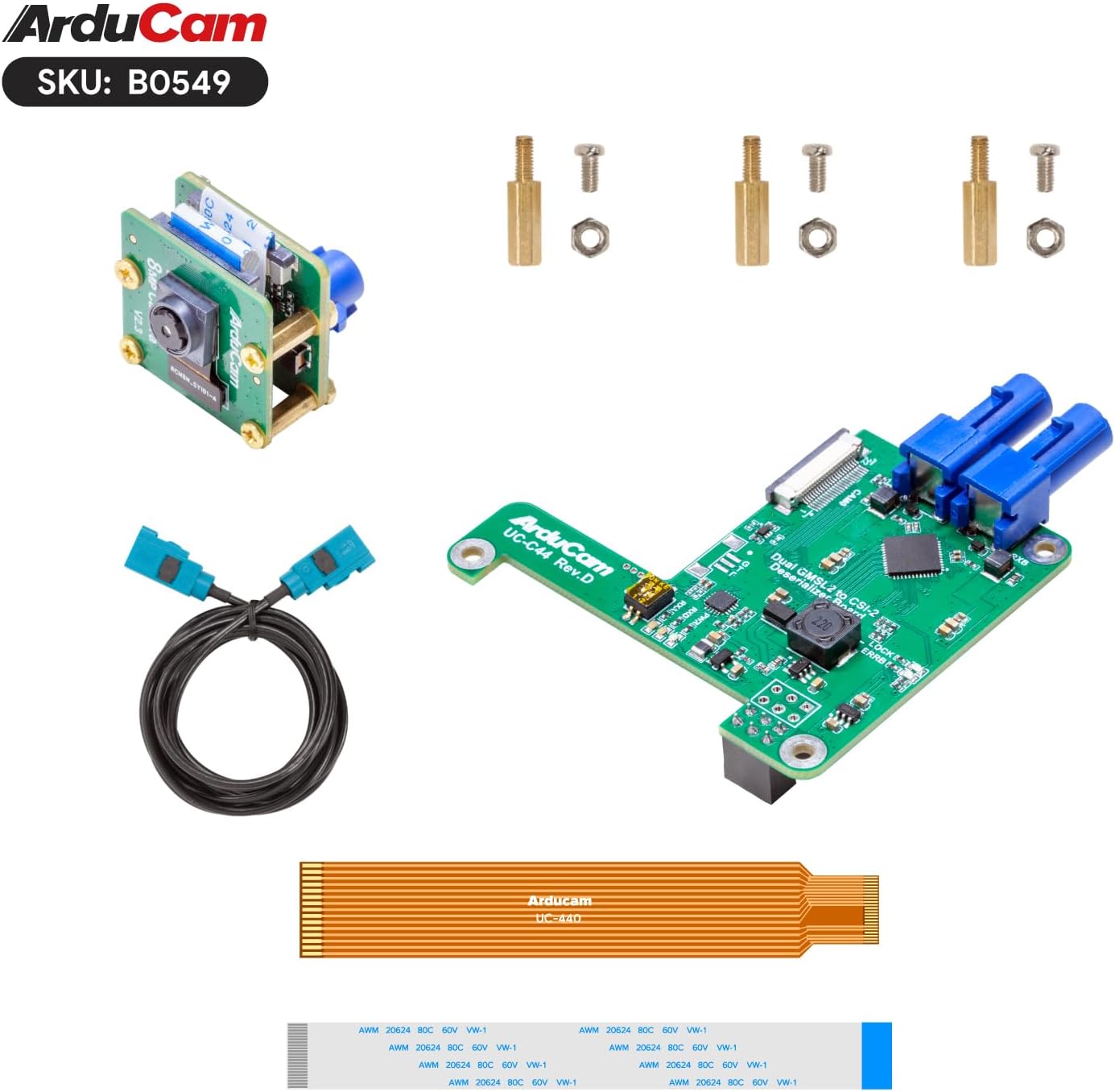
Imej 3.1: Semua komponen disertakan dalam Kit Sambungan Kamera Raspberry Pi Arducam GMSL2 8MP IMX219.
4. Arahan Persediaan
Ikuti langkah-langkah ini untuk memasang dan menyambungkan kit sambungan kamera anda ke Raspberry Pi.
4.1 Perhimpunan Perkakasan
- Pasangkan Modul Kamera IMX219 ke Papan Tx: Sambungkan modul kamera 8MP IMX219 dengan berhati-hati ke papan Tx (Serializer) kamera Arducam GMSL2. Pastikan kabel reben dimasukkan dengan betul dan selak dipasang dengan kukuh.
- Sambungkan Kabel Koaksial Fakra: Sambungkan satu hujung kabel sepaksi Fakra Z 1m ke papan Tx dan hujung yang satu lagi ke papan Rx (Deserializer). Pastikan penyambung klik pada tempatnya dengan selamat.
- Pasang Papan Rx ke Raspberry Pi: Pasangkan papan Arducam GMSL2 Rx pada Raspberry Pi anda (serasi dengan Pi 4B dan Pi 5). Gunakan penyangga dan skru yang disediakan untuk memasangkan papan pada lubang pelekap Raspberry Pi.
- Sambungkan Kabel FPC: Sambungkan kabel FPC 40mm 22-22pin dari papan Rx ke port kamera CSI-2 pada Raspberry Pi anda. Ambil perhatian bahawa kabel putih biasanya untuk Pi 5 dan kabel gangsa/jingga untuk Pi 4. Pastikan kabel dimasukkan dengan sentuhan menghadap arah yang betul dan selak penyambung ditutup.
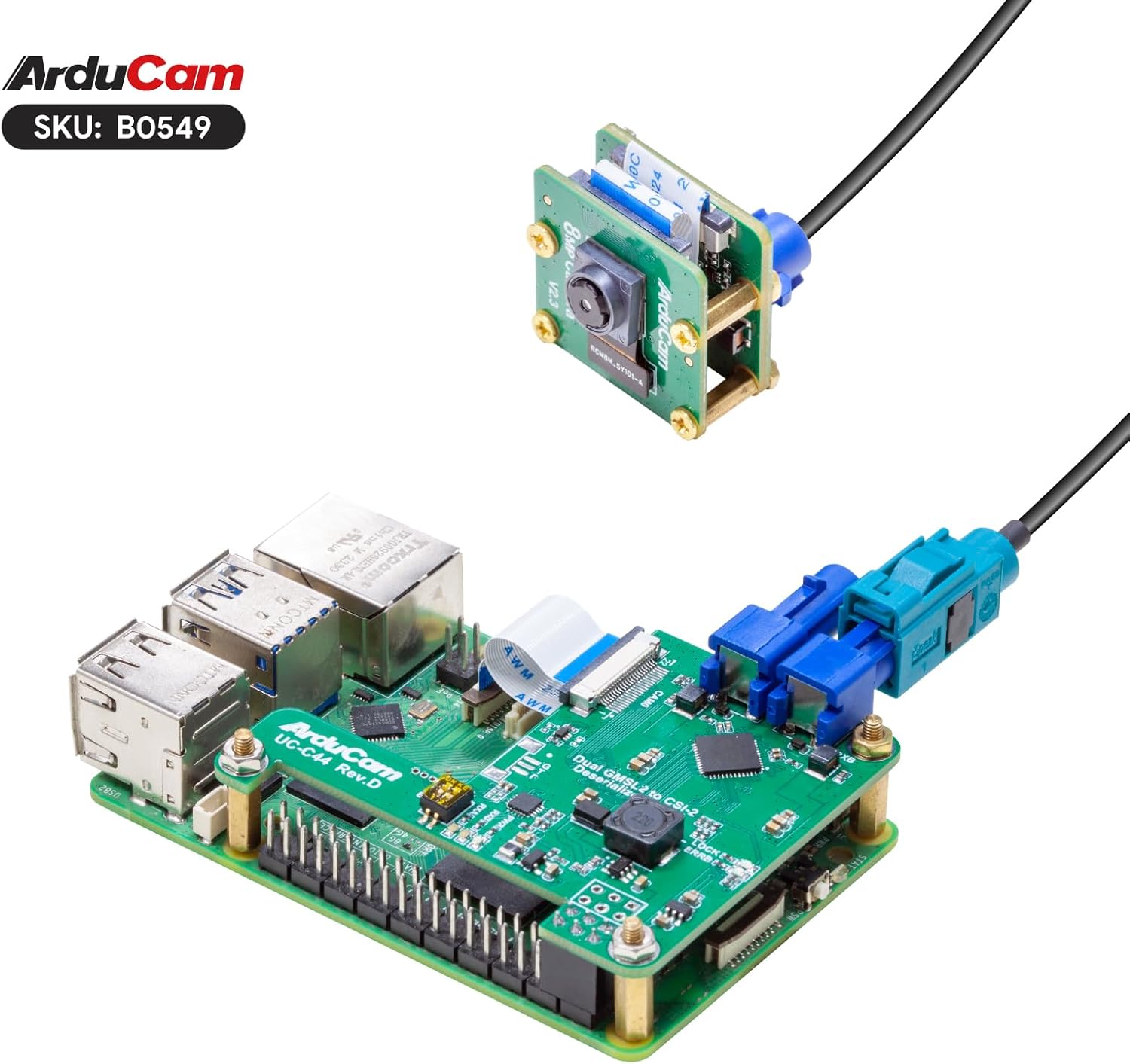
Imej 4.1: Papan Arducam GMSL2 Rx dipasang dengan kukuh pada Raspberry Pi, dengan kabel FPC disambungkan.

Imej 4.2: Pemasangan lengkap kit sambungan kamera Arducam GMSL2 dengan modul kamera, kabel sepaksi dan papan Rx yang disambungkan ke Raspberry Pi.

Imej 4.3: Perwakilan visual keserasian kit dengan model Raspberry Pi 4B dan Raspberry Pi 5.

Imej 4.4: Kit ini menyokong sambungan sehingga 15 meter, walaupun kabel sepaksi yang disertakan adalah sepanjang 1 meter.
4.2 Konfigurasi Perisian
Selepas pemasangan perkakasan, konfigurasikan OS Raspberry Pi anda untuk mengenali dan menggunakan kamera. Ini biasanya melibatkan mendayakan antara muka kamera dan menggunakan libcamera alatan.
- Kemas kini Sistem Operasi Raspberry Pi: Pastikan OS Raspberry Pi anda dikemas kini dengan menjalankan:
sudo apt update && sudo apt full-upgrade -y - Dayakan Antara Muka Kamera: Gunakan alat konfigurasi Raspberry Pi:
Navigasi ke Pilihan Antara Muka > Kamera dan aktifkannya. But semula Raspberry Pi anda jika digesa.sudo raspi-config - Sahkan Pengesanan Kamera: Selepas but semula, anda boleh menyemak sama ada kamera dikesan menggunakan
libcamera-still:
Anda sepatutnya melihat kamera IMX219 anda disenaraikan.libcamera-still --list-cameras
5. Arahan Operasi
Bahagian ini merangkumi arahan asas untuk mengendalikan kamera Arducam GMSL2 anda dengan Raspberry Pi.
5.1 Menangkap Imej Pegun
Untuk menangkap imej pegun, gunakan libcamera-still perintah:
libcamera-still -o image.jpgArahan ini akan menangkap imej dan menyimpannya sebagai image.jpg dalam direktori semasa anda.
Untuk praview tetingkap dan autofokus, anda boleh menggunakan:
libcamera-still -t 0 --autofocus --keypressArahan ini akan membuka praview tetingkap, dayakan autofokus dan tunggu sehingga kekunci ditekan untuk menangkap imej. Tekan 'q' untuk keluar dari praview.
5.2 Merakam Video
Untuk merakam video, gunakan libcamera-vid perintah:
libcamera-vid -t 10000 -o video.h264Arahan ini akan merakam video selama 10 saat (10000 milisaat) dan menyimpannya sebagai video.h264.
5.3 Langsung Praview
Untuk pra langsung berterusanview tanpa menyimpan, gunakan libcamera-still dengan masa tamat yang lama dan tiada output file:
libcamera-still -t 0Tekan 'q' untuk keluar dari praview.
5.4 Video Demonstrasi
Tonton video ini untuk demonstrasi visual kit sambungan kamera Arducam GMSL2 yang sedang beroperasi, termasuk persediaan dan tangkapan imej.amples.
Video 5.1: Demonstrasi Kit Sambungan Kabel Arducam, ditunjukkanasinpenggunaannya dengan Raspberry Pi untuk pengimejan jarak jauh dan operasi baris arahan.
6. Penyelenggaraan
- Pastikan kanta kamera bersih menggunakan kain lembut dan tidak berbulu. Elakkan bahan yang kasar.
- Simpan kit di persekitaran yang kering dan bebas habuk apabila tidak digunakan.
- Periksa sambungan kabel secara berkala untuk kelonggaran atau kerosakan.
- Pastikan pengudaraan yang betul untuk papan Raspberry Pi dan kamera semasa operasi untuk mengelakkan terlalu panas.
7. Penyelesaian masalah
- Kamera Tidak Dikesan:
- Sahkan semua sambungan kabel reben dan sepaksi adalah selamat dan berorientasikan dengan betul.
- Pastikan antara muka kamera diaktifkan dalam
raspi-config. - Periksa sama ada OS Raspberry Pi dikemas kini kepada versi terkini.
- Sahkan jenis kabel FPC sepadan dengan model Raspberry Pi anda (putih untuk Pi 5, gangsa untuk Pi 4).
- Kualiti Imej Lemah / Tiada Isyarat:
- Periksa kabel sepaksi Fakra untuk sebarang kekusutan atau kerosakan.
- Pastikan lensa kamera bersih dan bebas daripada halangan.
- Periksa bekalan kuasa ke Raspberry Pi; kuasa yang tidak mencukupi boleh menjejaskan prestasi kamera.
- Isu autofokus:
- Pastikan pencahayaan yang mencukupi di persekitaran.
- Cuba fokus secara manual jika
libcameraarahan menyokongnya, atau mulakan semula aplikasi.
8. Spesifikasi
| Ciri | Perincian |
|---|---|
| Jenama | Arducam |
| Nama Model | B0549 |
| Sensor | 8MP IMX219 |
| Teknologi | GMSL2 (Pautan Siri Multimedia Gigabit 2) |
| Jarak Pelanjutan Maks | Sehingga 15 meter (dengan kabel yang sesuai) |
| Panjang Kabel Termasuk | Kabel Koaksial Fakra Z 1 meter |
| Keserasian | Raspberry Pi Camera V2 serasi, menyokong Raspberry Pi 4B, Raspberry Pi 5 |
| Resolusi Tangkapan Video | 1080p |
| Teknologi Penderia Foto | CMOS |
| Panjang Fokus Maksimum | 3 Milimeter |
| Apertur Maksimum | 2 f |
| Format Tangkapan Video | H.264, JPEG |
| Berat Barang | 1.76 auns |
| Dimensi Pakej | 4.06 x 2.99 x 1.65 inci |
9. Maklumat Waranti
Untuk maklumat jaminan terperinci mengenai Kit Sambungan Kamera Raspberry Pi Arducam GMSL2 8MP IMX219 anda, sila rujuk panduan rasmi Arducam. webtapak atau hubungi sokongan pelanggan mereka secara langsung. Terma dan syarat jaminan mungkin berbeza mengikut wilayah dan lokasi pembelian.
10. Sokongan
Jika anda menghadapi sebarang masalah atau memerlukan bantuan lanjut, sila lawati halaman sokongan rasmi Arducam atau hubungi pasukan sokongan teknikal mereka. Anda selalunya boleh menemui forum pemandu, dokumentasi dan komuniti di laman web mereka. webtapak.
Rasmi Arducam Webtapak: www.arducam.com


