1. Pengenalan
Manual ini menyediakan arahan terperinci untuk Blackview ZENO 1 8-inch tablet. It covers essential information regarding product setup, operation, maintenance, and troubleshooting to ensure optimal performance and user experience. Please read this manual thoroughly before using your device.

Imej: Depan dan belakang view daripada Hitamview ZENO 1 tablet, showcasing its compact design and key specifications like the 8-inch LCD, 90Hz display, Android 15 operating system, 18GB RAM, 256GB ROM, 6000mAh battery, and connectivity features.
2. Kandungan Pakej
Sahkan bahawa semua item yang disenaraikan di bawah disertakan dalam pakej produk anda:
- Hitamview Tablet ZENO 1
- Dudukan Boleh Tanggalkan
- Pelindung Skrin
- Sarung Kosong
- Kabel USB-C
- Pengecas
- Manual Arahan (dokumen ini)
- Card Removal Tool

Imej: Meletup view diagram illustrating all components included in the Blackview ZENO 1 retail package, such as the tablet, detachable stand, screen protector, clear case, USB-C cable, charger, and card removal tool.
3. Produk Lebihview
3.1 Komponen Fizikal
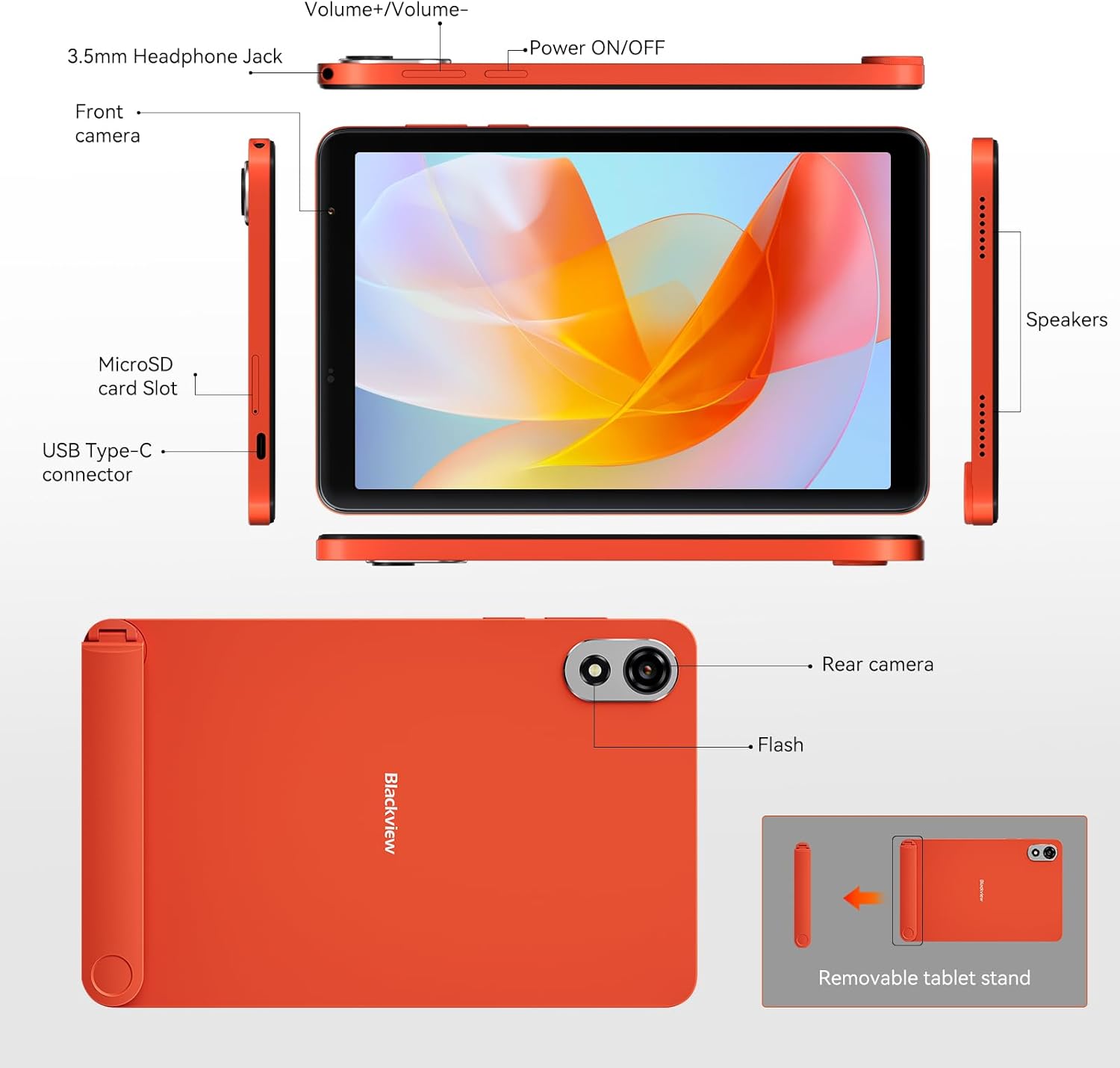
Image: A detailed diagram of the Blackview ZENO 1 tablet, labeling all external components including the headphone jack, volume controls, power button, cameras, microSD slot, USB-C port, speakers, and the removable stand.
3.2 Ciri-ciri Utama
- paparan: 8-inch LCD with 800x1280 resolution and 90Hz refresh rate.
- Pemproses: Unisoc T615 Octa-Core Chip (1.8 GHz).
- Memori & Storan: 18GB RAM (6GB + 12GB expansion) and 256GB ROM, expandable up to 2TB via TF card.
- Sistem pengendalian: Android 15 with Gemini AI integration.
- Kamera: 8MP Front Camera and 8MP Rear Camera with flash.
- Bateri: 6000mAh long-lasting battery with Type-C charging.
- Ketersambungan: 4G LTE, 5G WiFi, Bluetooth 5.2, GPS, Dual SIM Card Slot.
- Audio: Dual stereo speakers.
- Keselamatan: Buka Kunci Muka.
- Aksesori: Detachable stand included.
4. Panduan Persediaan
4.1 Kuasa Awal Hidup
- Tekan dan tahan butang Kuasa HIDUP/MATI button located on the side of the tablet until the Blackview logo muncul.
- Follow the on-screen prompts to select your language, region, and complete the initial Android setup.
4.2 Pemasangan Kad SIM & Kad TF
Si Hitamview ZENO 1 supports dual SIM cards and TF card expansion.
- Locate the SIM card slot on the side of the tablet (refer to the Product Overview rajah).
- Use the provided card removal tool to gently eject the SIM tray.
- Place your Nano-SIM card(s) and/or TF (microSD) card into the designated slots on the tray. Ensure the gold contacts face downwards.
- Masukkan semula dulang ke dalam tablet dengan berhati-hati sehingga ia berbunyi klik pada tempatnya.
Imej: Dari dekat view demonstrating the correct insertion of dual SIM cards and a TF card into the tablet's tray.
4.3 Menyambung ke Wi-Fi
- Pergi ke tetapan > Rangkaian & internet > Wi-Fi.
- Togol Wi-Fi On.
- Pilih rangkaian Wi-Fi yang anda inginkan daripada senarai.
- Masukkan kata laluan jika digesa dan ketik Sambung.
4.4 Attaching the Detachable Stand
The included detachable stand provides flexible viewsudut-sudut.
- Align the stand with the designated attachment points on the back of the tablet.
- Gently press until it securely snaps into place.
- To remove, gently pull the stand away from the tablet.

Imej: Si Hitamview ZENO 1 tablet positioned with its detachable stand, illustrating its use for hands-free viewing.
5. Arahan Operasi
5.1 Navigasi Asas (Android 15)
- Skrin Utama: Leret ke kiri atau kanan untuk mengakses skrin utama yang berbeza.
- Laci Apl: Leret ke atas dari bawah skrin ke view semua aplikasi yang dipasang.
- Pemberitahuan & Tetapan Pantas: Leret ke bawah dari bahagian atas skrin untuk mengakses pemberitahuan dan togol tetapan pantas.
- Berbilang tugas: Leret ke atas dan tahan dari bahagian bawah skrin ke view apl terbaru.
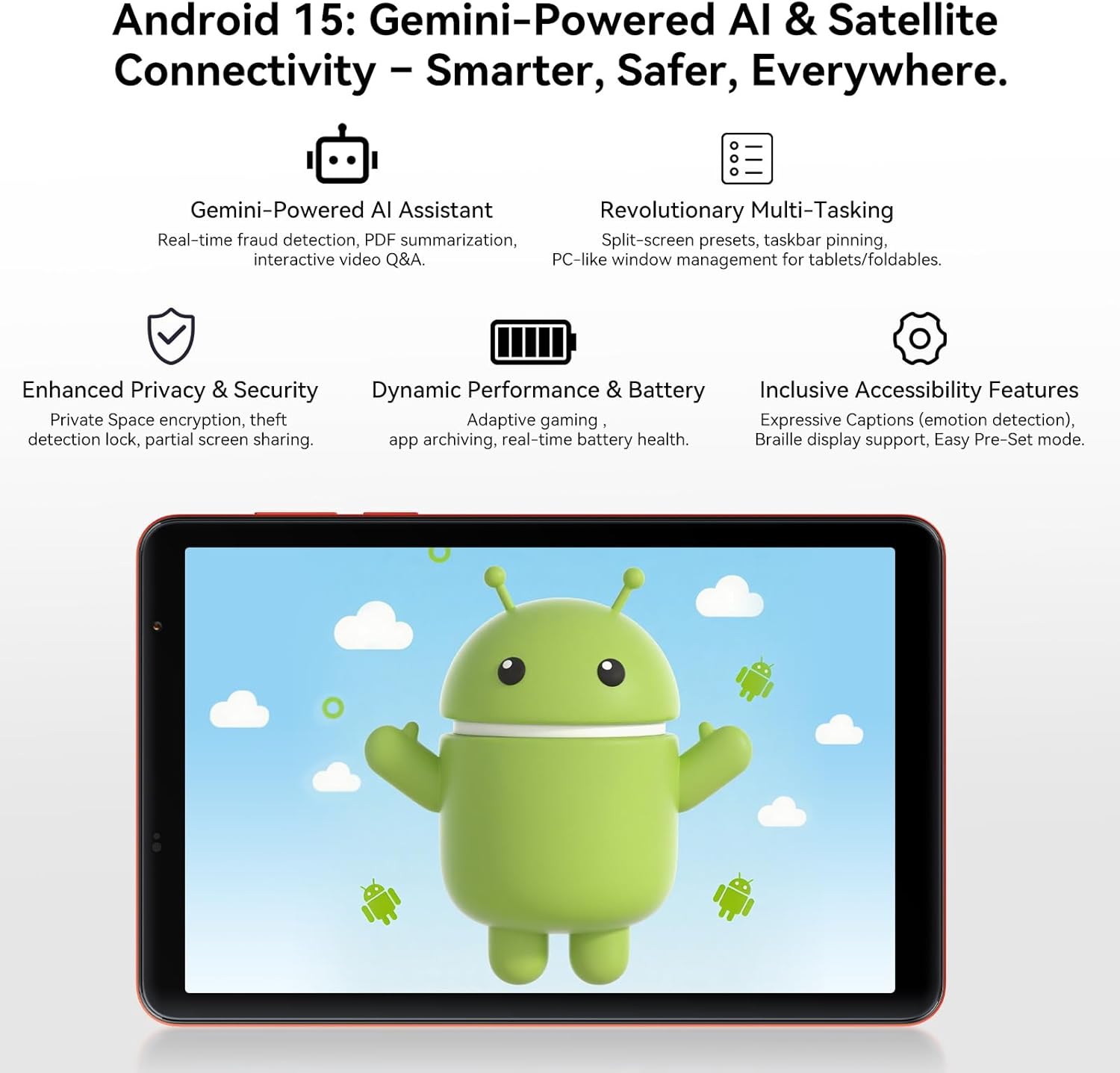
Imej: Si Hitamview ZENO 1 tablet screen showing the Android 15 operating system, highlighting features like Gemini AI, advanced multitasking, privacy controls, and performance optimizations.
5.2 Paparan dan Visual
- The 8-inch LCD with 800x1280 resolution provides clear visuals.
- The Kadar penyegaran 90Hz ensures smoother scrolling and a more fluid visual experience. Adjust refresh rate in tetapan > Paparan.
- Widevine L1 support enables streaming of high-definition content (1080P) from platforms like Netflix and Prime Video.

Imej: Si Hitamview ZENO 1 tablet displaying a game, demonstrating the smooth visuals provided by its 90Hz high refresh rate screen.

Image: A visual comparison on the Blackview ZENO 1 screen, illustrating the superior 1080P streaming quality achieved with Widevine L1 support compared to 720P (L3).
5.3 Prestasi dan Pelbagai Tugas
The Unisoc T615 Octa-Core processor and 18GB RAM (with dynamic expansion) enable smooth multitasking and efficient app performance. Android 15 offers features like split-screen presets and taskbar pinning for enhanced productivity.
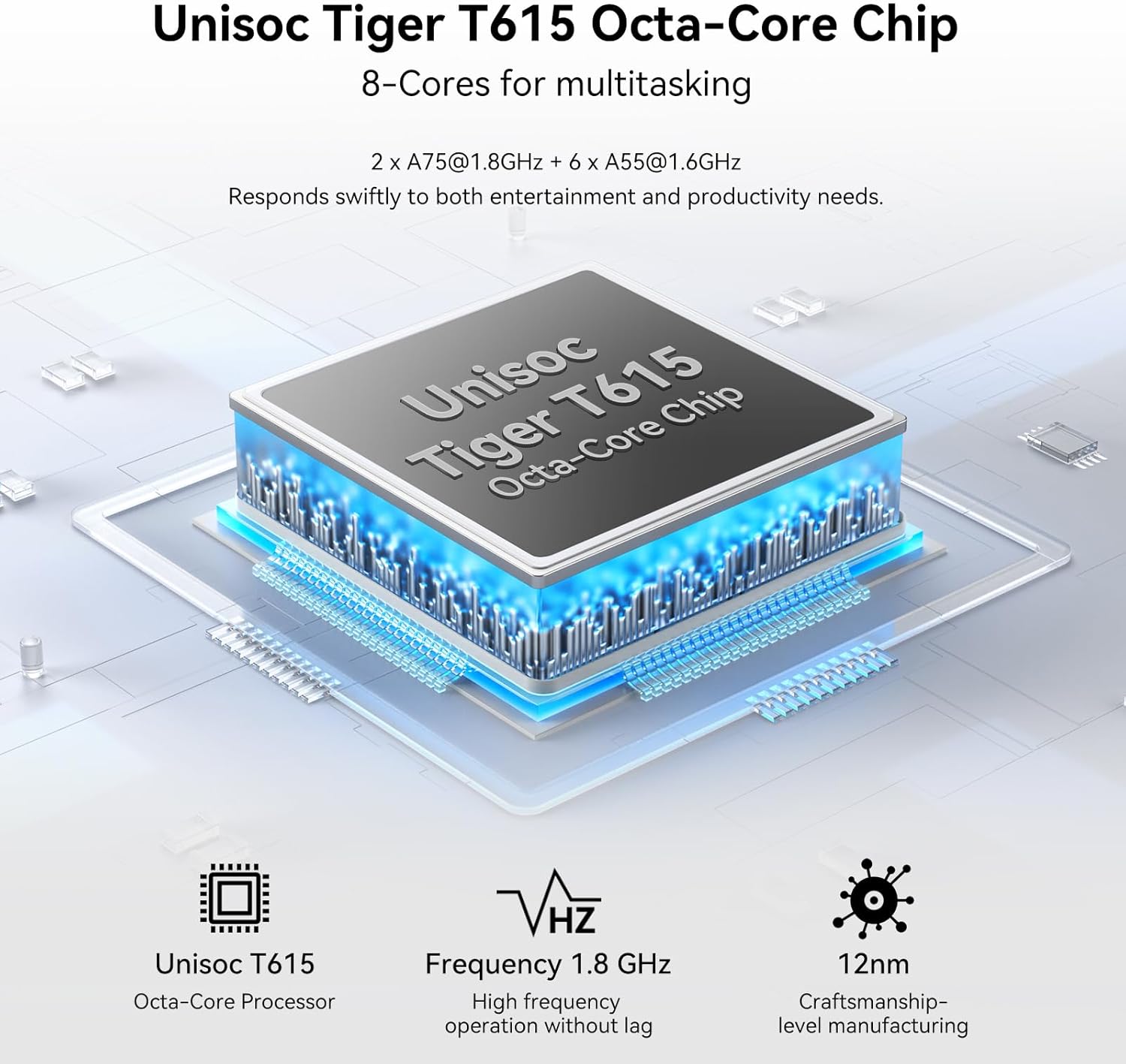
Image: A diagram illustrating the Unisoc Tiger T615 Octa-Core Chip, detailing its architecture and 1.8 GHz frequency for efficient performance.
5.4 Pengurusan Storan
The tablet comes with 256GB of internal storage, expandable up to 2TB using a TF card. To manage storage, go to tetapan > Penyimpanan. awak boleh view storage usage, free up space, and manage files.

Imej: Si Hitamview ZENO 1 tablet displaying a collection of digital content, emphasizing its 18GB RAM, 256GB ROM, and the capability to expand storage up to 2TB with a TF card.
5.5 Penggunaan Kamera
The tablet features an 8MP front camera and an 8MP rear camera with flash. Open the Kamera app to capture photos and videos.
- Ketik butang pengatup untuk mengambil foto.
- Beralih antara mod foto dan video.
- Gunakan togol kamera hadapan/belakang untuk swafoto atau tangkapan utama.
Imej: Si Hitamview ZENO 1 tablet highlighting its 8MP front and rear cameras, along with visual examples of image quality and the Face Unlock feature.
5.6 Ketersambungan
- 4G LTE: Insert a SIM card to enable cellular data and calling. Manage cellular settings in tetapan > Rangkaian & internet > Rangkaian mudah alih.
- WiFi 5G: Connect to high-speed Wi-Fi networks (see Section 4.3).
- Bluetooth 5.2: Gandingkan dengan peranti Bluetooth seperti fon kepala atau pembesar suara. Pergi ke tetapan > Peranti yang disambungkan > Bluetooth.
- GPS: The tablet includes GPS for navigation and location services. Ensure location services are enabled in tetapan > Lokasi.
Image: An illustration depicting the Blackview ZENO 1 tablet's comprehensive connectivity options, including 5G WiFi, 4G LTE, and GPS for reliable network access and navigation.
5.7 Pengurusan Bateri
Bateri 6000mAh menyediakan penggunaan yang lebih lama. Untuk mengoptimumkan hayat bateri:
- Laraskan kecerahan skrin.
- Tutup apl yang tidak digunakan yang berjalan di latar belakang.
- Enable battery saver mode in tetapan > Bateri.
- Charge using the provided USB-C cable and charger.
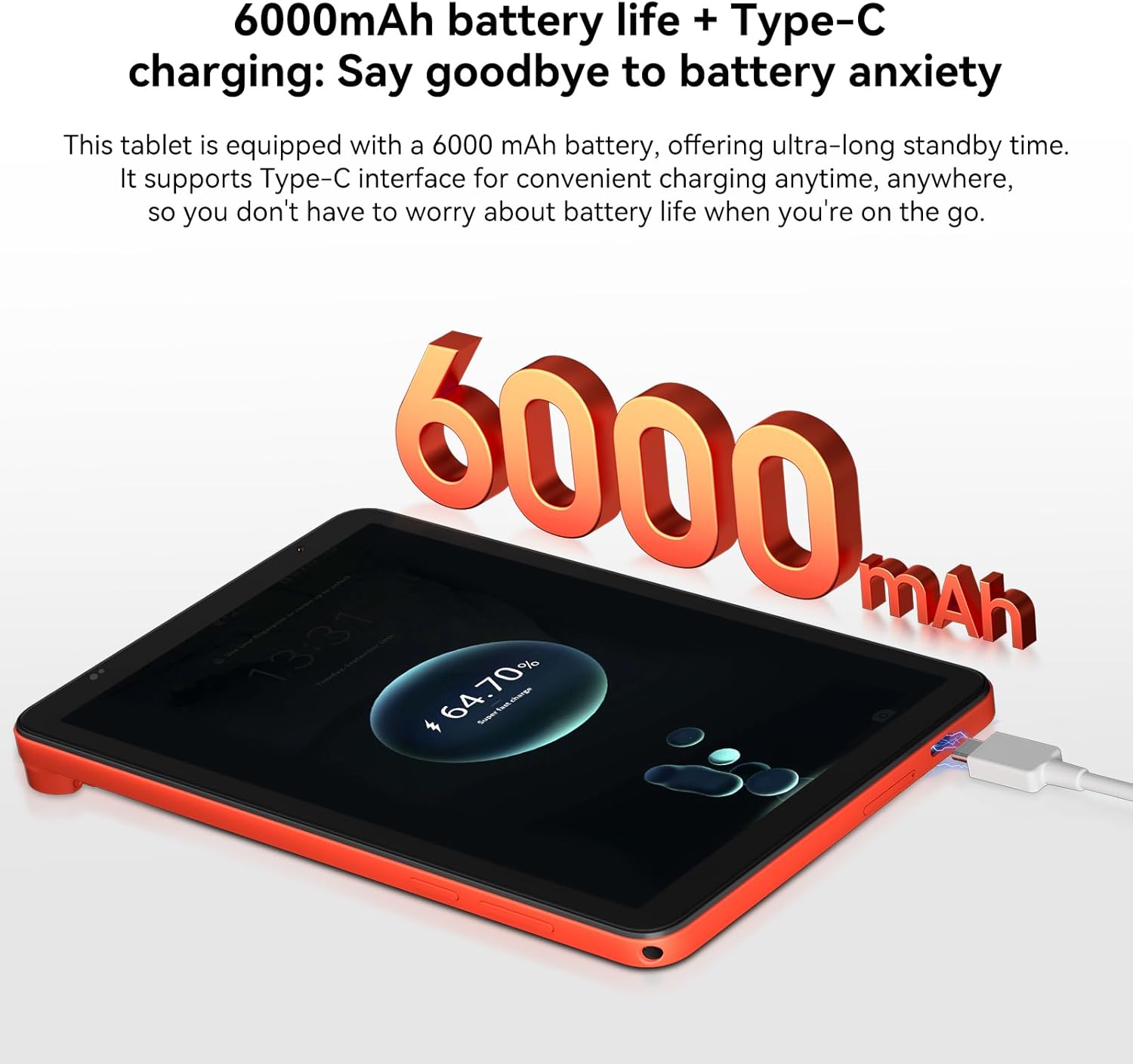
Imej: Si Hitamview ZENO 1 tablet connected to a charger, visually representing its 6000mAh battery capacity and Type-C charging capability.
5.8 Buka Kunci Muka
Set up Face Unlock for convenient and secure access to your tablet.
- Pergi ke tetapan > Keselamatan & privasi > Buka kunci muka.
- Ikut arahan pada skrin untuk mendaftarkan wajah anda.
- Ensure adequate lighting when using Face Unlock.
Image: A user demonstrating the Face Unlock feature on the Blackview ZENO 1 tablet, highlighting its ease of use for secure access.
5.9 Pengalaman Audio
The tablet is equipped with dual stereo speakers for an immersive audio experience. You can also connect headphones via the 3.5mm headphone jack or Bluetooth.
Imej: Si Hitamview ZENO 1 tablet displaying a music application, emphasizing its stereo sound capabilities through dual speakers.
5.10 Ciri-ciri AI Gemini
Leverage the integrated Gemini AI for enhanced functionality:
- AI-powered chats: Interact with AI for information and assistance.
- Instant image generation: Create images using AI prompts.
- Voice-activated Q&A: Ask questions and receive answers verbally.
- Intuitive controls: AI assists in optimizing user interface interactions.
6. Penyelenggaraan
6.1 Pembersihan
- Gunakan kain lembut dan tidak berbulu untuk membersihkan skrin dan badan tablet.
- Elakkan menggunakan bahan kimia yang keras, pembersih yang melelas, atau semburan aerosol.
- Untuk calitan degil, sedikit dampen kain dengan air atau penyelesaian pembersihan khusus skrin.
6.2 Kemas Kini Perisian
Regularly check for and install software updates to ensure your tablet has the latest features, security patches, and performance improvements.
- Pergi ke tetapan > Sistem > Kemas kini sistem.
- Ikut arahan pada skrin untuk memuat turun dan memasang sebarang kemas kini yang tersedia.
6.3 Pengoptimuman Storan
To maintain optimal performance, periodically manage your tablet's storage:
- Padam yang tidak perlu files, foto dan video.
- Nyahpasang aplikasi yang tidak digunakan.
- Kosongkan data cache untuk aplikasi dalam tetapan > Apl > [Nama Apl] > Storan & cache.
- Utilize the TF card slot for additional storage of media files.
7. Penyelesaian masalah
This section addresses common issues you might encounter with your Blackview ZENO 1 tablet.
7.1 Isu dan Penyelesaian Biasa
- Tablet tidak boleh dihidupkan: Ensure the battery is charged. Connect the charger and wait a few minutes before attempting to power on again. If unresponsive, press and hold the Power button for 10-15 seconds for a forced restart.
- Apl ranap atau beku: Close the problematic app and reopen it. If the issue persists, clear the app's cache (Settings > Apps > [App Name] > Storage & cache) or uninstall and reinstall the app. Ensure your tablet's software is up to date.
- Isu sambungan Wi-Fi: Restart your tablet and Wi-Fi router. Forget the network in Wi-Fi settings and reconnect. Ensure you are within range of the Wi-Fi signal.
- Prestasi perlahan: Close background applications. Clear cache and temporary files. Check for available storage space and free up if necessary. Restarting the tablet can also improve performance.
- Bateri cepat habis: Reduce screen brightness. Disable unused features like Bluetooth, GPS, or Wi-Fi when not needed. Identify power-consuming apps in Battery settings and restrict their background activity.
7.2 Hubungi Sokongan
If you encounter issues not covered in this section or require further assistance, please refer to the Warranty and Support section for contact information.
8. Spesifikasi Teknikal
| Ciri | Spesifikasi |
|---|---|
| Jenama | Hitamview |
| Nama Model | ZENO1 |
| Sistem Operasi | Android 15 |
| Saiz Skrin | 8 Inci |
| Resolusi Skrin | 800x1280 Piksel |
| Pemproses | Unisoc T615 Okta-Teras (1.8 GHz) |
| Pemproses bersama Grafik | Mali - G57 MP1 |
| RAM | 18GB (6GB + 12GB Pengembangan) |
| Storan Dalaman | 256 GB |
| Storan Boleh Dikembangkan | Sehingga 2TB melalui Kad TF |
| Resolusi Kamera Belakang | 8 MP |
| Resolusi Kamera Depan | 8 MP |
| Jenis Wayarles | 802.11ac (5G WiFi), 4G LTE |
| Bluetooth | Bluetooth 5.2 |
| Kapasiti Bateri | 6000mAh |
| Purata Hayat Bateri | 24 Jam (bergantung kepada penggunaan) |
| Berat Barang | 11.9 auns (336.5g) |
| Dimensi Produk | 7.83 x 4.96 x 0.3 inci (19.9 x 12.6 x 0.82 cm) |
| warna | Jingga |
9. Waranti dan Sokongan
9.1 Maklumat Waranti
Hitamview products are subject to strict quality control standards. The Blackview ZENO 1 tablet comes with a 2-Year Repair Warranty Support. Waranti ini meliputi kecacatan pembuatan dan kerosakan dalam keadaan penggunaan biasa. Sila simpan bukti pembelian anda untuk tuntutan waranti.
9.2 Sokongan Pelanggan
For technical assistance, warranty claims, or any product-related inquiries, please contact Blackview customer support. Lifetime technician support is available.
- Sokongan dalam talian: Visit the official Blackview website for FAQs, support resources, and contact options.
- Sokongan E-mel: Rujuk kepada pembungkusan produk anda atau pegawai rasmi webtapak untuk alamat e-mel perkhidmatan pelanggan.
- Sokongan Telefon: Check the official Blackview webtapak untuk nombor hubungan serantau.
Image: Customer service representatives ready to provide 24/7 online call support and assist with the 2-year repair warranty for Blackview produk.


