1. Pengenalan
This manual provides detailed instructions for the setup, operation, and maintenance of your Dierya M1 Wireless Gaming Mouse. Please read this manual thoroughly before using the product to ensure proper functionality and to maximize your user experience.

Figure 1: Dierya M1 Wireless Gaming Mouse and 2.4G USB Receiver.
2. Ciri-ciri Produk
- 24,000 DPI Optical Sensor: Adjustable DPI range from 200 to 24,000, with 6 preset levels (400-6400 DPI). Features a 125-1000 Hz polling rate, 300 IPS tracking speed, and 35G acceleration.
- Kesambungan Tri-Mod: Supports ultra-fast 2.4 GHz wireless (1000 Hz polling rate), energy-efficient Bluetooth 5.2 (125 Hz polling rate), and stable USB-C wired connection (1000 Hz polling rate).
- Jangka Hayat Bateri: Equipped with a 1000 mAh battery, providing up to 180 hours of use in ECO mode or 48 hours with RGB lighting enabled. Fully recharges in approximately 1 hour via USB-C. Includes an automatic power-saving mode after 1-5 minutes of inactivity.
- Reka Bentuk Ringan & Ergonomik: Weighs 90g with a breathable honeycomb shell. Symmetrical design (125x63x41 mm) suitable for various grip styles.
- Komponen Tahan Lama: Features Huano switches rated for 20 million clicks and 100% PTFE feet for smooth gliding.
- Butang Boleh Aturcara: Six customizable buttons for macros and reassignments.
- Pencahayaan RGB Dinamik: 13 integrated dynamic RGB lighting effects with 16.8 million customizable colors.
- Keserasian Sistem: Compatible with Windows, macOS, Linux, and Chrome OS.
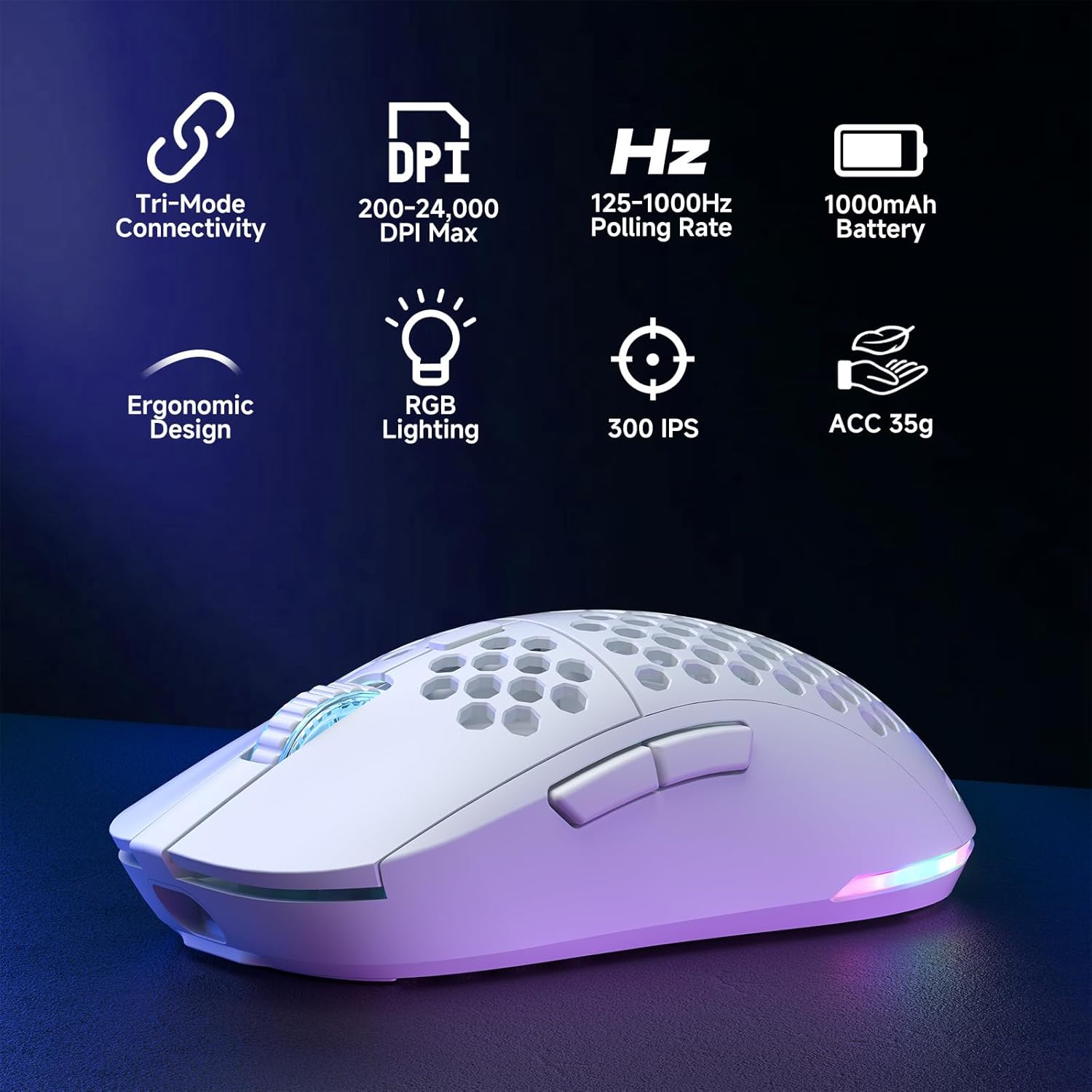
Figure 2: Key features of the Dierya M1 Wireless Gaming Mouse.
3. Gambarajah dan Komponen Produk
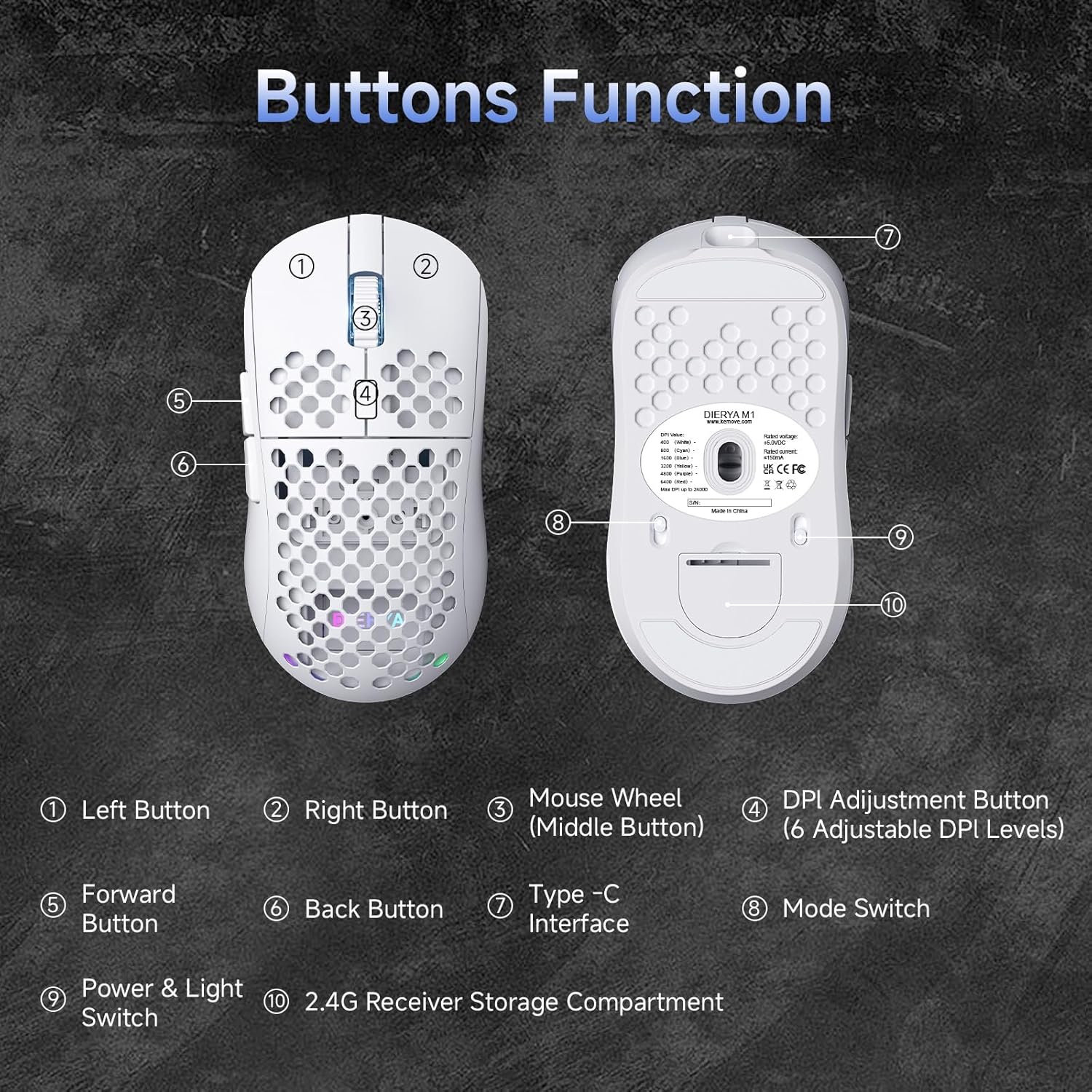
Rajah 3: Atas dan bawah view of the Dierya M1 mouse with labeled components.
- Butang Kiri
- Butang Kanan
- Mouse Wheel (Middle Button)
- DPI Adjustment Button (6 Adjustable DPI Levels)
- Butang Maju
- Butang Belakang
- Antara muka Jenis-C
- Mode Switch (2.4G / Bluetooth / Wired)
- Power & Light Switch
- 2.4G Receiver Storage Compartment
4. Persediaan dan Sambungan
The Dierya M1 mouse offers three connection modes: 2.4 GHz Wireless, Bluetooth 5.2, and USB-C Wired.

Gambar 4: Lebihview of the three connection modes.
4.1. Sambungan Wayarles 2.4 GHz
- Cari penerima USB 2.4G di dalam petak storan di bahagian bawah tetikus.
- Palamkan penerima USB ke dalam port USB yang tersedia pada komputer anda.
- Set the mode switch on the bottom of the mouse to the '2.4G' position.
- Tetikus sepatutnya bersambung secara automatik.
4.2. Sambungan Bluetooth 5.2
- Set the mode switch on the bottom of the mouse to the 'Bluetooth' position.
- Pada komputer atau peranti anda, buka tetapan Bluetooth.
- Cari untuk new devices and select 'Dierya M1' from the list.
- Ikuti mana-mana gesaan pada skrin untuk melengkapkan proses berpasangan.
4.3. Sambungan Berwayar USB-C
- Connect the provided USB-C cable to the Type-C interface on the front of the mouse.
- Sambungkan hujung kabel USB-C yang satu lagi ke port USB yang tersedia pada komputer anda.
- Set the mode switch on the bottom of the mouse to the 'Wired' position.
- Tetikus akan berfungsi sebagai tetikus berwayar dan mengecas secara serentak.
5. Arahan Operasi
5.1. Pelarasan DPI
The DPI Adjustment Button (4) on the top of the mouse allows you to cycle through preset DPI levels. Each DPI level is indicated by a specific color on the scroll wheel LED for a few seconds after adjustment.
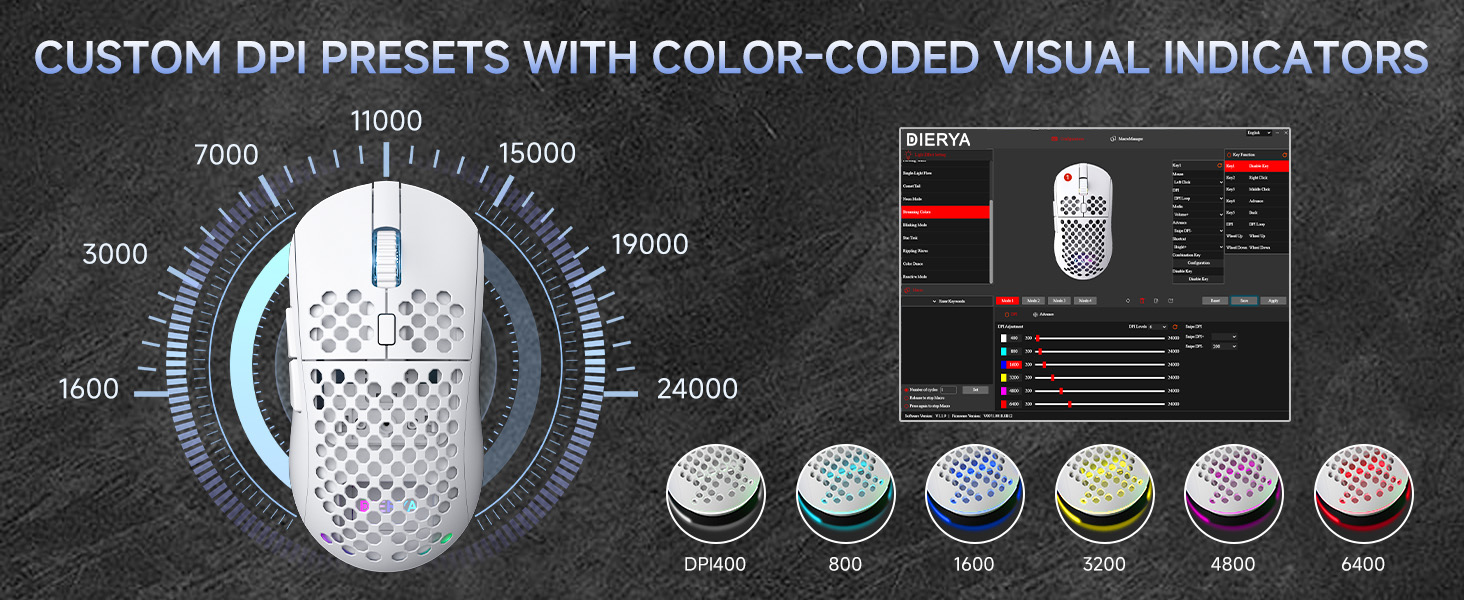
Figure 5: DPI levels and their corresponding scroll wheel LED colors.
- Press the DPI button to switch between 6 preset DPI levels.
- Default presets: 400 DPI (Red), 800 DPI (Green), 1600 DPI (Blue), 3200 DPI (Yellow), 4800 DPI (Purple), 6400 DPI (Cyan).
- For custom DPI settings and a wider range (200-24,000 DPI), use the M1 Driver Software (Windows only).
5.2. Kawalan Pencahayaan RGB
The mouse features 13 dynamic RGB lighting effects. You can control the lighting directly on the mouse or customize it further with the software.
- To cycle through RGB effects: Press and hold the DPI Adjustment Button (4) for 3 seconds.
- To turn RGB lighting On/Off: Use the Power & Light Switch (9) on the bottom of the mouse.
- For advanced customization of colors and effects, use the M1 Driver Software (Windows only).
5.3. Butang Boleh Aturcara
The Dierya M1 has 6 programmable buttons (Left, Right, Middle, DPI, Forward, Back). These buttons can be customized for various functions, macros, or key reassignments using the M1 Driver Software.
6. Pengecasan dan Pengurusan Bateri
The Dierya M1 mouse is equipped with a 1000 mAh rechargeable battery.

Figure 6: Charging the Dierya M1 mouse and battery life indicators.
- mengecas: Connect the mouse to your computer using the provided USB-C cable. The mouse will charge while in wired mode or when connected to a power source. A full charge takes approximately 1 hour.
- Hayat Bateri: Expect up to 180 hours of use in ECO mode (RGB off) and up to 48 hours with RGB lighting enabled.
- Penjimatan Kuasa: The mouse automatically enters a power-saving sleep mode after 1-5 minutes of inactivity. This duration can be adjusted via the M1 Driver Software.
- Penunjuk Bateri Rendah: The RGB lighting or a specific LED will indicate when the battery is low. Charge the mouse promptly to avoid interruption.
7. M1 Driver Software (Windows Only)
The M1 Driver Software allows for advanced customization of your mouse settings. This software is currently available for Windows operating systems only.

Figure 7: M1 Driver Software interface.
7.1. Ciri-ciri Perisian
- Tugasan Utama: Customize the function of all 6 buttons.
- Editor Makro: Cipta dan tetapkan makro kompleks.
- Pelarasan DPI: Fine-tune DPI settings from 200 to 24,000 in increments.
- Kadar Pengundian: Adjust the polling rate (125-1000 Hz).
- Penyesuaian RGB: Personalize lighting effects, colors, and brightness.
- Masa tidur: Configure the automatic power-saving sleep mode duration.
- Profile Pengurusan: Save and load different profiles untuk pelbagai aplikasi atau permainan.
7.2. Pemasangan
Download the latest M1 Driver Software from the official Dierya website. Follow the on-screen instructions to install the software on your Windows computer.
8. Penyelenggaraan
- Pembersihan: Gunakan kain lembut dan kering untuk membersihkan tetikus. Untuk kotoran degil, sedikit damp kain boleh digunakan, memastikan tiada cecair memasuki tetikus.
- Storan: Simpan tetikus di tempat yang sejuk dan kering jauh dari cahaya matahari langsung dan suhu yang melampau.
- Penjagaan Bateri: Avoid fully discharging the battery frequently. For long-term storage, charge the mouse to about 50% and store it in a cool, dry place.
9. Penyelesaian masalah
- Tetikus tidak bertindak balas:
- Pastikan tetikus dihidupkan.
- Pastikan suis mod sambungan (2.4G, Bluetooth, Berwayar) ditetapkan dengan betul.
- Untuk 2.4G, pastikan penerima USB dipasang dengan selamat.
- Untuk Bluetooth, pasangkan semula peranti tersebut.
- Try connecting via USB-C cable to check if it works in wired mode.
- Charge the mouse; the battery might be depleted.
- Sambungan ketinggalan atau terputus-putus:
- Ensure the mouse is within range of the receiver/device (for wireless connections).
- Kurangkan gangguan daripada peranti wayarles lain.
- Pastikan bateri dicas secukupnya.
- Update mouse drivers if available (Windows only).
- Pencahayaan RGB tidak berfungsi:
- Check the Power & Light Switch (9) on the bottom of the mouse.
- Ensure the mouse is not in ECO mode or a low-power state.
- If using the software, verify RGB settings.
- Pelarasan DPI tidak berfungsi:
- Ensure you are pressing the correct DPI Adjustment Button (4).
- If using custom settings, check the M1 Driver Software.
10. Spesifikasi
| Ciri | Spesifikasi |
|---|---|
| Jenama | Dierya |
| Nama Model | M1 |
| warna | putih |
| Teknologi Ketersambungan | Tanpa Wayar 2.4GHz, Bluetooth 5.2, Berwayar USB-C |
| Teknologi Sensor | Optik |
| Julat DPI | 200 - 24,000 DPI |
| Kadar Mengundi | 125-1000 Hz |
| Kelajuan Penjejakan | 300IPS |
| Pecutan | 35G |
| Bilangan Butang | 6 (Boleh Diprogram) |
| Suis | Huano (20 Million Clicks) |
| Bahan Kaki | 100% PTFE |
| Kapasiti Bateri | 1000 mAh (Litium-ion) |
| Battery Life (ECO Mode) | Sehingga 180 jam |
| Battery Life (RGB Mode) | Sehingga 48 jam |
| Masa Mengecas | lebih kurang 1 jam |
| Berat badan | 90 Gram |
| Dimensi | 125 x 63 x 41 mm |
| Keserasian Sistem Pengendalian | Windows, macOS, Linux, Chrome OS |
11. Waranti dan Sokongan
The Dierya M1 Wireless Gaming Mouse comes with a Waranti pengilang 1 tahun. Waranti ini melindungi kecacatan pada bahan dan mutu kerja di bawah penggunaan biasa.
For warranty claims, technical support, or further inquiries, please contact Dierya customer service through the official website or your point of purchase. Please have your product model number (M1) and proof of purchase ready when contacting support.


