1. Pengenalan dan Lebihview
Welcome to the Vibox V-525 Gaming PC. This manual provides essential information for setting up, operating, maintaining, and troubleshooting your new computer. The Vibox V-525 is a high-performance gaming system featuring an AMD Ryzen 5 5500 processor, an Nvidia RTX 4060 8GB graphics card, 16GB of DDR4 RAM, and a 1TB SSD, pre-installed with Windows 11.
Please read this manual carefully before using your PC to ensure optimal performance and longevity.
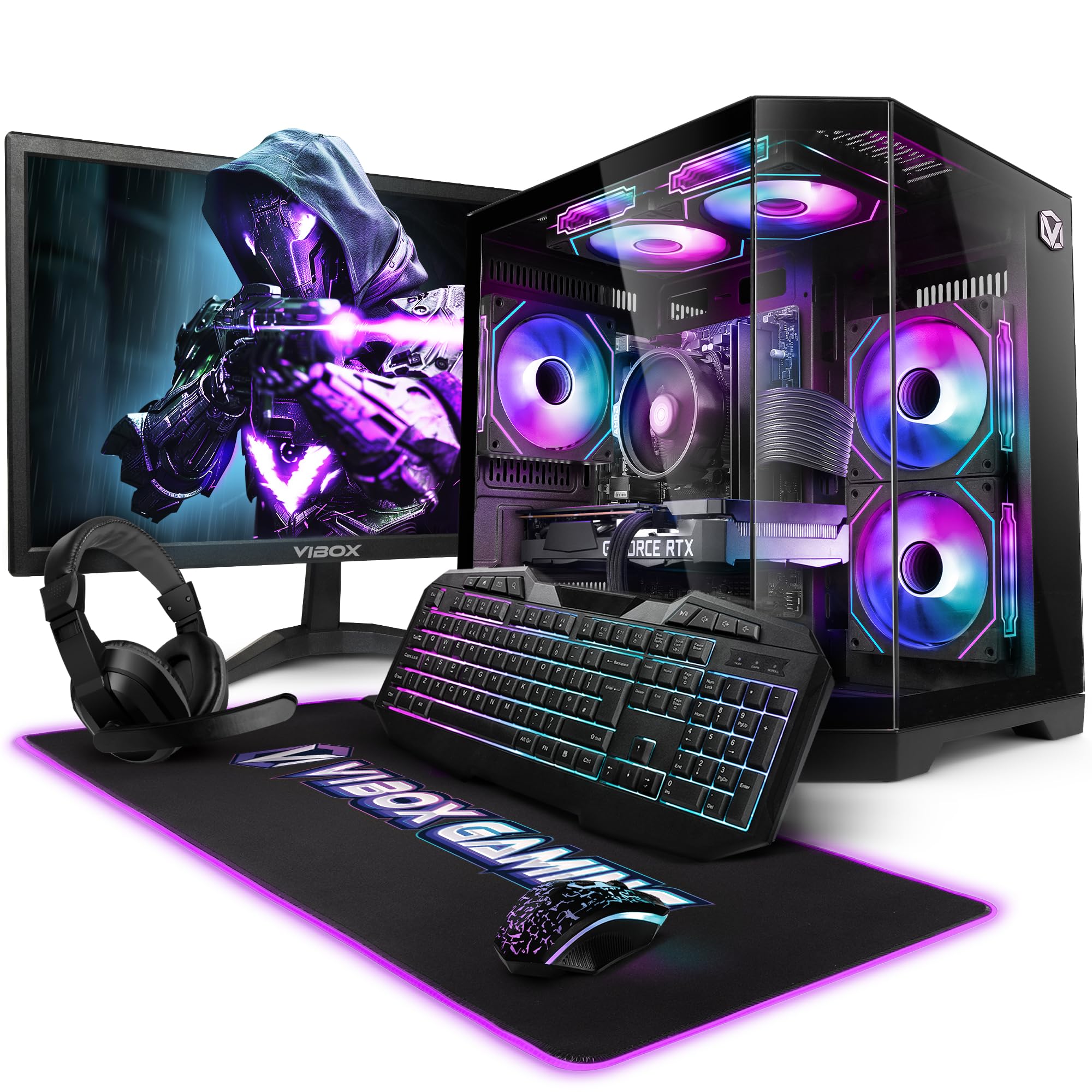
Figure 1.1: Vibox V-525 Gaming PC
2. Panduan Persediaan
2.1 Membongkar
Carefully remove all components from the packaging. Ensure you have the PC tower, 23-inch monitor, gaming keyboard, gaming mouse, headset, mouse pad, Wi-Fi adapter, and power cables.
2.2 Menyambung Peranti
- Pantau: Connect the 23-inch monitor to the graphics card (Nvidia RTX 4060) using an HDMI or DisplayPort cable. Ensure the cable is securely fastened.
- Papan Kekunci dan Tetikus: Connect the gaming keyboard and mouse to the available USB ports on the rear or front of the PC.
- alat dengar: Plug your headset into the dedicated audio jacks on the front panel or rear I/O.
- Wi-Fi Adapter: Insert the 300 Mbps Wi-Fi adapter into an available USB port.
- Kuasa: Connect the power cable to the PC's power supply unit (PSU) and then to a wall outlet. Connect the monitor's power cable as well.
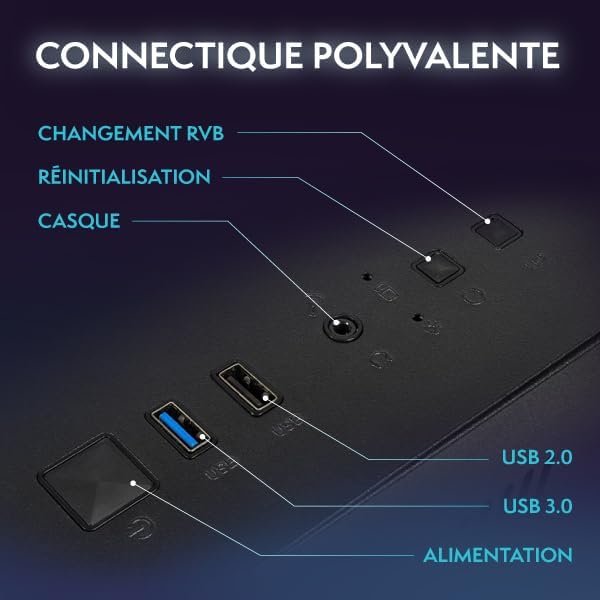
Figure 2.1: Front Panel Connectivity (Power, USB 2.0, USB 3.0, Headset, Reset, RGB Change)
2.3 Initial Boot-Up and Windows 11 Setup
- Tekan butang kuasa di hadapan PC.
- Follow the on-screen instructions to complete the Windows 11 setup process. This typically involves selecting your region, language, creating a user account, and connecting to a network.
- Once Windows 11 is set up, ensure all drivers are installed. You can check this in Device Manager.

Figure 2.2: Windows 11 Home Features
3. Arahan Operasi
3.1 Hidupkan/Mati Kuasa
- Untuk Menghidupkan: Tekan butang kuasa pada panel hadapan.
- Untuk Mematikan: Click the Start button in Windows, then select Power > Shut down. Avoid simply holding the power button to turn off, as this can lead to data loss.
- Untuk Mulakan Semula: Klik butang Mula, kemudian pilih Kuasa > Mulakan Semula.
3.2 Basic Windows 11 Navigation
Windows 11 features a redesigned user interface. The Start menu is centrally located, and widgets provide quick access to information. Explore the settings menu to personalize your experience.
3.3 Menyambung ke Wi-Fi
- Ensure your USB Wi-Fi adapter is plugged in.
- Click the network icon (Wi-Fi symbol) in the taskbar.
- Select your desired Wi-Fi network from the list and click 'Connect'.
- Masukkan kunci keselamatan rangkaian (kata laluan) jika digesa.
3.4 Kawalan Pencahayaan RGB
Your Vibox V-525 features Hex RGB Infinity 120mm fans. Use the 'RGB Change' button on the front panel to cycle through various lighting modes and colors. Refer to the software provided by Vibox (if applicable) for more advanced customization.

Figure 3.1: Hex RGB Infinity 120mm Fans
4. Penyelenggaraan
4.1 Membersihkan PC Anda
Regular cleaning helps maintain optimal performance and extends the lifespan of your components.
- Luaran: Gunakan yang lembut, damp cloth to wipe down the exterior of the case. Avoid harsh chemicals.
- Interior (Dust): Periodically, and with the PC powered off and unplugged, use compressed air to remove dust from inside the case, especially from fans, heatsinks, and vents. Pay attention to the Hex RGB Infinity fans and the GPU heatsink.
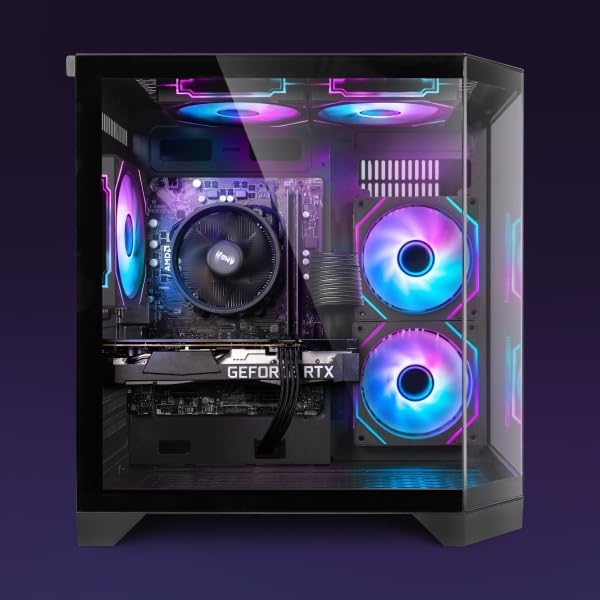
Gambar 4.1: Dalaman View of PC Components
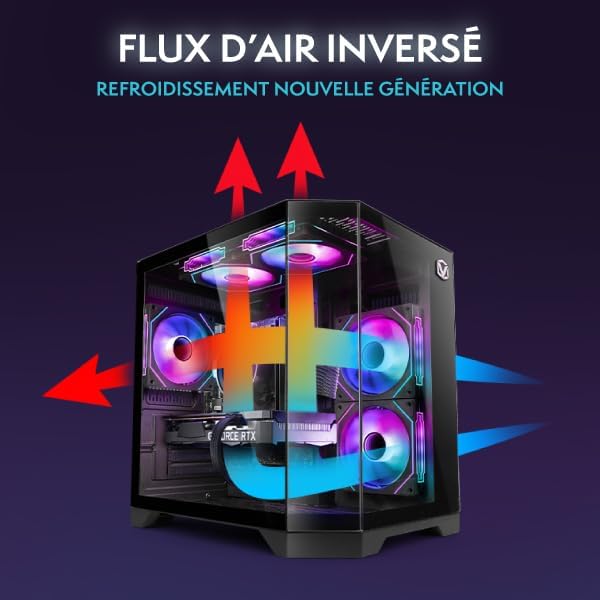
Figure 4.2: Reverse Airflow Next Generation Cooling Diagram
4.2 Kemas Kini Perisian
- Kemas Kini Windows: Regularly check for and install Windows updates via Settings > Windows Update.
- Kemas Kini Pemandu: Keep your graphics card drivers (Nvidia GeForce Experience) and other component drivers up to date for optimal performance and stability.
4.3 Sandaran Data
Kerap membuat sandaran penting anda files ke pemacu luaran atau storan awan untuk mengelakkan kehilangan data.
5. Penyelesaian masalah
Bahagian ini menangani isu biasa yang mungkin anda hadapi.
5.1 Tiada Kuasa
- Ensure the power cable is securely connected to both the PC and the wall outlet.
- Check if the power switch on the PSU (at the back of the PC) is in the 'On' position.
- Cuba salur keluar kuasa yang berbeza.
5.2 Tiada Paparan pada Monitor
- Verify that the monitor's power cable is connected and the monitor is turned on.
- Ensure the video cable (HDMI/DisplayPort) is securely connected to both the graphics card (Nvidia RTX 4060) and the monitor.
- Cuba kabel video atau monitor lain jika tersedia.
5.3 Prestasi Perlahan
- Check Task Manager (Ctrl+Shift+Esc) for applications consuming excessive CPU, RAM, or disk resources.
- Pastikan Windows dan pemacu dikemas kini.
- Jalankan imbasan virus.
- Ensure adequate airflow and clean any dust buildup (refer to Section 4.1).
5.4 Isu Ketersambungan Rangkaian
- Verify the Wi-Fi adapter is properly installed and recognized by Windows.
- Mulakan semula penghala/modem anda.
- Jalankan Penyelesai Masalah Rangkaian Windows.
6. Spesifikasi
The following table details the key specifications of your Vibox V-525 Gaming PC:
| Komponen | Spesifikasi |
|---|---|
| Pemproses | AMD Ryzen 5 5500 (6 Cores, Max 4.2 GHz) |
| Kad Grafik | Nvidia GeForce RTX 4060 (8 GB GDDR6 RAM, HDMI 2.1, DisplayPort 1.4a) |
| RAM | 16 GB DDR4 Dual Channel (3200 MHz) |
| Penyimpanan | 1 TB SSD |
| Sistem Operasi | Windows 11 Home |
| Pantau | 23-inch (Max Resolution: 1920 x 1080) |
| Ketersambungan | Wi-Fi (300 Mbps adapter included), 4 Total USB Ports |
| Memori Cache | 16 MB |
| Reka Bentuk Kes | 3-Panel Tempered Glass |
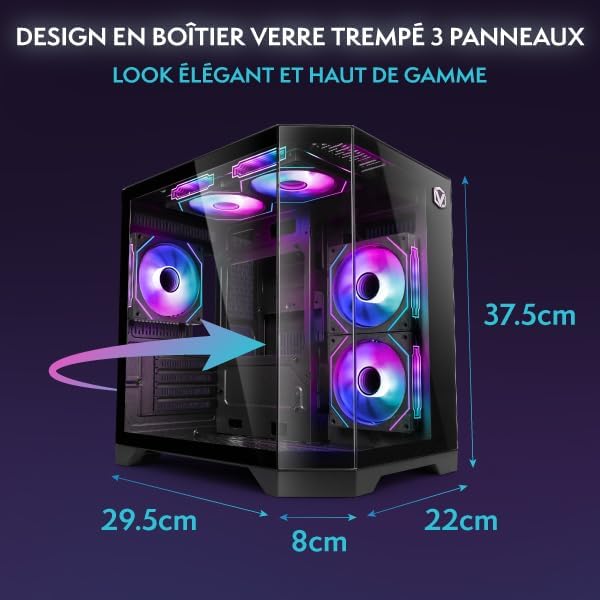
Figure 6.1: PC Case Dimensions
7. Waranti dan Sokongan
Your Vibox V-525 Gaming PC comes with a manufacturer's warranty. Please refer to the warranty card included in your product packaging for specific terms and conditions, including the warranty period and coverage details.
For technical support, troubleshooting assistance beyond this manual, or warranty claims, please contact Vibox customer service through their official webtapak atau maklumat hubungan yang diberikan bersama dokumentasi pembelian anda.
Always provide your product model (V-525) and purchase date when contacting support.


