1. Pengenalan
This manual provides essential information for the setup, operation, and maintenance of your Blackview Tab 20WIFI 10-inch Android 15 Tablet. Please read this manual thoroughly to ensure proper use and to maximize the performance of your device.
Si Hitamview Tab 20WIFI is a versatile 10-inch Android 15 tablet featuring a 1280x800 IPS touchscreen, a quad-core processor, 4GB RAM (expandable to 12GB virtual RAM), 64GB internal storage expandable up to 1TB, 5G WiFi, Bluetooth 5.0, dual cameras, and a 6600mAh battery. It is designed for various applications, from entertainment to productivity.
2. Apa yang ada di dalam Kotak
Selepas membuka pakej, sahkan bahawa semua item ada:
- Hitamview Tab 20WIFI Tablet
- Kabel Jenis-C USB
- Penyesuai Kuasa
3. Peranti Lebihview
Biasakan diri anda dengan komponen fizikal Hitam andaview Tab 20WIFI tablet.

Imej: Depan dan belakang view daripada Hitamview Tab 20WIFI tablet, showcasing the display and rear camera module.
3.1. Komponen Fizikal
- paparan: 10.1-inch HD+ IPS Touchscreen (1280x800 resolution).
- Butang Kuasa: Terletak di sisi, digunakan untuk menghidupkan/mematikan atau membangunkan/menidurkan peranti.
- Butang Kelantangan: Terletak di sisi, digunakan untuk melaraskan kelantangan audio.
- Port USB Jenis-C: Untuk pengecasan dan pemindahan data.
- Jack fon kepala: Output audio standard 3.5mm.
- Kamera Depan: Kamera 5MP untuk panggilan video dan swafoto.
- Kamera Belakang: Kamera 8MP untuk gambar dan video.
- Penceramah: Output audio.
- Slot Kad MicroSD: Untuk storan yang boleh dikembangkan sehingga 1TB.
4. Persediaan
4.1. Mengecas Tablet
- Sambungkan kabel USB Jenis-C ke port pengecasan tablet.
- Sambungkan hujung kabel yang lain ke penyesuai kuasa.
- Palamkan penyesuai kuasa ke salur keluar dinding.
- Allow the tablet to charge fully before initial use. The battery indicator on the screen will show charging status.
4.2. Menghidupkan/Mematikan
- Untuk Menghidupkan: Tekan dan tahan butang Kuasa sehingga warna Hitamview logo muncul.
- Untuk Mematikan: Tekan dan tahan butang Kuasa sehingga pilihan kuasa muncul pada skrin, kemudian pilih 'Matikan'.
- Untuk Mulakan Semula: Press and hold the Power button until the power options appear, then select 'Restart'.
4.3. Persediaan Awal
The first time you power on your tablet, you will be guided through the initial setup process:
- Pemilihan Bahasa: Pilih bahasa pilihan anda.
- Sambungan Wi-Fi: Pilih rangkaian Wi-Fi anda dan masukkan kata laluan untuk bersambung ke internet.
- Akaun Google: Sign in with your Google account or create a new one. This is necessary to download apps from the Google Play Store and access Google services.
- Tarikh & Masa: Set the correct date and time or allow the network to set it automatically.
- Keselamatan: Set up a screen lock (PIN, pattern, password, or Face Unlock).
- Ikuti sebarang arahan pada skrin yang tinggal untuk menyelesaikan persediaan.
5. Arahan Operasi
5.1. Navigasi Asas
- Skrin Utama: Hab pusat untuk aplikasi dan widget anda.
- Laci Apl: Leret ke atas dari bahagian bawah skrin untuk mengakses semua aplikasi yang dipasang.
- Panel Pemberitahuan: Leret ke bawah dari bahagian atas skrin ke view pemberitahuan dan tetapan pantas.
- Apl Terbaharu: Tap the square navigation button (or swipe up and hold from the bottom) to see recently used applications.
5.2. Paparan dan Visual
The tablet features a 10.1-inch HD+ IPS display with a 1280x800 resolution, offering clear visuals. It supports 10-point multi-touch and a 120Hz sampling rate for responsive interactions. Brightness can be adjusted in Settings > Display.

Imej: Si Hitamview tablet screen showing the Android interface with various applications like Facebook, TikTok, YouTube, and Netflix.
5.3. Pengurusan Storan
Your tablet comes with 64GB of internal storage. You can expand this by inserting a MicroSD (TF) card up to 1TB into the dedicated slot.

Image: Visual representation of the tablet's storage capabilities, including 12GB RAM (virtual), 64GB ROM, and support for up to 1TB expandable storage via a MicroSD card.
5.4. Penggunaan Kamera
The tablet is equipped with an 8MP rear camera and a 5MP front camera. Open the Camera app to capture photos and videos. Tap the screen to focus and press the shutter button to take a picture.

Imej: Cthamples of photos taken with the tablet's 8MP rear camera and 5MP front camera, highlighting their use for capturing moments.
5.5. Buka Kunci Wajah
For convenient and secure access, you can set up Face Unlock. Go to Settings > Security > Face Unlock and follow the on-screen instructions to register your face. Once set up, you can unlock your tablet by simply looking at the front camera.

Image: A user demonstrating the Face Unlock feature on the Blackview tablet, with facial recognition lines visible.
5.6. Ketersambungan
The tablet supports 5G Wi-Fi for fast internet access and Bluetooth 5.0 for connecting wireless accessories like headphones or keyboards.
- Wi-Fi: Pergi ke Tetapan > Rangkaian & internet > Wi-Fi untuk bersambung ke rangkaian yang tersedia.
- Bluetooth: Go to Settings > Connected devices > Bluetooth to pair with Bluetooth devices.
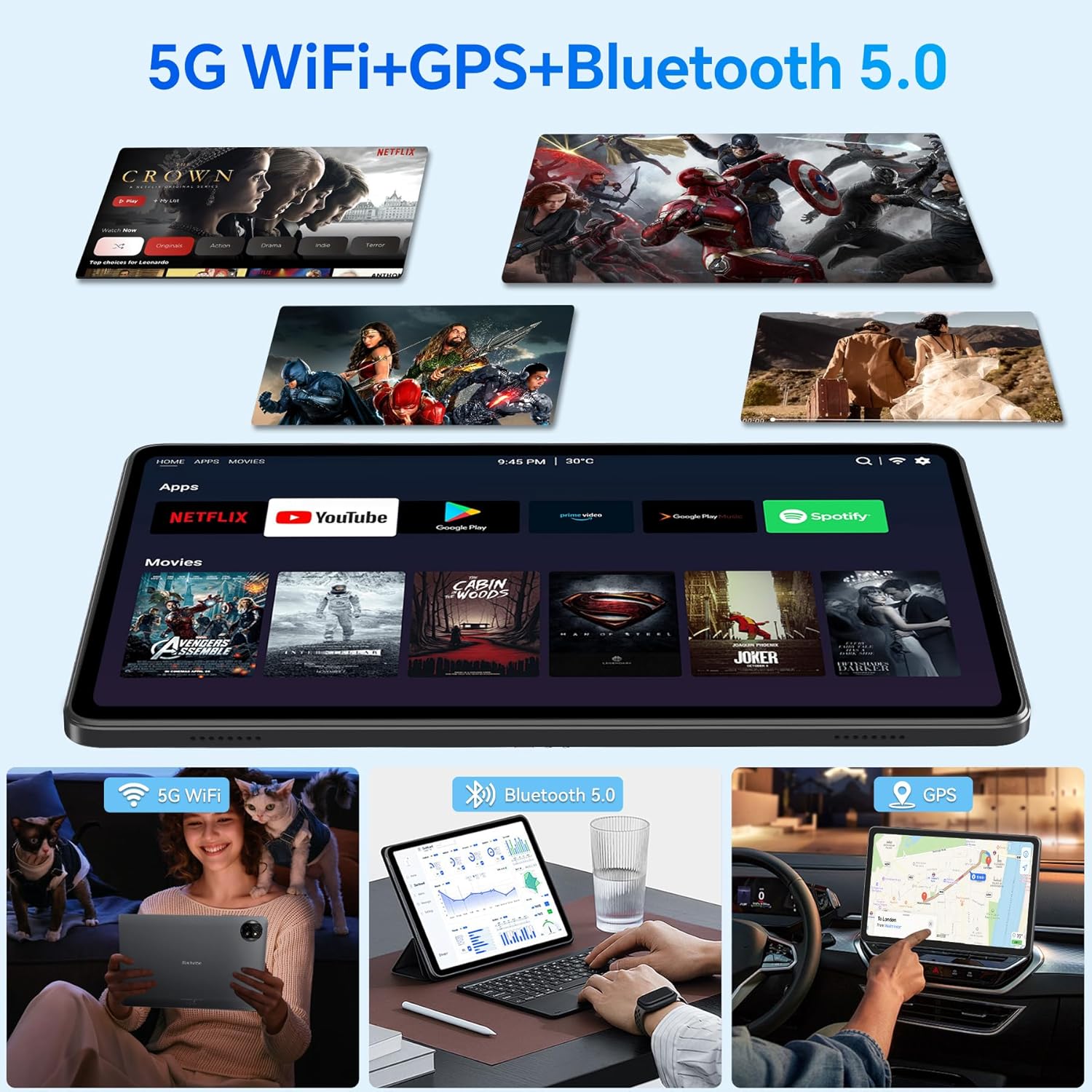
Image: Demonstrations of the tablet's connectivity features, including 5G WiFi for streaming, Bluetooth 5.0 for connecting peripherals, and GPS for navigation.
5.7. Multifunctional Use
Si Hitamview Tab 20WIFI supports various modes of use to enhance your experience:
- Skrin Pisah: Use two apps simultaneously for multitasking.
- Permainan: Enjoy mobile games with the tablet's performance.
- Video muzik: Stream or play local media files.
- Navigasi: Utilize GPS and mapping applications.
- Pejabat Mudah Alih: Use productivity apps for work or study.

Image: A collage illustrating the tablet's versatility, showing it used for split-screen multitasking, gaming, listening to music, GPS navigation, watching YouTube, and as a portable office device.
6. Penyelenggaraan
6.1. Penjagaan Bateri
Untuk memanjangkan hayat bateri:
- Elakkan daripada mendedahkan tablet kepada suhu yang melampau.
- Jangan biarkan bateri dicas sepenuhnya dengan kerap.
- Use the provided charger and cable for optimal charging.
- The 6600mAh battery supports 10W fast charging, achieving 6-8 hours of video playback from 2 hours of charging.

Image: A graphic depicting the tablet's 6600mAh high-capacity battery and its convenient Type-C charging port.
6.2. Pembersihan
- Gunakan kain lembut dan tidak berbulu untuk membersihkan skrin dan badan.
- Elakkan menggunakan bahan kimia yang keras atau bahan yang melelas.
6.3. Kemas Kini Perisian
Semak dan pasang kemas kini sistem secara kerap untuk memastikan prestasi dan keselamatan yang optimum. Pergi ke Tetapan > Sistem > Kemas kini sistem.
7. Penyelesaian masalah
Jika anda menghadapi masalah dengan tablet anda, rujuk kepada penyelesaian biasa berikut:
| Isu | Penyelesaian yang Mungkin |
|---|---|
| Tablet tidak dihidupkan | Ensure the tablet is charged. Connect it to the charger for at least 30 minutes, then try powering on again. If unresponsive, perform a forced restart by holding the power button for 10-15 seconds. |
| Isu sambungan Wi-Fi | Restart your Wi-Fi router. Go to Settings > Network & internet > Wi-Fi, forget the network, and reconnect. Ensure you are within range of the Wi-Fi signal. |
| Prestasi perlahan atau pembekuan | Close unnecessary background apps. Clear cache for frequently used apps (Settings > Apps > [App Name] > Storage & cache > Clear cache). Restart the tablet. Ensure sufficient storage space is available. |
| Apl ranap | Update the app from the Google Play Store. Clear the app's cache and data (Settings > Apps > [App Name] > Storage & cache). Reinstall the app if the issue persists. |
| Buka Kunci Wajah tidak berfungsi | Ensure your face is well-lit and positioned correctly in front of the camera. Clean the front camera lens. Re-register your face in Settings > Security > Face Unlock. |
If problems persist, consider performing a factory reset (Settings > System > Reset options > Erase all data (factory reset)). Amaran: Ini akan memadamkan semua data pada tablet anda. Sandarkan data penting sebelum meneruskan.
8. Spesifikasi
Key technical specifications for the Blackview Tab 20WIFI tablet:
- model: T310
- Sistem pengendalian: Android 15
- paparan: 10.1-inch IPS, 1280 x 800 pixels
- Pemproses: 1.8 GHz Quad-Core (Unisoc)
- RAM: 4GB (up to 12GB virtual RAM)
- Storan Dalaman: 64GB
- Storan Boleh Dikembangkan: Up to 1TB via MicroSD (TF) card
- Kamera Belakang: 8MP
- Kamera Depan: 5MP
- Bateri: 6600mAh
- Ketersambungan: 5G Wi-Fi, Bluetooth 5.0
- Dimensi (LxWxH): 9.51 x 0.37 x 6.3 inci
- Berat Barang: 2.57 paun
9. Waranti dan Sokongan
Hitamview provides comprehensive support for its products.
9.1. Maklumat Waranti
Hitamview products undergo strict quality control from design to production. For Blackview tablets, users are entitled to a Waranti pembaikan percuma 24 bulan from the date of purchase. This warranty covers manufacturing defects and ensures high-quality standards.

Image: An icon representing Blackview's two-year warranty support, featuring a headset and a shield.
9.2. Sokongan Teknikal
In addition to the warranty, Blackview tawaran lifetime technician support to assist with any operational or technical queries you may have. For support, please visit the official Blackview webtapak atau hubungi perkhidmatan pelanggan mereka.


