1. Pengenalan
The AULA SC900 Pro is a high-performance wireless gaming mouse designed for precision and versatility. It features a flagship PAW3395 sensor, multiple connectivity options, and a lightweight design for extended comfort. This manual provides detailed instructions for setting up, operating, and maintaining your SC900 Pro mouse.

Imej 1.1: Atas view of the AULA SC900 Pro Wireless Gaming Mouse in red.
Video 1.1: Video ini menyediakan visual overview of the AULA SC900 Pro Wireless Gaming Mouse, showcasing its design, connectivity options, and key functionalities.
2. Kandungan Pakej
Sila sahkan bahawa semua item terdapat dalam pakej anda:
- AULA SC900 Pro Wireless Gaming Mouse
- 2 x 400mAh Replaceable Lithium-Ion Batteries
- Kabel Pengecas/Data USB-C ke USB-A
- 2.4G Wireless Receiver (USB-C type)
3. Produk Lebihview
Familiarize yourself with the various components and buttons of your AULA SC900 Pro mouse.

Image 3.1: Labeled diagram of the AULA SC900 Pro mouse components.
- Kekunci Kiri: Fungsi klik kiri standard.
- Kunci Kanan: Fungsi klik kanan standard.
- Middle Key (Scroll Wheel): Scroll function and middle-click.
- Kunci Hadapan: Navigasi ke hadapan web pelayar atau aplikasi.
- Kunci Belakang: Navigasi ke belakang web pelayar atau aplikasi.
- Butang DPI: Kitaran melalui tetapan DPI.
- Lampu Penunjuk: Displays DPI, charging status, and connection mode.
- Port Pengecasan Jenis-C: Untuk sambungan berwayar dan pengecasan.
- Power/Mode Switch: Selects 2.4G, OFF, or BT connection modes.
- Penutup bateri: Access to the replaceable batteries.
- Receiver Type-C Port: Connects the 2.4G receiver.
- Penerima: USB-C dongle for 2.4G wireless connection.
4. Persediaan
4.1 Pemasangan dan Pengecasan Bateri
The AULA SC900 Pro mouse comes with two replaceable 400mAh batteries. One battery can be used while the other is charging, ensuring continuous operation.
- Open the battery cover located on the underside of the mouse.
- Insert one of the provided 400mAh Lithium-Ion batteries into the compartment, ensuring correct polarity.
- Tutup penutup bateri.
- To charge, connect the mouse to a computer's USB port using the provided USB-C cable. The indicator light will show charging status. It is recommended to use the original mouse cable and a standard computer USB port for charging. Avoid using fast-charging phone chargers or wall chargers for direct charging.
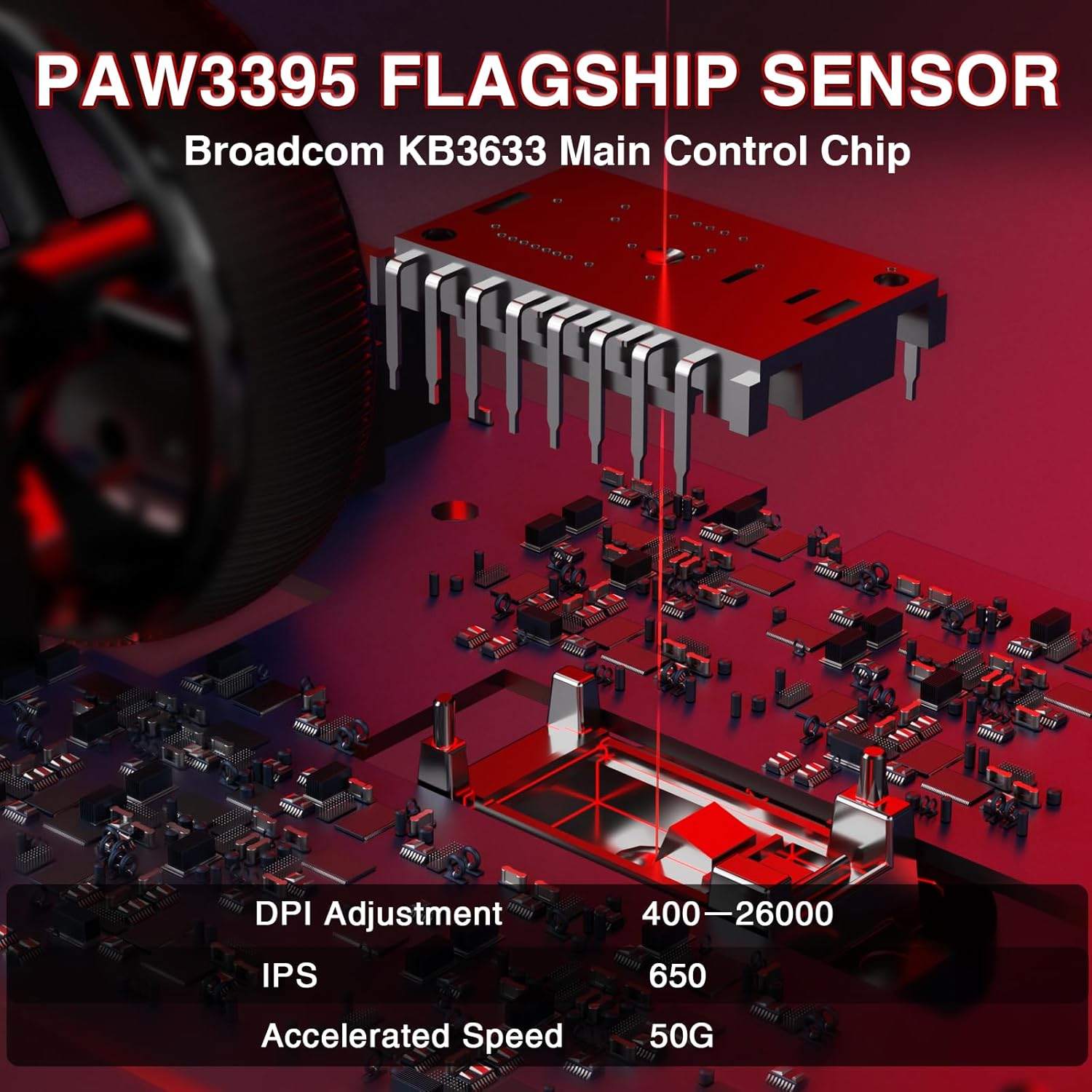
Image 4.1: Battery compartment with replaceable batteries.
4.2 Menyambung Tetikus
The SC900 Pro supports three connection modes: 2.4G Wireless, Bluetooth 5.0, and Wired Type-C.
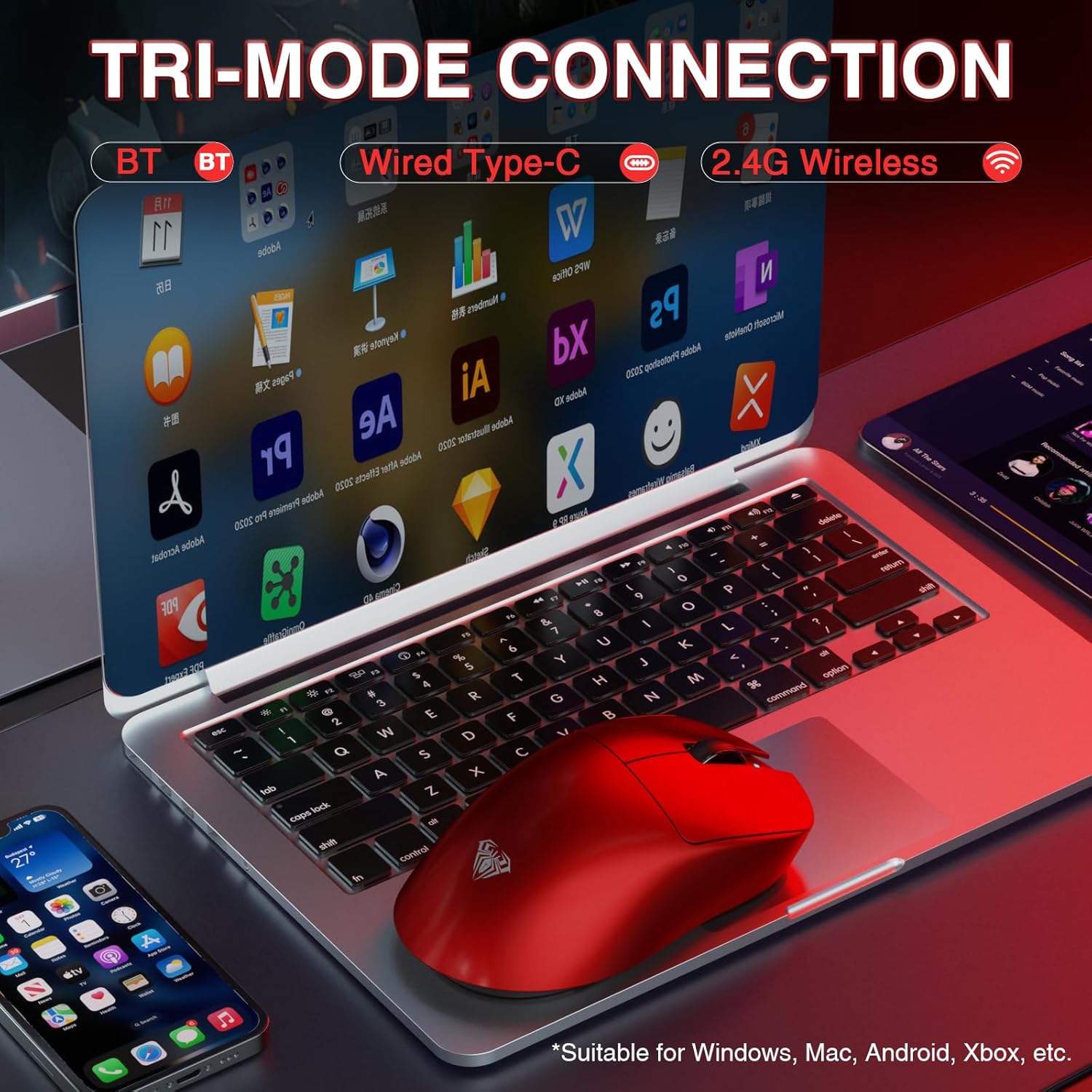
Image 4.2: Tri-mode connection options.
Mod Wayarles 2.4G:
- Cari penerima wayarles 2.4G.
- Connect the receiver to an available USB-A port on your computer.
- Slide the power/mode switch on the underside of the mouse to the "2.4G" position.
- Tetikus harus bersambung secara automatik ke komputer anda.
Mod Bluetooth 5.0:
- Slide the power/mode switch on the underside of the mouse to the "BT" position.
- Press and hold the left, middle (scroll wheel), and right buttons simultaneously for approximately 3 seconds. The blue indicator light on the mouse will flash rapidly, indicating it is in pairing mode.
- Pada komputer atau peranti anda, navigasi ke tetapan Bluetooth dan cari peranti baharu.
- Select "SC900Pro BT" from the list of available devices to connect.
Wired Type-C Mode:
- Connect one end of the USB-C cable to the mouse's Type-C charging port.
- Connect the other end of the USB-C cable to an available USB-A port on your computer.
- Tetikus akan berfungsi sebagai peranti berwayar dan dicas secara serentak.
5. Arahan Operasi
5.1 Pelarasan DPI
The AULA SC900 Pro features a 6-speed adjustable DPI setting. Press the DPI button on the top of the mouse to cycle through the following sensitivity levels:
- 400 DPI
- 800 DPI
- 1600 DPI
- 3200 DPI
- 6400 DPI
- 26000 DPI (Maksimum)
The indicator lights will change to reflect the current DPI setting.

Image 5.1: PAW3395 Sensor and DPI adjustment range.
5.2 Kadar Mengundi
The mouse supports a dual 8000Hz polling rate when operating in 2.4G wireless or wired mode. This high polling rate ensures lower latency and precise tracking, enhancing your gaming experience.

Image 5.2: Dual 8KHz Polling Rate feature.
5.3 Perisian Penyesuaian
The AULA SC900 Pro features 5 programmable buttons. Users can configure mouse buttons, DPI settings, lighting effects, and report rates through the dedicated software.
- Muat Turun Pemandu: The driver can be downloaded from bit.ly/m/AULA.
- Keserasian: The driver is only compatible with Windows systems.
- Mode Limitation: Customization features are only available when the mouse is used in 2.4GHz wireless or USB-C wired modes. Bluetooth mode does not support driver customization.

Image 5.3: AULA SC900 Pro customization software interface.
6. Penyelenggaraan
6.1 Penjagaan Bateri
- Always use the provided USB-C cable and a standard computer USB port for charging to prevent damage to the batteries or mouse.
- Elakkan daripada mendedahkan bateri kepada suhu yang melampau.
- If the mouse will not be used for an extended period, it is recommended to switch it off to preserve battery life.
6.2 Pembersihan
- Gunakan kain lembut dan kering untuk membersihkan permukaan tetikus.
- Untuk kotoran degil, sedikit dampen kain dengan air atau larutan pembersih lembut. Elakkan bahan kimia yang keras.
- Jangan biarkan cecair memasuki komponen dalaman tetikus.
7. Penyelesaian masalah
If you encounter issues with your AULA SC900 Pro mouse, please refer to the following common solutions:
| Masalah | Kemungkinan Punca | Penyelesaian |
|---|---|---|
| Tetikus tidak bertindak balas | Low battery; Incorrect connection mode; Receiver not connected (2.4G); Bluetooth not paired. | Charge the battery; Ensure the mode switch is set correctly (2.4G/BT); Reconnect the 2.4G receiver; Re-pair Bluetooth. |
| Sambungan ketinggalan atau terputus-putus | Gangguan; Jarak dari penerima/peranti; Bateri lemah. | Move closer to the receiver/device; Remove sources of interference; Charge the battery; Try a different USB port. |
| DPI tidak berubah | DPI button not pressed firmly; Software conflict. | Ensure the DPI button is pressed correctly; Restart the mouse and computer; Check for software updates. |
| Customization software not working | Incorrect connection mode; Not on Windows OS; Driver not installed correctly. | Ensure mouse is in 2.4G wireless or wired mode; Verify operating system is Windows; Reinstall the driver from bit.ly/m/AULA. |
8. Spesifikasi
| Ciri | Perincian |
|---|---|
| Nombor Model | SC900 Pro |
| Teknologi Ketersambungan | Tanpa Wayar 2.4G, Bluetooth 5.0, Berwayar USB-C |
| Sensor | PAW3395 Penderia Optik |
| Tetapan DPI | 400 / 800 / 1600 / 3200 / 6400 / 26000 |
| IPS (Inci Sesaat) | 650 |
| Pecutan | 50G |
| Kadar Mengundi | Dual 8000Hz (2.4G Wireless & Wired Modes) |
| Suis | TTC Optical Microswitches (100 million click lifespan) |
| Butang Boleh Aturcara | 5 |
| Jenis Bateri | 2 x 400mAh Replaceable Lithium-Ion Batteries |
| Berat Barang | 62g (lebih kurang 2.19 auns) |
| Dimensi Produk | 4.92 x 2.36 x 0.04 inci |
| Keserasian | PC, Mac, Linux (Driver for Windows only) |
9. Waranti dan Sokongan
AULA products are designed for reliability and performance. For warranty information, technical support, or customer service inquiries, please refer to the official AULA webtapak atau hubungi peruncit anda. Simpan bukti pembelian anda untuk tuntutan waranti.
Official AULA Webtapak: AULA Store on Amazon


