pengenalan
Thank you for choosing the Maxfree Dual Portable Monitor M4. This manual provides essential information for setting up, operating, and maintaining your new dual monitor system. Please read this manual thoroughly before use to ensure optimal performance and longevity of your device.
Produk Selesaiview
The Maxfree Dual Portable Monitor M4 is designed to expand your workspace with two 15.6-inch 1080P FHD IPS displays. Its folding design enhances portability, making it ideal for travel and various work environments.

Image: The Maxfree Dual Portable Monitor M4, featuring two 15.6-inch screens in an open, stacked configuration, ready for use.
Ciri-ciri Utama:
- Dual 15.6-inch 1080P FHD IPS Displays
- Plug & Play USB-C Connectivity
- Folding Design for Portability
- Matte Screen with Anti-glare, No Flicker, and Eye Care Functions
- Gamut Warna 100% sRGB
- Multiple Display Modes and 330° Rotation
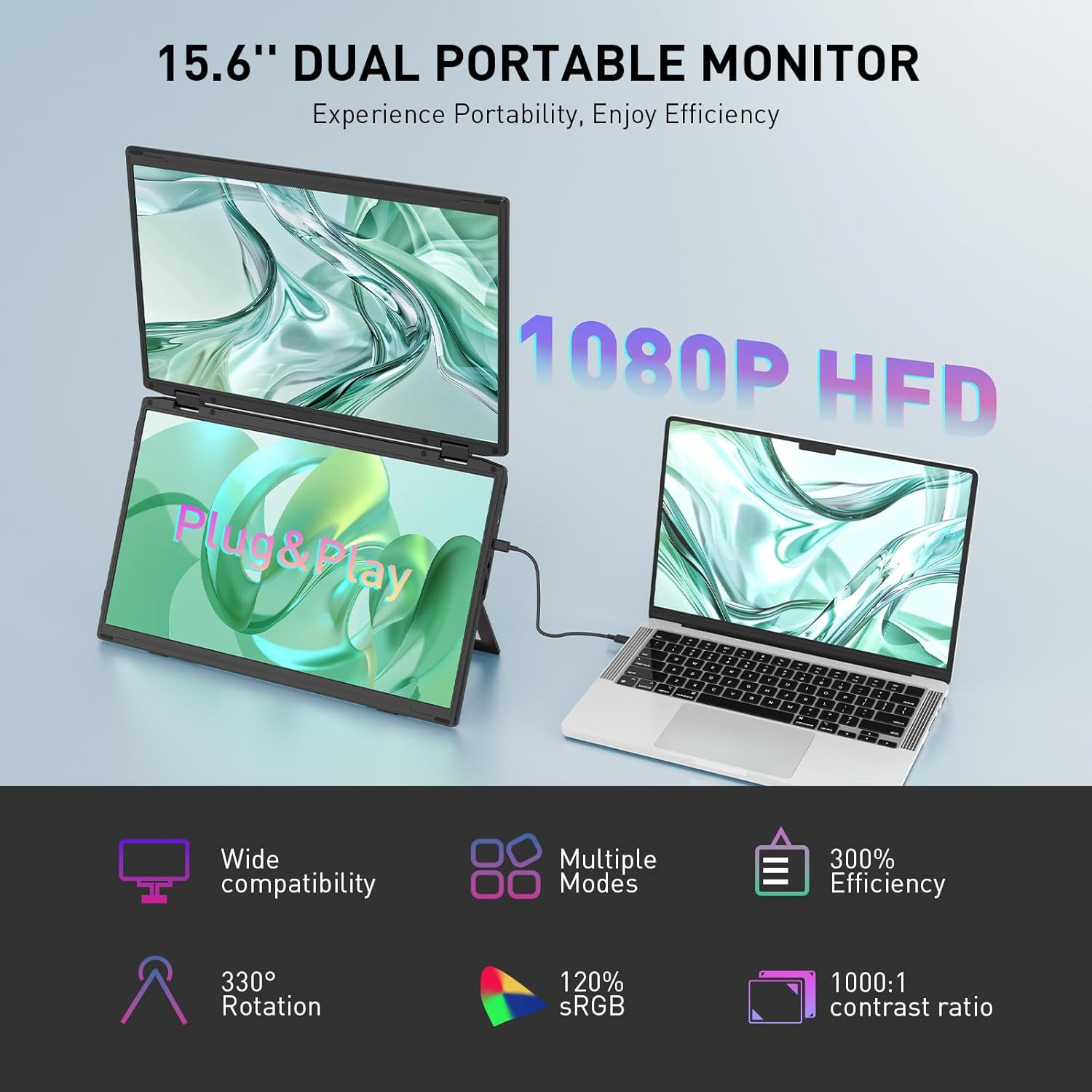
Image: The Maxfree Dual Portable Monitor M4 connected to a laptop, illustrating its plug-and-play functionality and various display modes.
Arahan Persediaan
- Buka bungkusan Monitor: Tanggalkan monitor dan semua aksesori daripada pembungkusan dengan berhati-hati.
- Letakkan Monitor: Place the monitor on a stable, flat surface. Adjust the integrated stand to your desired viewsudut ing.
- Connect to Power (Recommended): For optimal performance, connect the monitor to a power source using the provided USB-C power adapter (if included) or a compatible USB-C port on your device that supports power delivery.
- Sambung ke Peranti:
- Sambungan USB-C: Connect one end of the provided USB-C cable to the monitor's USB-C port and the other end to a full-featured USB-C port on your laptop or PC. This single cable can transmit video, audio, and power.
- HDMI + USB-A Connection (if applicable): If your device does not have a full-featured USB-C port, you may need to use an HDMI cable for video and a USB-A to USB-C cable for power and touch functionality (if supported by your model). Refer to your device's manual for specific port requirements.
- Hidupkan kuasa: Press the power button on the monitor. Your device should automatically detect and extend the display.
- Laraskan Tetapan Paparan: On your computer, navigate to Display Settings to configure the dual monitors (e.g., extend, duplicate, arrange displays).
Arahan Operasi
Mod Paparan:
The Maxfree Dual Portable Monitor supports various display modes to enhance productivity:
- Mod Lanjutan: Expands your desktop across both screens, providing a larger workspace. This is ideal for multitasking.
- Mod Pendua: Mirrors your primary display onto the portable monitors. Useful for presentations or sharing content.
- Reka Letak Menegak: The unique vertical stacking design minimizes scrolling and page switching, reducing eye and neck fatigue, especially for document review or coding.
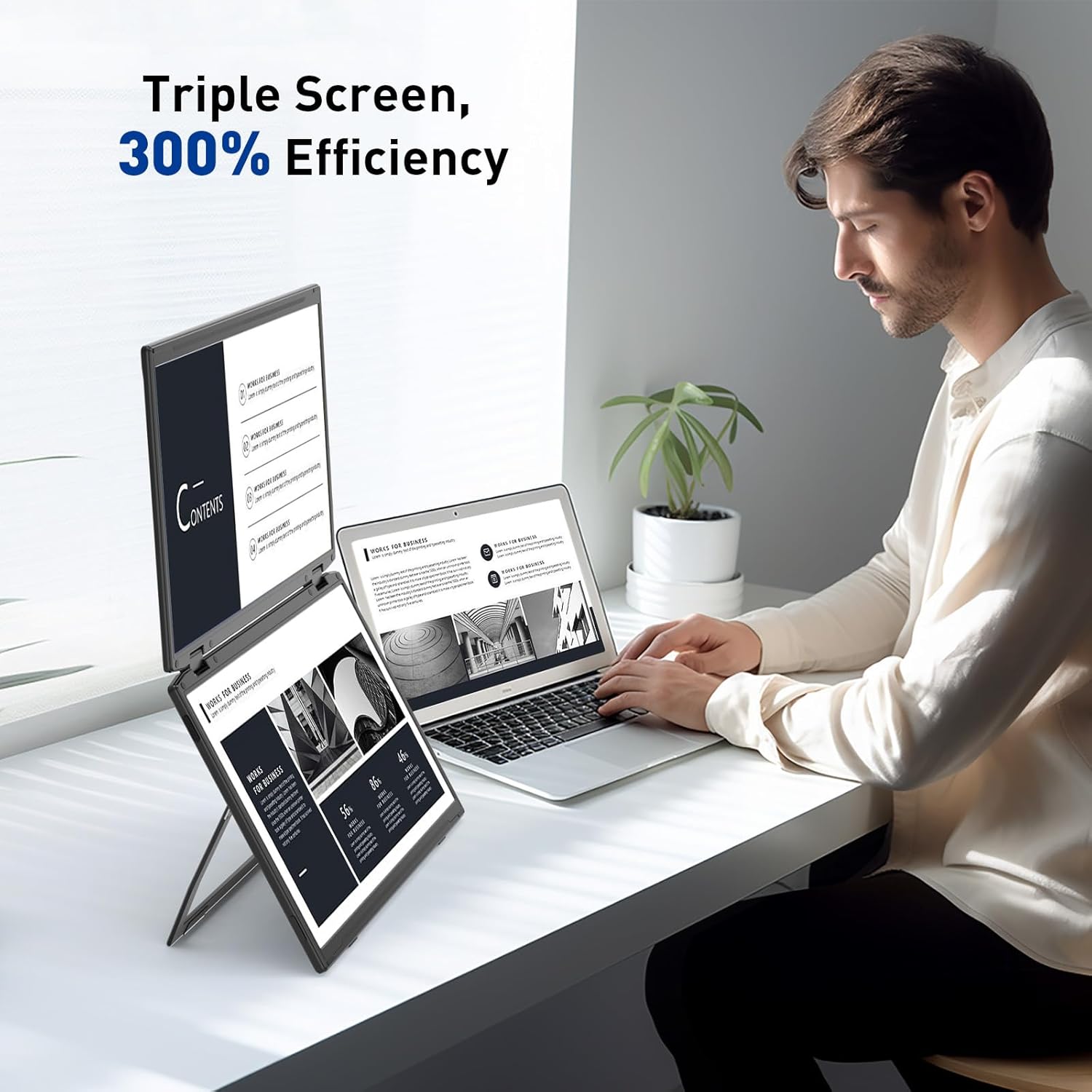
Image: A user demonstrating the Maxfree Dual Portable Monitor M4 in a vertical stacked setup, illustrating how it creates an efficient triple-screen workspace.
Menu Paparan Pada Skrin (OSD):
Use the buttons on the side of the monitor to access and navigate the OSD menu. This menu allows you to adjust settings such as:
- Kecerahan dan Kontras
- Color Settings (e.g., sRGB, color temperature)
- Pemilihan Sumber Input
- Nisbah Aspek
- Volume (if applicable)
Refer to the on-screen prompts for specific button functions (e.g., Menu, Up, Down, Exit).
Spesifikasi
| Ciri | Perincian |
|---|---|
| Saiz Skrin | Dwi 15.6 Inci |
| Resolusi | 1920 x 1080 (FHD 1080p) |
| Jenis Panel | IPS |
| Nisbah Aspek | 16:9 |
| Permukaan Skrin | Matte |
| Kecerahan Imej | 300 Candela |
| Warna Gamut | 100% sRGB |
| Ketersambungan | USB-C (Full-featured), HDMI (if applicable) |
| Jumlah Port USB | 1 (USB-C for main connection) |
| Voltage | 5 Volt |
| Dimensi Produk | 0.5 x 14 x 9 inci |
| Berat Barang | 3.5 paun |
| Nombor Model | M4 |
Menyelesaikan masalah
- Tiada Paparan:
- Ensure the USB-C cable is securely connected to both the monitor and your device.
- Verify that your device's USB-C port supports video output (DisplayPort Alternate Mode).
- Connect the monitor to an external power source if your device cannot provide sufficient power.
- Check your computer's display settings to ensure the external monitor is detected and enabled.
- Skrin berkelip:
- Ensure the cable connections are secure.
- Cuba kabel USB-C yang lain.
- Reduce the display resolution or refresh rate on your computer.
- Isu Kualiti Imej (Kabur, Warna Tidak Betul):
- Adjust the brightness, contrast, and color settings via the OSD menu.
- Ensure your computer's display resolution matches the monitor's native resolution (1920x1080).
- Monitor Tidak Menghidupkan:
- Confirm the power cable is properly connected and the power outlet is functional.
- Tekan butang kuasa dengan kuat.
Penyelenggaraan
- Membersihkan Skrin: Lap skrin perlahan-lahan dengan kain lembut yang tidak berbulu. Untuk tanda degil, sedikit dampen kain dengan air atau larutan pembersih skrin. Elakkan bahan kimia yang keras atau bahan yang melelas.
- Membersihkan Casing: Gunakan kain lembut dan kering untuk mengelap casing.
- Storan: When not in use, fold the monitor and store it in a cool, dry place, preferably in its original packaging or a protective case to prevent damage.
- Elakkan Keadaan Melampau: Jangan dedahkan monitor kepada suhu, kelembapan atau cahaya matahari langsung yang melampau.
Waranti dan Sokongan
For warranty information, technical support, or service inquiries, please refer to the warranty card included with your product or visit the official Maxfree webtapak.
Pengeluar: Shenzhen Baijiayoupu Technology CO., Ltd.


