1. Pengenalan
This manual provides detailed instructions for the installation, operation, and maintenance of your Jennov 5MP Wireless Security Camera System P48. This system includes an 8-channel NVR with a built-in monitor and four 5MP wireless cameras, designed for both indoor and outdoor surveillance. Please read this manual thoroughly before using the product to ensure proper setup and functionality.
2. Kandungan Pakej
Verify that all items listed below are included in your package. If any items are missing or damaged, please contact Jennov customer support.
- 4 x Security Cameras (Outdoor Wireless)
- 1 x NVR Monitor
- 1 x P48 Security System (Integrated NVR with Monitor)
- 1 x 1TB Hard Disk (Pre-installed)
- 1 x Kabel Ethernet
- 1 x tetikus
- 4 x Hole Stickers (for camera mounting)
- 4 x Camera Bases
- 1 x Bekalan Kuasa NVR
- 4 x Camera Power Supplies
- 1 x Kabel HDMI
- 1 x Pelekat Amaran
- 1 x Manual Pengguna (dokumen ini)
- 1 x Screws Pack (for mounting)
3. Produk Lebihview
The Jennov P48 system is a comprehensive wireless security solution designed for ease of use and reliable performance. Key features include:
- Resolusi HD 5MP: Cameras capture clear, detailed video.
- Kesambungan Tanpa Wayar: Cameras connect to the NVR wirelessly, simplifying installation.
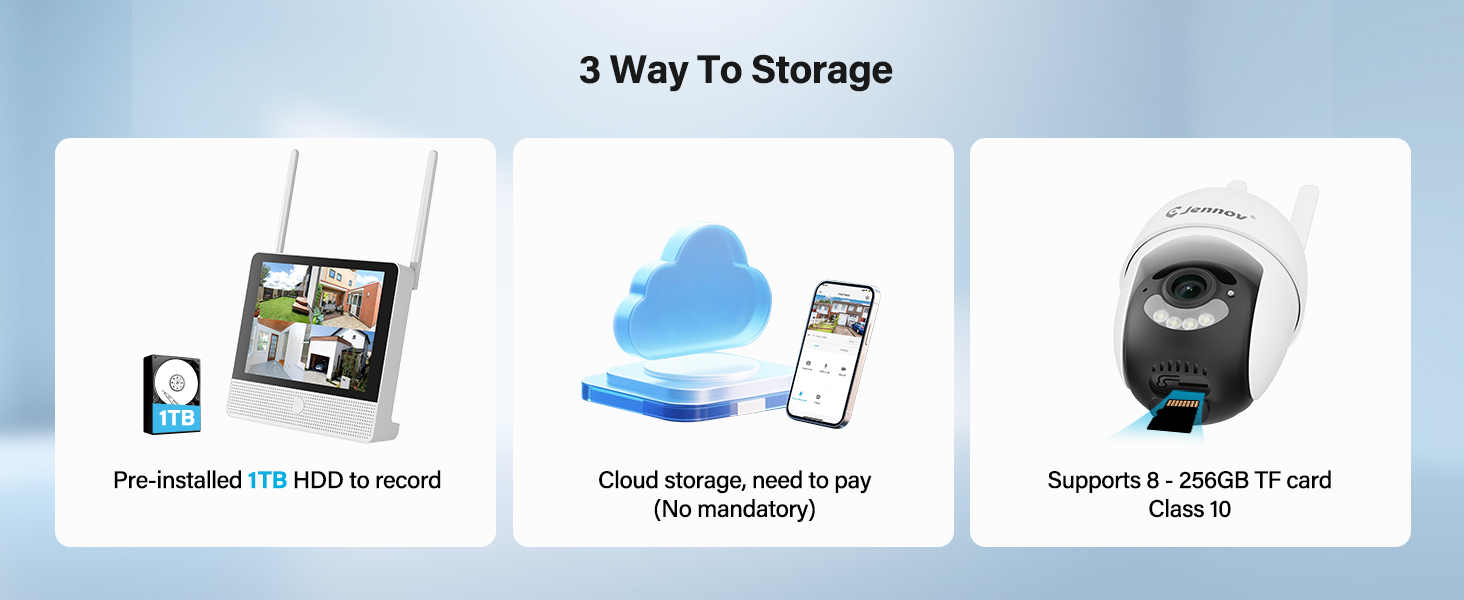
- Storan HDD 1TB: Pre-installed hard drive for local recording without subscription fees.
- Penglihatan Malam: Enhanced visibility in low-light conditions up to 15 meters.
- Pengesanan Pergerakan: Triggers recording and alerts upon detecting movement.
- IP66 Kalis Cuaca: Cameras are designed to withstand various outdoor weather conditions.
- Plug-and-Play: Simple setup with cameras pre-paired to the NVR.
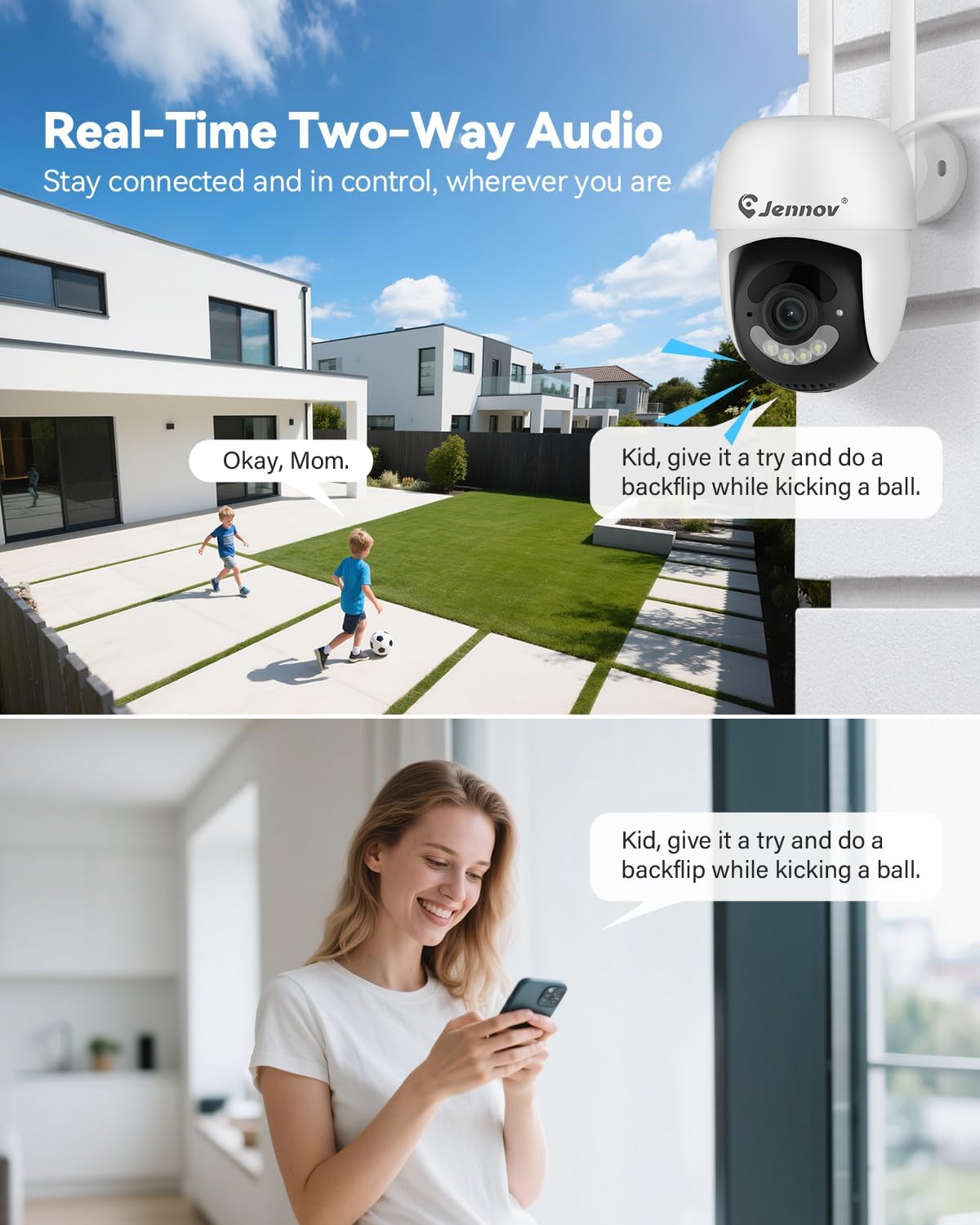
- Audio Dua hala: Communicate through the cameras using the mobile app.
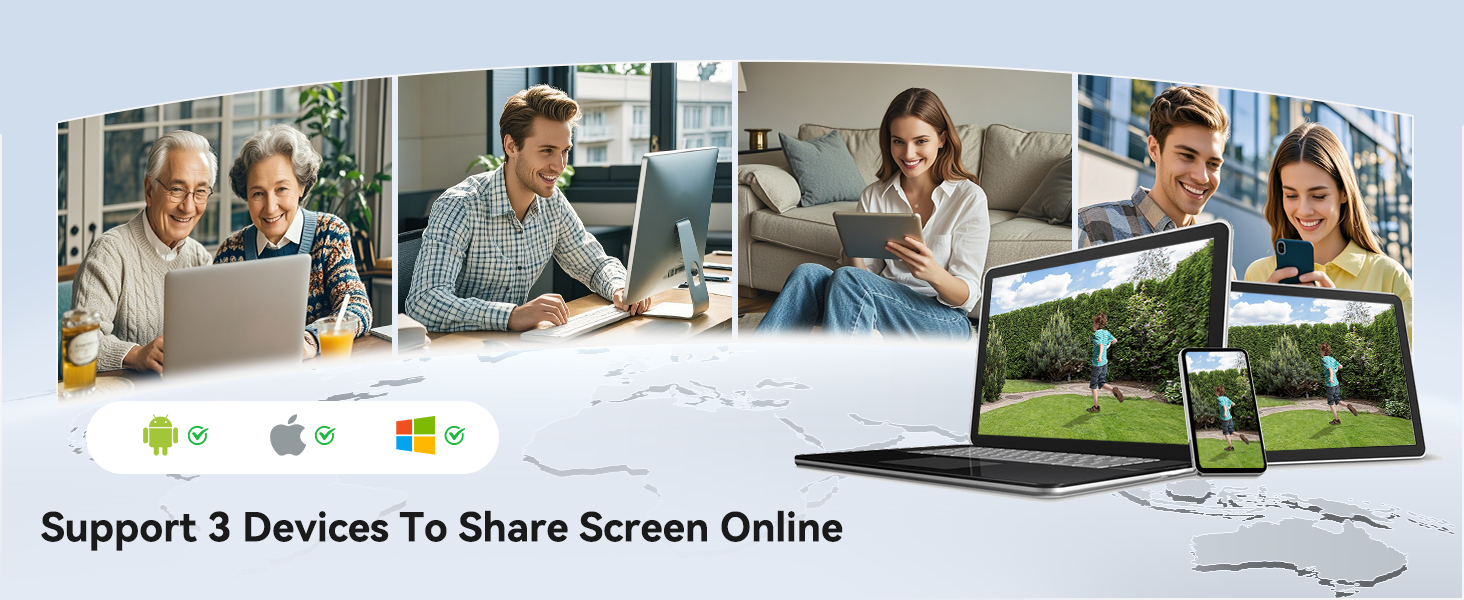
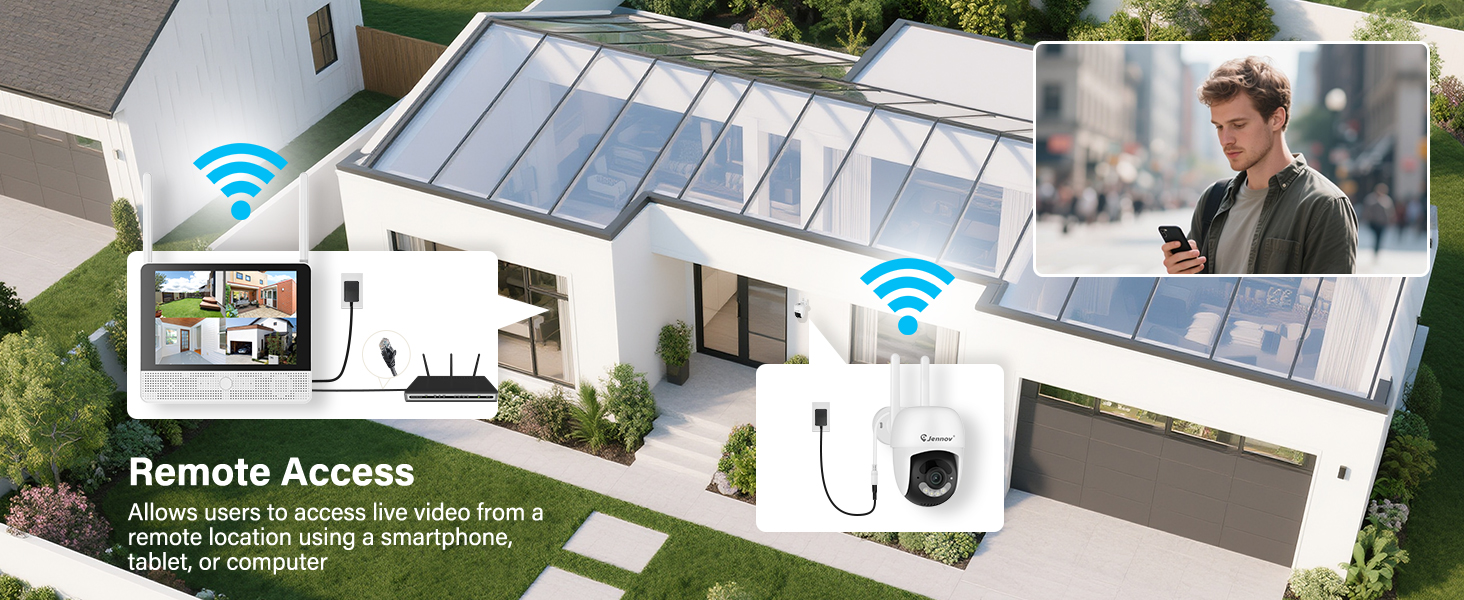
- Akses Jauh: View live feeds and recordings from anywhere via the Jennov app.
3.1 Komponen Sistem

The system consists of a Network Video Recorder (NVR) with an integrated monitor and four wireless IP cameras. The NVR manages video recording, storage, and provides a local viewing interface. The cameras capture video and transmit it wirelessly to the NVR.
3.2 NVR Ports and Connections
- Pelabuhan Kuasa: Connect the NVR power adapter.
- Port USB: For connecting the included mouse or a USB drive for backup.
- Port HDMI: Connect to an external monitor for larger display (optional).
- Port LAN: Connect to your router for internet access and remote viewing.
- Butang Tetapkan Semula: Used to reset the NVR to factory settings.
- Slot Kad SD: For additional local storage (supports up to 256GB TF card, Class 10).
4. Panduan Persediaan
4.1 Persediaan NVR Awal
- Sambungkan Kuasa: Connect the NVR power adapter to the Power Port and plug it into an electrical outlet. The NVR will power on automatically.
- Sambung Tetikus: Plug the included USB mouse into the USB Port on the NVR.
- But Permulaan: The NVR will boot up and display the live view from the pre-paired cameras on its integrated monitor.
- Network Connection (Optional for Remote Access): Untuk jarak jauh viewing via the mobile app, connect the NVR's LAN Port to your internet router using the provided Ethernet cable.
4.2 Pemasangan Kamera
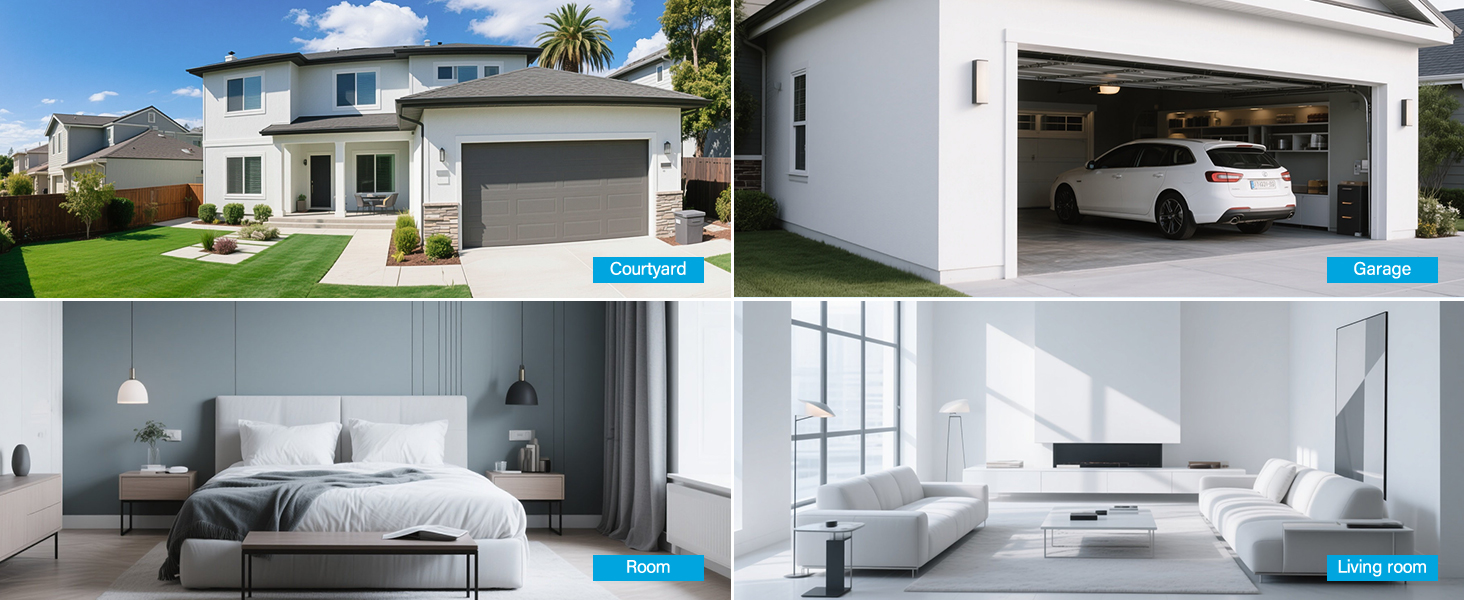
The cameras are designed for both indoor and outdoor use (IP66 rated). Choose mounting locations that provide optimal coverage and are within range of a power outlet.
- Pilih Lokasi: Identify suitable locations for each camera. Consider areas like entryways, driveways, garages, and backyards. Ensure the camera has a clear line of sight to the area you wish to monitor.
- Pemasangan:
- Use the included hole stickers to mark drilling points on the wall or ceiling.
- Drill pilot holes and insert the wall anchors if necessary.
- Selamatkan pangkalan kamera menggunakan skru yang disediakan.
- Attach the camera to the base and adjust its angle.
- Sambungkan Kuasa: Connect each camera to its individual power adapter and plug it into an electrical outlet. The cameras will power on and automatically connect to the NVR.
Nota: The cameras are pre-paired to the NVR. If a camera does not display a live feed, ensure it is powered on and within wireless range of the NVR. You may need to re-pair it if issues persist (refer to Troubleshooting section).
5. Arahan Operasi
5.1 Langsung View dan Navigasi
Once the system is powered on, the NVR's integrated monitor will display the live feeds from all connected cameras. Use the included mouse to navigate the NVR interface.
- Menu Utama: Klik kanan di mana-mana sahaja pada siaran langsung view skrin untuk mengakses menu utama.
- Pertukaran Saluran: Click on a specific camera feed to view it in full screen, or use the layout options to change the multi-camera display.
5.2 Rakaman dan Main semula
The system records continuously to the pre-installed 1TB HDD. Recording settings can be adjusted via the NVR's menu.
- Rakaman Berterusan: The system is configured for 24/7 continuous recording by default.
- Rakaman Diaktifkan Pergerakan: You can configure cameras to record only when motion is detected, saving storage space.
- Main balik: From the main menu, select "Playback" to review dirakam footage. You can search by date, time, and event type (e.g., motion detection).
5.3 Pengesanan Gerakan dan Makluman
The cameras feature smart motion detection to alert you to activity.
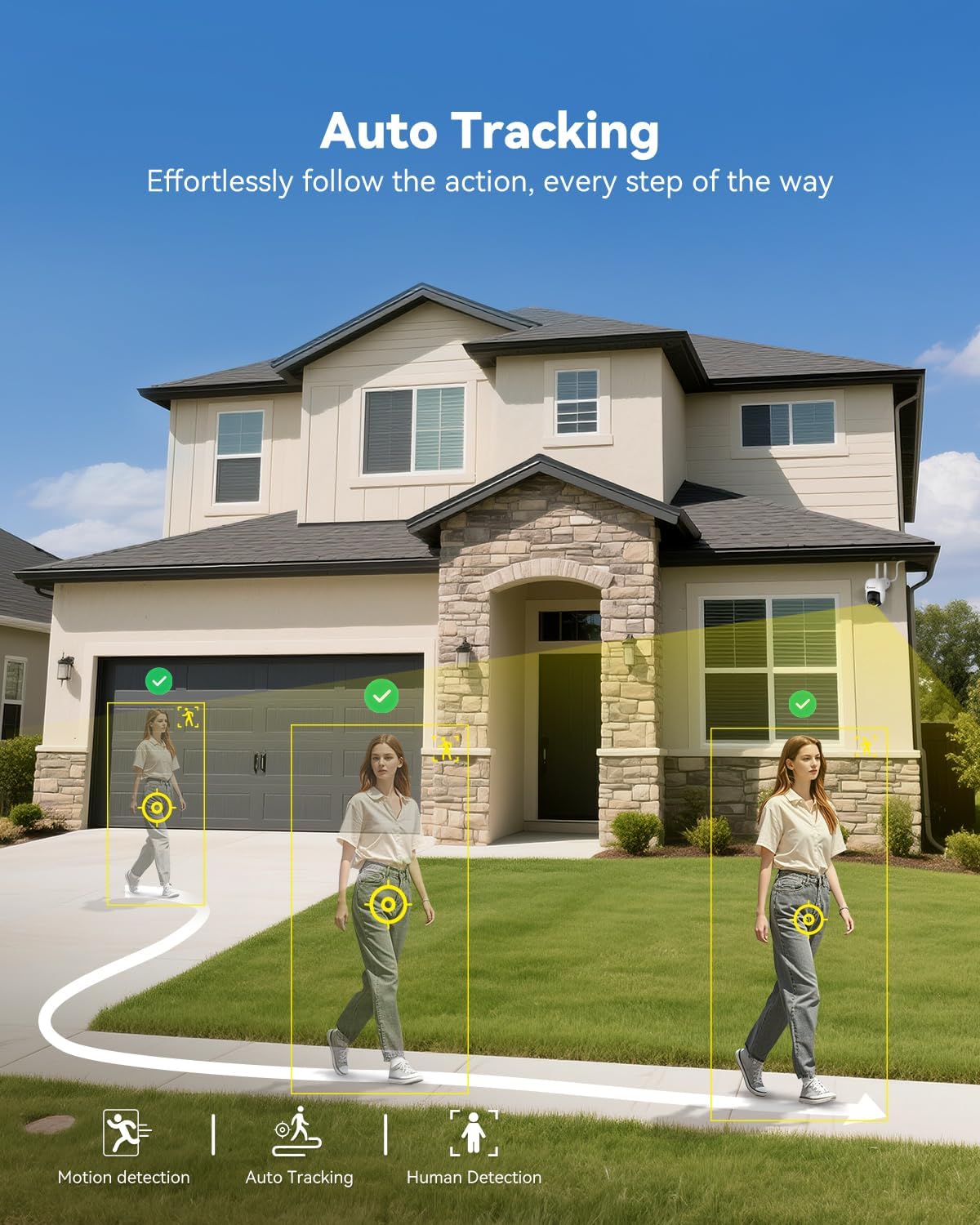
- Konfigurasi: Access motion detection settings from the NVR's main menu. You can define detection zones and sensitivity levels for each camera.
- Makluman: When motion is detected, the system can trigger recordings, send push notifications to your mobile app (if configured), and activate audible alarms or spotlights on the camera (if supported and enabled).

5.4 Remote Access (Jennov App)
Kepada view your cameras remotely, download the Jennov app on your smartphone or tablet.
- Muat turun Aplikasi: Cari untuk "Jennov" in your device's app store (iOS or Android).
- Daftar Akaun: Create a new user account within the app.
- Tambah Peranti: Follow the in-app instructions to add your NVR system. This typically involves scanning a QR code displayed on the NVR's monitor or entering the device ID manually.
- Langsung View & Main semula: Setelah ditambah, anda boleh view suapan langsung, mainkan semula rakaman dan terima makluman terus pada peranti mudah alih anda.
5.5 Audio Dua Hala
Each camera is equipped with a microphone and speaker, enabling two-way communication through the Jennov app.
- Aktifkan: Dalam siaran langsung view of a specific camera on the app, locate the microphone icon. Tap it to speak, and your voice will be transmitted through the camera's speaker.
- Dengar: The camera's microphone will pick up audio from its surroundings, which you can hear through the app.
5.6 Penglihatan Malam
The cameras automatically switch to night vision mode in low-light conditions, providing clear surveillance even in darkness.

- Pengaktifan Automatik: Infrared (IR) LEDs enable black-and-white night vision. Some models may also offer color night vision under certain conditions (e.g., with ambient light or activated spotlight).
- Julat: Night vision is effective up to 15 meters (50 feet).
6. Penyelenggaraan
6.1 Pengurusan Cakera Keras
The 1TB HDD will automatically overwrite the oldest footage when full. No manual intervention is typically required for continuous recording.
- Sandaran Footage: If you need to save specific recordings, use the NVR's backup function (via USB port) or download from the mobile app.
- Pemeriksaan Kesihatan HDD: Periodically check the HDD status in the NVR's system settings to ensure proper functioning.
6.2 Pembersihan
- Kamera: Lap perlahan-lahan kanta kamera dengan lembut, damp cloth to remove dust or smudges. Do not use harsh chemicals.
- NVR: Keep the NVR monitor and unit free from dust. Use a dry, soft cloth for cleaning.
6.3 Kemas Kini Perisian Tegar
Periodically check the Jennov website or contact customer support for available firmware updates. Updates can improve system performance, add new features, or address security vulnerabilities. Follow the provided instructions carefully when performing updates.
7. Penyelesaian masalah
| Masalah | Kemungkinan Punca | Penyelesaian |
|---|---|---|
| No image on NVR monitor | NVR not powered on; Power adapter faulty; Monitor cable loose. | Ensure NVR power adapter is securely connected and plugged in. Check power outlet. If using external monitor, ensure HDMI cable is connected properly. |
| Camera not displaying live feed | Camera not powered; Out of wireless range; Not paired with NVR. | Ensure camera power adapter is connected and plugged in. Move camera closer to NVR. If still no feed, re-pair the camera: access NVR menu, go to "Camera Management" and follow instructions to add/re-pair cameras. |
| Cannot access system via mobile app | NVR not connected to internet; Incorrect app settings; Firewall issues. | Ensure NVR is connected to your router via Ethernet cable. Verify your phone has internet access. Double-check device ID/QR code in the app. Ensure router firewall is not blocking NVR access. |
| Kualiti video kurang baik atau ketinggalan | Weak wireless signal; Obstructions; Interference. | Relocate camera or NVR to improve signal strength. Minimize obstructions (thick walls, metal objects). Avoid placing near other wireless devices that may cause interference. |
| Pengesanan gerakan tidak berfungsi | Settings incorrect; Sensitivity too low; Detection zone not set. | Access NVR menu, go to "Motion Detection" settings. Adjust sensitivity, define detection zones, and ensure motion recording/alerts are enabled. |
8. Spesifikasi
| Ciri | Perincian |
|---|---|
| Jenama | Jennov |
| Nombor Model | K4-P48HC55AS-V2108-1F2 (P48 System) |
| Teknologi Ketersambungan | Tanpa wayar |
| Resolusi Tangkapan Video | 5MP (Ultra-HD) |
| Bilangan Saluran | 8 (System includes 4 cameras, expandable) |
| Kapasiti Penyimpanan Memori | 1 TB HDD (pre-installed), supports up to 256GB TF card |
| Sumber Kuasa | Corded Electric (Outlet-Powered Cameras) |
| Dimensi Item (L x W x H) | 13.39 x 7.48 x 11.42 inci |
| Penggunaan yang Disyorkan | Indoor, Outdoor Surveillance |
| Julat Penglihatan Malam | 10-15 Meters (approx. 33-50 feet) |
| Kalis cuaca | Nilai IP66 |
| Suhu Operasi | -20°C hingga 60°C (-4°F hingga 140°F) |
9. Waranti dan Sokongan
For warranty information, technical support, or any questions regarding your Jennov P48 Wireless Security Camera System, please refer to the warranty card included in your package or visit the official Jennov website. You can also contact Jennov customer service directly for assistance.
Jennov Official Webtapak: Visit Jennov Store on Amazon


