1. Pengenalan
The Geeetech M1 Mini 3D Printer is designed for ease of use, making it suitable for beginners and educational environments. This compact printer features auto-leveling, a direct drive extruder, and a flexible magnetic build plate to simplify the 3D printing process. Please read this manual thoroughly before operating your printer to ensure safe and optimal performance.

Penerangan Imej: A Geeetech M1 Mini 3D Printer, white and light blue, is shown with a spool of blue PLA filament attached to its side. Inside the print area, a colorful 3D printed Santa Claus figure is visible on the print bed. Another separate spool of blue filament is positioned next to the printer.
2. Arahan Keselamatan
- Sentiasa kendalikan pencetak di kawasan yang mempunyai pengudaraan yang baik.
- Jauhkan pencetak daripada bahan mudah terbakar, sumber haba dan air.
- Do not touch the nozzle or heated bed during operation or immediately after printing, as they can reach high temperatures.
- Jauhkan kanak-kanak dan haiwan peliharaan daripada pencetak semasa operasi.
- Use only the power adapter provided with the printer.
- Do not attempt to modify the printer or use non-approved parts.
- Unplug the printer from the power outlet before performing any maintenance or cleaning.
3. Kandungan Pakej
Sahkan bahawa semua komponen terdapat dalam pakej:
- Geeetech M1 Mini 3D Printer (fully assembled)
- 0.5kg Blue PLA Filament spool
- Penyesuai Kuasa
- Kad TF
- Kabel USB
- Tools and Accessories (e.g., spatula, nozzle cleaning needle)
- Manual Pengguna (dokumen ini)
4. Produk Lebihview dan Komponen
Familiarize yourself with the main parts of your Geeetech M1 Mini 3D Printer.

Penerangan Imej: This image highlights three key features of the Geeetech M1 Mini 3D Printer. It shows a close-up of the 2.4-inch LCD color screen, emphasizing its larger display for convenient operation. Below that, the PEI print plate is shown, also noted for its larger display size and convenient operation. Finally, a view of the print head area points out the high-brightness lighting provided by three integrated LEDs.
- 2.4" LCD Color Screen: For intuitive operation and monitoring.
- PEI Print Plate: Flexible and removable magnetic build plate for easy model removal and reduced warping.
- High-Brightness Lighting: Integrated LEDs illuminate the print area.
- Direct Drive Extruder: Provides strong extrusion force for various filaments.
- Auto-Leveling Sensor: For precise and simple bed leveling.
- Pemegang Filamen: Located on the side for filament spool.

Penerangan Imej: Sebuah meletup view or cutaway diagram of the Geeetech M1 Mini 3D Printer reveals internal components and design features. Labels point to 'Premium hardness plastic' for the casing, 'Hotbed three bearings' for the print bed mechanism, 'Thickened filament bracket' for the filament support, and 'Leather pulley reinforcement' for a drive component. The image also mentions a printing speed of 250mm/s.
5. Persediaan
5.1 Membongkar dan Meletakkan
- Keluarkan pencetak dengan berhati-hati daripada pembungkusannya.
- Place the printer on a stable, level surface in a well-ventilated area.
- Remove any protective films or packing materials.
5.2 Sambungan Kuasa
- Sambungkan penyesuai kuasa ke port input kuasa pencetak.
- Palamkan penyesuai kuasa ke salur keluar elektrik yang sesuai.
5.3 Pemuatan Filamen
- Mount the provided 0.5kg PLA filament spool onto the side filament holder.
- Trim the end of the filament to a sharp angle.
- On the LCD screen, navigate to the filament loading option.
- Insert the filament into the extruder's input hole. The printer will automatically pull the filament through once the nozzle reaches the correct temperature.
- Wait for a steady stream of filament to extrude from the nozzle, indicating successful loading.
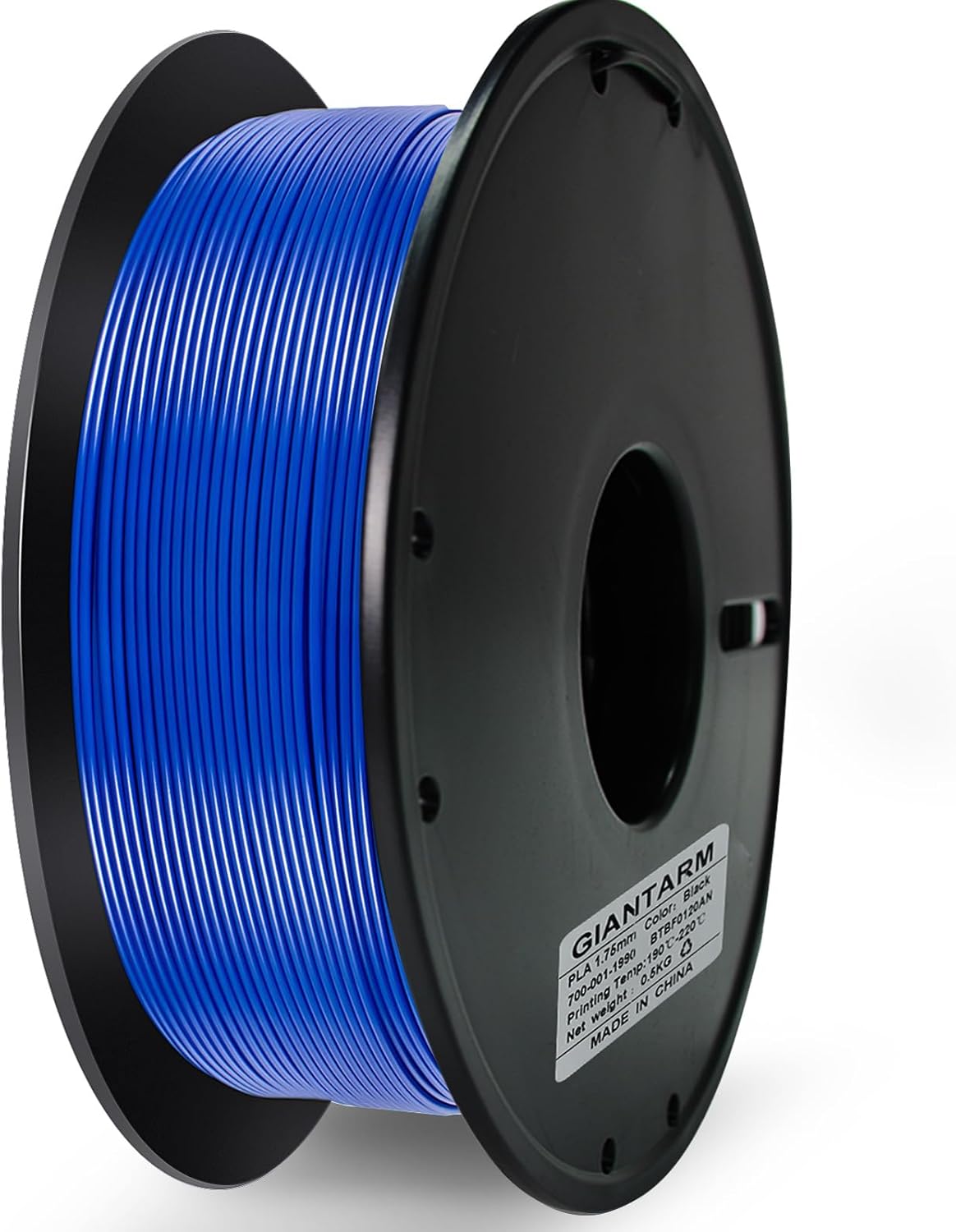
Penerangan Imej: A close-up shot of a black spool wound with bright blue PLA filament. The label on the spool indicates 'GIANTARM PLA 1.75mm', 'Color: Black' (though the filament is blue), 'Net Weight: 0.5KG', and 'MADE IN CHINA'.
5.4 Installing the 1KG Filament Holder (Optional)
If you wish to use a 1KG filament spool, you can print and attach a larger filament holder. The necessary model file is typically provided on the included TF card or available for download from the manufacturer's webtapak.

Penerangan Imej: This image displays a four-panel guide for installing a 1KG filament holder. The top-left panel shows the 3D printed components of the holder. The top-right panel shows the printer with the printed holder attached. The bottom-left panel shows a 1KG filament spool. The bottom-right panel shows the printer with the 1KG spool mounted on the newly installed holder. Text instructions below the panels read: '1. Print the provided model file using your 3D printer. 2. Attach the printed model to the consumables bracket. 3. Enjoy the convenience of using 1KG consumables with this lightweight holder. For printing instructions, visit A+.'
6. Arahan Operasi
6.1 Menghidupkan/Mematikan
- Untuk Menghidupkan: Press the power button located on the printer. The LCD screen will light up.
- Untuk Mematikan: Press and hold the power button until the printer shuts down, or use the power switch if available.
6.2 Penarafan Automatik
The Geeetech M1 Mini features 16-point full-auto leveling. This process ensures the print bed is correctly calibrated for optimal adhesion and print quality.
- Ensure the print bed is clean and free of debris.
- From the main menu on the LCD screen, select the 'Auto-Level' or 'Leveling' option.
- The printer will automatically move the print head to various points on the bed to measure and adjust.
- Wait for the process to complete. No manual intervention is required.
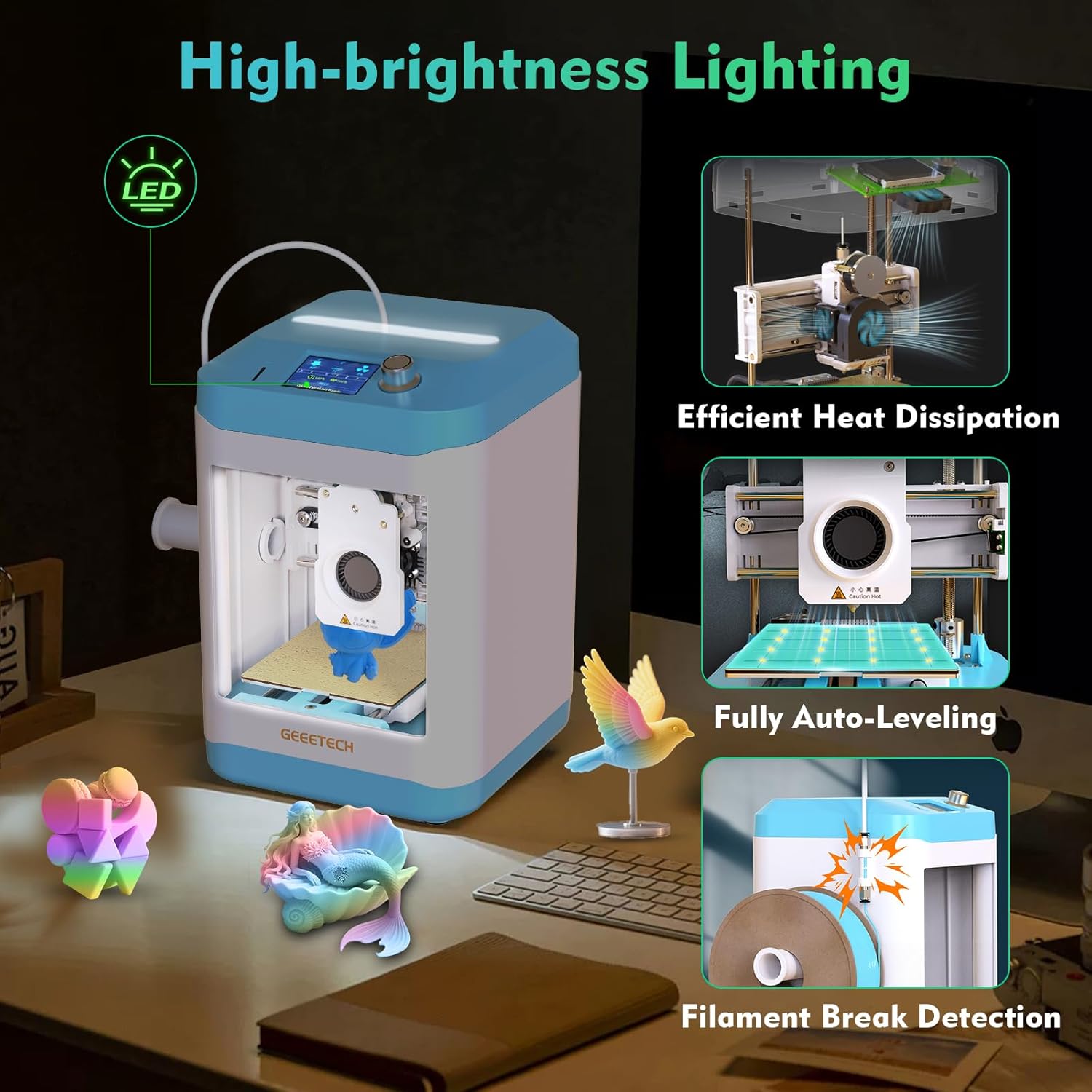
Penerangan Imej: This image showcases several features of the Geeetech M1 Mini 3D Printer. The main printer unit is shown with various 3D printed objects around it. Insets highlight 'High-brightness Lighting' with an LED icon, 'Efficient Heat Dissipation' showing internal cooling fans, 'Fully Auto-Leveling' depicting the print head probing the bed, and 'Filament Break Detection' illustrating a sensor detecting a broken filament.
6.3 Memulakan Cetakan
- Prepare your 3D model using slicing software on your computer and save it to the TF card in a compatible format (e.g., .gcode).
- Insert the TF card into the designated slot on the printer.
- On the LCD screen, navigate to 'Print from TF Card' or a similar option.
- Select the desired model file daripada senarai.
- Confirm your selection to begin the printing process. The printer will preheat the nozzle and bed, then start printing.
6.4 Monitoring and Pausing a Print
- The LCD screen will display print progress, temperature, and other relevant information.
- To pause a print, select the 'Pause' option from the menu. To resume, select 'Resume'.
- In case of filament run-out or breakage, the printer features filament break detection and will pause automatically. Load new filament and resume the print.
6.5 Removing a Print
- Setelah cetakan selesai, biarkan katil cetakan dan muncungnya sejuk.
- Carefully remove the flexible magnetic PEI print plate from the printer.
- Gently flex the print plate to detach the printed model. Use a spatula if necessary, but avoid excessive force to prevent damage to the plate or model.
- Reattach the print plate to the printer.
7. Penyelenggaraan
7.1 Membersihkan Katil Cetak
- After each print, ensure the print bed is clean. Use a soft cloth and isopropyl alcohol to wipe away any residue.
- Avoid using abrasive materials that could scratch the PEI surface.
7.2 Penyelenggaraan muncung
- If you notice clogs or poor extrusion, use the provided nozzle cleaning needle to clear the nozzle while it is heated.
- Periodically inspect the nozzle for wear. A worn nozzle can affect print quality and may need replacement.
7.3 Pembersihan Am
- Keep the printer free of dust and filament debris. Use a soft brush or compressed air.
- Ensure the linear rails and lead screws are clean and lightly lubricated if necessary (refer to manufacturer guidelines for lubricant type).
8. Penyelesaian masalah
- Lekatan Lapisan Pertama yang lemah:
- Ensure the print bed is clean.
- Verify auto-leveling has been performed correctly.
- Adjust print bed temperature in slicing software if necessary.
- Filamen Tidak Tersemperit:
- Periksa sama ada filamen dimuatkan dengan betul dan tidak berselirat.
- Clean the nozzle for clogs.
- Ensure the nozzle is at the correct temperature for the filament type.
- Isu Kualiti Cetakan (cth., rentetan, anjakan lapisan):
- Periksa kualiti filamen dan pastikan ia kering.
- Review slicing software settings (retraction, print speed, cooling).
- Pastikan pencetak berada di atas permukaan yang stabil untuk mengelakkan getaran.
- Pencetak Tidak Dihidupkan:
- Verify the power adapter is securely connected to both the printer and the power outlet.
- Periksa salur keluar kuasa dengan peranti lain.
9. Spesifikasi
| Ciri | Spesifikasi |
|---|---|
| Model | Geeetech M1 Mini |
| Kawasan Cetakan | 3.94 × 4.33 × 3.94 inci (100 × 110 × 100 mm) |
| Jenis Extruder | Pemanduan Terus |
| Keserasian Filamen | PLA, TPU (0.5kg spools recommended, 1kg with optional holder) |
| Meratakan | 16-Point Full-Auto Leveling |
| Kelajuan Cetak | Sehingga 250mm/s |
| Paparan | 2.4" LCD Color Screen |
| Bina Plat | Flexible and Removable Magnetic PEI |
| Ciri Khas | High-brightness lighting, Efficient heat dissipation, Filament break detection |
10. Waranti dan Sokongan
Geeetech offers a friendly warranty and dedicated customer support for your M1 Mini 3D Printer:
- Pemulangan/Penggantian: 30 days worry-free return/replacement.
- pembaikan: 12-month free repair service.
- Sokongan Teknikal: Lifetime professional technical support.
If you have any questions or require assistance, please contact our customer support team. We aim to reply within 24 hours.


