1. Pengenalan
This manual provides detailed instructions for the setup, operation, and maintenance of your EWEADN X23Pro Wireless Gaming Mouse. Please read this manual thoroughly to ensure proper use and optimal performance of your device.
2. Produk Lebihview
The EWEADN X23Pro is a versatile gaming mouse designed for various computing environments. It features a lightweight design, multiple connectivity options, and customizable settings.
Ciri-ciri Utama:
- Sambungan Tri-Mod: Supports 2.4G wireless, Bluetooth 5.0, and USB-C wired connections.
- Reka bentuk ringan: Weighs approximately 59g for reduced hand fatigue.
- Bateri Berkapasiti Tinggi: Bateri boleh dicas semula 800mAh terbina dalam.
- DPI boleh laras: 6 levels (800-1600-2400-3200-6400-12000 DPI).
- Adjustable Polling Rate: 4 levels (125Hz-250Hz-500Hz-1000Hz).
- Butang Boleh Aturcara: 6 customizable buttons with macro support.
Kandungan Pakej:
- EWEADN X23Pro Wireless Gaming Mouse
- USB-C Charging/Data Cable (1.5m)
- Penerima USB (2.4G)
- Anti-slip Stickers (6 Pcs)
- Manual Arahan

Image: The EWEADN X23Pro Wireless Gaming Mouse in black, shown with its compact USB receiver.

Imej: Tamatview diagram illustrating the X23Pro's main features including tri-mode connection, DPI, lightweight design, battery life, clicks, polling rate, custom macro, and ergonomic design.
3. Persediaan dan Sambungan
The X23Pro mouse offers three connection modes: 2.4G wireless, Bluetooth 5.0, and USB-C wired. You can switch between modes using the switch button located on the bottom of the mouse.
3.1. Hidupkan/Mati Kuasa
Locate the power switch on the bottom of the mouse. Slide it to the desired position (2.4G, BT, or OFF).
3.2. Mod Tanpa Wayar 2.4G
- Masukkan penerima USB ke dalam port USB yang tersedia pada komputer anda.
- Luncurkan suis di bahagian bawah tetikus ke kedudukan "2.4G".
- Long press the code key (pairing button) on the bottom of the mouse. The top indicator light will flash green, indicating pairing mode.
- The mouse should connect automatically. The indicator light will stop flashing once connected.
3.3. Mod Bluetooth 5.0
- Luncurkan suis di bahagian bawah tetikus ke kedudukan "BT".
- Long press the code key (pairing button) on the bottom of the mouse. The top indicator light will flash blue, indicating pairing mode.
- Pada komputer atau peranti anda, pergi ke tetapan Bluetooth dan cari peranti baharu.
- Select "X23Pro" from the list of available devices to pair.
- Lampu penunjuk akan berhenti berkelip setelah disambungkan.
3.4. Mod Berwayar USB-C
- Connect the provided USB-C cable to the mouse and the other end to a USB port on your computer.
- Tetikus akan bertukar secara automatik ke mod berwayar dan mula mengecas.

Image: Visual guide for connecting the mouse via 2.4G wireless and Bluetooth modes, including the location of the on/off switch and code key.
4. Arahan Operasi
4.1. Fungsi Butang

Image: A detailed diagram labeling the multi-function buttons on the X23Pro mouse, including Left Button, Right Button, Scroll Wheel, Indicator, Forward Button, Backward Button, Type-C Interface, 2.4G/OFF/BT Button, Code Key, DPI Button, and USB Receiver compartment.
- Butang Kiri: Fungsi klik utama.
- Butang Kanan: Fungsi klik sekunder (menu konteks).
- Roda Tatal: Tatal ke atas/bawah, klik tengah.
- Butang ke hadapan: Navigasi ke hadapan web pelayar atau file penjelajah.
- Butang ke belakang: Navigasi ke belakang web pelayar atau file penjelajah.
- DPI Button (bottom): Kitaran melalui tetapan DPI.
4.2. Adjusting DPI
The mouse features 6 adjustable DPI levels: 800, 1600, 2400, 3200, 6400, and 12000. The default DPI is 1600.
- To change DPI, press the DPI toggle button located on the bottom of the mouse. Each press will cycle to the next DPI level.
- DPI values can also be set and customized using the dedicated driver software (see Section 5.1).

Image: A visual representation of the six adjustable DPI settings (800-12000) available on the X23Pro mouse, indicating users can change them via the DPI button or custom software.
4.3. Adjusting Polling Rate
The mouse supports 4 adjustable polling rates: 125Hz, 250Hz, 500Hz, and 1000Hz. The polling rate can be adjusted via the driver software to optimize response speed and tracking accuracy.

Image: A diagram comparing mouse trajectories at different polling rates, showing a smooth trajectory at 1000Hz versus slight lag at lower rates.
5. Penyesuaian
5.1. Programmable Buttons and Macro Programming
The X23Pro features 6 buttons that can be customized using the dedicated driver software. This allows for macro programming, enabling you to assign complex commands to individual buttons.
- Download the official driver software from the EWEADN website (refer to product packaging or manufacturer's website for download link).
- Pasang perisian pada komputer anda.
- Open the software to access button assignment, macro editor, DPI settings, polling rate adjustments, and other advanced sensor settings.

Image: A screenshot of the mouse's customization software, showing options for key assignment, macro editing, DPI settings, lighting, polling rate, power management, and sensor advanced settings.
6. Mengecas dan Bateri
The X23Pro mouse is equipped with an 800mAh rechargeable battery, providing extended usage time. A full charge can last approximately 20 days with 5 hours of daily use.
6.1. Mengecas Tetikus
- Connect the provided USB-C cable to the mouse's Type-C interface and the other end to a USB power source (e.g., computer USB port, USB wall adapter).
- The mouse can be used in wired mode while charging.
6.2. Mod Penjimatan Kuasa
To conserve battery life, the mouse enters a primary sleep mode after 1 minute of inactivity. It can be woken up by pressing any button or moving the mouse.
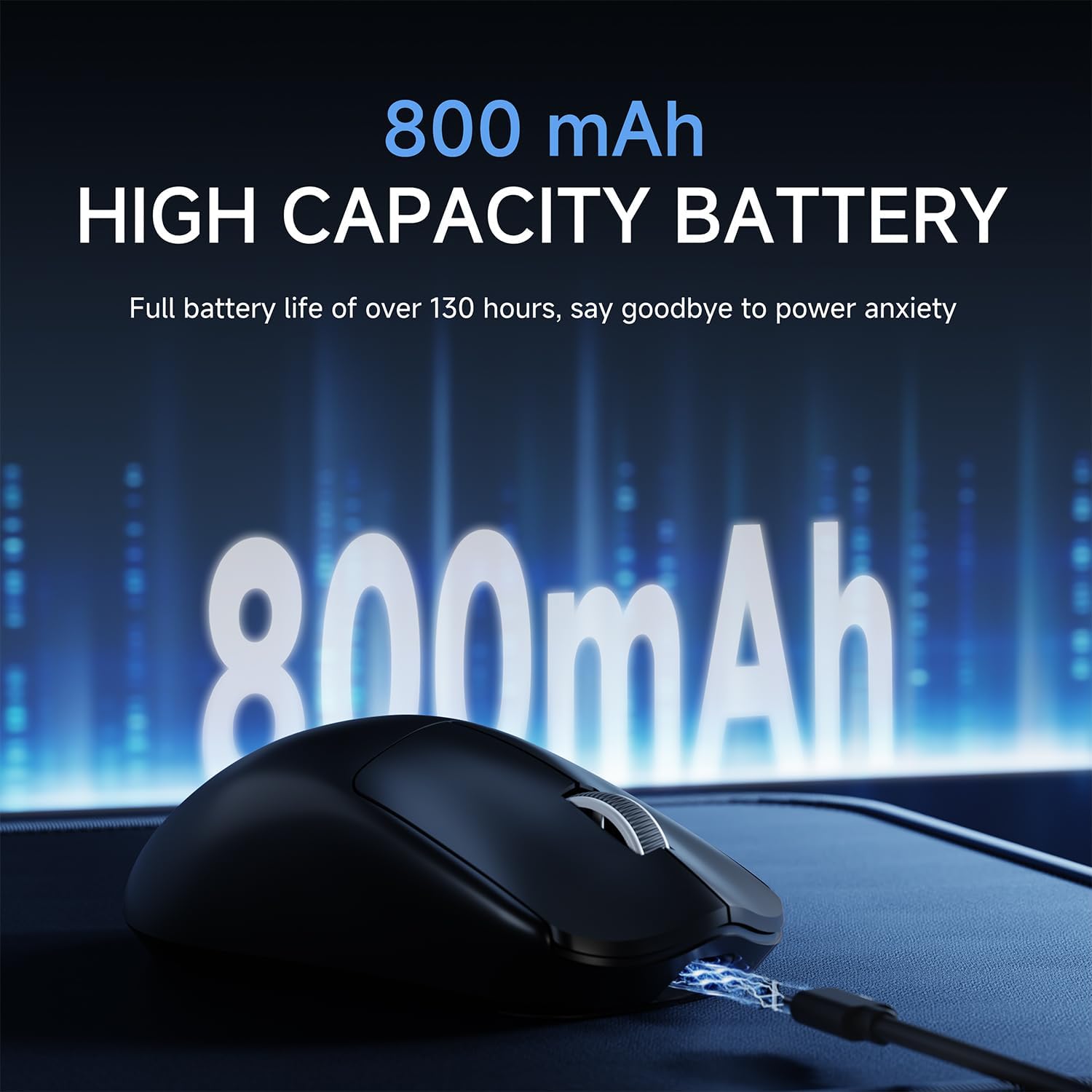
Image: A visual emphasizing the 800mAh high-capacity battery of the X23Pro mouse, indicating long-lasting power.
7. Penyelenggaraan
7.1. Pembersihan
- Use a soft, dry cloth to clean the mouse surface.
- Untuk kotoran degil, sedikit dampen kain dengan air atau larutan pembersih lembut. Elakkan bahan kimia yang keras.
- Jangan biarkan cecair memasuki tetikus.
7.2. Anti-slip Stickers
The mouse comes with 6 pieces of anti-slip tape. These can be applied to the mouse surface to enhance grip and prevent slippage, especially during intense use.

Image: A visual demonstrating the lightweight design of the X23Pro mouse and how it accommodates various grip styles (palm, fingertip, claw), along with the mention of anti-slip tape.
8. Keserasian
The EWEADN X23Pro Wireless Gaming Mouse is compatible with a wide range of operating systems and devices:
- Windows 7/8/10/XP/Vista
- Mac OS
- Linux
- sistem Android
Suitable for use with PCs, laptops, Macs, and other compatible devices.
9. Penyelesaian masalah
If you encounter issues with your EWEADN X23Pro mouse, please refer to the following common solutions:
- No response: Ensure the mouse is powered on and fully charged. Check the connection mode (2.4G, BT, or wired) and ensure it matches your device's connection.
- Lag atau Putus Sambungan: For 2.4G wireless, ensure the USB receiver is securely plugged in and close to the mouse. For Bluetooth, ensure your device's Bluetooth is enabled and the mouse is paired correctly. Reduce interference from other wireless devices.
- DPI/Button issues: Verify that the correct DPI setting is selected. If using custom settings, ensure the driver software is installed and configured correctly.
- Isu pengecasan: Ensure the USB-C cable is properly connected to both the mouse and the power source. Try a different USB port or cable.
Jika masalah berterusan, sila hubungi sokongan pelanggan.
10. Spesifikasi
| Ciri | Perincian |
|---|---|
| Nombor Model | X23Pro |
| Teknologi Ketersambungan | Tanpa Wayar 2.4GHz, Bluetooth 5.0, Berwayar USB-C |
| Teknologi Pengesanan Pergerakan | Optical (PAW3311 Flagship Sensor) |
| Tahap DPI | 800-1600-2400-3200-6400-12000 |
| Kadar Mengundi | 125Hz-250Hz-500Hz-1000Hz |
| Butang | 6 Butang Boleh Aturcara |
| Kapasiti Bateri | 800mAh Boleh dicas semula |
| Berat Barang | 1.76 auns (lebih kurang 59g) |
| Dimensi Pakej | 4.6 x 2.4 x 1.85 inci |
| Pengeluar | EWEADN |
11. Waranti dan Sokongan
EWEADN products are designed for reliability and performance. For warranty information, please refer to the documentation included with your purchase or visit the official EWEADN webtapak.
Sokongan Pelanggan:
For any questions, technical assistance, or support inquiries, please contact us via email:
e-mel: eweadnkeyboard@outlook.com

Image: An illustration depicting various customer support services offered, including pre-sales Q&A, troubleshooting, accessories reissue, and returns and exchanges, with an email contact provided.


