1. Produk Lebihview
The E-ACE 4.3-inch Dual Lens Car DVR Rearview Mirror Dash Cam is designed to enhance driving safety by providing comprehensive video recording of your journeys. This device integrates a front-facing camera and supports an optional rear-facing camera, offering a wide field of view and continuous recording capabilities. Its sleek design replaces your existing rearview mirror, providing a discreet and integrated solution for vehicle surveillance.
Key features include a 4.3-inch high-definition display, dual-lens recording, night vision, loop recording, and a G-sensor for automatic incident detection.

Image: The E-ACE rearview mirror dash cam displaying both front and rear camera feeds on its integrated screen.
2. Kandungan Pakej
Sila semak pakej untuk item berikut:
- E-ACE Rearview Mirror Dash Cam Unit
- Pengecas Kereta
- Fixed Bandages (for mounting)
- Manual Pengguna
- Pembaca Kad
- Pilihan: Belakang View Camera + Cable (6M or 10M, depending on variant)
- Optional: Buck Line (for parking monitoring power)
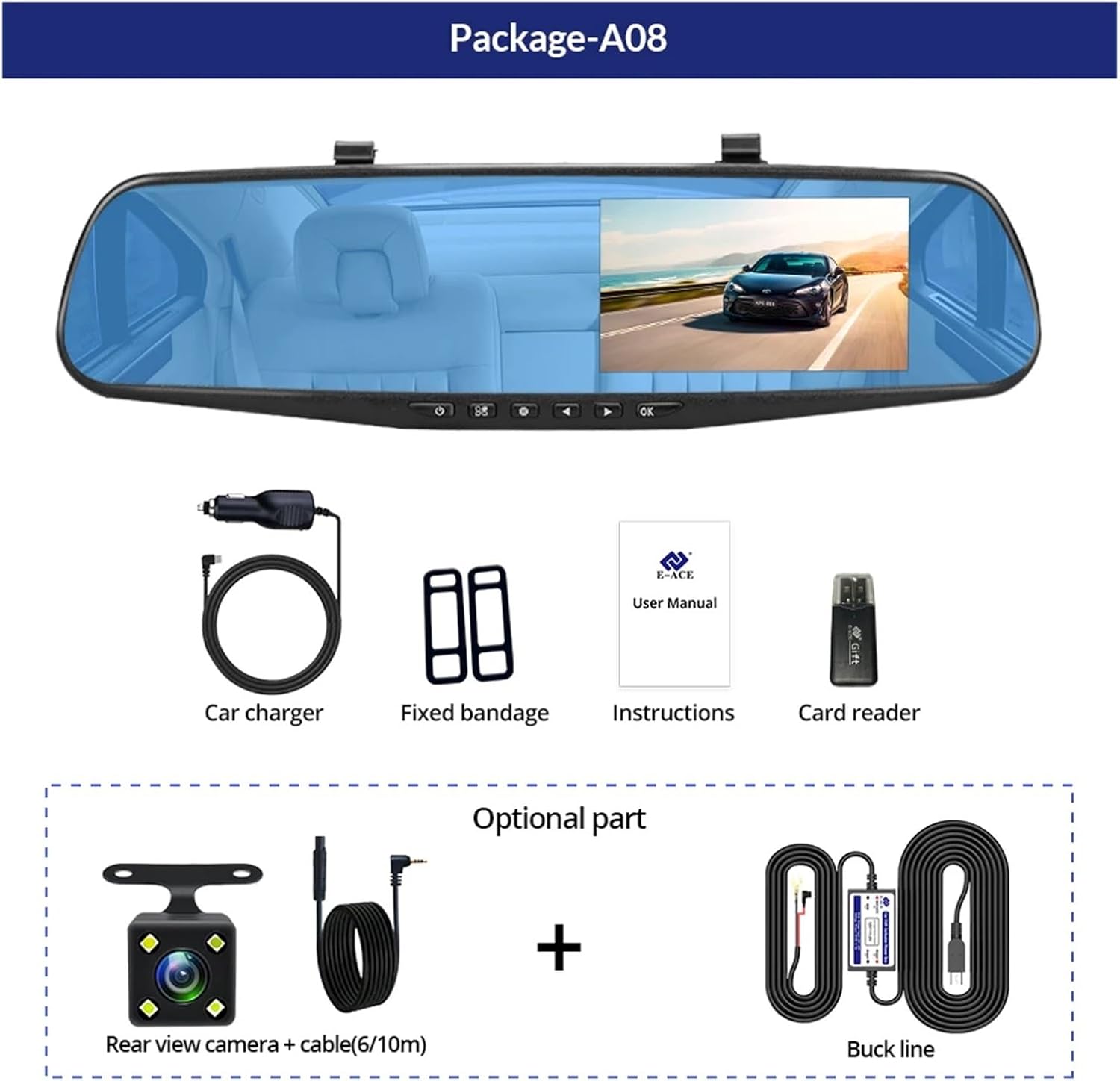
Image: A visual representation of the items included in the E-ACE dash cam package, showing the main unit and accessories.
3. Ciri-ciri Produk
- 4.3-inch High-Definition Display: Provides clear visibility for real-time monitoring and playback.
- Reka Bentuk Kanta Dwi: Captures both front and rear footage simultaneously for comprehensive coverage.
- Built-in Night Vision Technology: Ensures clear recordings in low-light conditions.
- Pemasangan Mesra Pengguna: Sleek rearview mirror design integrates seamlessly into your vehicle.
- Rakaman Gelung: Menulis ganti foo tertua secara automatiktage apabila kad memori penuh, memastikan rakaman berterusan.
- G-Sensor Feature: Detects sudden movements or impacts and automatically locks the current video file untuk mengelakkan ia daripada ditimpa.
- Pemantauan Tempat Letak Kereta: Records video when motion or impact is detected while the vehicle is parked (requires buck line connection).
- 170-Degree Wide Angle: Menyediakan yang luas view jalan di hadapan.
- Imej terbalik: Displays the rear camera view with parking guidelines when reversing.
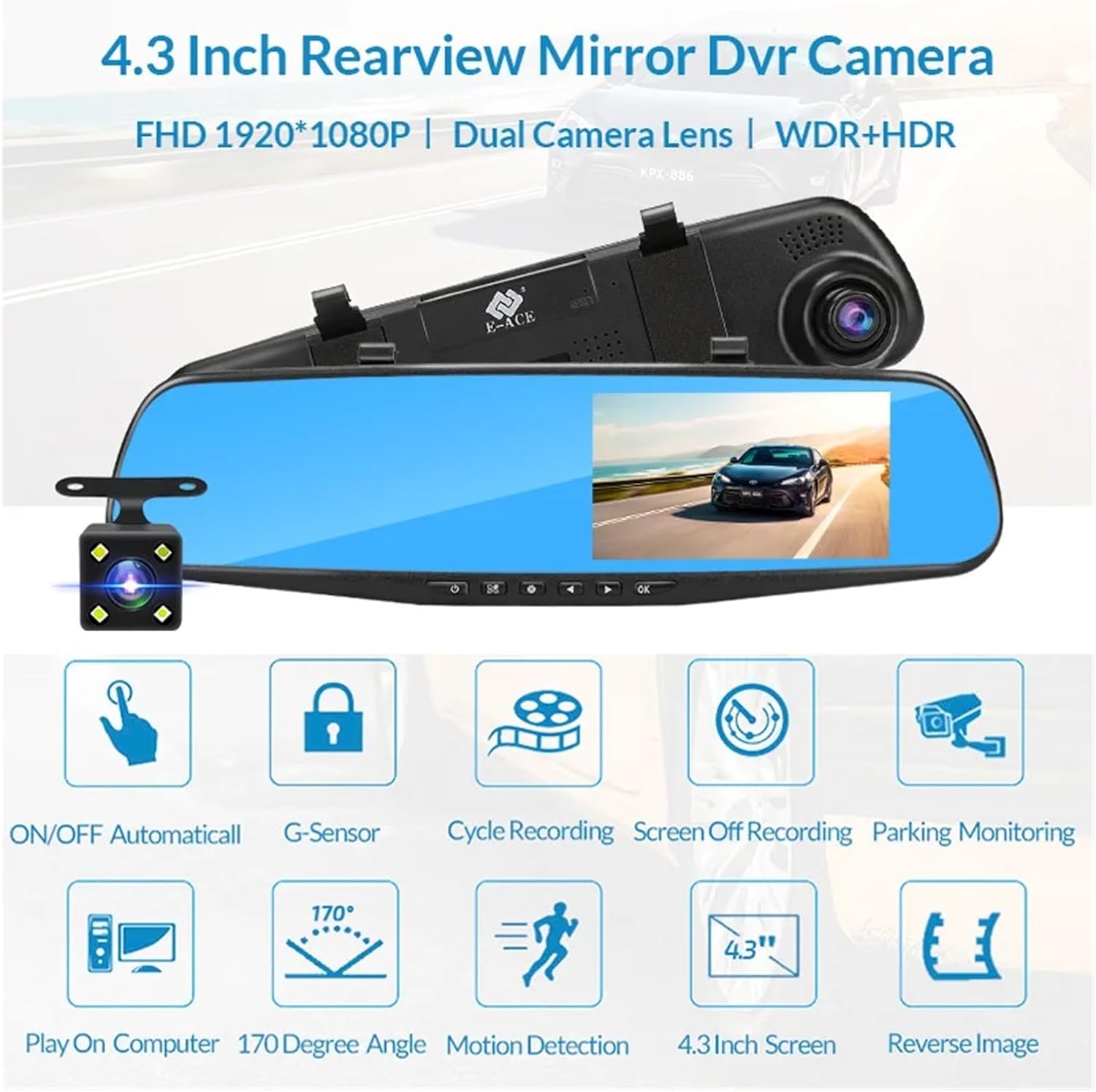
Image: An illustration highlighting the various functional features of the E-ACE dash cam.
4. Pengenalan Komponen
Familiarize yourself with the various parts and controls of your E-ACE dash cam:

Image: A detailed diagram identifying the buttons, ports, and features on the E-ACE dash cam unit.
- Butang HIDUP/MATI: Menghidupkan atau mematikan peranti.
- Butang Menu: Mengakses tetapan dan pilihan.
- Butang Mod: Switches between video recording, photo, and playback modes.
- Butang KE ATAS: Navigates up in menus or adjusts settings.
- Butang Bawah: Navigates down in menus or adjusts settings.
- Butang OK: Mengesahkan pilihan atau memulakan/menghentikan rakaman.
- Slot Kad TF: Insert your MicroSD (TF) card here.
- Port AV-IN: Connects the rear camera.
- Port USB: Untuk bekalan kuasa dan pemindahan data.
- Butang Tetapkan Semula: Resets the device to factory settings (use a thin pin).
- mikrofon: Merakam audio di dalam kenderaan.
5. Persediaan dan Pemasangan
5.1 Memasukkan Kad Memori
Before installation, insert a high-speed MicroSD (TF) card (Class 10 or higher, up to 64GB recommended) into the TF Card Slot (7) with the contacts facing the screen. Ensure the card is inserted correctly until it clicks into place.
5.2 Memasang Dash Cam
- Attach the fixed bandages to the back of the dash cam unit.
- Securely strap the dash cam over your vehicle's existing rearview mirror using the fixed bandages. Ensure it is centered and stable.
5.3 Menyambungkan Bekalan Kuasa
- Connect the car charger to the USB Port (9) on the dash cam.
- Palamkan hujung pengecas kereta yang satu lagi ke dalam soket pemetik api kenderaan anda.
- Halakan kabel kuasa dengan kemas di sepanjang kemasan cermin depan untuk mengelakkan daripada menghalang view.
5.4 Installing the Rear Camera (Optional)
- Connect the rear camera cable to the AV-IN Port (8) on the dash cam.
- Route the rear camera cable from the dash cam to the rear of your vehicle. This typically involves tucking the cable under the headliner and along the side pillars.
- Mount the rear camera on the rear windshield or near the license plate using its adhesive or screws. Ensure it has a clear view jalan di belakang.
- If using the reverse image function, connect the red wire from the rear camera cable to your vehicle's reverse light power supply.
6. Arahan Operasi
6.1 Hidupkan/Mati Kuasa
- automatik: The dash cam will automatically power on and start recording when your vehicle's ignition is turned on (if connected to a switched power source).
- Manual: Press and hold the ON/OFF Button (1) to manually power the device on or off.
6.2 Operasi Asas
- Tukar Mod: Press the Mode Button (3) to cycle between Video Recording, Photo, and Playback modes.
- Menu Akses: In any mode, press the Menu Button (2) to enter the settings menu. Use the UP (4) and Down (5) buttons to navigate, and OK (6) to select.
- Mula/Hentikan Rakaman: In Video Recording mode, press the OK Button (6) to manually start or stop recording.
6.3 Mod Paparan
While recording, you can typically switch between different display views by pressing the UP or Down buttons:
- Front Camera Only
- Rear Camera Only
- Picture-in-Picture (Front main, Rear sub-window)
- Picture-in-Picture (Rear main, Front sub-window)
6.4 Rakaman Gelung
Set the loop recording duration (e.g., 1, 3, or 5 minutes) in the settings menu. When the memory card is full, the oldest unlocked files will be overwritten by new recordings.
6.5 G-Sensor
The G-sensor automatically detects collisions or sudden braking. When triggered, it locks the current video file, preventing it from being overwritten by loop recording. Adjust sensitivity in the settings.
6.6 Parking Monitoring (Optional)
If the buck line is installed, the dash cam can monitor your vehicle while parked. When motion or impact is detected, it will automatically record a short video. Enable this feature in the settings.
6.7 Tetapan Tarikh dan Masa
It is important to set the correct date and time in the system settings for accurate timestamps pada rakaman anda.
7. Penyelenggaraan
- Pembersihan: Use a soft, dry cloth to clean the lens and screen. Avoid abrasive cleaners or solvents.
- Kad Memori: Format the MicroSD card regularly (e.g., once a month) within the dash cam's settings to maintain optimal performance and prevent data corruption. Back up important files sebelum memformat.
- Suhu: Avoid exposing the device to extreme temperatures, as this can affect battery life and component integrity.
- Kemas kini Firmware: Semak pengeluar website periodically for firmware updates that may improve performance or add features.
8. Penyelesaian masalah
| Masalah | Kemungkinan Punca | Penyelesaian |
|---|---|---|
| Dash cam tidak dihidupkan. | Tiada bekalan kuasa; pengecas yang rosak; sambungan longgar. | Check car charger connection and vehicle's cigarette lighter. Try a different USB cable/charger. |
| Rakaman berhenti secara automatik. | Memory card full; slow memory card; G-sensor sensitivity too high. | Format the memory card. Use a Class 10 or higher MicroSD card. Lower G-sensor sensitivity in settings. |
| Video footage is blurry. | Filem pelindung pada kanta; kanta kotor; fokus yang salah. | Remove any protective film. Clean the lens with a soft cloth. |
| Kamera belakang tidak dipaparkan. | Sambungan longgar; kabel/kamera rosak. | Check the AV-IN connection. Ensure the rear camera is properly installed. |
| Peranti membeku atau ranap. | Software issue; memory card error. | Press the Reset Button (10) with a thin pin. Format the memory card. |
9. Spesifikasi
- Nama Model: DMMRUTXB
- paparan: 4.3 inci
- kamera: Dual Lens (Front & Rear support)
- Resolusi Video: FHD 1920x1080P (Front)
- ciri-ciri: Loop Recording, G-Sensor, Night Vision, Parking Monitoring, 170-degree wide angle
- Storan: Supports MicroSD (TF) card, Class 10 or higher (up to 64GB)
- Ketersambungan: USB, AV-IN (for rear camera)
- Berat Barang: Kira-kira 1.76 auns (50 gram)
- Dimensi Pakej: Kira-kira 0.39 x 0.39 x 0.39 inci
- Pengeluar: DMMRUTXB
10. Waranti dan Sokongan
For warranty information and technical support, please refer to the documentation provided with your purchase or contact the retailer/manufacturer directly. Keep your purchase receipt as proof of purchase.