1. Pengenalan
Thank you for choosing the AOC Gaming 25G4SRE monitor. This manual provides essential information for setting up, operating, and maintaining your monitor. Please read it carefully before using the product to ensure proper functionality and safety. The AOC 25G4SRE is designed for competitive gaming, offering an ultra-fast 300 Hz refresh rate (overclockable to 310 Hz), a 1 ms GtG response time, and a fast IPS panel for smooth, tear-free visuals. With 0.3 ms MPRT, low input lag, and HDR10 support, every image is sharp and responsive. It features an eSports base, FlickerFree technology, and an integrated USB hub for seamless connectivity.
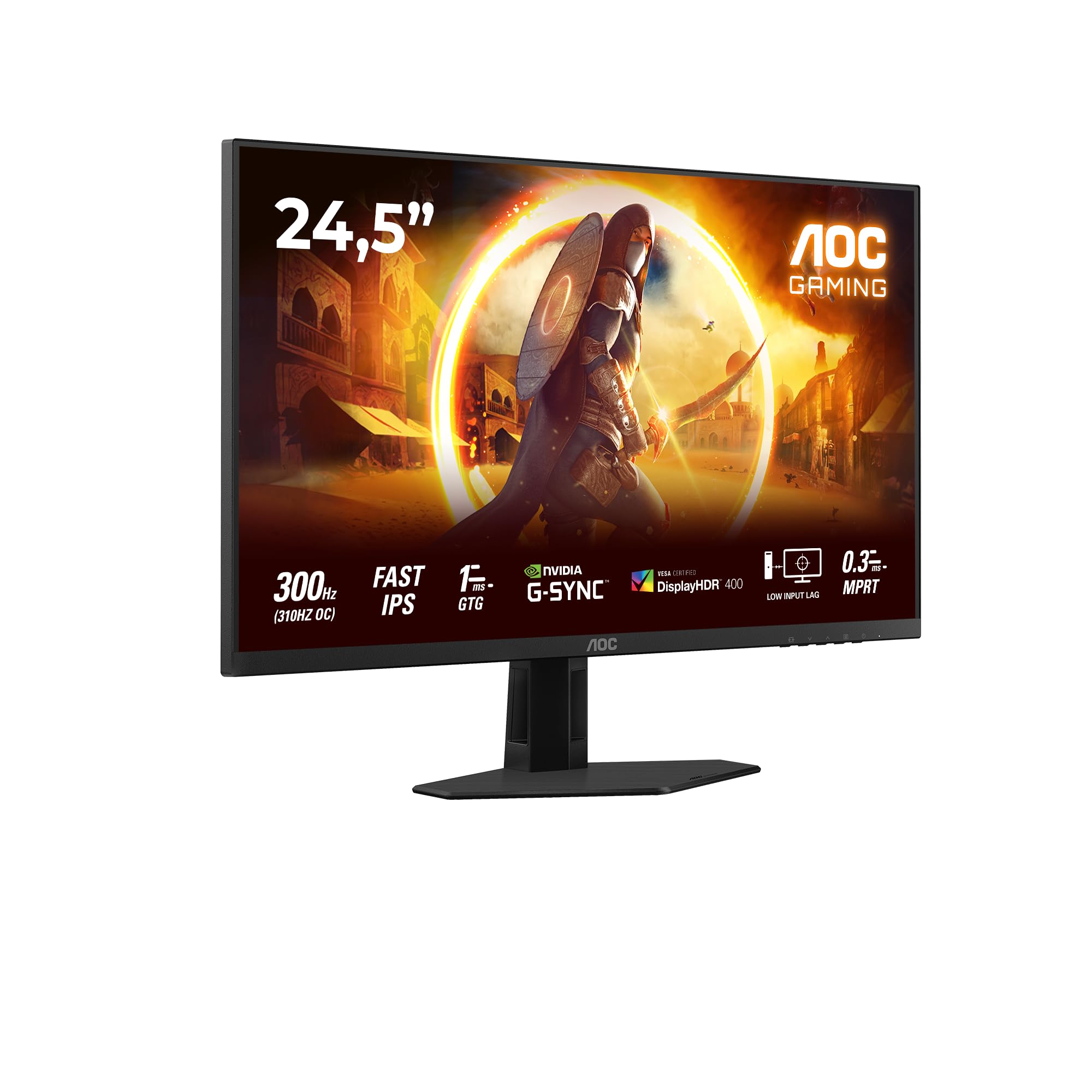
Rajah 1.1: Depan view of the AOC Gaming 25G4SRE monitor.
2. Maklumat Keselamatan
Please observe the following safety precautions to prevent damage to the monitor and ensure your personal safety:
- Jangan letakkan monitor pada troli, kaki atau meja yang tidak stabil.
- Jangan menyekat bukaan pengudaraan.
- Jangan gunakan monitor berhampiran air.
- Jangan letakkan objek berat pada kord kuasa.
- Gunakan hanya penyesuai kuasa yang dibekalkan bersama monitor.
- Unplug the monitor from the wall outlet if it will not be used for an extended period.
- Rujuk semua servis kepada kakitangan perkhidmatan yang berkelayakan.
3. Kandungan Pakej
Verify that all items are present in your package. If any items are missing or damaged, contact your dealer immediately.
- AOC Gaming 25G4SRE Monitor
- Stand Monitor (Asas dan Leher)
- Kabel Kuasa
- Kabel HDMI
- DisplayPort Cable
- Panduan Mula Pantas
4. Persediaan
4.1 Memasang Pendirian
- Letakkan monitor menghadap ke bawah dengan berhati-hati pada permukaan yang lembut dan bersih untuk mengelakkan calar.
- Pasangkan leher penyangga pada panel monitor.
- Secure the stand base to the neck using the provided screws.
4.2 Menyambung Monitor
Connect the monitor to your computer and power source using the appropriate cables.
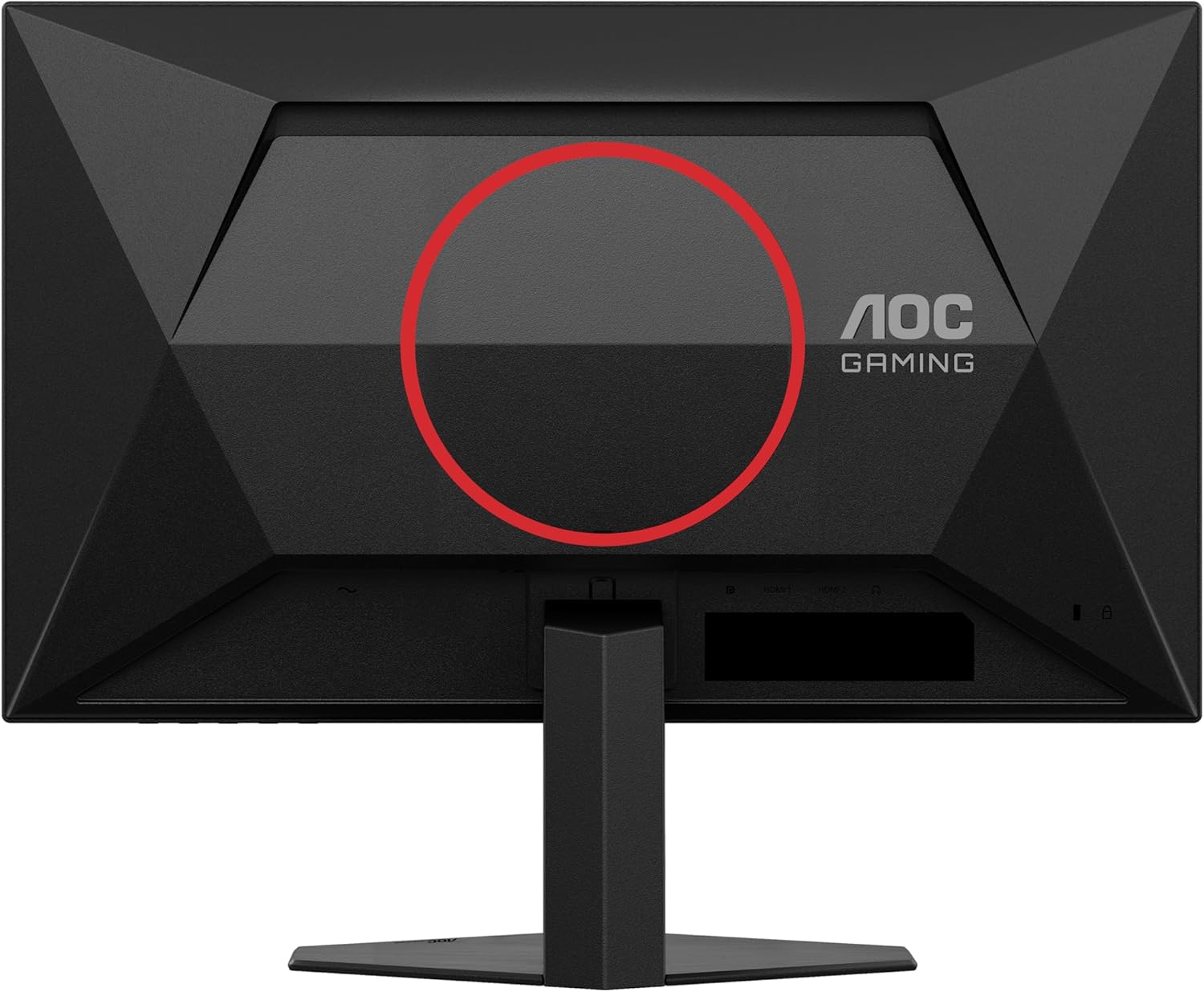
Rajah 4.1: Belakang view of the monitor, showing the stand attachment area and port locations.

Figure 4.2: Diagram illustrating the HDMI, DisplayPort, and Headphone Out ports.
- Sambungan Kuasa: Sambungkan kabel kuasa ke input kuasa monitor dan kemudian ke saluran keluar dinding.
- Sambungan Video:
- For optimal performance, use the DisplayPort cable to connect the monitor to your computer's graphics card.
- Alternatively, use an HDMI cable to connect to an HDMI port on your computer. The monitor supports 2 x HDMI 2.0 inputs.
- Sambungan Audio: Connect headphones or external speakers to the Headphone Out port if desired.
5. Mengendalikan Monitor
5.1 Hidupkan/Mati Kuasa
Tekan butang kuasa yang terletak di bahagian bawah sebelah kanan monitor untuk menghidupkan atau mematikannya.
5.2 Menu Paparan Pada Skrin (OSD).
Use the buttons on the bottom bezel of the monitor to navigate the OSD menu. The OSD allows you to adjust various settings such as brightness, contrast, color temperature, input source, and gaming features.

Gambar 5.1: Cthample of the On-Screen Display (OSD) menu for monitor settings.
5.3 Ciri dan Tetapan Utama
- High Refresh Rate (300Hz/310Hz OC): Experience ultra-smooth gameplay. Ensure your graphics card and connection cable (DisplayPort recommended) support this refresh rate. You can enable overclocking to 310Hz via the OSD menu.
- Panel IPS Pantas: Enjoy wide viewing angles up to 178 degrees with consistent color and clarity from almost any perspective.
- NVIDIA G-Sync Serasi: Synchronizes the monitor's refresh rate with your NVIDIA GPU to eliminate screen tearing and stuttering for a fluid gaming experience. Enable this feature in your graphics card control panel.
- VESA Certified DisplayHDR 400: Provides enhanced dynamic range for improved colors and contrast, delivering a more vivid visual experience. Activate HDR in your operating system display settings.
- Selang Input Rendah: Minimizes the delay between your input devices and the display, ensuring quick response times in fast-paced games.
- Rapid Response Time (1ms GtG / 0.3ms MPRT): Reduces motion blur and ghosting for crystal-clear images during fast-moving scenes.
- FlickerFree Technology: Reduces screen flickering to minimize eye strain during prolonged use.
- Mod Cahaya Biru Rendah: Reduces harmful blue light emissions to decrease eye fatigue and improve viewing comfort. This can be enabled through the OSD menu.

Figure 5.2: Visual comparison demonstrating the fluidity of 300Hz refresh rate over 60Hz.

Figure 5.3: Illustration of wide viewing angles provided by the Fast IPS panel technology.

Figure 5.4: Visual representation of NVIDIA G-Sync compatibility for tear-free gaming.

Figure 5.5: Comparison showing the visual improvement with DisplayHDR 400 enabled.

Figure 5.6: Illustration demonstrating the benefit of low input lag for responsive gaming.

Figure 5.7: Visual comparison highlighting the difference between 0.3ms MPRT and 4ms response times.

Figure 5.8: Comparison showing the absence of flicker on a FlickerFree monitor versus a conventional one.
6. Penyelenggaraan
6.1 Membersihkan Monitor
- Sentiasa cabut plag monitor sebelum membersihkan.
- Gunakan kain lembut yang tidak berbulu dampdisapu dengan air atau pembersih skrin yang lembut dan tidak melelas.
- Do not use alcohol, ammonia, or abrasive cleaners, as they may damage the screen or casing.
- Lap skrin perlahan-lahan untuk mengelakkan calar.
6.2 Penjagaan Am
- Elakkan daripada mendedahkan monitor kepada cahaya matahari langsung atau suhu yang melampau.
- Keep the monitor away from sources of heat and moisture.
- Jangan letakkan objek berat pada monitor atau kabelnya.
7. Penyelesaian masalah
Jika anda menghadapi masalah dengan monitor anda, rujuk kepada masalah dan penyelesaian biasa berikut:
| Masalah | Penyelesaian yang Mungkin |
|---|---|
| Tiada gambar di skrin | Ensure the power cable is securely connected. Check if the video cable (HDMI/DisplayPort) is properly connected to both the monitor and the computer. Select the correct input source via the OSD menu. |
| Imej kabur atau herot | Adjust the resolution and refresh rate settings on your computer to match the monitor's native resolution (1920x1080) and desired refresh rate. Check the video cable for damage. |
| Skrin berkelip | Ensure FlickerFree technology is enabled in the OSD. Check for loose cable connections. Update your graphics card drivers. |
| Tiada suara dari fon kepala | Ensure headphones are fully plugged into the Headphone Out port. Check audio output settings on your computer. Adjust volume levels on both the monitor and computer. |
| G-Sync not working | Ensure you are using a DisplayPort cable. Verify G-Sync is enabled in the NVIDIA Control Panel. Update graphics card drivers. |
8. Spesifikasi
Detailed technical specifications for the AOC Gaming 25G4SRE monitor:
| Ciri | Perincian |
|---|---|
| Jenama | AOC |
| Nombor Model | 25G4SRE |
| Saiz Skrin | 25 Inci (62.2 cm) |
| Resolusi | FHD 1080p (1920 x 1080) |
| Nisbah Aspek | 16:9 |
| Kadar Segar Semula | 300 Hz (310 Hz Overclock) |
| Masa Tindak Balas | 1 ms GtG, 0.3 ms MPRT |
| Jenis Panel | IPS pantas |
| Sokongan HDR | Paparan Bertauliah VESAHDR 400 |
| Penyegerakan Adaptif | NVIDIA G-Sync Serasi |
| Ketersambungan | 2 x HDMI 2.0, 1 x DisplayPort 1.4, Headphone Out |
| Ciri Khas | Frameless, FlickerFree, Low Blue Light, Low Input Lag |
| Dimensi Produk | 19.4D x 56W x 43.8H cm |
| Pengeluar | AOC International |
| Negara Asal | China |
For more detailed product information, please refer to the official product information sheet:

Figure 8.1: Product Information Sheet (English) for AOC 25G4SRE.
You can also find the EPREL registration details di sini.
9. Waranti dan Sokongan
AOC International provides comprehensive support for your monitor.
9.1 Maklumat Waranti
- Minimum Guarantee Offered by Supplier: 3 Tahun
- Ketersediaan Alat Ganti Minimum yang Dijamin: 7 Tahun
- Sokongan Produk Terjamin Minimum: 8 Tahun
Sila simpan bukti pembelian anda untuk tuntutan waranti.
9.2 Sokongan Pelanggan
For technical assistance, warranty inquiries, or other support needs, please contact AOC Customer Service:
- Webtapak: https://eu.aoc.com
- e-mel: kevin.yang@tpv-tech.com
- telefon: +31 (0)20 504 6962


