pengenalan
This manual provides essential information for the safe and efficient use of your Pixio PX248 PRO V2 24-inch Gaming Monitor. Please read it thoroughly before operating the device and retain it for future reference. The Pixio PX248 PRO V2 features a 24-inch FHD 1080p Fast IPS panel, a 200Hz refresh rate, and a 1ms GTG response time, designed for a responsive and immersive visual experience.
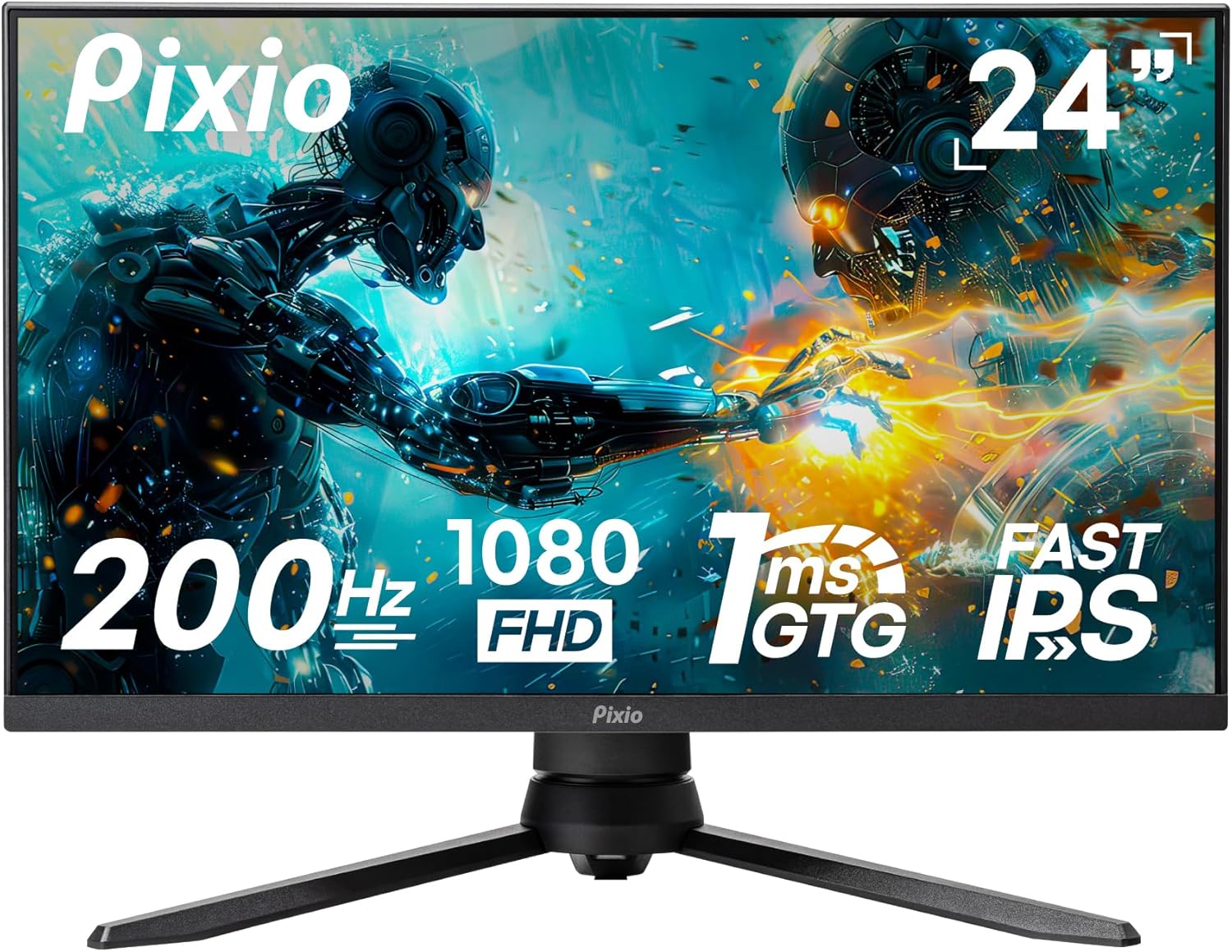
Imej: Depan view of the Pixio PX248 PRO V2 24-inch Gaming Monitor, highlighting its 200Hz refresh rate, 1080p FHD resolution, 1ms GTG response time, and Fast IPS panel technology.
Maklumat Keselamatan
- Pastikan monitor diletakkan pada permukaan yang stabil dan rata untuk mengelakkan terjatuh secara tidak sengaja.
- Jangan halang bukaan pengudaraan. Aliran udara yang betul adalah penting untuk mengelakkan terlalu panas.
- Gunakan hanya penyesuai kuasa yang dibekalkan bersama monitor.
- Keep the monitor away from water, moisture, and direct sunlight.
- Avoid placing heavy objects on the power cord or monitor cables.
- Putuskan sambungan kabel kuasa dari soket sebelum membersihkan monitor.
Kandungan Pakej
Sahkan bahawa semua item terdapat dalam pakej:
- Pixio PX248 PRO V2 Monitor
- Stand Monitor (Asas dan Leher)
- Penyesuai Kuasa
- DisplayPort Cable
- Manual Pengguna (dokumen ini)
Persediaan
Perhimpunan Pantau
Follow these steps to assemble the monitor stand or prepare for VESA mounting:
- Keluarkan komponen monitor dan berdiri dengan berhati-hati daripada pembungkusan.
- Pasangkan leher pendirian pada panel monitor. Pastikan ia klik dengan selamat pada tempatnya atau diikat dengan skru jika disediakan.
- Attach the stand base to the stand neck. Tighten the thumb screw or screws from the bottom of the base.
- For VESA mounting (100x100mm), remove the stand from the monitor panel. Attach your VESA-compatible mount to the four screw holes on the back of the monitor.

Image: Diagram illustrating the adjustable features of the monitor stand, including tilt, height adjustment, swivel, and pivot capabilities for ergonomic positioning.

Image: Technical drawing showing the dimensions of the Pixio PX248 PRO V2 monitor and the location of the 100x100mm VESA mount points on the rear panel.
Menyambung ke Peranti
Connect your computer or other devices to the monitor using the appropriate cables:
- DisplayPort (DP 1.2): For optimal performance, including 200Hz refresh rate and Adaptive Sync, use the DisplayPort cable.
- HDMI (HDMI 2.0): Connect devices using HDMI cables. The monitor has two HDMI 2.0 ports.
- Jack fon telinga: Connect headphones or external speakers to this port for audio output.

Imej: Jarak dekat view of the Pixio PX248 PRO V2 monitor's rear input panel, showing two HDMI 2.0 ports, one DisplayPort 1.2, an earphone jack, and the DC power input.
Sambungan Kuasa
Connect the power adapter to the monitor's DC input port, then plug the adapter into a power outlet.
Beroperasi
Menu Paparan Pada Skrin (OSD).
The monitor features an intuitive OSD menu for adjusting various settings. Use the joystick or buttons located on the monitor (typically on the back or bottom right) to navigate and select options.
- Tekan Joystick: Access OSD menu.
- Gerakkan Joystick Ke Atas/Bawah: Navigasi melalui pilihan menu.
- Gerakkan Joystick Kiri/Kanan: Adjust values or enter sub-menus.
- Tekan Joystick (sekali lagi): Sahkan pemilihan.
Ciri dan Tetapan Utama
- Kadar Segar Semula (200Hz): The monitor supports a 200Hz refresh rate for smoother motion. Ensure your graphics card and connection type (DisplayPort recommended) support this setting. Adjust in your operating system's display settings.

Image: Visual comparison demonstrating the difference in motion clarity between 200Hz, 75Hz, and 60Hz refresh rates, highlighting the smoother experience at 200Hz.
- Masa Respons (1ms GTG): The 1ms Gray-to-Gray (GTG) response time minimizes motion blur and ghosting. This setting is typically enabled by default or can be adjusted in the OSD menu under 'Overdrive' or 'Response Time' settings.
- Penyegerakan Adaptif: This technology synchronizes the monitor's refresh rate with your graphics card's frame rate, eliminating screen tearing and stuttering. Enable Adaptive Sync in the OSD menu and ensure it is also enabled in your graphics card's control panel.

Image: Side-by-side comparison showing the visual difference between Adaptive Sync ON and Adaptive Sync OFF, illustrating how Adaptive Sync eliminates screen tearing for smoother gameplay.
- HDR (Julat Dinamik Tinggi): HDR enhances contrast and color accuracy, providing a more vibrant and realistic image. Enable HDR in the OSD menu and in your operating system's display settings if your content supports it.

Image: A vibrant scene displayed on the Pixio PX248 PRO V2 monitor, demonstrating the enhanced contrast and color depth provided by HDR technology.
- Tetapan Warna: The Fast IPS panel offers wide viewing angles and accurate colors. Adjust brightness, contrast, color temperature, and gamma settings via the OSD menu to suit your preference. The monitor supports 133.9% sRGB and 100% DCI-P3 color spaces.

Image: A colorful abstract image displayed on the Pixio PX248 PRO V2 monitor, illustrating the vivid and lifelike color reproduction of the Fast IPS panel.
- Cahaya Biru Rendah: This feature reduces blue light emissions to minimize eye strain during extended use. Activate or adjust the Low Blue Light setting in the OSD menu.

Image: A user wearing headphones, looking at the monitor with the 'Low Blue Light' feature enabled, indicating reduced eye strain for prolonged viewing.
- On-Screen Crosshair: For competitive gaming, an on-screen crosshair can be enabled via the OSD menu to assist with aiming.

Image: A first-person shooter game displayed on the monitor, with an on-screen crosshair overlay visible, demonstrating the aiming assistance feature.
Penyelenggaraan
- Membersihkan Skrin: Lap skrin perlahan-lahan dengan kain lembut yang tidak berbulu. Untuk tanda degil, dampLap kain sedikit dengan air atau pembersih skrin bukan ammonia dan bukan alkohol. Jangan sembur pembersih terus ke skrin.
- Membersihkan Casing: Gunakan kain lembut dan kering untuk mengelap monitor casing. Elakkan pembersih yang kasar.
- Storan: If storing the monitor for an extended period, place it in its original packaging or a protective cover in a cool, dry place.
Menyelesaikan masalah
- Tiada Kuasa: Pastikan penyesuai kuasa disambungkan dengan selamat pada monitor dan soket kuasa yang berfungsi. Periksa sama ada lampu penunjuk kuasa menyala.
- Tiada isyarat: Verify that the video cable (DisplayPort or HDMI) is correctly connected to both the monitor and your device. Ensure the correct input source is selected in the OSD menu.
- Skrin berkelip: Check the video cable connection. Try a different cable or port. Ensure your graphics card drivers are up to date. If Adaptive Sync is enabled, try disabling it temporarily.
- Image Distortion/Blurry: Adjust the resolution and refresh rate in your operating system's display settings to match the monitor's native resolution (1920x1080) and desired refresh rate (up to 200Hz).
- Tiada Audio: Ensure speakers or headphones are properly connected to the earphone jack. Check the volume settings on both the monitor (OSD menu) and your connected device. Verify that the correct audio output device is selected in your operating system.
Spesifikasi
| Ciri | Spesifikasi |
|---|---|
| Jenama | pixio |
| Nombor Model | PX248PROV2 |
| Saiz Skrin | 24 Inci |
| Jenis Panel | IPS pantas |
| Resolusi | FHD 1080p (1920 x 1080) |
| Kadar Segar Semula | 200Hz |
| Masa Tindak Balas | 1ms GTG |
| Nisbah Aspek | 16:9 |
| Kecerahan Imej | 380 Candela |
| Ketersambungan | 2x HDMI 2.0, 1x DisplayPort 1.2, Earphone Jack |
| Port USB | 2 (Jumlah) |
| Voltage | 12 Volt |
| Dimensi Produk | 11 x 21 x 19 inci |
| Berat Barang | 13.42 paun |
| Keserasian VESA | 100x100mm |
Waranti dan Sokongan
For warranty information and technical support, please refer to the official Pixio website or contact their customer service. You can also find additional resources and the original PDF user manual di sini.


