1. Pengenalan
This manual provides comprehensive instructions for setting up, operating, and maintaining your ATTACK SHARK X11 Ultra-Light Triple Mode Gaming Mouse. Please read this manual carefully before use to ensure optimal performance and longevity of your device.
2. Kandungan Pakej
Sahkan bahawa semua item terdapat dalam pakej anda:
- ATTACK SHARK X11 Gaming Mouse
- Dok Pengecasan Magnet
- Kabel USB-C ke USB-A
- Penerima USB 2.4GHz
- Manual Pengguna (dokumen ini)
3. Produk Lebihview
Familiarize yourself with the components of your X11 gaming mouse.

Image 3.1: The ATTACK SHARK X11 Gaming Mouse with its magnetic charging dock.

Image 3.2: Exploded diagram showing internal components like the lightweight material case, engineering curved keys, PCB, lithium battery, TTC encoder, Huano switches, PAW3311 sensor, and mouse bottom case.
Komponen tetikus:
- Butang Klik Kiri/Kanan: Equipped with Huano micro switches for tactile feedback.
- Roda Tatal: For navigation and additional programmable function.
- Side Buttons (x2): Programmable for various functions.
- Butang DPI: Located on the underside for adjusting sensitivity.
- Suis Mod: Located on the underside to select connectivity mode (Wired, 2.4GHz, Bluetooth).
- Port USB-C: Untuk sambungan berwayar dan pengecasan.
- Sensor Optik: PAW3311 sensor for precise tracking.
Dok Pengecasan Magnetik:
- Magnetic Charging Pins: For effortless wireless charging.
- Pencahayaan RGB: Kesan pencahayaan yang boleh disesuaikan.
- Port USB-A: To store the 2.4GHz USB receiver.
4. Panduan Persediaan
4.1 Mengecas Tetikus
The X11 mouse can be charged using the magnetic charging dock or directly via the USB-C cable.
- Using the Magnetic Charging Dock:
- Connect the USB-C cable to the charging dock and then to a power source (e.g., computer USB port, USB wall adapter).
- Place the mouse onto the charging dock. The magnetic connection will secure it, and charging will begin automatically.
- The dock features touch-sensitive RGB lighting control. Tap the dock to cycle through lighting effects or turn them off.
- Pengecasan USB-C Terus:
- Connect the USB-C cable directly to the mouse's USB-C port and then to a power source.
- The mouse can be used in wired mode while charging.

Image 4.1: The X11 mouse charging on its magnetic dock, showcasing pencahayaan RGB.
A full charge provides approximately 65 hours of usage. Charging time is typically 2-3 hours.
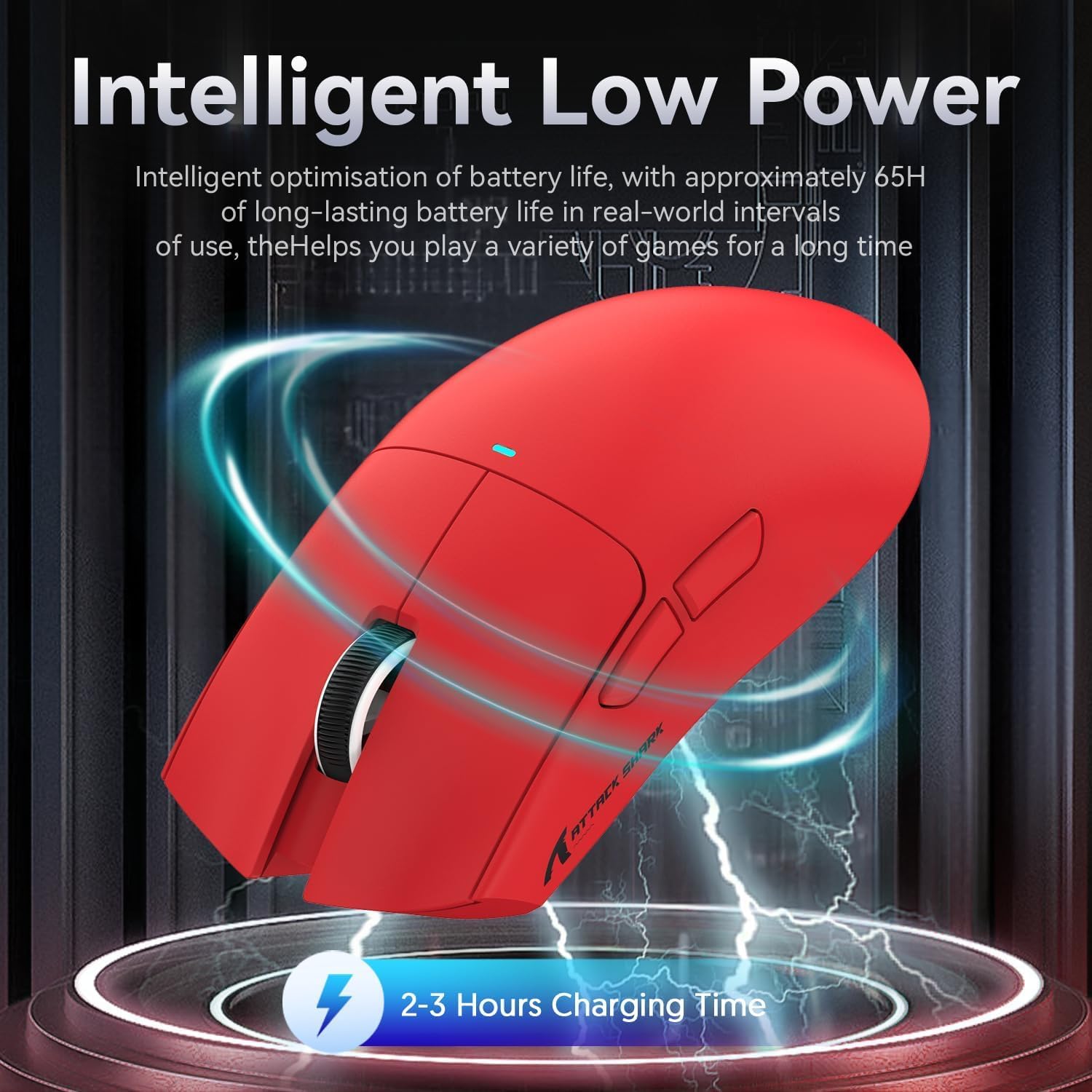
Image 4.2: Visual representation of the X11 mouse's intelligent low power consumption, offering 65 hours of use and a 2-3 hour charging time.
4.2 Connecting the Mouse (Triple Mode Connectivity)
The X11 mouse supports three connection modes: 2.4GHz Wireless, Bluetooth 5.0, and Wired USB-C.

Image 4.3: Illustration of the X11 mouse's triple-mode connectivity options.
- Mod Wayarles 2.4GHz:
- Locate the 2.4GHz USB receiver, typically stored in the magnetic charging dock's USB-A port or in a compartment on the mouse's underside.
- Pasangkan penerima USB ke port USB-A yang tersedia pada komputer anda.
- Switch the mode selector on the underside of the mouse to "2.4G".
- Tetikus sepatutnya bersambung secara automatik.
- Mod Bluetooth 5.0:
- Switch the mode selector on the underside of the mouse to "BT".
- Press and hold the Bluetooth toggle button (usually near the mode switch) for 3 seconds to enter pairing mode. The mouse's indicator light will flash.
- Pada komputer atau peranti anda, pergi ke tetapan Bluetooth dan cari peranti baharu.
- Select "ATTACK SHARK X11" (or similar) from the list to pair.
- The mouse supports up to three Bluetooth channels (BT1/BT2/BT3). Short press the Bluetooth key to switch between channels.
- Wired USB-C Mode:
- Connect the USB-C cable to the mouse's USB-C port and the other end to your computer's USB-A or USB-C port.
- Tetikus akan bertukar secara automatik ke mod berwayar dan mula mengecas.
4.3 Pemasangan Pemandu (Pilihan)
For advanced customization, including programmable buttons, DPI settings, and macro functions, download the official ATTACK SHARK X11 driver software from the ATTACK SHARK official webtapak or store page.

Image 4.4: The X11 driver software allows for comprehensive customization of mouse settings.
5. Arahan Operasi
5.1 Pelarasan DPI
The X11 mouse features a PixArt 3311 sensor with up to 22,000 DPI and 6 adjustable levels. The DPI button is located on the underside of the mouse.
- Press the DPI button to cycle through the preset DPI levels.
- Customize DPI levels and assign them to specific buttons using the driver software.

Image 5.1: Details of the PixArt PAW3311 sensor, highlighting its precision and adjustable DPI.
5.2 Butang Boleh Aturcara
The X11 mouse has 5 programmable buttons (left, right, scroll click, and two side buttons). Use the driver software to assign custom functions, macros, or keybinds to these buttons.
5.3 Kawalan Pencahayaan RGB
The magnetic charging dock and the mouse itself feature customizable RGB lighting. Use the driver software to adjust lighting effects, colors, and brightness. The dock's lighting can also be controlled by tapping its surface.
5.4 Angle Snap Feature
The Angle Snap feature helps to smooth out diagonal mouse movements, which can be useful for certain tasks requiring straight lines. This feature can be toggled On or Off via the driver software.
Video 5.1: Demonstration of the Angle Snap feature, showing how it can be toggled on and off in the software to affect mouse movement precision.
6. Penyelenggaraan
6.1 Pembersihan
- Use a soft, dry cloth to wipe the mouse and charging dock.
- Untuk kotoran degil, sedikit dampen kain dengan air atau larutan pembersih lembut. Elakkan bahan kimia yang keras.
- Do not immerse the mouse or dock in water.
6.2 Penjagaan Bateri
- Elakkan menyahcas sepenuhnya bateri dengan kerap untuk memanjangkan jangka hayatnya.
- Simpan tetikus di tempat yang sejuk dan kering jika tidak digunakan untuk tempoh yang lama.
7. Penyelesaian masalah
| Masalah | Penyelesaian |
|---|---|
| Mouse not responding in wireless mode. |
|
| DPI not changing. |
|
| Magnetic charging dock RGB not working. |
|
| Mouse cursor erratic or lagging. |
|
8. Spesifikasi
| Ciri | Perincian |
|---|---|
| Model | X11 |
| Sensor | Penderia Optik PixArt PAW3311 |
| DPI | Up to 22,000 DPI (6 adjustable levels) |
| Ketersambungan | Berwayar USB-C, Tanpa Wayar 2.4GHz, Bluetooth 5.0 |
| Berat badan | 63g (±3g) |
| Suis | Huano Micro Switches (20 million click lifespan) |
| Hayat Bateri | lebih kurang 65 jam |
| Mengecas | Magnetic Charging Dock, USB-C |
| Butang Boleh Aturcara | 5 |
| Dimensi | 7.01 x 4.57 x 2.01 inci (Pakej) |
9. Waranti dan Sokongan
For warranty information, technical support, or further assistance, please visit the official Kedai ATTACK SHARK di Amazon atau hubungi perkhidmatan pelanggan mereka secara terus.
Sila simpan bukti pembelian anda untuk tuntutan waranti.


