1. Pengenalan
This manual provides detailed instructions for the safe and efficient operation of your Makeid L1-C Portable Bluetooth Label Printer. Please read this manual thoroughly before using the device to ensure proper functionality and to prevent damage. Keep this manual for future reference.
The Makeid L1-C is a compact, self-adhesive thermal label printer designed for both home and office environments. It connects via Bluetooth to your smartphone or tablet, allowing for easy label creation and printing through the MakeID Life application. It supports label widths from 9mm to 16mm and offers a print speed of 31mm/s.
2. Maklumat Keselamatan
- Do not disassemble, repair, or modify the printer yourself. This may cause electric shock, fire, or damage to the printer.
- Jauhkan pencetak daripada air, kelembapan dan cahaya matahari langsung.
- Use only Makeid official label rolls. Using non-official labels may result in poor print quality or damage to the printer.
- Do not touch the print head immediately after printing, as it may be hot.
- Ensure the printer is charged using the provided Type-C cable and a compatible power adapter.
- Store the printer and label rolls in a cool, dry place.
3. Kandungan Pakej
Sahkan bahawa semua item terdapat dalam pakej:
- Makeid L1-C Label Printer
- Kabel Pengecasan USB Jenis-C
- Manual Operasi Pantas
- 1 Roll of Label Tape (16mm x 4m, pre-installed inside the label maker)

The image displays all items included in the Makeid L1-C label printer package: the printer itself, a USB Type-C cable for charging, a quick start guide, and a pre-installed roll of 16mm x 4m label tape.
4. Persediaan
4.1 Mengecas Pencetak
Before first use, fully charge the printer. Connect the provided USB Type-C cable to the printer's charging port and the other end to a USB power adapter (not included). A full charge takes approximately 1.5 hours. The printer features a long-lasting battery and an automatic shutdown function after 30 minutes of inactivity to conserve power.
4.2 Installing the MakeID Life App
The Makeid L1-C printer operates via the MakeID Life application. Download the app from the App Store (for iOS devices) or Google Play Store (for Android devices). You can also scan the QR code provided in the quick operational manual to download the app.

This image illustrates the Makeid L1-C label printer's seamless Bluetooth connection with a smartphone. The phone screen shows the MakeID Life application, ready for users to design and print labels.
4.3 Menyambung melalui Bluetooth
- Turn on the Makeid L1-C printer by pressing the power button.
- Dayakan Bluetooth pada telefon pintar atau tablet anda.
- Open the MakeID Life app. The app will automatically search for and connect to the printer.
- Once connected, the app will display the printer status.
4.4 Loading Label Rolls
The Makeid L1-C printer uses official LC label rolls with RFID chips. These chips allow the app to automatically recognize the label size, reducing waste and simplifying the printing process.
- Open the label compartment cover on the printer.
- Insert the Makeid LC label roll with the label side facing up, ensuring it feeds smoothly through the printer's slot.
- Close the label compartment cover. The app should automatically detect the label size.

The image highlights the automatic label size detection feature of the Makeid L1-C printer. A smartphone running the MakeID Life app indicates that the label roll's dimensions are automatically recognized, simplifying the printing process.
5. Arahan Operasi
5.1 Mencipta dan Mencetak Label
The MakeID Life app provides various tools and templates for creating labels.
- Open the MakeID Life app and ensure your printer is connected.
- Select a template or start a new label design.
- Customize your label with text, icons, frames, QR codes, or barcodes. The app supports printing on 9-16mm wide label paper.
- Praview your label design.
- Tap the 'Print' button to send the design to your Makeid L1-C printer.

The image shows the MakeID Life app's extensive customization options, allowing users to create diverse labels using various templates, frames, QR codes, barcodes, stickers, and text input for personalized organization.

This image showcases the versatility of the Makeid L1-C printer, capable of printing a wide range of labels from 9-16mm in width. Examples include labels for dates, names, and product descriptions, illustrating its use for organization.
5.2 Menggunakan Pemotong Terbina Dalam
The Makeid L1-C printer features a built-in cutter for both pre-sized and continuous labels. After printing, press the designated cut button on the printer to cleanly separate your label. For pre-sized labels, you can also easily peel them along the pre-scored line.
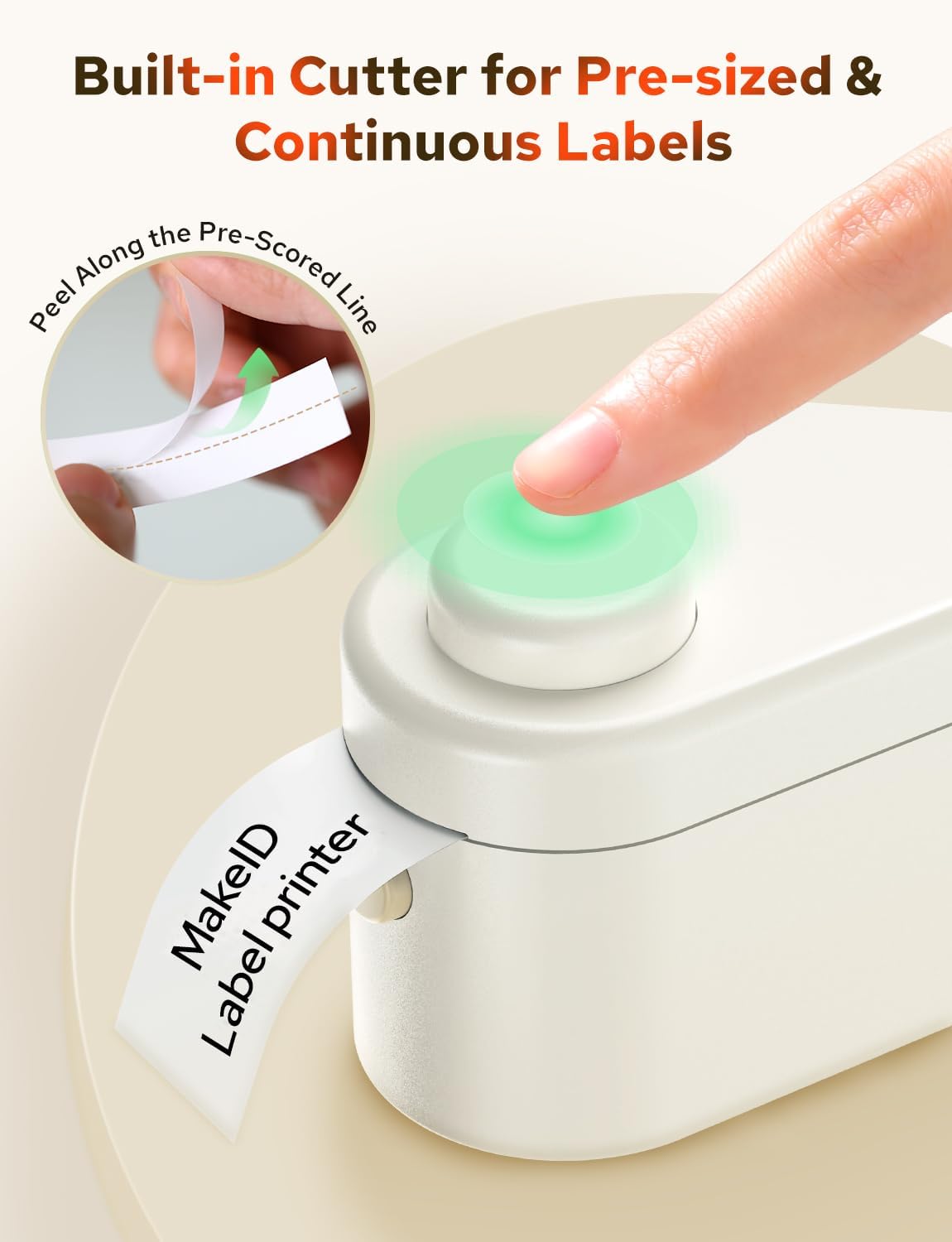
This image demonstrates the Makeid L1-C printer's integrated cutter, showing a user pressing the button to cut a label. It also illustrates how labels can be easily peeled along a pre-scored line for convenient application.
6. Penyelenggaraan
6.1 Membersihkan Pencetak
To maintain optimal print quality, regularly clean the print head and roller. Use a soft, lint-free cloth lightly dampened with isopropyl alcohol. Ensure the printer is turned off and disconnected from power before cleaning. Allow it to dry completely before use.
6.2 Penjagaan Bateri
The printer's lithium-polymer battery is designed for long life. To prolong battery health, avoid fully discharging the battery frequently. If the printer will not be used for an extended period, charge it to about 50% and store it in a cool, dry place. The printer automatically shuts off after 30 minutes of inactivity to save battery life.
6.3 Label Storage
Store Makeid LC label rolls in a cool, dry place away from direct sunlight and heat to prevent degradation of the thermal material and adhesive.
7. Penyelesaian masalah
If you encounter issues with your Makeid L1-C printer, refer to the following common problems and solutions:
| Masalah | Kemungkinan Punca | Penyelesaian |
|---|---|---|
| Pencetak tidak dihidupkan | Bateri lemah; Butang kuasa tidak ditekan dengan betul | Cas pencetak; Tekan dan tahan butang kuasa selama beberapa saat. |
| Tidak dapat menyambung melalui Bluetooth | Bluetooth off on device; Printer not in pairing mode; App issue | Ensure Bluetooth is enabled; Restart printer and app; Reinstall app if necessary. |
| Poor print quality / Blank labels | Incorrect label orientation; Non-official labels; Dirty print head; Low battery | Ensure label roll is inserted correctly (thermal side up); Use Makeid LC labels; Clean the print head; Charge the printer. |
| Label jem | Improper label loading; Foreign object | Open cover, carefully remove jammed label; Ensure proper loading. |
For best results and to avoid print quality issues, it is highly recommended to use official MakeID LC label rolls. Using other brands may result in suboptimal print quality.
8. Spesifikasi
| Ciri | Spesifikasi |
|---|---|
| Jenama | Makeid |
| Nama Model | L1-C |
| Teknologi Percetakan | terma |
| Teknologi Ketersambungan | Bluetooth |
| Peranti Serasi | Android, Smartphone, iOS |
| Resolusi Cetakan Hitam & Putih Maksimum | 300 DPI |
| Max Monochrome Print Speed | 19 mm/s (Note: Product title states 31 mm/s, please refer to product packaging for exact speed) |
| Lebar Label yang Disokong | 9-16 mm |
| Dimensi Produk | 100P x 40l x 55H millimeters |
| Komposisi Bateri | Litium-polimer |
| Komponen yang Disertakan | Label Printer, Labels |
| Sederhana Cetakan | Kertas Terma |
| Percetakan Dupleks | Tidak |
9. Waranti dan Sokongan
9.1 Maklumat Waranti
The Makeid L1-C Portable Bluetooth Label Printer comes with a Limited One-Year Warranty from the date of purchase. This warranty covers manufacturing defects under normal use. It does not cover damage caused by misuse, accidents, unauthorized modifications, or use of non-official consumables.
9.2 Sokongan Pelanggan
For technical support, warranty claims, or further assistance, please contact Makeid customer service through the official website or the contact information provided with your purchase. Please have your model number (L1-C) and proof of purchase ready when contacting support.


