pengenalan
This manual provides essential information for the setup, operation, maintenance, and troubleshooting of your Protectli Vault Pro VP2430-4 Port Micro Appliance/Mini PC. Please read these instructions carefully before using the device to ensure proper functionality and longevity.
Persediaan
Follow these steps to set up your Protectli Vault Pro VP2430-4.
1. Menyahkotak dan Semakan Komponen
Carefully unpack all components from the box. Verify that all items are present:
- Protectli Vault Pro VP2430-4 unit
- Penyesuai kuasa dan kabel
- Mounting bracket and screws (if included)
- USB Type-C console cable
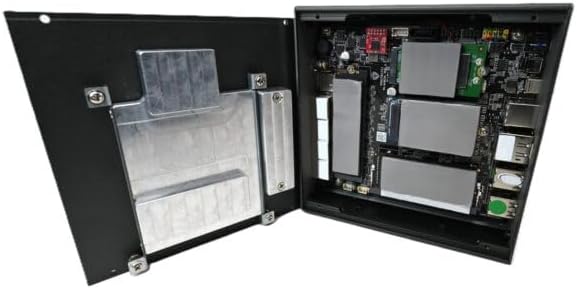
Image: Included accessories, including the power adapter, mounting bracket, screws, and USB console cable.
2. Sambungan Fizikal
Connect the necessary cables to the device ports. Refer to the image below for port identification.

Image: Rear panel of the Protectli Vault Pro VP2430-4, displaying various ports including USB, HDMI, DisplayPort, and USB-C console port.
- Kuasa: Connect the power adapter to the DC 12V input port and then to a power outlet.
- Rangkaian: Connect Ethernet cables to the 2.5G NIC ports (labeled 1-4) as required for your network configuration.
- paparan: If a display is needed for initial setup or monitoring, connect a monitor to the HDMI or DisplayPort output.
- Peranti USB: Connect any necessary USB peripherals (keyboard, mouse) to the USB 2.0 or USB 3.2 Type C ports.
- Konsol: For serial console access, connect the provided USB Type-C console cable to the console port and your computer.
3. But Pertama
After all connections are made, press the power button located on the front panel. The device will power on. Since no operating system is pre-installed, you will need to install your preferred firewall or operating system software.
Arahan Operasi
The Protectli Vault Pro VP2430-4 is designed as a micro appliance for network security and mini PC applications. It does not come with a pre-installed operating system, allowing for maximum flexibility.
Keserasian Perisian
This hardware is tested for compatibility with various open-source firewall software solutions, including OPNsense, pfSense, and VyOS. It also supports other popular open-source software solutions. The device ships with AMI BIOS.
Senario Penggunaan Biasa
- Firewall/Router: Utilize the multiple 2.5G NICs to create a robust and secure network gateway.
- PC mini: Install a lightweight operating system for various computing tasks.
- Maya: Deploy hypervisors for running virtual machines.
Penyelenggaraan
Regular maintenance ensures optimal performance and longevity of your device.
Pembersihan
To clean the exterior of the device, use a soft, dry cloth. Avoid using liquid cleaners or solvents, as these can damage the finish or internal components. Ensure the device is powered off and unplugged before cleaning.
Kemas kini Perisian Tegar
Periodically check the Protectli website for BIOS/firmware updates. Updating the firmware can improve stability, performance, and security. Follow the instructions provided with the firmware update package carefully.
Hardware Upgrades (RAM/Storage)
The Protectli Vault Pro VP2430-4 supports upgrades for RAM and M.2 SATA SSD storage. To perform an upgrade:
- Matikan peranti dan cabut semua kabel.
- Carefully remove the screws securing the bottom cover.
- Gently lift the cover to expose the internal components.

Imej: Dalaman view of the Protectli Vault Pro VP2430-4, showing the motherboard, RAM slots, and M.2 SSD slots.
Locate the SODIMM DDR5 RAM slots and M.2 SATA SSD slot. Install or replace components according to their respective instructions. Ensure components are seated correctly before reattaching the cover and screws.
Menyelesaikan masalah
Bahagian ini menangani isu biasa yang mungkin anda hadapi.
Tiada Kuasa
- Pastikan penyesuai kuasa disambungkan dengan selamat ke peranti dan salur keluar kuasa yang berfungsi.
- Sahkan alur keluar kuasa berfungsi dengan memasang peranti lain.
- Periksa penyesuai kuasa untuk sebarang kerosakan yang boleh dilihat.
Tiada Output Paparan
- Confirm the monitor is powered on and correctly connected to the device's HDMI or DisplayPort.
- Cuba kabel paparan atau monitor yang berbeza.
- Pastikan sumber input yang betul dipilih pada monitor anda.
Isu Ketersambungan Rangkaian
- Check that Ethernet cables are securely connected to both the device and your network equipment.
- Verify the status indicator lights on the Ethernet ports.
- Ensure your installed operating system or firewall software is correctly configured for network interfaces.
Spesifikasi
| Model | VP2430 |
| CPU | Intel N150 Quad Core (up to 3.6GHz, 6MB Cache) |
| RAM | RAM DDR5 SO-DIMM 32GB |
| Penyimpanan | 1000GB NVMe SSD, 32GB eMMC on-board |
| Antara Muka Rangkaian | 4x Intel I226-V 2.5G NICs |
| Port USB | 2x USB 3.2 Type C with DisplayPort, 4x USB 2.0 Type A, 1x USB Type C Console |
| Output Video | 1x HDMI, 1x DisplayPort (via USB-C) |
| Pemproses bersama Grafik | Grafik Intel UHD 630 |
| Platform Perkakasan | PC |
| Dimensi (LxWxH) | 5.67 x 5.63 x 2.17 inci |
| Berat badan | 4.1 paun |
| Sumber Kuasa | DC |
| Bateri | 1 bateri CR2 diperlukan (termasuk) |
Waranti dan Sokongan
Maklumat Waranti
Your Protectli Vault Pro VP2430-4 comes with a 30-day money-back guarantee. For specific warranty terms and conditions, please refer to the official Protectli webtapak atau hubungi sokongan pelanggan.
Sokongan Pelanggan
Protectli offers US-based customer support to assist you with any questions or issues. Our dedicated team is available to provide technical assistance and guidance.
Untuk sokongan, sila layari Protectli Store or refer to the contact information provided with your product documentation.