pengenalan
Welcome to the user manual for your Motorola Moto G Power smartphone. This guide is designed to help you navigate every feature, option, and capability of your device, whether you are a first-time smartphone user or an experienced enthusiast. The Moto G Power offers robust performance, a vibrant display, and a versatile camera system, all at an accessible price point. To fully utilize its potential, a clear understanding of its functions is essential. This manual provides detailed instructions, practical tips, and expert guidance to enhance your experience.
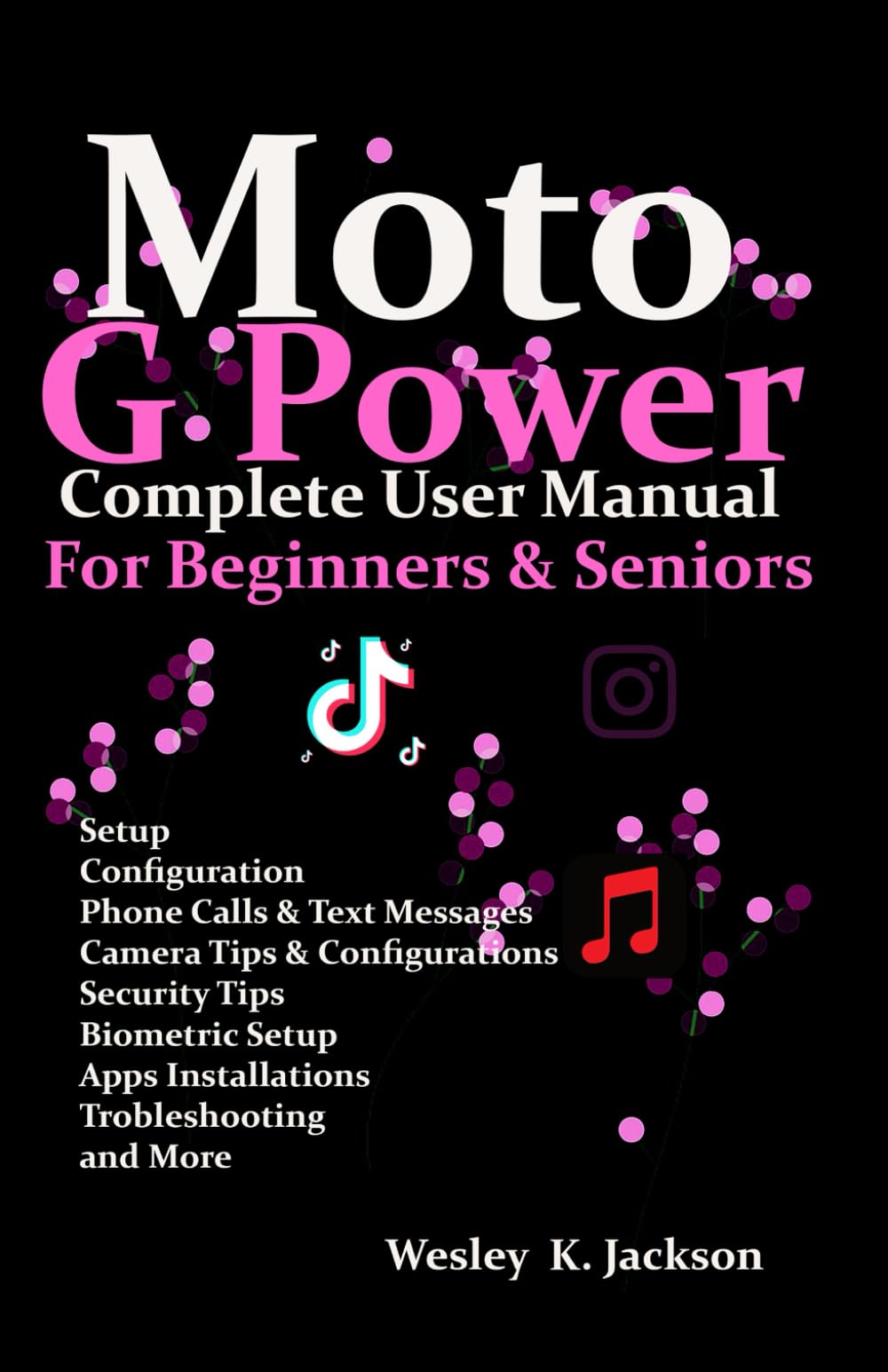
Image: Front cover of the Moto G Power User Manual. This image displays the title of the manual and its primary design.
Bermula
This section covers the initial setup of your Moto G Power, from unboxing to customizing your home screen.
1. Membuka Kotak dan Caj Permulaan
- Carefully remove your Moto G Power and its accessories from the packaging.
- Connect the charger to your phone and a power outlet. Allow the device to charge for at least 30 minutes before first use, or until the battery indicator shows sufficient charge.
2. Menghidupkan/Mematikan
- To power on, press and hold the Power button on the side of the device until the Motorola logo appears.
- To power off, press and hold the Power button, then tap 'Power off' on the screen.
3. Pemasangan Kad SIM
- Cari dulang SIM di sisi telefon anda.
- Masukkan alat ejektor SIM ke dalam lubang kecil pada dulang dan tolak perlahan-lahan sehingga dulang terkeluar.
- Letakkan kad Nano-SIM anda ke dalam dulang dengan sesentuh emas menghadap ke bawah.
- Masukkan semula dulang dengan berhati-hati ke dalam telefon.
4. Wizard Persediaan Awal
Ikut gesaan pada skrin untuk melengkapkan persediaan awal:
- Pilih bahasa dan wilayah anda.
- Sambung ke rangkaian Wi-Fi.
- Log masuk dengan akaun Google anda atau buat yang baharu.
- Review dan menerima terma dan syarat.
- Sediakan kunci skrin (PIN, corak, kata laluan, cap jari).
5. Pemindahan Data
If you are upgrading from an old phone, the setup wizard will guide you through transferring data from your previous device using Google's backup services or a direct cable connection.
6. Penyesuaian Skrin Utama
Personalize your home screen by:
- Adding widgets: Long-press on an empty area of the home screen, then tap 'Widgets'.
- Changing wallpaper: Long-press on an empty area, then tap 'Wallpaper & style'.
- Organizing apps: Drag and drop app icons to rearrange them or create folders.
Mengendalikan Peranti Anda
Learn how to use the core functionalities of your Moto G Power.
1. Membuat Panggilan dan Menghantar Mesej
- Panggilan: Open the 'Phone' app, enter a number or select a contact, then tap the call icon.
- Mesej: Open the 'Messages' app, tap 'Start chat', enter a contact or number, and type your message.
2. Mastering the Camera
The Moto G Power features a multi-lens camera system designed for various photographic scenarios. This section provides expert advice on how to take great photographs and videos.
- Melancarkan Kamera: Tap the Camera app icon or use a Moto Action (e.g., twist your wrist twice).
- Basic Modes: Switch between Photo, Video, Portrait, and Night Vision modes by swiping across the viewpencari.
- Zum: Cubit ke dalam atau ke luar pada skrin atau gunakan gelangsar zum.
- Fokus: Tap on the screen to set the focus point.
- Petua Pro:
- Use HDR for balanced exposure in high-contrast scenes.
- Experiment with Portrait mode for professional-looking photos with blurred backgrounds.
- Utilize Night Vision in low-light conditions for brighter, clearer images.
3. Pengurusan Bateri
Maximize the life of your cellular device's battery with these best practices for fast-charging and energy-saving.
- Pengecasan Optimum: Use the charger provided with your device for fast and efficient charging. Avoid extreme temperatures while charging.
- Mod Penjimat Bateri: Enable 'Battery Saver' in Settings > Battery to extend battery life by restricting background activity and visual effects.
- Penggunaan Monitor: Check 'Battery usage' in Settings > Battery to identify apps consuming the most power and manage them accordingly.
- Kecerahan Skrin: Reduce screen brightness or enable 'Adaptive brightness' to save power.
4. Keselamatan dan Privasi
Achieve security and privacy by establishing fingerprint and face recognition, securing your data, and managing permissions for applications.
- Sensor cap jari: Go to Settings > Security > Fingerprint. Follow the instructions to register your fingerprints for quick and secure unlocking.
- Buka Kunci Wajah: In Settings > Security > Face Unlock, set up facial recognition for convenient unlocking.
- Kunci skrin: Ensure you have a strong PIN, pattern, or password set up as a backup to biometric security.
- Kebenaran Apl: Kerap semulaview and manage app permissions in Settings > Apps > See all apps > [App Name] > Permissions to control what data apps can access.
- Penyulitan Data: Your device's data is encrypted by default, providing an additional layer of security.
5. Hidden Features and Shortcuts (Moto Actions)
Unlock secret tricks that can enhance your user experience and increase your productivity.
- Tangkap Pantas: Pusing pergelangan tangan anda dua kali dengan cepat untuk membuka kamera.
- Lampu suluh cepat: Make two chopping motions with your phone to turn the flashlight on or off.
- Tangkapan skrin tiga jari: Sentuh dan tahan skrin dengan tiga jari untuk mengambil tangkapan skrin.
- Lift to Unlock: Lift your phone to unlock it and see notifications.
- Flip for Do Not Disturb: Place your phone face down to silence notifications and calls.
Penyelenggaraan
To ensure that your phone continues to function without any interruptions, it is essential to undertake regular maintenance tasks.
1. Kemas Kini Perisian
- Regularly check for and install software updates to ensure your device has the latest features, security patches, and performance improvements. Go to Settings > System > System updates.
2. Membersihkan Peranti Anda
- Gunakan kain lembut dan tidak berbulu untuk mengelap skrin dan badan telefon anda dengan perlahan.
- Elakkan menggunakan bahan kimia yang keras atau bahan yang melelas.
3. Pengurusan Storan
- Semula secara berkalaview your storage usage in Settings > Storage.
- Padam yang tidak perlu files, nyahpasang aplikasi yang tidak digunakan atau alihkan besar files to cloud storage or an SD card (if supported).
4. Sandaran dan Pulihkan
- Ensure your data is regularly backed up to your Google account. Go to Settings > System > Backup.
- This allows you to restore your data if you get a new device or need to perform a factory reset.
Menyelesaikan masalah
This section addresses common issues and provides solutions to help you resolve problems with your Moto G Power.
1. Device Not Responding/Freezing
- Tekan dan tahan butang Kuasa selama kira-kira 10-15 saat untuk memaksa mulakan semula.
2. App Crashing or Not Working
- Clear the app's cache and data: Settings > Apps > See all apps > [App Name] > Storage & cache > Clear cache / Clear storage.
- Nyahpasang dan pasang semula apl.
- Semak kemas kini aplikasi di Gedung Google Play.
3. Isu Kesambungan (Wi-Fi/Bluetooth/Selular)
- Toggle Wi-Fi, Bluetooth, or Cellular Data off and on.
- Mulakan semula telefon anda.
- Tetapkan semula tetapan rangkaian: Tetapan > Sistem > Tetapkan semula pilihan > Tetapkan semula Wi-Fi, mudah alih & Bluetooth.
4. Bateri Cepat Kehabisan
- Review 'Battery usage' in Settings to identify problematic apps.
- Dayakan mod Penjimat Bateri.
- Reduce screen brightness and disable unnecessary features like GPS or always-on display when not in use.
5. Tetapan Semula Kilang (Pilihan Terakhir)
If other troubleshooting steps fail, a factory reset can resolve persistent issues. Warning: This will erase all data on your phone. Ensure you have backed up all important information before proceeding.
- Pergi ke Tetapan > Sistem > Tetapkan semula pilihan > Padam semua data (tetapan semula kilang).
- Ikut arahan pada skrin.
Spesifikasi
Detailed technical specifications for the Motorola Moto G Power smartphone are not provided within this manual. Please refer to the official Motorola website or your device's packaging for comprehensive specifications.
Waranti dan Sokongan
Specific warranty information and detailed support contacts are not included in this manual. For warranty details, technical support, or service inquiries, please visit the official Motorola support webtapak atau hubungi peruncit anda.
Maklumat Lanjut

Image: Back cover of the Moto G Power User Manual. This image includes the ISBN barcode: 979-8316428694.
This manual is intended to provide general guidance. Features and functionality may vary based on software version and region.