1. Pengenalan
This manual provides essential instructions for the safe and efficient operation, setup, and maintenance of your OMTech 60W CO2 Laser Engraver, Model SH-G570. Please read this manual thoroughly before operating the machine to ensure proper usage and to prevent damage or injury.
2. Maklumat Keselamatan
WARNING: Laser radiation can cause severe injury. Always follow safety guidelines.
- Perlindungan Mata: Always wear certified laser safety glasses when operating or observing the laser engraver. Never look directly into the laser beam.
- Pengudaraan: Ensure adequate ventilation is in place to remove fumes and particulate matter generated during engraving and cutting. Some materials produce toxic fumes.
- Keselamatan Kebakaran: Keep a fire extinguisher nearby. Do not leave the machine unattended during operation, especially when processing flammable materials.
- Keserasian Bahan: Only engrave or cut materials approved for CO2 lasers. Avoid materials containing PVC/vinyl, as they produce corrosive chlorine gas.
- Keselamatan Elektrik: Pastikan mesin dibumikan dengan betul. Jangan kendalikan dengan tangan basah atau di dalamamp conditions. Disconnect power before performing maintenance.
- Hentian kecemasan: Biasakan diri anda dengan lokasi dan fungsi butang berhenti kecemasan.
- Penyeliaan: This machine is not intended for use by persons with reduced physical, sensory, or mental capabilities unless supervised or instructed by a responsible person.
3. Produk Lebihview
The OMTech 60W CO2 Laser Engraver (SH-G570) is designed for precise cutting and engraving across a variety of materials. Key features include a 60W CO2 laser tube, a 28"x20" working area, autofocus, air assist, and 4-way pass-through capabilities.

Rajah 3.1: Depan view of the OMTech 60W CO2 Laser Engraver.
3.1. Ciri-ciri Utama
- 60W CO2 Laser Tube: Provides sufficient power for engraving and cutting various materials.
- 28"x20" Working Area: Accommodates a wide range of project sizes.
- Fungsi Autofokus: Automatically adjusts the laser head to the correct focal distance for optimal results.
- Air Assist: Reduces flare-ups and removes debris from the cutting/engraving area, resulting in cleaner edges.
- 4-Way Pass-Through: Allows for processing materials larger than the workbed.
- Keserasian Perisian: Supports RDWorks, LightBurn, CorelDRAW, and AutoCAD.

Gambar 3.2: Lebihview of the laser engraver's key specifications and features.
3.2. Panel Kawalan
The digital control panel provides an interface for machine operation, including job loading, parameter adjustment, and manual control of the laser head.

Figure 3.3: The machine's digital control panel and software compatibility.
4. Persediaan
4.1. Membongkar dan Meletakkan
- Carefully remove the machine from its packaging. Retain all packaging materials for potential future transport.
- Place the laser engraver on a stable, level surface capable of supporting its weight. Ensure sufficient clearance around the machine for ventilation and access.
- Install the included honeycomb and blade workbeds as required for your specific application.
4.2. Connecting the Water Chiller
A water chiller is essential for cooling the CO2 laser tube. Proper cooling prevents overheating and extends the tube's lifespan.
- Fill the water chiller with distilled water or a recommended coolant solution.
- Connect the chiller's inlet and outlet hoses to the corresponding ports on the laser engraver. Ensure connections are secure to prevent leaks.
- Power on the chiller and verify that water is circulating properly before operating the laser.
4.3. Connecting Air Assist and Exhaust System
The air assist system helps to clear debris and reduce charring, while the exhaust system removes fumes.
- Connect the air pump to the air assist inlet on the machine.
- Attach the exhaust hose to the machine's exhaust port and direct it to an appropriate external ventilation system.
4.4. Sambungan Kuasa
- Pastikan suis kuasa mesin berada dalam kedudukan OFF.
- Sambungkan kabel kuasa ke mesin dan kemudian ke salur keluar elektrik yang dibumikan.
4.5. Pemasangan Perisian
Install the necessary software (e.g., LightBurn, RDWorks) on your computer. Refer to the software-specific documentation for detailed installation and setup instructions.
5. Arahan Operasi
5.1. Bersedia untuk Operasi
- Power on the water chiller and verify water flow.
- Power on the air assist pump and exhaust fan.
- Power on the laser engraver.
- Place your material securely on the workbed. For larger materials, utilize the 4-way pass-through feature as needed.
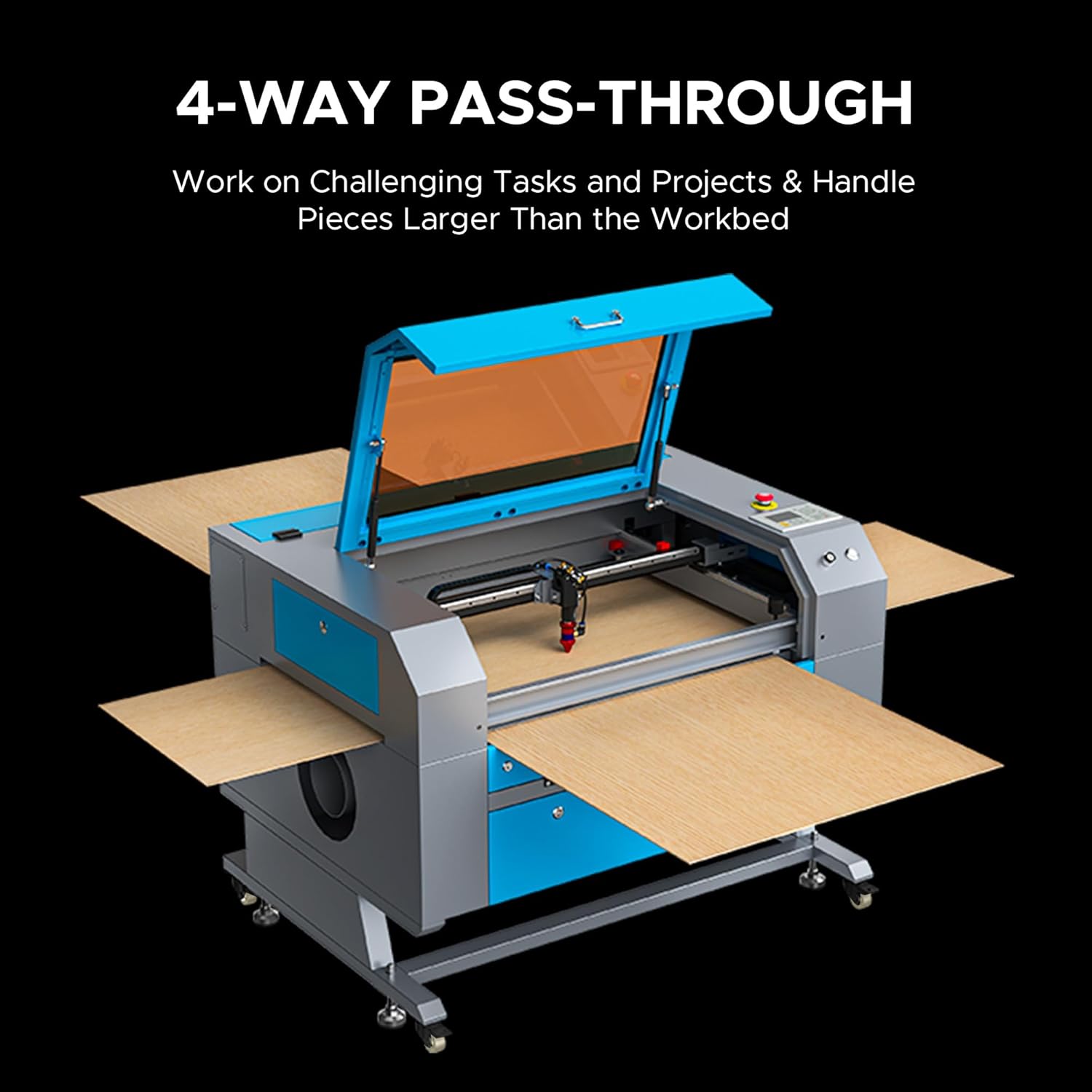
Figure 5.1: Utilizing the 4-way pass-through for oversized materials.
5.2. Using Autofocus
The autofocus function simplifies setting the correct focal distance.
- Position the laser head over the material.
- Press the 'Autofocus' button on the control panel or initiate it via software. The laser head will automatically adjust to the optimal focal height.

Figure 5.2: Built-in autofocus and air assist mechanism.
5.3. Software Workflow
- Reka bentuk: Create or import your design in compatible software (e.g., LightBurn).
- tetapan: Adjust laser power, speed, and other parameters according to the material type and desired effect. Refer to material test guides for recommended settings.
- Praview: Use the software's preview function to verify the job path and estimated time.
- Send to Machine: Transfer the job to the laser engraver via USB or network connection.
5.4. Starting and Monitoring a Job
- On the machine's control panel, select the job and press 'Start' or 'Run'.
- Monitor the engraving/cutting process through the flame-resistant observation window. Do not leave the machine unattended.
- In case of emergency or malfunction, press the emergency stop button immediately.

Gambar 5.3: Cthample of precise cutting on wood.
6. Penyelenggaraan
WARNING: Always disconnect power to the machine before performing any maintenance.
6.1. Cleaning the Optical Path (Lens and Mirrors)
Regular cleaning of the laser lens and mirrors is crucial for maintaining laser performance and beam quality.
- Use only lens cleaning solution and specialized optical wipes.
- Gently wipe the lens and mirrors to remove dust and debris. Avoid touching optical surfaces with bare hands.
6.2. Water Chiller Maintenance
- Penggantian Air: Change the distilled water or coolant every 1-3 months, or as recommended by the chiller manufacturer, to prevent algae growth and maintain cooling efficiency.
- Pembersihan Penapis: Clean the chiller's filter regularly to ensure proper water flow.
6.3. Workbed and Interior Cleaning
- Remove the workbed and clean it of any accumulated debris or residue.
- Wipe down the interior of the machine, including the rails and gantry, to remove dust and particulate matter.
6.4. Pelinciran
Periodically lubricate the linear rails and bearings with appropriate lubricant to ensure smooth movement of the laser head.
7. Penyelesaian masalah
| Masalah | Kemungkinan Punca | Penyelesaian |
|---|---|---|
| Laser tidak menembak | Water chiller not running or insufficient water flow; laser tube fault; power supply issue; emergency stop engaged. | Check chiller operation and water level; inspect laser tube for damage; verify power supply connections; disengage emergency stop. |
| Kualiti ukiran/pemotongan yang buruk | Incorrect focus; dirty lens/mirrors; incorrect power/speed settings; material inconsistency. | Perform autofocus; clean optical components; adjust power/speed settings; test on a scrap piece of material. |
| Mesin tidak bersambung ke komputer | USB cable issue; driver not installed; incorrect software settings. | Try a different USB port/cable; reinstall drivers; verify software communication settings. |
| Machine stops mid-job | Overheating (chiller issue); power interruption; software error. | Check chiller temperature and flow; ensure stable power supply; restart software and machine. |
8. Spesifikasi
- Nombor Model: SH-G570
- Kuasa Laser: 60W CO2
- Kawasan Kerja: 28" x 20" (700mm x 500mm)
- Maks. Kelajuan Ukiran: 600 mm/s
- Maks. Kedalaman pemotongan: Up to 0.4" (10mm) in wood (material dependent)
- Kelas Laser: Class 2, 0.874 mW output power
- Laser Tube Lifespan: Up to 12,000 hours (Yongli H2 tube)
- Memfokuskan: Autofokus
- Material Pass-Through: 4-Jalan
- Keserasian Perisian: RDWorks, LightBurn, CorelDRAW, AutoCAD

Figure 8.1: Work area dimensions.
8.1. Applicable Materials
The OMTech 60W CO2 Laser Engraver is suitable for a wide range of materials. Refer to the table below for engraving and cutting capabilities.

Figure 8.2: Material compatibility chart for engraving and cutting.
9. Waranti dan Sokongan
OMTech provides comprehensive support for your laser engraver.
- Waranti: This product includes a two-year support period. Specific warranty terms and conditions apply. Please refer to your purchase documentation for full details.
- Sokongan Teknikal: U.S.-based technical support is available to assist with any issues or questions you may encounter.
- Perkhidmatan Pelanggan: 24/7 online customer service is provided for your convenience.
For support, please visit the official OMTech webtapak atau hubungi perkhidmatan pelanggan mereka secara langsung.


