pengenalan
Terima kasih kerana membeliasing the SEMIER SM-136 Cassette Player & Digital Converter. This versatile device allows you to play and record audio cassettes, play music from an SD card, and convert your cherished cassette tapes into digital MP3 files, either directly to an SD card or to your computer using the included software. Please read this manual carefully to ensure proper operation and to maximize your enjoyment of this product.
Apa yang ada dalam Kotak
- Cassette Recorder Converter x 1
- Kad SD 16GB x 1
- USB Reader x 1
- Software CD-ROM x 1
- Manual Pengguna x 1
- Type-C Charging and Data Cable x 1

Image: All items included in the product package.
Persediaan
Mengkuasakan Peranti
The SEMIER SM-136 can be powered by two methods:
- Kabel USB-C: Connect the included USB-C cable to the device's USB-C port and the other end to a USB power adapter (not included) or a computer's USB port.
- Bateri AA: Open the battery compartment on the back of the device and insert four (4) AA batteries (not included), ensuring correct polarity.
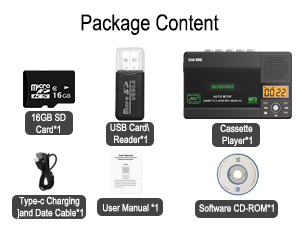
Image: Illustration of inserting AA batteries into the device.
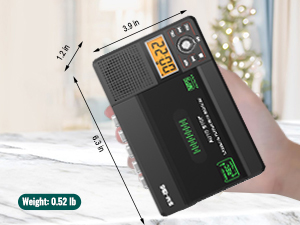
Image: Connecting the USB-C power cable to the device.
Inserting a Cassette Tape
Gently open the cassette compartment door. Insert your cassette tape with the open edge facing upwards and the tape side facing the device. Close the door firmly until it clicks.

Image: Proper insertion of a cassette tape into the player.
Memasukkan Kad SD
Locate the SD card slot on the side of the device. Insert the included 16GB SD card (or another compatible SD card, up to 32GB) into the slot until it clicks into place. Ensure the card is inserted in the correct orientation.

Image: Proper insertion of an SD card into the device's dedicated slot.
Arahan Operasi
Memainkan Kaset
- Ensure a cassette tape is inserted.
- Slide the "TAPE/OFF/Micro SD" switch to the "TAPE" position.
- Tekan ke BERMAIN butang (►) untuk memulakan main semula.
- Laraskan kelantangan menggunakan VOL tombol.
- Untuk menghentikan main balik, tekan BERHENTI butang (■).
- Gunakan FWD (►►) dan REW (◄◄) buttons for fast-forward and rewind.
Playing Music from SD Card
- Ensure an SD card with MP3 files dimasukkan.
- Slide the "TAPE/OFF/Micro SD" switch to the "Micro SD" position. The LCD display will show "SD" and the current track time.
- Tekan ke MAIN/JEDA butang (►⏺) untuk memulakan atau menjeda main balik.
- Gunakan SEBELUM (◄◄) dan SETERUSNYA (►►) butang untuk menavigasi antara trek.
- Tekan ke REP button to repeat the current track or all tracks.
- Tekan ke DEL button to delete the current track.
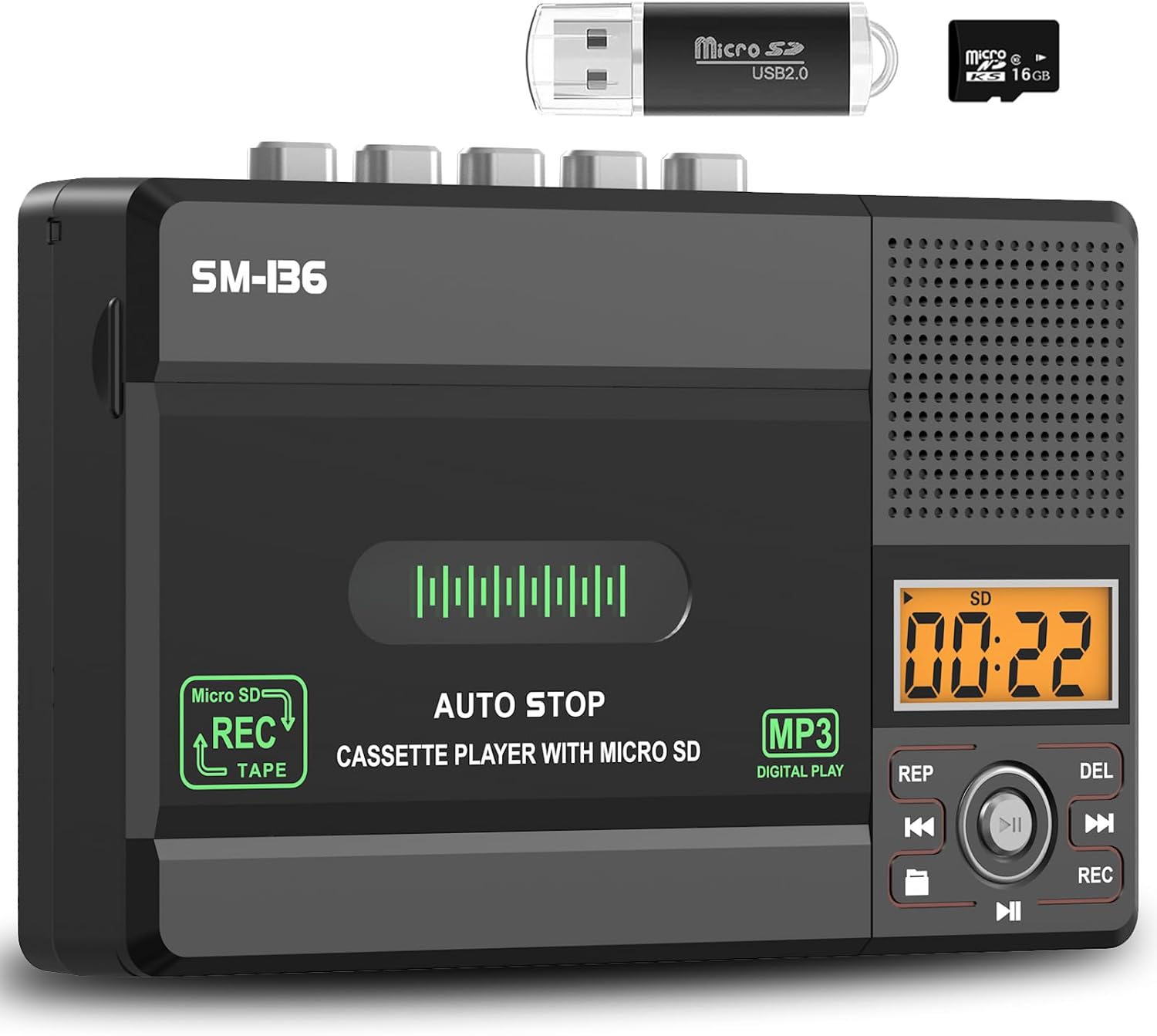
Imej: Selesaiview of the device's control panel and LCD screen.
Recording to Cassette Tape (from built-in microphone)
- Masukkan pita kaset kosong atau boleh rakam.
- Slide the "TAPE/OFF/Micro SD" switch to the "TAPE" position.
- Tekan ke REC button (red button) to begin recording from the built-in microphone.
- Untuk berhenti merakam, tekan BERHENTI butang (■).

Image: Demonstrates recording audio to a cassette tape using the built-in microphone.
Converting Cassette to MP3 (to SD Card)
This method allows direct conversion without a computer.
- Masukkan pita kaset yang ingin anda tukar.
- Insert the 16GB SD card (or another compatible SD card) into the SD card slot.
- Slide the "TAPE/OFF/Micro SD" switch to the "TAPE" position.
- Tekan ke BERMAIN butang (►) on the cassette player.
- While the tape is playing, press and hold the REC button (red button) on the digital control panel until the LCD display shows "REC". This will start recording the cassette audio directly to the SD card as an MP3 file.
- Untuk berhenti merakam, tekan REC butang sekali lagi, atau tekan butang BERHENTI butang (■) on the cassette player.
- The converted MP3 files will be saved on the SD card. You can then play them back on the device by switching to "Micro SD" mode or transfer them to a computer using the included USB reader.

Image: Visual steps for direct cassette to SD card MP3 conversion.
Converting Cassette to MP3 (to Computer via Audacity)
This method requires a computer and the included Audacity software.
- Install Audacity: Insert the included Software CD-ROM into your computer's CD drive and follow the installation instructions for Audacity. Alternatively, you can download the latest version of Audacity from its official webtapak.
- Sambungkan Peranti: Connect the SEMIER SM-136 to your computer using the included USB-C data cable.
- Prepare Audacity: Open Audacity. Ensure the correct input device (usually "USB Audio CODEC" or similar) is selected in Audacity's audio settings.
- Mulakan Rakaman: Insert the cassette tape you wish to convert into the player. Press the BERMAIN butang (►) on the cassette player. Then, click the Rekod button in Audacity to begin capturing the audio.
- Monitor and Stop: Monitor the audio levels in Audacity. Once the tape has finished playing, click the Berhenti button in Audacity and the BERHENTI butang (■) on the cassette player.
- Export MP3: In Audacity, you can edit the recorded audio (e.g., trim silence, remove noise). Once satisfied, go to File > Export > Export as MP3 to save your digital audio file.

Image: Illustrates connecting the device to a computer and using Audacity for digital conversion.
Penyelenggaraan
- Pembersihan: Gunakan kain lembut dan kering untuk membersihkan bahagian luar peranti. Jangan gunakan pembersih cecair atau bahan kasar.
- Pembersihan Kepala Pita: Bersihkan kepala pita dan penggelek picit secara berkala dengan kapas secara perlahan-lahanampdilengkapi dengan isopropil alkohol untuk memastikan kualiti bunyi yang optimum dan mengelakkan kerosakan pita.
- Storan: Simpan peranti di tempat yang sejuk dan kering jauh dari cahaya matahari langsung dan suhu yang melampau.
- Penyingkiran Bateri: If the device will not be used for an extended period, remove the AA batteries to prevent leakage.
Menyelesaikan masalah
| Masalah | Kemungkinan Punca | Penyelesaian |
|---|---|---|
| Peranti tidak dihidupkan. | No power source; batteries dead or incorrectly inserted; USB-C cable not connected properly. | Check battery polarity and charge; ensure USB-C cable is securely connected to a working power source. |
| Tiada bunyi semasa main balik kaset. | Volume too low; "TAPE/OFF/Micro SD" switch in wrong position; tape head dirty. | Increase volume; ensure switch is on "TAPE"; clean tape head. |
| Kualiti bunyi yang buruk semasa main balik/rakaman. | Dirty tape heads; worn-out tape; low battery power. | Clean tape heads; try a different tape; replace batteries or use USB-C power. |
| SD card not recognized or "No SD" message. | SD card incorrectly inserted; unsupported SD card format/size; faulty SD card. | Reinsert SD card; ensure it's formatted to FAT32 and is 32GB or less; try a different SD card. |
| Cannot record to SD card. | SD card full; SD card write-protected; incorrect recording procedure. | Padam files from SD card; check SD card's physical write-protect switch; follow "Converting Cassette to MP3 (to SD Card)" steps carefully. |
| Audacity not detecting device for conversion. | USB-C cable issue; incorrect audio input selected in Audacity; driver issue. | Try a different USB port/cable; ensure "USB Audio CODEC" is selected in Audacity; restart computer and device. |
Spesifikasi
- model: SM-136
- Fungsi: Cassette Player, Cassette Recorder (via Mic), SD Card MP3 Player, Cassette to MP3 Converter (to SD Card / PC)
- Sumber Kuasa: DC 5V (USB-C) or 4 x AA Batteries
- Output pembesar suara: 2W
- Jack fon kepala: Stereo 3.5mm
- Sokongan Kad SD: Sehingga 32GB, format FAT32
- Dimensi: 6.3 x 3.9 x 1.2 inci (16 x 9.9 x 3 cm)
- Berat: 0.52 paun (0.24 kg)

Image: Detailed dimensions and weight of the product.
Waranti dan Sokongan
SEMIER products are designed for reliability and performance. This product comes with a standard manufacturer's warranty. For detailed warranty information, technical support, or customer service inquiries, please refer to the contact information provided on the product packaging or visit the official SEMIER website. Our dedicated customer support team is available to assist you with any questions or concerns.
Anda juga boleh melawat SEMIER Store on Amazon untuk mendapatkan maklumat lanjut dan sumber sokongan.


