pengenalan
Welcome to the Macally family. Thank you for purchasing the ACEBTKEY series keyboard. Our mission is to provide visually appealing, high-quality, and affordable peripherals and accessories to satisfy our customers. To achieve this, we create innovative and practical products, prioritizing ease of use above all else.
This manual provides comprehensive instructions for setting up, operating, and maintaining your new Macally BTZKEYA Bluetooth Wireless Keyboard. Please read it thoroughly to ensure optimal performance and longevity of your device.
Kandungan Pakej
- Macally BTZKEYA Bluetooth Wireless Keyboard
- Kabel Pengecasan USB-C ke USB-A
- Panduan Pengguna
Keperluan Sistem
- Bluetooth-enabled computer, laptop, smartphone, or tablet.
- Mac OS X or later.
- A USB-A port on your laptop or desktop PC for charging the keyboard.
- If your laptop or desktop PC only has USB-C ports, a USB-C to USB-A hub or adapter is required for charging.
Produk Selesaiview
The Macally BTZKEYA keyboard is designed for efficiency and comfort, featuring a full-size layout with a numeric keypad and dedicated macOS shortcut keys. Its slim profile and scissor-switch keys provide a quiet and responsive typing experience.

Rajah 1: The Macally BTZKEYA keyboard's slim profile and integrated kickstand. The keyboard is only 0.8 inches (approx. 2cm) thick.

Rajah 2: The keyboard features 111 scissor-switch keys and 14 dedicated shortcut keys for macOS, enhancing productivity.

Rajah 3: Scissor-switch keycaps provide a smooth, tactile, and quiet typing experience.

Rajah 4: The keyboard supports multi-sync Bluetooth, allowing pairing with up to three devices like MacBook, iMac, iPad, and iPhone, with a wireless range of 30 feet.
Persediaan
Mengecas Papan Kekunci
Before initial use, ensure the keyboard is fully charged. The built-in rechargeable battery provides extended usage.
- Connect the USB-A end of the included cable to a USB-A port on your computer, laptop, or a USB-compatible AC adapter.
- Connect the USB-C end to the USB-C charging port located on the side of the keyboard.
- Nota: This cable is for charging only. The keyboard will not function as a wired device when connected via this cable.
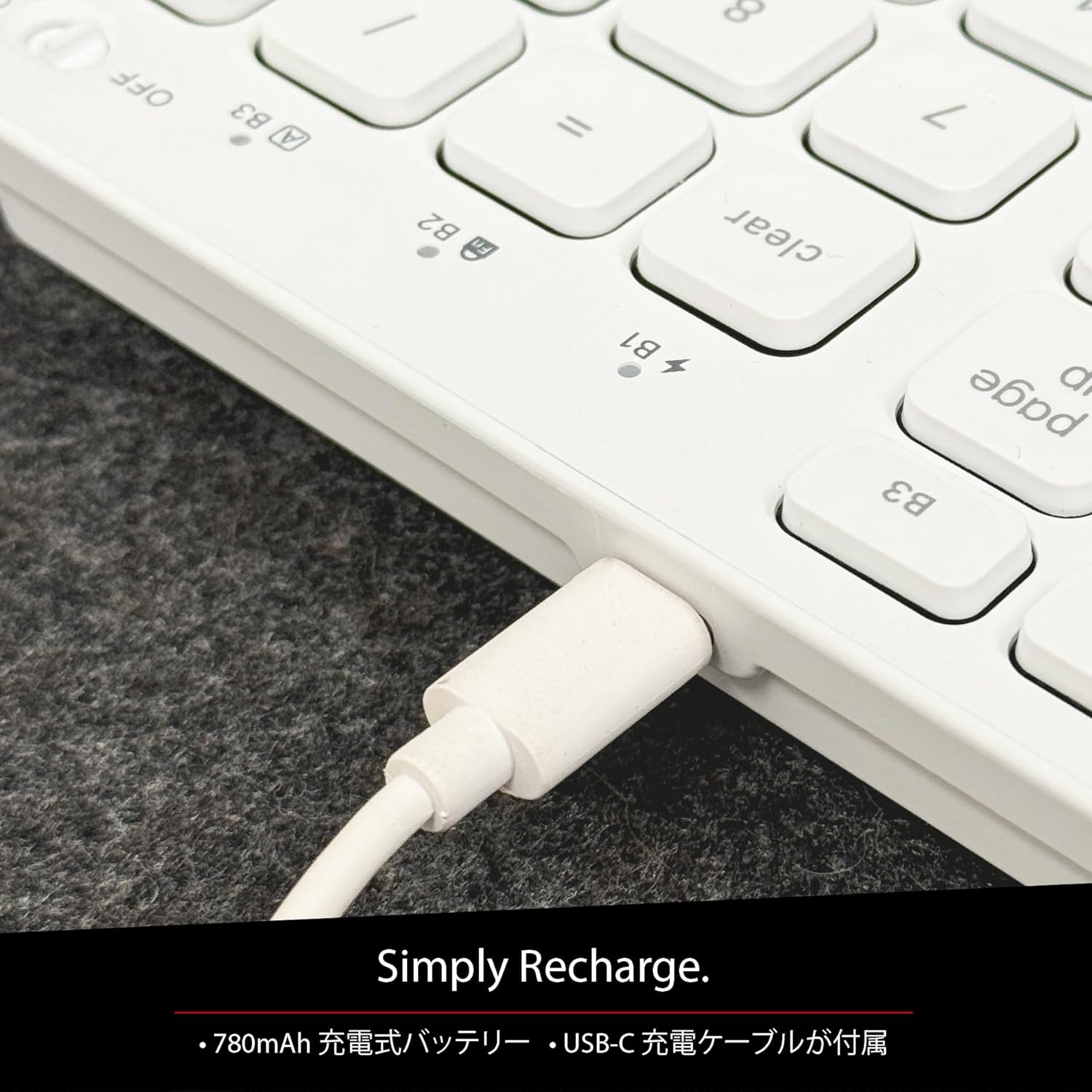
Rajah 5: The USB-C charging port for easy recharging. The keyboard includes a 780mAh rechargeable battery.
Penunjuk LED Pengecasan:
- LED Merah: Pengecasan sedang dijalankan.
- LED hijau: Dicas sepenuhnya.
- All Bluetooth Channel LEDs flashing: Bateri lemah.
Prosedur Pasangan Bluetooth
The keyboard can be paired with up to three Bluetooth-enabled devices. The number keys 1, 2, and 3 on the top row (not the numeric keypad) are labeled B1, B2, and B3, representing the Bluetooth channels.
Ensure the keyboard is powered on and sufficiently charged before starting the pairing process. The power switch is a slide button located on the side of the keyboard (Red for Off, Green for On).
Steps to Pair (using Bluetooth Channel 1 (B1) as an example):
- On the device you wish to connect (laptop, desktop, tablet, smartphone, etc.), open the Bluetooth settings screen.
- Pada papan kekunci, tekan dan tahan fn kekunci, kemudian tekan kekunci 1 key (B1) to select Bluetooth Channel 1.
- Seterusnya, tekan dan tahan fn key and simultaneously press the P key. This will put the keyboard into pairing mode, and the B1 LED will flash rapidly.
- On your device's Bluetooth settings screen, click or tap the device name "ACEBTKEY" to initiate pairing.
- Once pairing is complete, the B1 LED on the keyboard will remain steadily lit in blue.
To connect to a second or third device, follow the same procedure using B2 (fn+2) or B3 (fn+3).
Keyboard Setup Assistant (For Mac Users)
If your Bluetooth keyboard is not immediately recognized by macOS, the Keyboard Setup Assistant will automatically launch, prompting you to specify the keyboard type. Follow the on-screen instructions.
- When prompted, press the Z kunci.
- Kemudian, tekan butang ? kunci.
- Confirm that "ANSI" is selected as the keyboard type and click "Done".
If keys do not respond or different characters are entered than printed, you may need to manually launch the Keyboard Setup Assistant:
- Open "System Settings" or "System Preferences".
- Select "Keyboard" and click "Change Keyboard Type".
- When the "Keyboard Setup Assistant" window appears, click "Continue" and follow the on-screen instructions.
Arahan Operasi
Bertukar Antara Pelbagai Peranti
After pairing all your devices with the keyboard, you can easily switch between them:
- Tekan dan tahan butang fn kunci.
- Sambil pegang fn, press the desired Bluetooth channel key (B1, B2, atau B3).
- Release both keys. The keyboard will switch to the selected device.
Shortcut and Function Keys
The F-row (function key row) at the top of the keyboard defaults to shortcut mode. These keys perform functions indicated by the small white icons or text printed on them (e.g., play, pause, cut, copy).
To use standard function keys (F1, F2, etc.), press the desired function key while holding down the fn kunci.
You can toggle between shortcut mode and standard F1-F12 function keys at any time by pressing fn + Esc. After switching, if you wish to use a shortcut function, press the desired shortcut key while holding down the fn kunci. Menekan fn + Esc again will return the keyboard to shortcut mode.
F-Key Functions:
| Fungsi | Mac OSX | Windows | iOS | Android |
|---|---|---|---|---|
| fn+esc (Toggle F-row mode) | ✓ | ✓ | ✓ | ✓ |
| Kecerahan Skrin Menurun | ✓ | ✓ | ||
| Kecerahan Skrin Naik | ✓ | ✓ | ||
| potong | ✓ | ✓ | ✓ | ✓ |
| salin | ✓ | ✓ | ✓ | ✓ |
| tampal | ✓ | ✓ | ✓ | ✓ |
| Trek Sebelumnya | ✓ | ✓ | ✓ | ✓ |
| Main/Jeda | ✓ | ✓ | ✓ | ✓ |
| Trek Seterusnya | ✓ | ✓ | ✓ | ✓ |
| bisu | ✓ | ✓ | ✓ | ✓ |
| Kelantangan Kurang | ✓ | ✓ | ✓ | ✓ |
| Kelantangan Naik | ✓ | ✓ | ✓ | ✓ |
| Cetak | ✓ | |||
| Mac: Eject Mac / Windows: Media Eject | ✓ | ✓ | ||
| Area Capture (Screenshot) | ✓ | |||
| Papan Kekunci pada skrin | ✓ | |||
| Cari | ✓ | ✓ | ✓ | ✓ |
| Butang Rumah | ✓ | ✓ | ||
| Menu | ✓ | |||
| Kunci | ✓ | ✓ | ✓ | ✓ |
Nota Penting: Standard function keys (F1-F12) may have special functions assigned by the connected operating system or currently running programs.
Mod Penjimatan Kuasa
The keyboard is designed with power-saving features. Based on an average of 3 hours of daily use, the built-in rechargeable battery can last up to 3 months on a single charge.
Penyelenggaraan
To ensure the longevity and optimal performance of your Macally BTZKEYA keyboard, please follow these maintenance guidelines:
- Keep the device away from liquids, moisture, and water.
- Use the device only within the specified temperature range of 0°C (32°F) to 40°C (104°F).
- Clean the keyboard regularly with a soft, dry cloth. Avoid using harsh chemicals or abrasive materials.
- Do not disassemble the device. Disassembly will void the warranty.
- When disposing of the product, do not treat it as general waste. Take it to your nearest recycling center for proper disposal.
Menyelesaikan masalah
Isu Berpasangan:
- If pairing fails, delete all existing pairing records for the keyboard on your device and attempt to reconnect.
- Pastikan papan kekunci dicas sepenuhnya dan dihidupkan.
- Pastikan Bluetooth peranti anda diaktifkan dan boleh ditemui.
Key Response Issues:
- If keys do not respond or different characters are entered than printed, manually launch the Keyboard Setup Assistant on your Mac (refer to the "Keyboard Setup Assistant" section under Setup).
- Ensure the keyboard is within the 30-foot wireless range of your device.
Keserasian Umum:
- While designed for Mac, this keyboard is also compatible with Windows PCs. However, some functions may behave differently depending on the operating system or running programs.
Spesifikasi
| Ciri | Perincian |
|---|---|
| Jenama | Secara Macal |
| Nombor Model | BTZKEYA |
| Bilangan Kunci | 111 keys (Mac layout) |
| Jenis suis utama | Suis gunting |
| Teknologi Ketersambungan | Bluetooth |
| Sokongan Berbilang Peranti | Sehingga 3 peranti |
| Kapasiti Bateri | 780mAh (Boleh dicas semula) |
| Port Pengecasan | USB-C |
| Dimensi Produk | 42 x 14 x 2 cm |
| Berat Produk | 650 g |
| Penggunaan yang Disyorkan | Multimedia, Everyday Use, Personal, Education, Student, Business |
Maklumat Waranti
Macally Peripherals warrants this product against defects in title, materials, and workmanship for a period of one year from the date of purchase. If a defect is found in the product, Macally's sole obligation and your sole remedy will be to repair or replace the product.
This is a limited warranty applicable only to the product accompanied by this user guide. This warranty does not apply in the following cases:
- Abuse or misuse of the product.
- Exposure to abnormal electrical or environmental conditions.
- Use under conditions not considered normal use.
- Disassembly of the device.
Macally Peripherals' liability arising from this warranty and sale is limited to a refund of the purchase price. Macally is not responsible for the cost of procuring substitute products or services, lost profits, or any other consequential, incidental, direct, or indirect damages. These limitations apply even if the limited remedies fail of their essential purpose.
Sokongan Teknikal
For technical assistance, please contact Macally support during the following hours:
- Waktu Operasi: Monday to Friday, 9 AM to 5 PM (Pacific Standard Time)
- e-mel: techsupport@maally.com
When contacting support, please have your product model number (BTZKEYA) and purchase information ready.
Penyata Pematuhan FCC
Peranti ini mematuhi Bahagian 15 Peraturan FCC. Pengendalian tertakluk kepada dua syarat berikut: (1) Peranti ini mungkin tidak menyebabkan gangguan berbahaya, dan (2) peranti ini mesti menerima sebarang gangguan yang diterima, termasuk gangguan yang boleh menyebabkan operasi yang tidak diingini.
Perubahan atau pengubahsuaian yang tidak diluluskan secara nyata oleh pihak yang bertanggungjawab untuk pematuhan boleh membatalkan kuasa pengguna untuk mengendalikan peralatan.
Peralatan ini telah diuji dan didapati mematuhi had untuk peranti digital Kelas B, menurut Bahagian 15 Peraturan FCC. Had ini direka bentuk untuk memberikan perlindungan yang munasabah terhadap gangguan berbahaya dalam pemasangan kediaman. Peralatan ini menjana, menggunakan, dan boleh memancarkan tenaga frekuensi radio dan, jika tidak dipasang dan digunakan mengikut arahan, boleh menyebabkan gangguan berbahaya kepada komunikasi radio. Walau bagaimanapun, tiada jaminan bahawa gangguan tidak akan berlaku dalam pemasangan tertentu. Jika peralatan ini menyebabkan gangguan berbahaya kepada penerimaan radio atau televisyen, yang boleh ditentukan dengan mematikan dan menghidupkan peralatan, pengguna digalakkan untuk cuba membetulkan gangguan dengan satu atau lebih daripada langkah berikut:
- Arahkan semula atau letakkan semula antena penerima.
- Tingkatkan pemisahan antara peralatan dan penerima.
- Sambungkan peralatan ke dalam alur keluar pada litar yang berbeza daripada yang disambungkan kepada penerima.
- Rujuk pengedar atau juruteknik radio/TV yang berpengalaman untuk mendapatkan bantuan.
Peranti ini telah dinilai untuk memenuhi keperluan pendedahan RF am. Peranti boleh digunakan dalam keadaan pendedahan mudah alih tanpa sekatan.
Video Produk
Macally BTZKEYA Bluetooth Keyboard Overview
Video ini memberikan gambaran umumview of the Macally BTZKEYA Bluetooth keyboard, highlighting its features and design.
Macally Mac Bluetooth Keyboard - Premium Multi-Device
A detailed look at the Macally Bluetooth keyboard for Mac, emphasizing its premium build and multi-device capabilities.
Macally SLIMKEYPROA Keyboard Features
This video showcases the features of the Macally SLIMKEYPROA keyboard, which shares similar design and functionality with the BTZKEYA model.
Macally BLSlimkeyproA Keyboard Demonstration
A demonstration of the Macally BLSlimkeyproA keyboard, highlighting its compact design and key features.
Macally ACEBTKEYSGCB Keyboard Overview
Video ini memberikan penamatview of the Macally ACEBTKEYSGCB keyboard, showcasing reka bentuk dan fungsinya.
Macally SLIMKEYPRO Manual Guide
A visual guide to the Macally SLIMKEYPRO, offering insights into its usage and features.


