1. Pengenalan
This user manual provides detailed instructions for the safe and efficient use of your BenQ PD3226G 32-inch 4K UHD 144Hz Designer Monitor. Please read this manual thoroughly before operating the device and retain it for future reference. Adhering to these instructions will ensure optimal performance and longevity of your monitor.
2. Produk Lebihview
The BenQ PD3226G is a 32-inch 4K UHD (3840x2160) monitor designed for professionals requiring high color accuracy and smooth performance. Key features include:
- 4K, 144Hz Display: Enjoy motion clarity and accurate colors with 4K resolution and a 144Hz refresh rate.
- Accurate & Consistent Colors: Features 95% P3, 100% sRGB/Rec.709 color spaces, and factory-calibrated Delta E ≤ 2 for visual fidelity.
- Reliable Color Management: Supports effortless calibration with BenQ Palette Master Ultimate's intuitive menus, ensuring compliance with international standards.
- All-in-One Thunderbolt 4: Seamlessly delivers up to 90W power, 40Gbps data transfers, and supports two 4K or one 8K display when used with Thunderbolt 4 certified cables.
- Nano Matte Panel: Diffuses ambient light, enhancing eye comfort during extended design sessions with its TÜV certified reflection-free feature.
- KVM terbina dalam: Control two systems with one keyboard and mouse, with easy switching via the wireless Hotkey Puck for enhanced efficiency.

3. Persediaan
3.1. Buka kotak dan Perhimpunan
Carefully remove the monitor and its components from the packaging. Ensure all parts are present before proceeding with assembly.

- Pasang Pendirian: Securely attach the monitor stand to the back of the display panel. Ensure it clicks into place or is fastened according to the quick-release mechanism.
- Letakkan Monitor: Letakkan monitor yang dipasang pada permukaan yang stabil dan rata.
- Pemasangan VESA (Pilihan): For alternative mounting solutions, the monitor supports VESA 100x100mm mounting. Remove the stand and attach a compatible VESA mount.

3.2. Menyambung ke Peranti Anda
The BenQ PD3226G offers a variety of input ports for versatile connectivity.
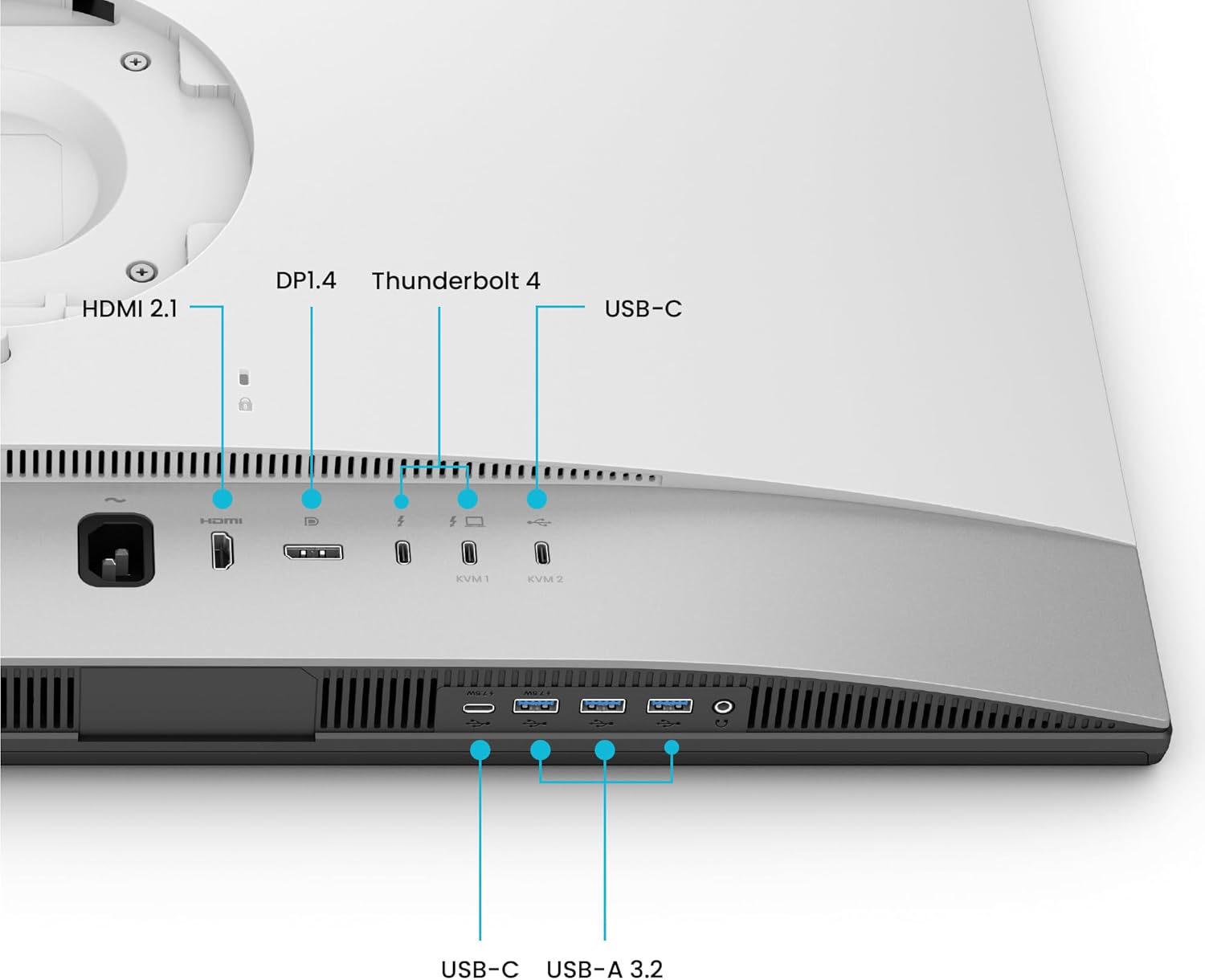
- Sambungan Kuasa: Sambungkan kord kuasa ke input kuasa monitor dan kemudian ke soket kuasa.
- Input Video:
- Petir 4: Use a Thunderbolt 4 certified cable to connect your computer for video, data, and up to 90W power delivery. This port also supports daisy-chaining to another compatible monitor.
- HDMI2.1: Connect devices using an HDMI cable for high-resolution video and audio.
- DisplayPort 1.4: Connect devices using a DisplayPort cable for high-resolution video and audio.
- Port USB: Utilize the USB-C and USB-A 3.2 ports for connecting peripherals such as keyboards, mice, and external storage devices.
- Fungsi KVM: The monitor features a built-in KVM switch. Connect two computers to the monitor using the appropriate video and USB upstream cables. This allows you to control both systems with a single keyboard and mouse connected to the monitor's USB ports.
4. Arahan Operasi
4.1. Hidupkan/Mati Kuasa
Tekan butang kuasa yang terletak pada monitor untuk menghidupkan atau mematikannya. Lampu penunjuk kuasa akan menyala apabila monitor aktif.
4.2. On-Screen Display (OSD) Navigation and Hotkey Puck
Adjust monitor settings using the On-Screen Display (OSD) menu. The included Hotkey Puck provides quick access and navigation for various settings.
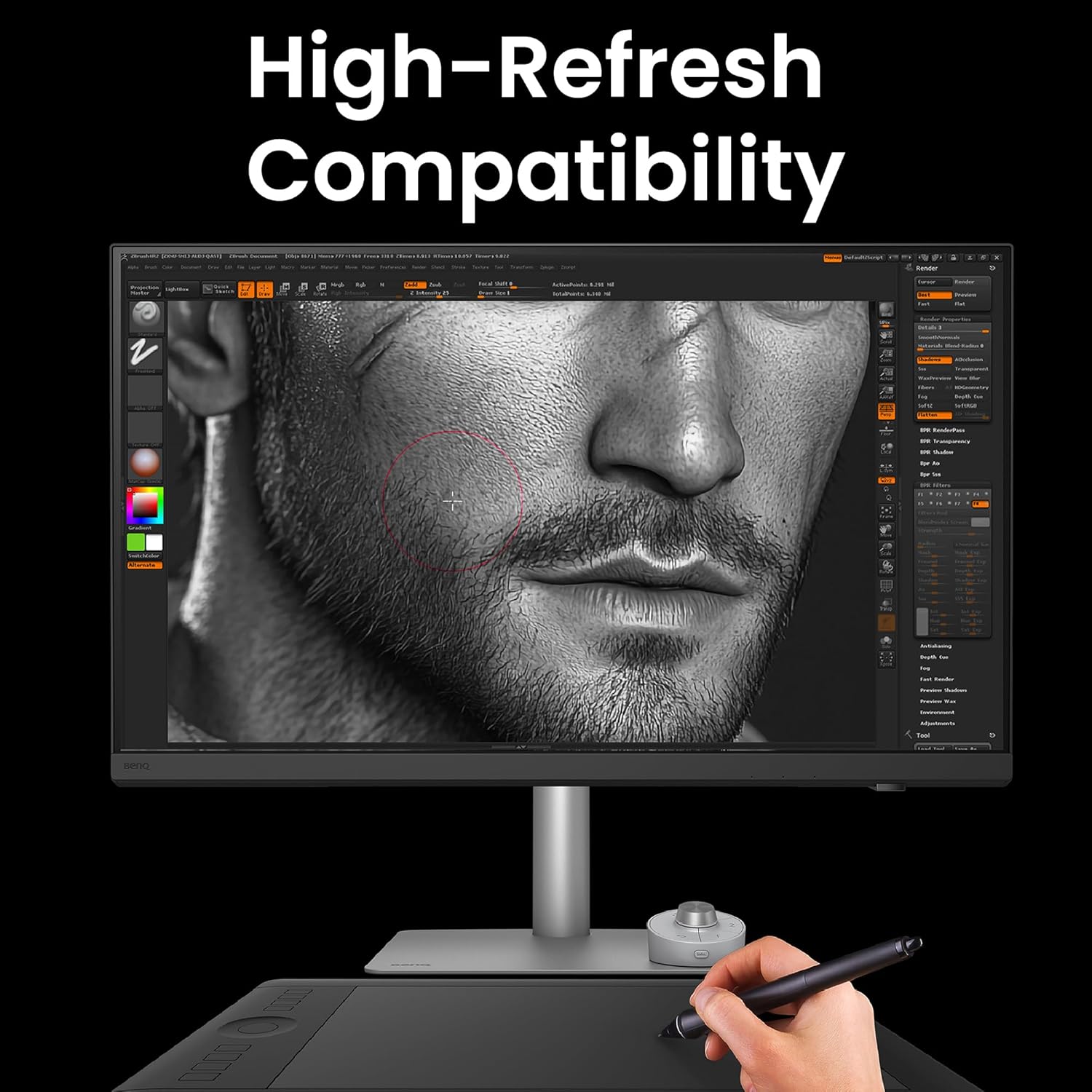
- Hotkey Puck: Use the dial and programmable buttons on the Hotkey Puck to navigate the OSD, switch input sources, adjust brightness, contrast, and volume, or activate custom color modes.
- Menu OSD: Access the main OSD menu to configure display settings, color modes, input selection, and KVM options.
4.3. Color Management
The BenQ PD3226G is designed for precise color reproduction.

- Penentukuran Kilang: The monitor is factory-calibrated to ensure a Delta E ≤ 2 for immediate color accuracy out of the box.
- Mod Warna: Select from various pre-set color modes (e.g., sRGB, P3, Rec.709) optimized for different design workflows.
- Penentukuran Perisian: Utilize BenQ Palette Master Ultimate software for advanced hardware calibration and to maintain color accuracy over time.
4.4. KVM Switch Operation
To switch between two connected systems using the KVM function:
- Ensure both computers are connected to the monitor via their respective video inputs and USB upstream cables.
- Use the Hotkey Puck or the OSD menu to select the desired input source (KVM1 or KVM2). The monitor will automatically switch the display, keyboard, and mouse control to the selected system.
4.5. Daisy Chain Setup
The Thunderbolt 4 port supports daisy-chaining for connecting multiple monitors. Connect the Thunderbolt 4 output of your primary monitor to the Thunderbolt 4 input of a secondary compatible monitor. This allows for extended desktop setups with simplified cabling.
5. Penyelenggaraan
5.1. Membersihkan Monitor
To maintain the display's quality and longevity:
- Sentiasa matikan monitor dan cabut palam kuasa sebelum membersihkan.
- Gunakan kain lembut yang tidak berbulu dampdisapu dengan air atau pembersih skrin yang lembut dan tidak melelas.
- Lap skrin dengan lembut. Elakkan daripada mengenakan tekanan yang berlebihan.
- Do not use alcohol, ammonia, or abrasive cleaners, as these can damage the Nano Matte Panel.
- Penting: The Nano Matte Panel has a specialized reflection-free coating. DO NOT TEAR OR ATTEMPT TO REMOVE THIS LAYER. It is an integral part of the monitor's design and performance. Removing it will cause irreversible damage and void the warranty.

5.2. Penjagaan Am
- Elakkan meletakkan objek berat pada monitor atau kabelnya.
- Keep the monitor away from direct sunlight, excessive heat, or moisture.
- Pastikan pengudaraan yang betul di sekeliling monitor untuk mengelakkan terlalu panas.
6. Penyelesaian masalah
If you encounter issues with your BenQ PD3226G monitor, refer to the following common problems and solutions:
- Tiada Paparan/Skrin Hitam:
- Pastikan kabel kuasa disambungkan dengan selamat ke kedua-dua monitor dan salur keluar kuasa.
- Verify that the video cable (Thunderbolt 4, HDMI, or DisplayPort) is firmly connected to both the monitor and your computer.
- Check if the correct input source is selected in the OSD menu or via the Hotkey Puck.
- Confirm your computer's display settings are configured to output to the external monitor.
- Incorrect Colors/Image Quality Issues:
- Tetapkan semula monitor ke tetapan lalai kilang melalui menu OSD.
- Ensure the correct color mode is selected for your task (e.g., sRGB, P3).
- If using software calibration, ensure the calibration profile is active and up-to-date.
- Check your graphics card drivers for updates.
- KVM Tidak Bertukar:
- Verify that both computers are properly connected with both video and USB upstream cables to the monitor.
- Ensure the KVM function is enabled and configured correctly in the OSD menu.
- Try restarting the monitor and the connected computers.
- Tiada Bunyi:
- Check the monitor's volume settings in the OSD menu.
- Verify your computer's audio output is set to the BenQ monitor.
- Ensure the audio cable (if separate from video) is connected, or that the video cable supports audio transmission.
Untuk bantuan lanjut, sila rujuk sokongan BenQ webtapak atau hubungi perkhidmatan pelanggan.
7. Spesifikasi
| Ciri | Spesifikasi |
|---|---|
| Nombor Model | PD3226G |
| Saiz Skrin | 32 Inci |
| Resolusi | 4K UHD (3840 x 2160 Piksel) |
| Kadar Segar Semula | 144Hz |
| Jenis Panel | IPS |
| Warna Gamut | 95% P3, 100% sRGB/Rec.709 |
| Ketepatan Warna | Delta E ≤ 2 (Factory Calibrated) |
| Ketersambungan | Thunderbolt 4 (90W PD), HDMI 2.1, DisplayPort 1.4, USB-C, USB-A 3.2 |
| Suis KVM | terbina dalam |
| Permukaan Panel | Nano Matte (Reflection-Free) |
| Ergonomik | Height Adjustable, Tilt, Swivel, Pivot (90°) |
| Berat Barang | 14.6 paun |
| Dimensi Produk (LxWxH) | 19 x 9.5 x 25.1 inci |
| Gunung VESA | 100 x 100 mm |
7.1. Pelarasan Ergonomik
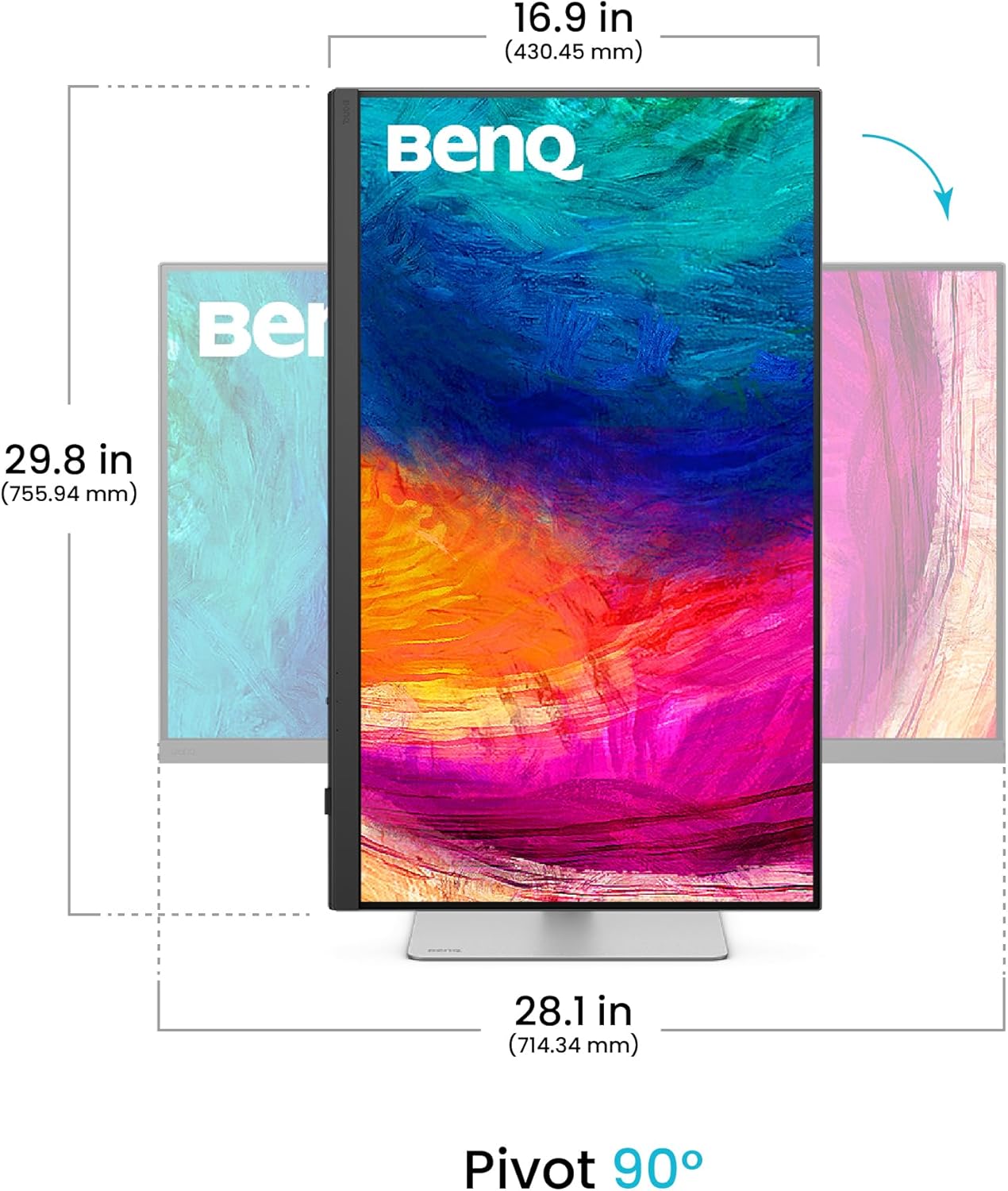
Penyangga monitor membenarkan pelbagai pelarasan untuk mengoptimumkan anda viewpengalaman:
- Pelarasan Ketinggian: Adjust the monitor height by 150mm.
- Condong: Tilt the screen from -5° to 20° for comfortable viewsudut-sudut.
- Pivot: Putar skrin 90° untuk mod potret viewing.

8. Waranti dan Sokongan
For information regarding the standard manufacturer's warranty for your BenQ PD3226G monitor, please refer to the warranty card included in your product packaging or visit the official BenQ support website. BenQ also offers optional extended protection plans for purchase.
For technical support, driver downloads, and frequently asked questions, please visit the BenQ support portal: www.benq.com/en-us/support.html


