1. Pengenalan
This manual provides essential instructions for the proper installation, operation, and maintenance of the Teltonika RUT241 Industrial 4G LTE Router. The RUT241 is a compact and rugged cellular router designed for industrial, IoT, and remote applications, offering reliable 4G LTE connectivity, dual Ethernet ports, and Wi-Fi capabilities.
Ciri-ciri utama termasuk:
- Reliable 4G LTE Cat 4 connectivity for fast and stable internet access.
- One LAN and one WAN Ethernet port, plus a 2.4GHz Wi-Fi hotspot.
- Compatibility with Teltonika's Remote Management System (RMS) for remote monitoring and configuration.
- Advanced security features including firewall, OpenVPN, IPsec, PPTP, and WireGuard VPN support.
- Industrial-grade durability for harsh environments.
- Wide power input range (9-30V) with digital I/O.

2. Persediaan
2.1. Apa yang ada di dalam Kotak
Before proceeding with the installation, verify that all components are present:
- Penghala RUT241
- Bekalan Kuasa
- Kabel Ethernet
- 2 x Mobile Antennas
- 1 x Antena Wi-Fi
- SIM Adapter Kit

2.2. Perkakasan Terlaluview
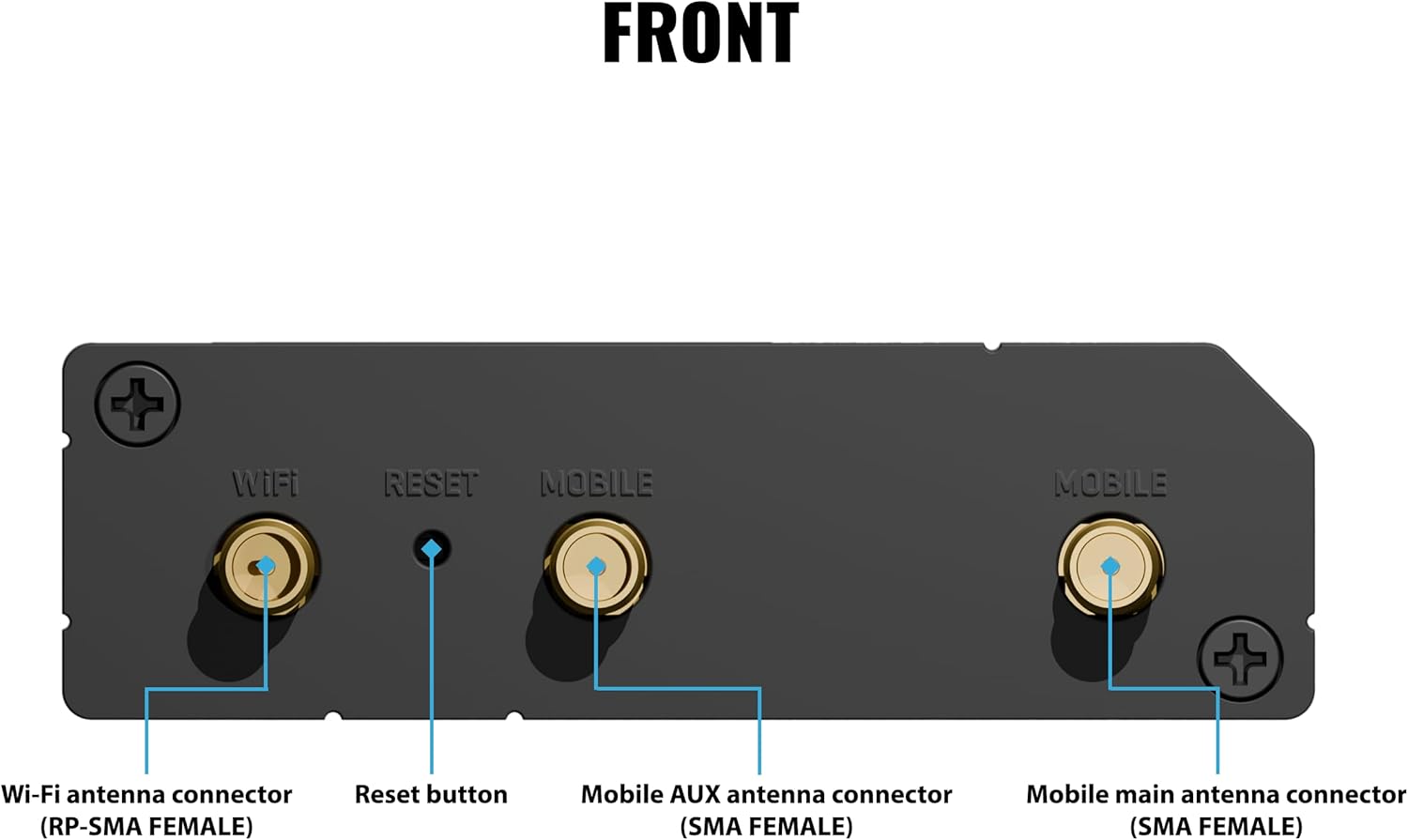
Biasakan diri anda dengan port dan penunjuk penghala.

2.3. Pemasangan Kad SIM
- Pastikan penghala dimatikan.
- Locate the SIM card slot on the back panel (refer to Figure 4).
- Insert your activated Mini-SIM card into the slot until it clicks into place. Use the provided SIM adapter if necessary.
2.4. Sambungan Antena
- Attach the two mobile antennas to the 'MOBILE' connectors on the front panel (refer to Figure 3).
- Attach the Wi-Fi antenna to the 'WIFI' connector on the front panel.
- Ensure all antennas are securely tightened.
2.5. Sambungan Kuasa
- Connect the power adapter to the 'POWER' socket on the back panel (refer to Figure 4).
- Plug the power adapter into a suitable power outlet. The Power LED should illuminate.
2.6. Sambungan Rangkaian Awal
You can connect to the router via Ethernet or Wi-Fi.
- Ethernet: Connect one end of the Ethernet cable to the 'LAN' port on the router and the other end to your computer's Ethernet port.
- Wi-Fi: The router broadcasts a default Wi-Fi network. The SSID and password are typically found on a label on the device or packaging.
3. Arahan Operasi
3.1. Mengakses ke Web Antara muka
- Buka a web pelayar pada komputer anda yang disambungkan.
- Masukkan alamat IP lalai 192.168.1.1 ke dalam bar alamat dan tekan Enter.
- Log in using the default username and password (usually 'admin' for both, check device label for specifics). You will be prompted to change the password upon first login for security.
3.2. Konfigurasi Asas
dalam web antara muka, anda boleh mengkonfigurasi pelbagai tetapan:
- Tetapan WAN: Configure your cellular connection (APN, authentication) and Ethernet WAN settings.
- Tetapan LAN: Adjust the router's internal IP address and DHCP server settings.
- Tetapan Wi-Fi: Change the Wi-Fi network name (SSID), password, and security protocols.
3.3. Sistem Pengurusan Jauh (RMS)
The RUT241 supports Teltonika's Remote Management System (RMS), allowing for centralized monitoring and management of your devices.

To use RMS:
- Register your device on the Teltonika RMS portal.
- Enable RMS connectivity in the router's web antara muka.
- Manage your router from any web browser via the RMS platform.
3.4. Konfigurasi VPN
The router supports various VPN protocols for secure communication, including OpenVPN, IPsec, PPTP, and WireGuard. Detailed configuration guides for each protocol are available in the router's web dokumentasi antara muka.
4. Penyelenggaraan
4.1. Kemas Kini Perisian Tegar
Regularly update the router's firmware to ensure optimal performance, security, and access to new features. Firmware updates can be performed via the router's web interface or remotely through the Teltonika RMS platform.
4.2. Pembersihan
Clean the router's exterior with a soft, dry cloth. Do not use liquid cleaners or aerosols. Ensure ventilation openings are free from dust and obstructions.
4.3. Pertimbangan Alam Sekitar
The RUT241 is designed for industrial environments. It can withstand temperatures up to 167°F (75°C) and down to -40°F (-40°C), and humidity levels between 10-90% (non-condensing). Ensure the router is installed in an environment within these specifications to maintain optimal performance and longevity.

5. Penyelesaian masalah
5.1. Isu dan Penyelesaian Biasa
- Tiada sambungan internet:
- Check SIM card insertion and activation status.
- Sahkan sambungan antena.
- Confirm APN settings in the web antara muka.
- Check mobile network type and signal strength LEDs (refer to Figure 4).
- Wi-Fi Tidak Berfungsi:
- Ensure the Wi-Fi antenna is connected.
- Check Wi-Fi settings (SSID broadcast, password) in the web antara muka.
- Mulakan semula penghala.
- Tidak Boleh Akses Web Antara muka:
- Pastikan komputer anda disambungkan ke penghala melalui Ethernet atau Wi-Fi.
- Verify your computer's IP settings (should be set to obtain IP automatically).
- Cuba yang berbeza web pelayar.
5.2. Butang Tetapkan Semula
The reset button (refer to Figure 3) can be used for two functions:
- Tetapan Semula Lembut: Press and hold for approximately 5 seconds to restart the router.
- Tetapan semula kilang: Press and hold for approximately 30 seconds until all LEDs flash, then release. This will restore the router to its factory default settings. Amaran: Tetapan semula kilang akan memadamkan semua konfigurasi tersuai.
6. Spesifikasi
| Ciri | Spesifikasi |
|---|---|
| Nama Model | RUT241 |
| Dimensi Produk | 3.26 x 2.91 x 0.98 inci |
| Berat Barang | 4.3 auns |
| Teknologi Ketersambungan | Ethernet, LTE, Wi-Fi |
| Standard Komunikasi Tanpa Wayar | 802.11n |
| Kelas Band Kekerapan | Dual-Band (2.4GHz Wi-Fi) |
| Ciri Khas | 4G LTE, Wi-Fi, Auto Failover, RMS, VPN |
| Julat Input Kuasa | 9-30V DC |
| Jenis Antena | Fixed (External) |
| Suhu Operasi | -40°F hingga 167°F (-40°C hingga 75°C) |
| Kelembapan Operasi | 10% hingga 90% tidak terkondensasi |
7. Waranti dan Sokongan
7.1. Maklumat Waranti
Warranty terms and conditions for the Teltonika RUT241 router are provided by the manufacturer, Teltonika, or your authorized reseller. Please refer to the warranty card included with your product or visit the official Teltonika webtapak untuk maklumat terperinci.
7.2. Sokongan Teknikal
For technical assistance, firmware downloads, or additional documentation, please visit the official Teltonika Networks website or contact your product reseller. Online resources often include FAQs, knowledge bases, and community forums.


