1. Pengenalan
The Memoking Mini Printer T02 is a portable, inkless thermal printer designed for various printing needs, including study notes, labels, photos, and creative projects. Its compact size and Bluetooth connectivity make it suitable for on-the-go use with smartphones and tablets. This manual provides essential information for setting up, operating, and maintaining your device.

Image 1.1: Memoking Mini Printer T02 and example prints.
2. Kandungan Pakej
Sila sahkan bahawa semua item yang disenaraikan di bawah disertakan dalam pakej anda:
- Memoking Mini Printer T02 x 1
- White Sticky Paper Roll x 1
- Purple Sticky Paper Roll x 1
- Green Sticky Paper Roll x 1
- Kabel USB-C x 1
- Manual Pengguna x 1

Image 2.1: Contents of the Memoking Mini Printer T02 package.
3. Produk Lebihview
Familiarize yourself with the components of your Memoking Mini Printer T02:
Image 3.1: Memoking Mini Printer T02 component diagram.
- Rubber Roller: Feeds the thermal paper.
- Printer Lid: Opens to load paper.
- Butang HIDUP/MATI: Menghidupkan atau mematikan peranti.
- Lampu Penunjuk: Shows device status (e.g., power, charging, error).
- Butang Tetapkan Semula: Used for factory reset or troubleshooting.
- Port Pengecasan: USB-C port for charging the printer.
- Pemegang kertas: Secures the paper roll inside the printer.
4. Persediaan
4.1. Memuatkan Kertas
- Open the printer lid by sliding the release button or gently lifting it.
- Insert the paper roll into the paper holder, ensuring the printing side faces outwards.
- Tarik sekeping kertas kecil keluar melepasi kepala cetak.
- Close the printer lid firmly until it clicks into place.
4.2. Menyambung ke Apl
- Download the "Phomemo" app from your device's app store (compatible with iOS and Android).
- Ensure your printer is powered on and Bluetooth is enabled on your smartphone or tablet.
- Open the "Phomemo" app and follow the on-screen instructions to pair your device via Bluetooth. The connection typically takes a few seconds.

Image 4.1: Step-by-step guide for paper loading and printing.
5. Arahan Operasi
5.1. Mencetak
- Once connected to the "Phomemo" app, select the content you wish to print (e.g., text, image, template).
- Adjust settings such as size, density, or filters within the app as needed.
- Tap the print button in the app to send the data to your Memoking Mini Printer T02.
- The printer will automatically feed and print the content. Tear off the printed paper along the serrated edge.
5.2. Aplikasi
The Memoking Mini Printer T02 supports a wide range of applications:
- Study Aids: Print notes, flashcards, anatomical diagrams, and graphics for various subjects.
- Organisasi: Create labels for storage, to-do lists, shopping lists, and memos.
- Projek Kreatif: Design custom stickers, journal entries, bookmarks, and greeting cards.
- Foto: Print monochrome photos for scrapbooking or personal use.
- Children's Activities: Print coloring pages, games, and learning materials.
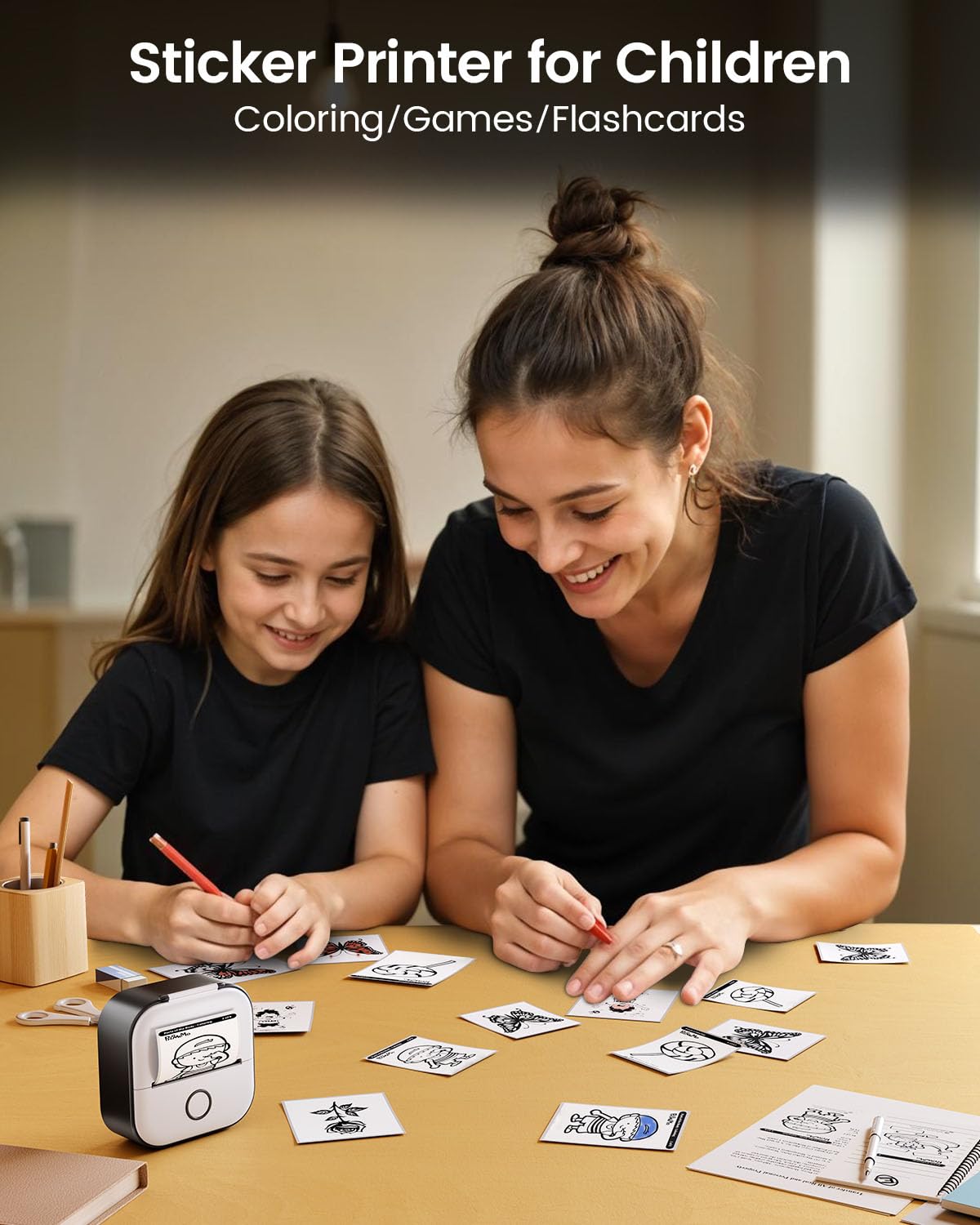
Imej 5.1: Cthamples of study graphics printed with the T02 printer.
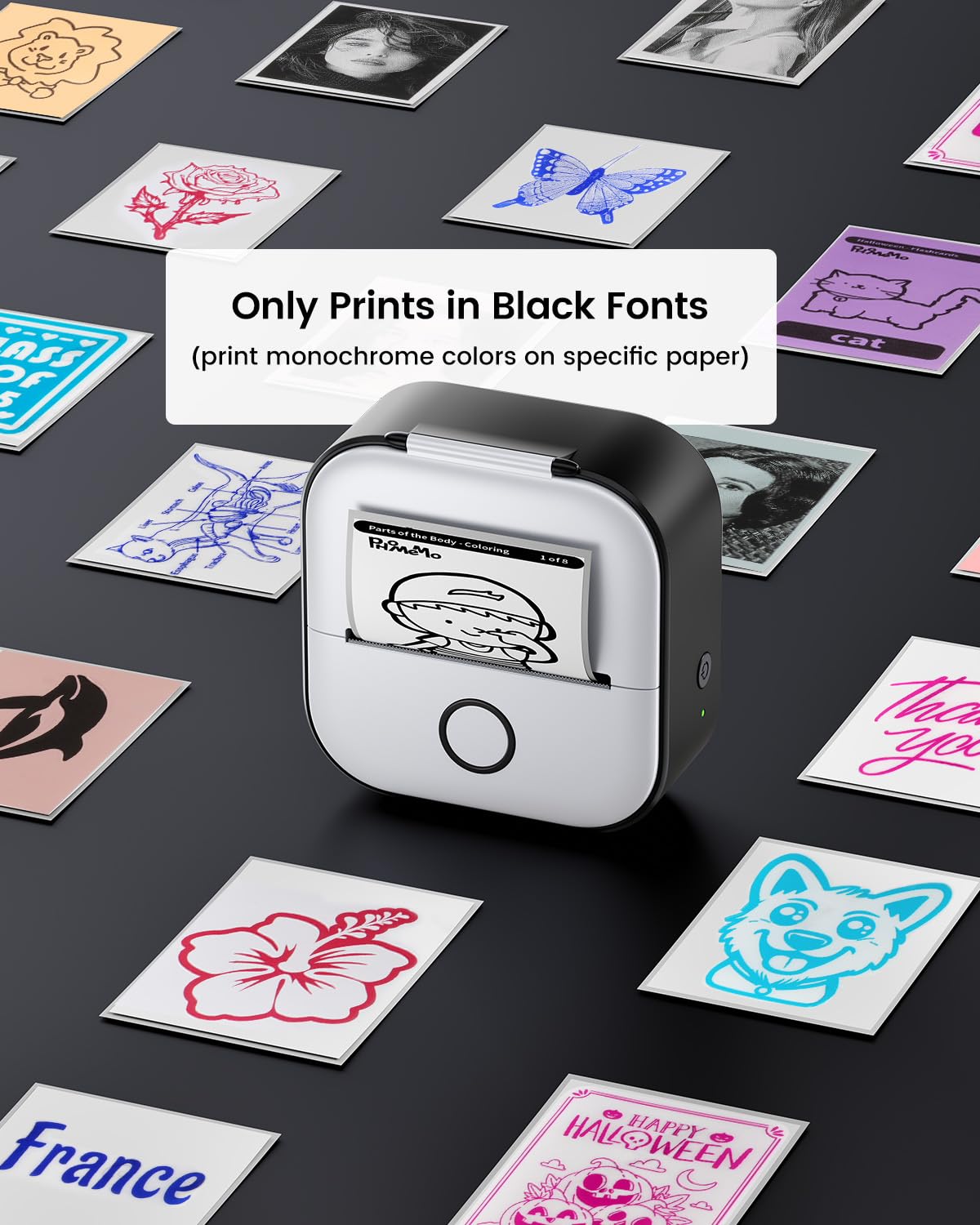
Image 5.2: The T02 printer used for children's coloring and games.
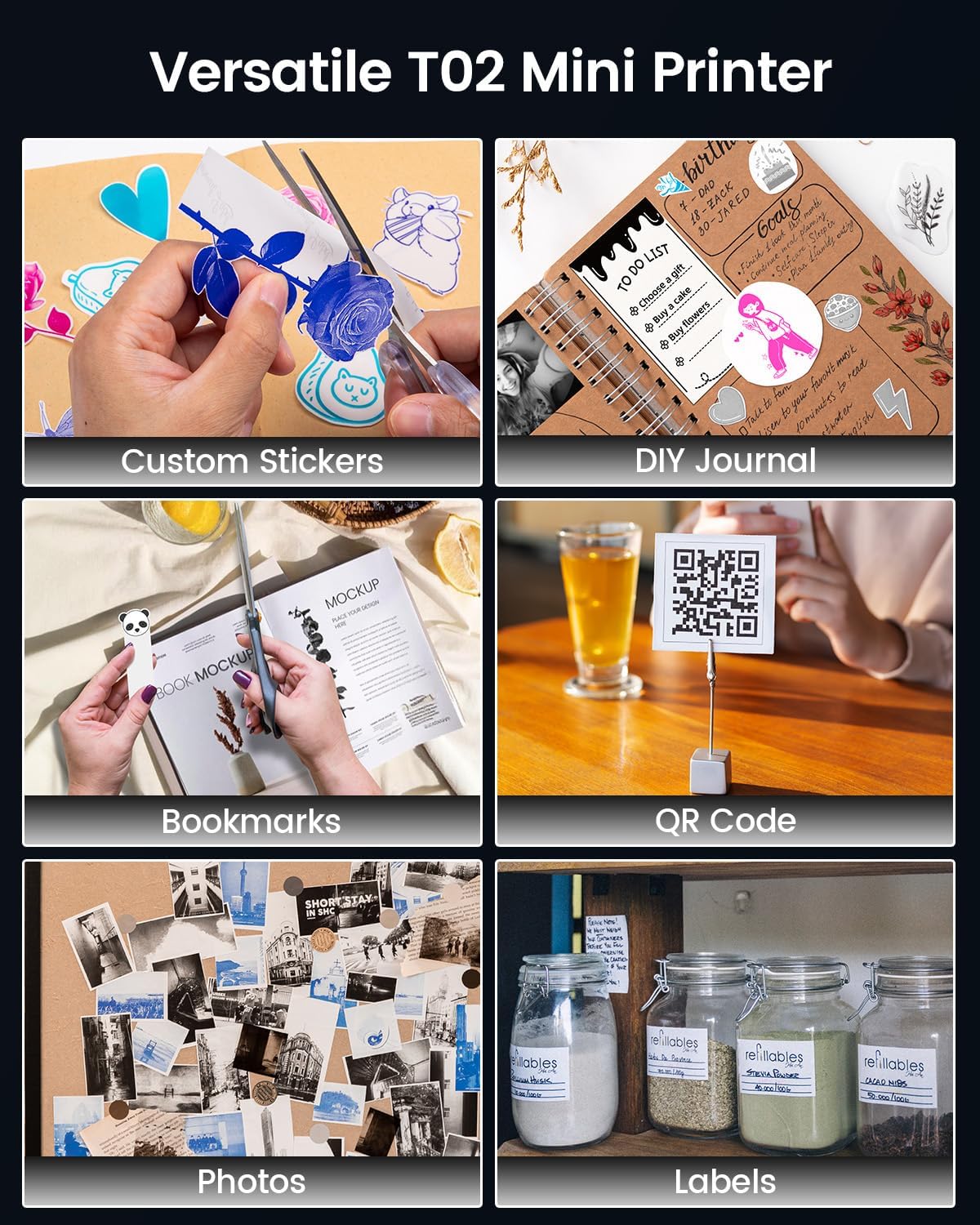
Image 5.3: Versatile applications of the Memoking T02 Mini Printer.
6. Penyelenggaraan
6.1. Membersihkan Kepala Cetak
To ensure optimal print quality, periodically clean the print head:
- Matikan pencetak dan cabut kabel kuasa.
- Buka penutup pencetak.
- Lap kepala cetak dengan lembut menggunakan kapasampditambah dengan isopropil alkohol.
- Allow the print head to dry completely before closing the lid and turning on the printer.
6.2. Paper Handling and Storage
- Use only Memoking-approved thermal paper for best results and to prevent damage to the printer.
- Store thermal paper in a cool, dry place away from direct sunlight and heat to preserve its quality and image duration.
- Avoid touching the printing surface of the thermal paper excessively, as oils from skin can affect print quality.

Image 6.1: Specifications and features of Memoking thermal paper.
7. Penyelesaian masalah
- Printer Not Turning On: Ensure the printer is charged. Connect it to a power source using the provided USB-C cable.
- Tidak Boleh Bersambung melalui Bluetooth: Make sure Bluetooth is enabled on your device and the printer is within range. Restart both the printer and your mobile device. Ensure no other devices are currently paired with the printer.
- Kualiti Cetakan Lemah: Check if the paper roll is inserted correctly with the printing side facing out. Clean the print head as described in Section 6.1. Ensure the paper is not old or damaged.
- No Paper Feed: Verify that the paper roll is properly seated and not jammed. Ensure the printer lid is fully closed.
- Printer Only Prints Black Fonts: The Memoking T02 is a monochrome thermal printer and prints only in black. While specific paper types may show different background colors, the printed text/images will always be black.
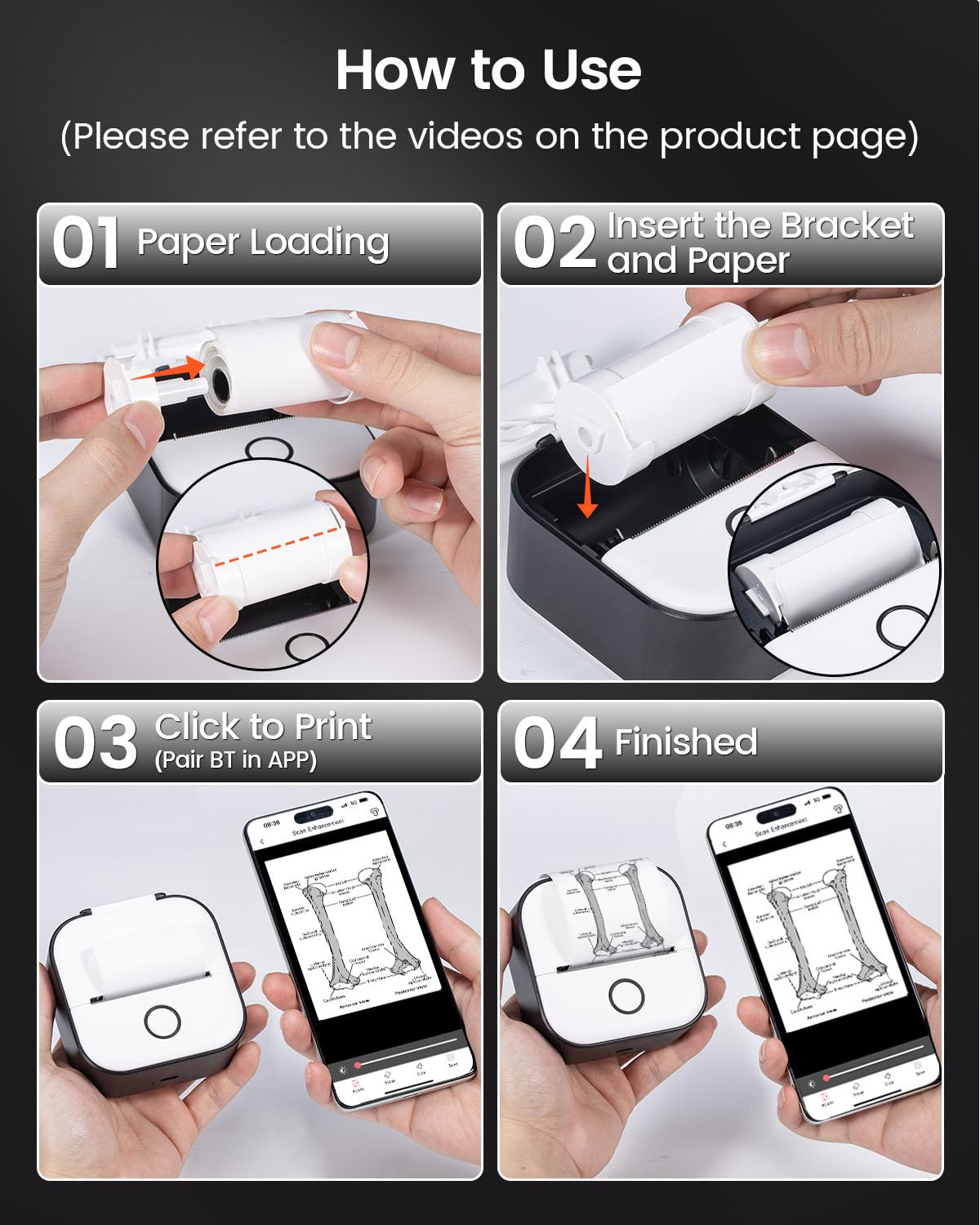
Image 7.1: The T02 printer produces monochrome (black) prints.
8. Spesifikasi
| Nama Model | T02 |
| Jenama | Memoming |
| Teknologi Percetakan | terma |
| Teknologi Ketersambungan | Bluetooth |
| Resolusi Cetakan Hitam dan Putih Maksimum | 203 Dots Per Inch (DPI) |
| Saiz Media Maksimum | 53mm |
| Dimensi Produk (L x W x H) | 1.4 x 3.4 x 3.4 inci (3.6 x 8.6 x 8.6 cm) |
| Berat Barang | 10.2 auns (290 Gram) |
| Peranti Serasi | Telefon pintar (iOS, Android) |
| Output Pencetak | Monokrom |
9. Waranti dan Sokongan
For warranty information or technical support, please refer to the documentation included with your product or visit the official Memoking website. You may also contact Memoking customer service directly for assistance with product inquiries, troubleshooting, or replacement parts.


