1. Pengenalan
Welcome to your new HP 14 Laptop. This manual provides comprehensive instructions to help you get started, operate, maintain, and troubleshoot your device. Designed for portability and productivity, your HP 14 Laptop features a thin, lightweight design with a micro-edge display, making it ideal for daily tasks and on-the-go use.
Key features include an Intel Celeron N4120 processor, 16GB RAM, 192GB storage (64GB eMMC + 128GB SD card), and Windows 11 Home in S Mode. A 1-year subscription to Microsoft 365 is also included to enhance your productivity.

Figure 1.1: The HP 14 Laptop, showcasing its sleek design and open display.
2. Persediaan
2.1 Kuasa Hidupkan Awal dan Persediaan Windows
- Sambungkan Kuasa: Plug the AC adapter into the laptop's AC smart pin port and then into a power outlet.
- Hidupkan kuasa: Open the laptop lid and press the power button. The laptop will start.
- Windows 11 Home S Mode Setup: Follow the on-screen instructions to complete the initial Windows 11 Home S Mode setup. This includes selecting your region, language, connecting to a Wi-Fi network, and setting up your Microsoft account.
- Microsoft 365 Activation: Activate your included 1-year Microsoft 365 subscription by following the prompts during Windows setup or by opening any Office application (Word, Excel, PowerPoint) after setup is complete.
2.2 Menyambung Peranti
Your HP 14 Laptop offers various ports for connecting external devices:
- Peranti USB: Connect USB drives, external keyboards, or mice to the USB 3.1 Gen 1 Type-A ports or the USB 3.1 Gen 1 Type-C port.
- Paparan luaran: Use the HDMI 1.4b port to connect an external monitor or projector. The laptop supports up to FHD (1920x1080)@60Hz resolution on external displays.
- Peranti Audio: Plug headphones or a headset with a microphone into the headphone/microphone combo jack.
- Kad SD: Insert an SD card into the multi-format SD media card reader for expanded storage or data transfer.

Gambar 2.1: Lebihview of core components including Intel Celeron processor and integrated graphics.
3. Arahan Operasi
3.1 Menggunakan Pad Sentuh
The integrated precision touchpad supports multi-touch gestures for efficient navigation:
- Ketik: Single tap to click.
- Tatal dua jari: Letakkan dua jari pada pad sentuh dan luncurkannya ke atas atau ke bawah untuk menatal.
- Pinch Zoom: Letakkan dua jari pada pad sentuh dan picitnya bersama-sama atau renggangkannya untuk mengezum masuk atau keluar.
- Klik kanan: Tap with two fingers or press the bottom-right corner of the touchpad.

Figure 3.1: The laptop's keyboard and touchpad area.
3.2 Kesambungan Wayarles
- Wi-Fi: To connect to a Wi-Fi network, click the network icon in the taskbar, select your desired network, and enter the password if required.
- Bluetooth: To pair Bluetooth devices, go to Windows Settings > Devices > Bluetooth & other devices, and follow the instructions to add a new device.
3.3 Menggunakan Webcam and Microphones
HD 720p bersepadu webcam and dual array microphones are suitable for video calls and online meetings. Ensure your internet connection is stable for optimal performance.

Figure 3.2: Laptop in use for a video conference.
3.4 Mod Windows 11 S
Your laptop comes with Windows 11 Home in S Mode, which offers enhanced security and performance by exclusively running apps from the Microsoft Store. If you need to install apps from outside the Microsoft Store, you can switch out of S Mode to standard Windows 11 Home. This is a one-way switch; you cannot revert to S Mode after switching.
To switch out of S Mode:
- Pergi ke tetapan > Sistem > Pengaktifan.
- In the "Switch to Windows 11 Home" section, select Pergi ke Kedai.
- pada Tukar keluar daripada mod S (or similar) page that appears in the Microsoft Store, click the Dapatkan butang.
- Follow the on-screen prompts to complete the switch.
4. Penyelenggaraan
4.1 Penjagaan Bateri
Your HP 14 Laptop features an 11-hour battery life and HP Fast Charge technology. To maximize battery lifespan:
- Elakkan suhu yang melampau.
- Jangan keluarkan bateri sepenuhnya dengan kerap.
- Simpan komputer riba dengan cas separa (sekitar 50%) jika tidak digunakan untuk tempoh yang lama.
4.2 Pembersihan
- paparan: Gunakan kain lembut yang tidak berbulu dampdiisi dengan air atau pembersih skrin. Jangan sembur cecair terus ke skrin.
- Papan Kekunci dan Casis: Gunakan kain lembut dan kering. Untuk kotoran degil, sedikit damp kain boleh digunakan, memastikan tiada cecair memasuki bukaan.
4.3 Kemas Kini Perisian
Regularly update your Windows operating system and drivers to ensure optimal performance, security, and compatibility. Windows Update typically handles this automatically, but you can manually check for updates in tetapan > Kemas Kini Windows.
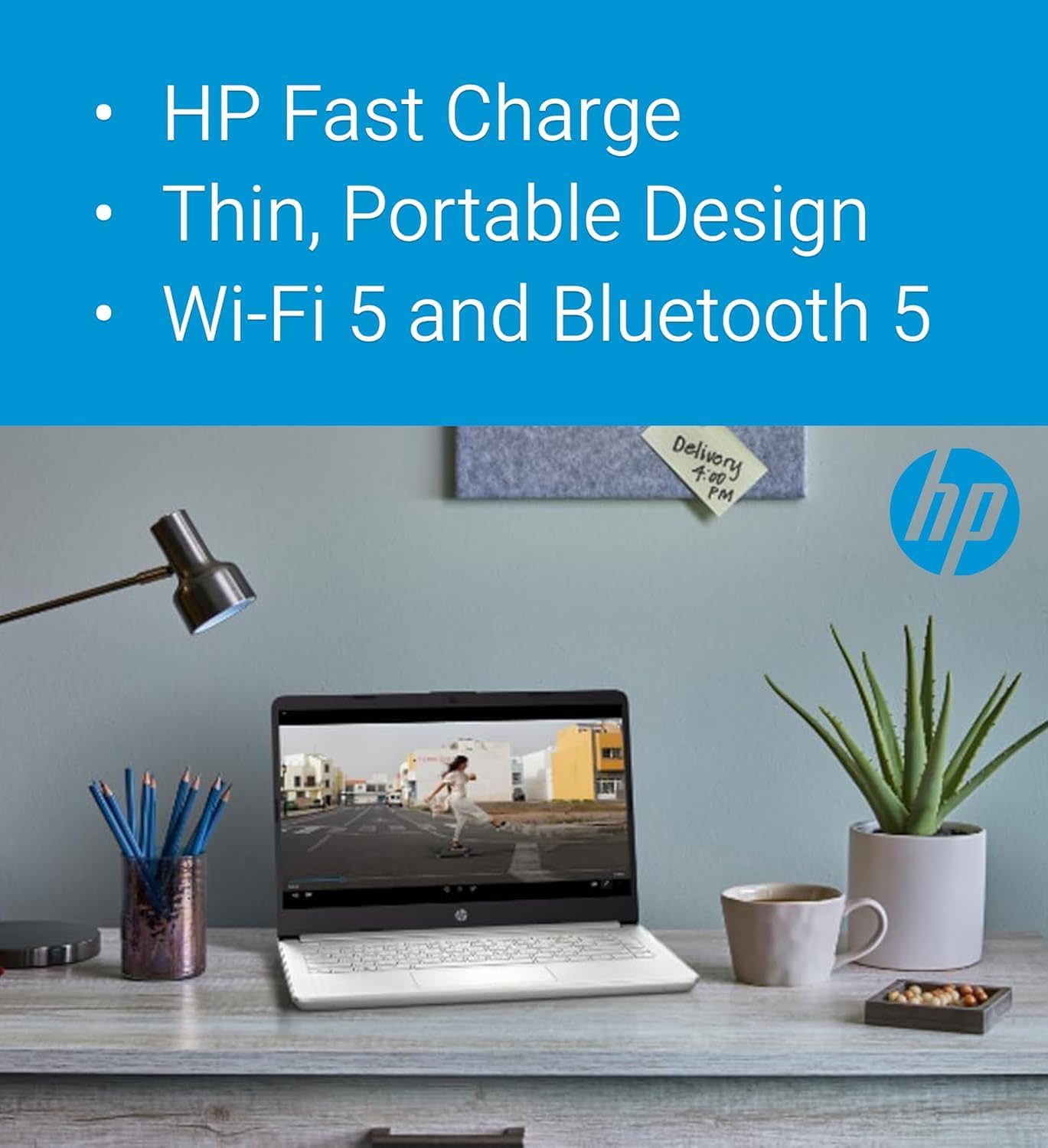
Figure 4.1: Features like HP Fast Charge contribute to easy maintenance and portability.
5. Penyelesaian masalah
This section addresses common issues you might encounter with your HP 14 Laptop.
5.1 Isu Kuasa
- Komputer riba tidak dihidupkan: Ensure the AC adapter is securely connected to both the laptop and a working power outlet. Try a different outlet. If the battery is completely drained, it may take a few minutes of charging before the laptop powers on.
- Bateri tidak dicas: Verify the AC adapter is functioning correctly. Check for any damage to the cable or port.
5.2 Isu Paparan
- Skrin kosong: Connect an external monitor to the HDMI port to check if the issue is with the laptop's display or the graphics output. Try pressing Fn + F4 (or the display toggle key) to switch display modes.
- Skrin berkelip: Update your graphics drivers. If the issue persists, it might indicate a hardware problem.
5.3 Isu Ketersambungan
- Wi-Fi tidak bersambung: Ensure Wi-Fi is enabled. Restart your router and the laptop. Check if other devices can connect to the network.
- Peranti Bluetooth tidak berpasangan: Ensure the Bluetooth device is in pairing mode and within range. Check laptop's Bluetooth settings.
For more advanced troubleshooting or issues not covered here, please refer to the HP support webtapak atau hubungi perkhidmatan pelanggan.
6. Spesifikasi
Below are the detailed technical specifications for the HP 14 Laptop:
| Komponen | Spesifikasi |
|---|---|
| Pemproses | Intel Celeron N4120 (4 cores, 4 threads, 1.1 GHz base, up to 2.6 GHz turbo, 4MB L3 cache) |
| Paparan | 14-inch HD (1366x768), Micro-edge, BrightView, 220 nits, 45% NTSC |
| Grafik | Grafik Intel UHD 600 Bersepadu |
| Memori (RAM) | 16GB DDR4-2400MHz |
| Penyimpanan | 192GB (64GB eMMC + 128GB SD card) |
| Sistem Operasi | Windows 11 Home S Mode |
| Kesambungan Wayarles | Realtek RTL8822CE 802.11a/b/g/n/ac (2x2) Wi-Fi, Bluetooth 5 |
| Audio | Dwi pembesar suara |
| Bateri | 3-cell, 41Wh Lithium-ion (Up to 11.5 hours battery life) |
| Webcam | HD 720p Webcam |
| Keselamatan | Perisian tegar TPM 2.0 |
| papan kekunci | English, non-backlit |
| Dimensi (W x D x H) | 12.8 x 8.8 x 0.7 inci (32.4 x 22.5 x 1.8 cm) |
| Berat badan | 3.5 paun (1.47 kg) |
| Pelabuhan | 1x USB 3.1 Gen 1 Type-C (data transfer only), 2x USB 3.1 Gen 1 Type-A (data transfer only), 1x HDMI 1.4b, 1x Multi-format SD card reader, 1x Headphone/microphone combo, 1x AC smart pin |

Figure 6.1: Physical dimensions of the HP 14 Laptop.
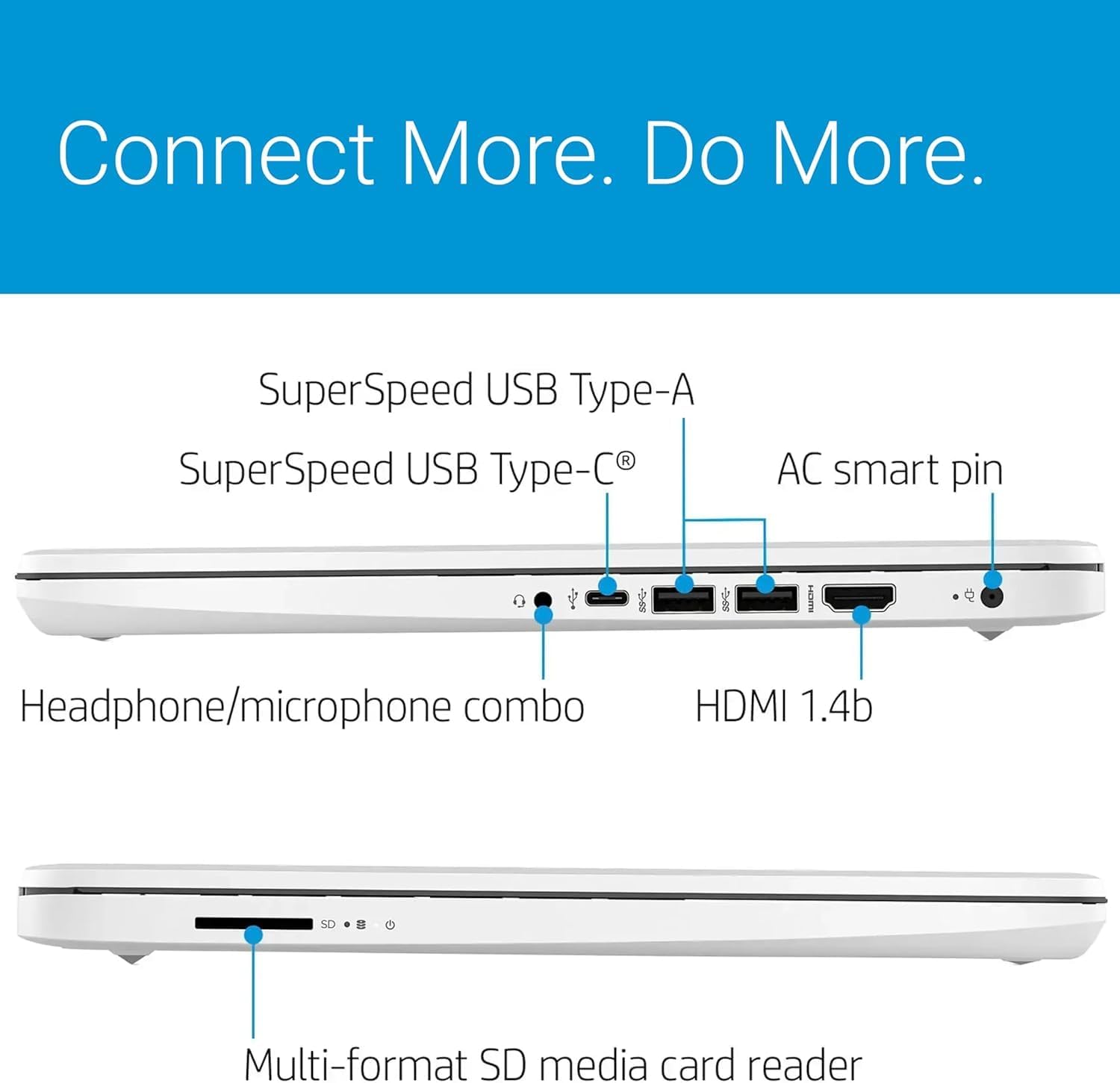
Figure 6.2: Available ports for connectivity on the HP 14 Laptop.

Figure 6.3: The included 128GB SD card for expanded storage.
7. Waranti dan Sokongan
7.1 Waranti Produk
Your HP 14 Laptop comes with a 1-year manufacturer's warranty covering most components. The expanded 128GB SD card storage, if provided by Issaquah Highlands Tech, includes a separate 3-year warranty. Please retain your proof of purchase for warranty claims.
7.2 Sokongan Pelanggan
For technical assistance, warranty service, or additional information, please visit the official HP support website or contact HP customer service. You can find contact details and support resources on the HP webtapak khusus untuk wilayah anda.
Sumber dalam talian selalunya merangkumi:
- Muat turun pemacu dan perisian
- Panduan penyelesaian masalah
- Soalan Lazim
- Forum komuniti