1. Pengenalan
Thank you for choosing the Hama WK-300 Multi-Device Wireless Keyboard. This compact office keyboard is designed for wireless control of computers, smartphones, and tablets, offering versatile connectivity via Bluetooth or a 2.4 GHz radio connection with a USB-A receiver. It allows simultaneous connection to up to three devices, providing a seamless experience for various tasks.
2. Arahan Keselamatan
- Jangan buka peranti atau teruskan mengendalikannya jika ia rosak.
- Jangan cuba servis atau baiki produk sendiri. Serahkan sebarang kerja perkhidmatan kepada pakar yang berkelayakan.
- Lindungi produk daripada kotoran, lembapan dan terlalu panas, dan gunakannya hanya dalam persekitaran yang kering.
- Jauhkan produk ini, seperti semua produk elektrik, daripada jangkauan kanak-kanak.
- Jangan gunakan produk di kawasan di mana penggunaan peranti elektronik tidak dibenarkan.
- Buang bahan pembungkusan serta-merta mengikut peraturan tempatan yang terpakai.
3. Kandungan Pakej
Please check that the package contains the following items:
- 1 Hama WK-300 Multi-Device Wireless Keyboard
- 1 USB-A Receiver (typically stored in the battery compartment)
- 1 Manual Arahan
Nota: Bateri AAA diperlukan untuk operasi dan tidak termasuk dalam pakej.
4. Persediaan
4.1 Pemasangan Bateri
- Cari petak bateri di bahagian bawah papan kekunci.
- Buka penutup petak bateri.
- Masukkan satu bateri AAA, pastikan kekutuban yang betul (+/-).
- Tutup penutup petak bateri dengan selamat.
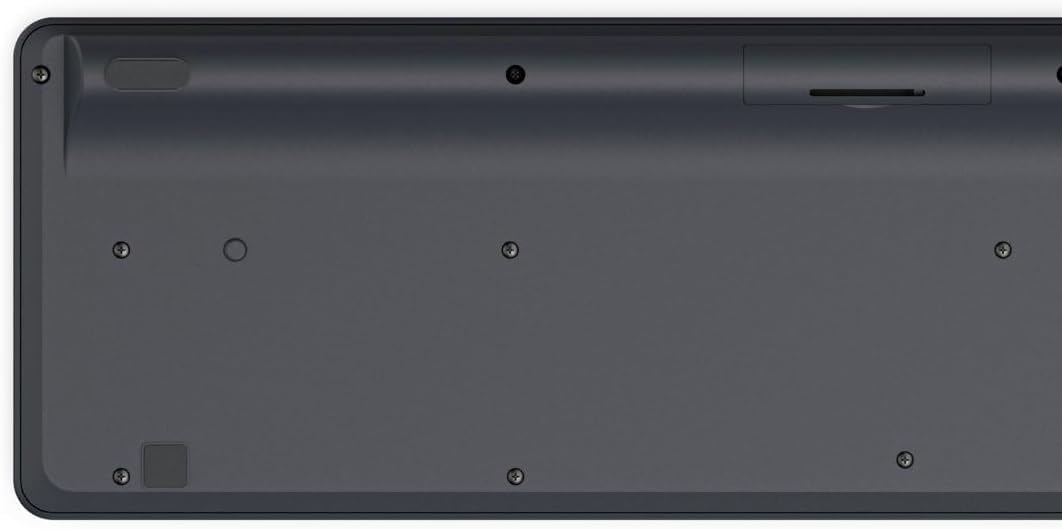
Image: Underside of the Hama WK-300 keyboard, illustrating the battery compartment and the storage slot for the USB receiver.
4.2 Menyambung ke Peranti
The Hama WK-300 keyboard supports connection to up to three devices simultaneously via 2.4 GHz radio (channel 1) and Bluetooth (channels 2 and 3).
4.2.1 2.4 GHz Radio Connection (Channel 1)
- Remove the USB-A receiver from its storage slot in the battery compartment.
- Plug the USB-A receiver into a free USB port on your computer.
- Switch the keyboard to channel 1 (usually indicated by a switch or button on the keyboard). The keyboard should automatically connect to your computer.
4.2.2 Bluetooth Connection (Channels 2 & 3)
- Switch the keyboard to either channel 2 or channel 3.
- Press and hold the pairing button (refer to keyboard layout for exact location, often combined with the channel switch) until the indicator light flashes, signifying pairing mode.
- On your device (smartphone, tablet, computer), go to Bluetooth settings and search for new devices.
- Select "Hama WK-300" from the list of available devices to complete the pairing process.
4.3 Bertukar Antara Peranti
To switch between connected devices, simply press the corresponding channel button (1, 2, or 3) on the keyboard. The keyboard will instantly connect to the selected device.
5. Mengendalikan Papan Kekunci
5.1 Fungsi Penaipan Asas
The Hama WK-300 features a QWERTY layout with quiet keys, ensuring a comfortable and undisturbed typing experience. Simply begin typing after connecting to your device.

Imej: Atas ke bawah view of the Hama WK-300 keyboard, highlighting its 90% layout and key functions, including the Fn key for multimedia controls.
5.2 Multimedia Functions (Fn Keys)
The F keys (F1-F12) have secondary assignments for multimedia control. To activate these functions, press and hold the Fn key simultaneously with the desired F key. This allows for quick control of media playback, volume, and other system functions without navigating through system settings.
5.3 AI Assist Button
The dedicated Assist button activates a cross-program AI assistant, enhancing productivity by providing quick access to intelligent features.
5.4 Penjimatan Kuasa
The keyboard is battery-operated and designed for efficiency, making it ideal for mobile use. It will enter a low-power state after a period of inactivity to conserve battery life.
6. Penyelenggaraan
6.1 Membersihkan Papan Kekunci
To clean your keyboard, ensure it is turned off and disconnected from any devices. Use a soft, lint-free cloth slightly dampened with water or a mild cleaning solution. Avoid excessive moisture and abrasive cleaners. Do not immerse the keyboard in water.
6.2 Penggantian Bateri
When the keyboard's performance diminishes or it stops responding, it may be time to replace the AAA battery. Follow the battery installation steps outlined in Section 4.1.
7. Penyelesaian masalah
- Papan kekunci tidak bersambung: Ensure the keyboard has fresh batteries and is switched to the correct channel (1 for 2.4 GHz, 2 or 3 for Bluetooth). For Bluetooth, ensure the keyboard is in pairing mode and your device's Bluetooth is enabled. For 2.4 GHz, ensure the USB receiver is properly inserted into your device.
- Kunci tidak bertindak balas: Check battery level. If using 2.4 GHz, try plugging the USB receiver into a different USB port. If using Bluetooth, try re-pairing the keyboard with your device.
- Sambungan terputus-putus: Ensure there are no strong interference sources nearby (e.g., other wireless devices, large metal objects). Try moving closer to your device.
- Kekunci multimedia tidak berfungsi: Pastikan anda menekan butang Fn key simultaneously with the desired F key.
8. Spesifikasi
| Jenama | Hama |
| Nombor Model | 182641 |
| warna | Hitam |
| Ketersambungan | 2.4 GHz Radio (USB-A receiver), Bluetooth (2 channels) |
| Bilangan Peranti | Up to 3 simultaneous devices |
| Susun atur papan kekunci | QWERTY |
| Dimensi Produk (LxWxH) | 16 x 43.8 x 2.6 Sentimeter |
| Berat Barang | 447 g |
| Bateri Diperlukan | Bateri 1 AAA (tidak termasuk) |
9. Waranti
The Hama WK-300 Multi-Device Wireless Keyboard comes with a Waranti 5 tahun. Please retain your proof of purchase for warranty claims. For detailed warranty terms and conditions, refer to the official Hama webtapak atau hubungi sokongan pelanggan.
10. Sokongan
For further assistance, technical support, or to inquire about spare parts, please contact Hama customer service. You can find contact information on the official Hama webtapak (www.hama.com) or through your local retailer.


