1. Pengenalan
This manual provides comprehensive instructions for the setup, operation, and maintenance of your Promethean ActivPanel 10 75-inch digital whiteboard. Designed for both office and classroom environments, the ActivPanel 10 offers advanced interactive capabilities to enhance collaboration and learning.

Figure 1: Promethean ActivPanel 10 75-inch Digital Whiteboard
2. Ciri-ciri Utama
The Promethean ActivPanel 10 is equipped with several features designed to optimize interactive experiences:
- Custom Fit Configuration: The ActivPanel 10 allows for flexible configuration, enabling users to select their preferred panel model, size, operating system, and accessories without compromise.
- Operating System Flexibility: Users can choose from various operating devices, including i5 Windows OPS, N97 Windows OPS, Chromebox, or Android OPS, to ensure a familiar and comfortable user experience.
- Enhanced Presentation Capabilities: Boost engagement in presentations and meetings by utilizing popular applications such as Teams, Zoom, and Meet, complemented by the panel’s integrated soundbar and 8-array microphone.
- Efficient Workflow: Eliminate the need for constant source switching. The ActivPanel 10 supports simultaneous viewing and interaction with two connected sources, offering flexible layout options and touch-enabled Picture-in-Picture functionality to focus on specific content.
- Kes Penggunaan Serbaguna: Ideal for a wide range of applications in both office and classroom settings, the ActivPanel 10 brings meetings, projects, training sessions, presentations, and lessons to life.
3. Arahan Persediaan
3.1 Membongkar dan Meletakkan
- Carefully unpack the ActivPanel 10 from its packaging. It is recommended to have at least two people for safe handling due to its size and weight.
- Choose a suitable location for installation, ensuring adequate space for viewing and interaction. The panel can be wall-mounted or placed on a compatible mobile stand (sold separately).
- Ensure the chosen location has access to a power outlet and network connectivity if required.
3.2 Sambungan Kuasa
- Connect the power cable to the ActivPanel’s power input port.
- Palamkan hujung kabel kuasa yang lain ke dalam salur keluar elektrik yang dibumikan.
- Press the power button, typically located on the side or bottom of the panel, to turn on the device.
3.3 Connecting Operating Devices
The ActivPanel 10 supports various operating devices. Follow the instructions specific to your chosen device:
- OPS (Open Pluggable Specification) Module: Insert the OPS module into the designated slot on the ActivPanel. Ensure it is securely seated.
- External PC/Chromebox: Connect your external device to the ActivPanel using an HDMI or DisplayPort cable for video and a USB cable for touch functionality.

Figure 2: ActivPanel 10 with connected operating devices and split-screen functionality
4. Arahan Operasi
4.1 Interaksi Asas
- Sentuh: Use your finger or the provided stylus to interact with the screen, similar to a large tablet.
- Stylus: The ActivPanel 10 comes with specialized styluses for precise writing and drawing.
4.2 Menggunakan Aplikasi
The ActivPanel 10 supports a variety of applications for collaboration and presentation:
- Apl Terbina dalam: Access pre-installed applications for whiteboarding, annotation, and screen sharing.
- Aplikasi Pihak Ketiga: Utilize familiar communication and collaboration tools like Microsoft Teams, Zoom, and Google Meet for seamless integration into your workflow.

Figure 3: Office collaboration using the ActivPanel 10
4.3 Multi-Source Display (Picture-in-Picture)
The ActivPanel 10 allows you to view and interact with two connected sources simultaneously. This feature is ideal for comparing content or multitasking.
- Access the multi-source display option from the panel's menu.
- Select the two desired input sources.
- Adjust the layout and size of each window as needed. Touch interaction is enabled for both displayed sources.

Figure 4: Presenting content on the ActivPanel 10

Figure 5: Classroom instruction with the ActivPanel 10
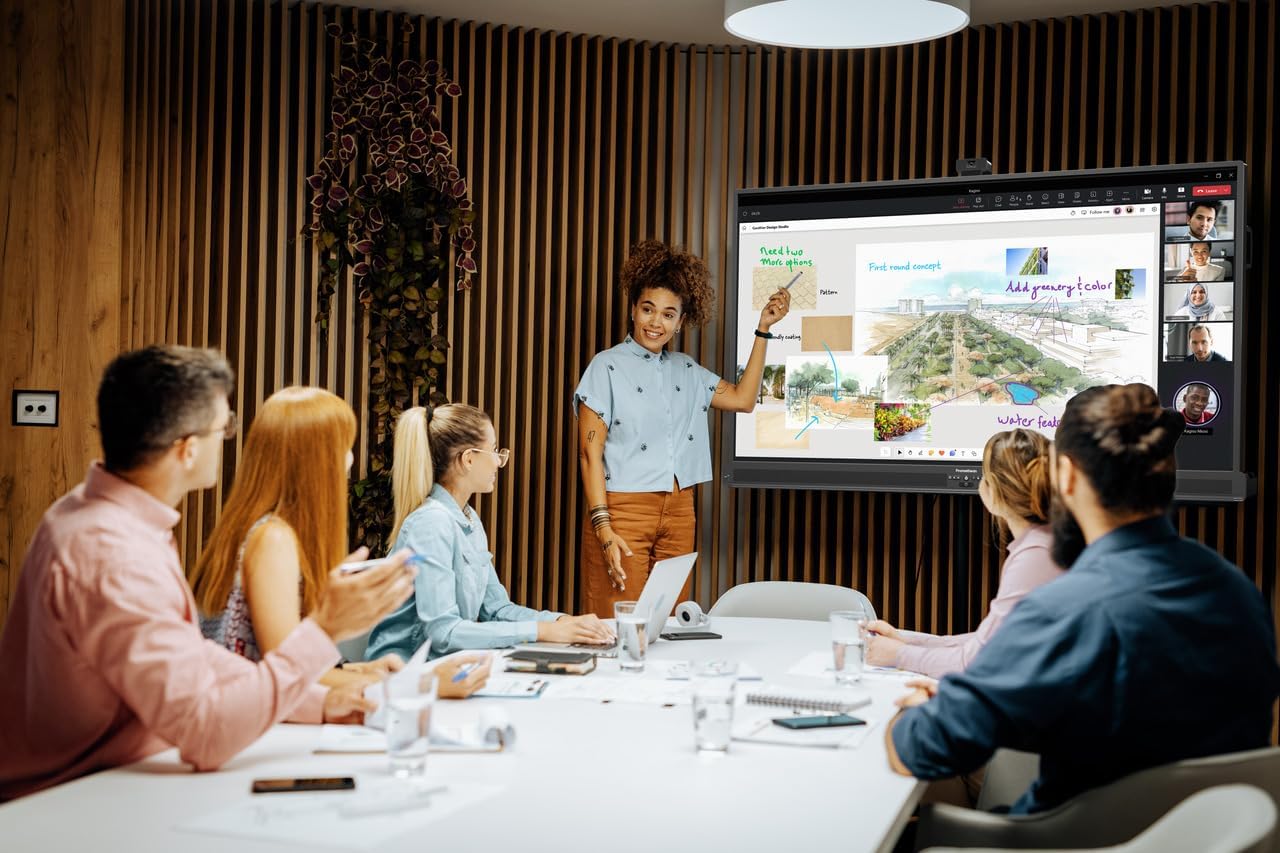
Figure 6: Group collaboration in an office setting
5. Penyelenggaraan
5.1 Membersihkan Skrin
To maintain optimal display quality, clean the ActivPanel screen regularly:
- Turn off the ActivPanel and unplug it from the power source.
- Gunakan kain lembut dan tidak berbulu sedikit dampened with a non-abrasive, screen-safe cleaning solution.
- Gently wipe the screen in one direction to remove dust and smudges. Avoid excessive pressure or harsh chemicals.
5.2 Kemas Kini Perisian
Regularly check for and install software updates to ensure your ActivPanel 10 has the latest features, security patches, and performance improvements. Updates can typically be managed through the panel's settings menu or via the Promethean support webtapak.
6. Penyelesaian masalah
If you encounter issues with your ActivPanel 10, refer to the following common solutions:
| Masalah | Penyelesaian yang Mungkin |
|---|---|
| Panel tidak dihidupkan | Ensure the power cable is securely connected to both the panel and a working electrical outlet. Try a different outlet. |
| No display from connected device | Verify that the HDMI/DisplayPort cable is correctly connected. Select the correct input source on the ActivPanel. Ensure the external device is powered on and outputting video. |
| Touch functionality not working | Check that the USB touch cable is connected between the ActivPanel and your external device (if applicable). Restart both the panel and the connected device. |
| Masalah audio | Check the volume settings on both the ActivPanel and the connected source. Ensure audio cables are properly connected if using external speakers. |
If the problem persists, please refer to the Promethean support webtapak atau hubungi perkhidmatan pelanggan.
7. Spesifikasi
Below are the technical specifications for the Promethean ActivPanel 10 75-inch model:
| Ciri | Perincian |
|---|---|
| Dimensi Produk | 4.2 x 67.1 x 41.6 inci |
| Berat Barang | 134.7 paun |
| Pengeluar | Promethean |
| Nombor Model Item | ActivPanel 10 |
| Saiz Paparan Skrin Berdiri | 75 Inci |
| Nisbah Aspek | 16:9 |
| Resolusi | 3840 x 2400 Piksel (4K UHD 2160p) |
| Jumlah Port USB | 1 |
| Penerangan Permukaan Skrin | Berkilat |
8. Waranti dan Sokongan
The Promethean ActivPanel 10 includes a 3-year onsite support package, ensuring assistance is available for any hardware issues that may arise.
For detailed warranty terms, technical support, and additional resources, please visit the official Promethean website or contact your local Promethean representative. Keep your purchase receipt and product serial number readily available when seeking support.