pengenalan
This manual provides comprehensive instructions for the installation, operation, and maintenance of your autoabc Wireless CarPlay/Android Auto Interface. This device integrates advanced smartphone functionalities into your BMW CIC system, enhancing your driving experience with navigation, communication, and entertainment features.
The interface allows you to access map navigation, phone contacts, email, notifications, music, and more with the help of an intelligent voice assistant, promoting safe, hands-free operation. It retains all original OEM features and supports existing vehicle control unit software, including OEM reverse camera, parking radar, and aftermarket camera systems.
Additionally, it supports mirror projection, enabling you to synchronize your smartphone screen to the car's display for content like videos and maps. Please note that this product does not include a screen; it integrates with your vehicle's existing display.
Notis Keserasian
Before installation, confirm your vehicle model is compatible. This interface is designed for BMW 1, 2, 3, 4, 5, 7 Series vehicles equipped with the CIC System, including models E81, E82, E87, E88, E90, E91, E92, E93, E60, E61, F01, F02, F03, F04.
To verify your system, refer to the image below. Ensure your car's main menu matches the CIC System shown.

Image: Visual guide for identifying BMW CIC System compatibility. The image displays various BMW infotainment system interfaces, highlighting the correct CIC system with a green checkmark and incompatible systems with a red cross.
Persediaan
1. Kandungan Pakej
Verify all components are present:

Image: An illustration of the product dimensions and the various cables and accessories included in the package, such as the main unit, power cable, LVDS cable, RCA/USB cable, microphone, and WiFi antenna.
- Main Interface Unit
- Kabel Kuasa
- Kabel LVDS
- Kabel RCA/USB
- Mikrofon
- Antena WiFi
- Manual Pengguna (dokumen ini)
2. Selesai Pemasanganview
Installation typically involves connecting the interface unit between your car's head unit and display. Professional installation is recommended due to the complexity of automotive electronics. Ensure the vehicle's power is disconnected before beginning installation.
The video below provides a visual guide for the installation process, including setting up AUX audio and connecting the CarPlay system.
Video: A detailed demonstration of the installation process for the Wireless CarPlay/Android Auto interface in a BMW CIC system, including steps for AUX settings, cable connections, and system switching.
3. AUX Audio Setup
For audio output, ensure your car's AUX input is active and configured correctly. Navigate to your car's multimedia settings to select AUX as the audio source. Adjust bass and treble settings as needed for optimal sound quality.
4. Sambungan Awal
After physical installation, power on your vehicle. Press and hold the "Home" button on your car's iDrive controller to switch to the new interface. The system will display a menu with options like USB, Camera, Setup, and Bluetooth.
To connect your smartphone:
- Select "Bluetooth" from the interface menu.
- Pada telefon pintar anda, pergi ke tetapan Bluetooth dan cari peranti yang tersedia.
- Select the device name (e.g., "CAR-XXXX") displayed on your car's screen.
- Sahkan kod gandingan pada kedua-dua peranti.
- Once paired, CarPlay or Android Auto will automatically launch.
Arahan Operasi
1. Bertukar Antara Sistem
To switch between the original BMW CIC system and the CarPlay/Android Auto interface, press and hold the "Home" button on your iDrive controller.
2. Interface Navigation and Control
The interface supports multiple control methods:
- Original Car Knob (iDrive Controller): Use the familiar iDrive knob to navigate menus and select options.
- Butang Roda Stereng: Control media playback (previous/next song, volume) and activate voice control directly from your steering wheel.
- Hand-touch (if applicable): If your vehicle's screen supports touch input, you can also interact with the CarPlay/Android Auto interface directly by touch.
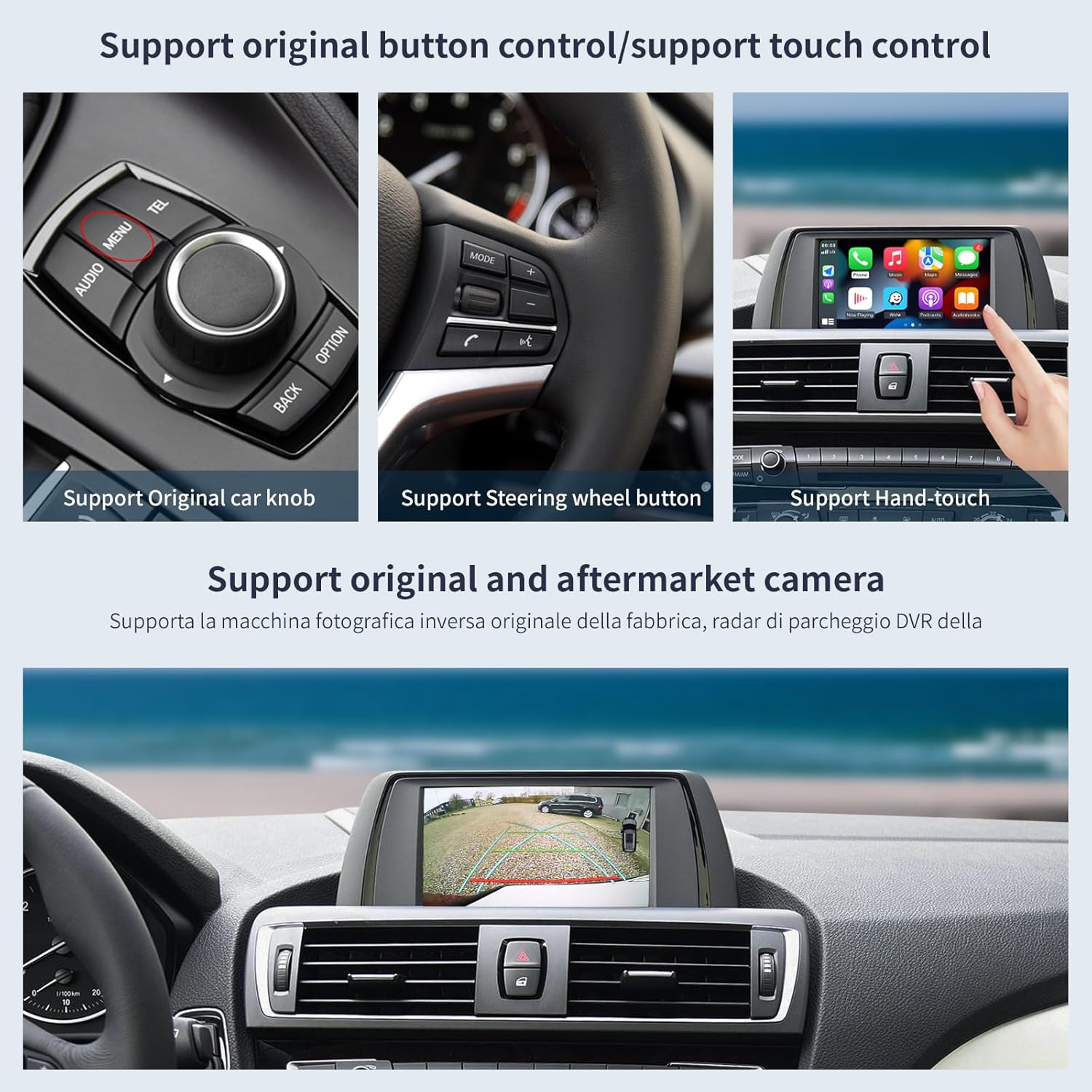
Image: A composite image demonstrating the various control methods supported by the interface, including the original car knob, steering wheel buttons, and hand-touch functionality.
3. Kawalan Suara
Activate Siri or Google Assistant by pressing the voice control button on your steering wheel. This allows for hands-free operation of navigation, calls, messages, and music.
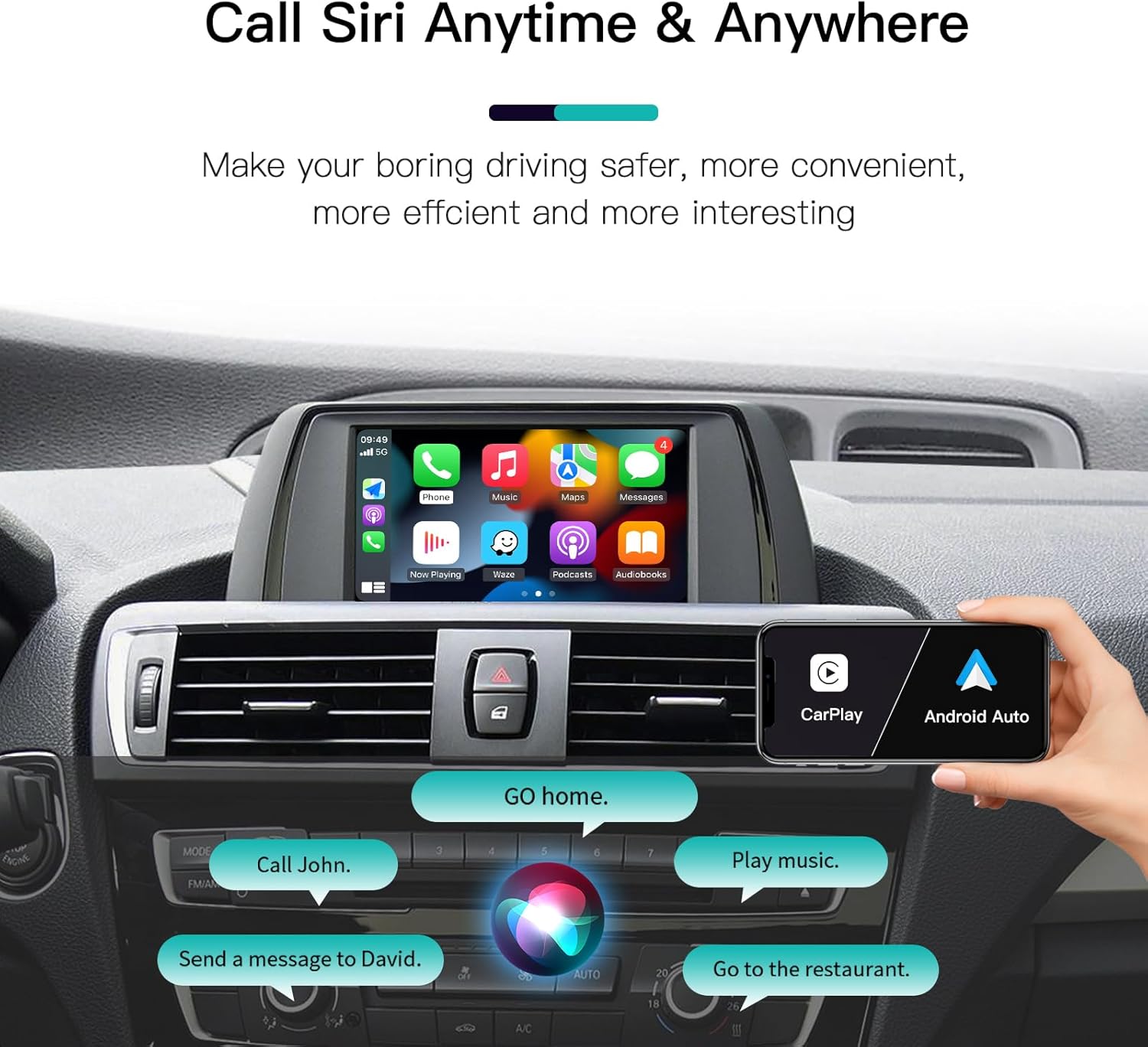
Image: A visual representation of Siri voice control in action, showing a smartphone displaying CarPlay and various voice commands like "Call John" and "Play music" appearing on the car's screen.
4. CarPlay and Android Auto Features
The interface provides access to a range of features:
- Navigasi: Use your preferred map applications (e.g., Apple Maps, Google Maps, Waze) directly on your car's screen.
- Panggilan Telefon: Make and receive calls safely using the integrated phone function.
- Pemesejan: Send and receive messages via voice commands.
- Muzik & Audio: Stream music from services like Spotify, Apple Music, or local files melalui USB.
- Mirror Projection (AirPlay/Autolink): Display your phone's screen directly on the car's display for apps not natively supported by CarPlay/Android Auto, such as Netflix or YouTube.

Image: A four-panel image showcasing the different modes: CarPlay, Android Auto, AirPlay, and Autolink, demonstrating how each mode appears on the car's display.
5. Camera Support
The system supports original OEM reverse cameras, parking radar, and can integrate with aftermarket reverse cameras and 360-degree camera systems, as well as front view camera DVRs (CVBS).

Image: A car's display showing a rear-view camera feed with parking guidelines, illustrating the support for rear view video input (CVBS & AHD signal input).
Penyelenggaraan
The autoabc Wireless CarPlay/Android Auto Interface is designed for durability and minimal maintenance. Keep the unit and connections clean and free from dust and moisture. Avoid exposing the unit to extreme temperatures or direct sunlight for prolonged periods.
Regularly check cable connections to ensure they are secure. Software updates, if available, will be communicated by autoabc and should be performed as instructed to ensure optimal performance and compatibility.
Menyelesaikan masalah
Jika anda menghadapi masalah, cuba penyelesaian biasa berikut:
- Tiada Paparan/Skrin Hitam:
- Pastikan semua kabel disambungkan dengan selamat.
- Verify the correct input source is selected on your car's system (usually by holding the "Home" button).
- Check the LVDS cable connection.
- Tiada Audio:
- Confirm your car's AUX input is selected and active.
- Check the audio cable connection between the interface and the car's AUX input.
- Adjust volume levels on both the interface and your car's audio system.
- CarPlay/Android Auto Tidak Bersambung:
- Ensure Bluetooth is enabled on your smartphone and the device is paired correctly.
- Lupakan peranti pada tetapan Bluetooth telefon anda dan pasangkan semula.
- Restart both your smartphone and the car's infotainment system.
- For wired CarPlay/Android Auto, ensure the USB cable is functioning and properly connected.
- Screen Offset/Incorrect Display:
- Access the interface settings (usually via the "Setup" option in the main menu).
- Navigate to "Smart Phone" then "CarPlay/Android Auto Display".
- Adjust the "Offset Left", "Offset Right", "Offset Top", and "Offset Bottom" parameters to center the display.
Spesifikasi
| Ciri | Perincian |
|---|---|
| Dimensi Produk | 140 x 103 x 25 mm (5.51 x 4.06 x 0.98 inci) |
| Berat Barang | 2.14 paun |
| Phone OS System Suitable | iOS & Android |
| Car OS System Suitable | Original car's with built-in Wired & Wireless CarPlay (for specific BMW CIC models) |
| Ciri yang Disokong | Wireless CarPlay, Android Auto, Linux System, USB Playback, Bluetooth, Reverse Camera Support, Touch Screen (if car supports), Maps, Phone Call, Music, Voice Control, AirPlay, Autolink. |
| Input/Output | CAN, Power, USB, Video, LVDS In, LVDS Out |
Waranti dan Sokongan
autoabc provides a One-Year global warranty for this product. Additionally, LIFETIME Technical Service Support is available. For any questions, issues, or technical assistance, please contact autoabc via Amazon Email. Our support team is dedicated to assisting you with reliable online technical support.
For further assistance, please visit the official autoabc support page or contact customer service through your purchase platform.