1. Pengenalan
Thank you for choosing the Peweglow L7 Label Maker Machine. This portable thermal Bluetooth label printer is designed for efficient and inkless label printing, suitable for various applications in home, kitchen, school, and office organization. This manual provides detailed instructions for setup, operation, maintenance, and troubleshooting to ensure optimal performance of your device.

The Peweglow L7 Label Maker Machine, shown alongside examples of labels it can print, including a round 'Merry Christmas' label, a 'Sweetheart Cake' ingredient label, a 'Thank you' sticker, and a roll of 50x30mm thermal paper.
2. Kandungan Pakej
Sila sahkan bahawa semua item terdapat dalam pakej anda:
- 1x Peweglow L7 Label Printer
- 1 Roll of 50x30mm Thermal Paper (approximately 200 labels)
- 1x Kabel Pengecasan USB
- 1x Manual Arahan (dokumen ini)
3. Panduan Persediaan
3.1 Mengecas Peranti
The L7 Label Maker is equipped with a built-in Lithium Ion battery. Before first use, fully charge the device using the provided USB cable. Connect the USB cable to the printer's charging port and a standard USB power adapter (not included) or a computer's USB port. The indicator light will show charging status.
3.2 Pemasangan Aplikasi
The Peweglow L7 Label Maker operates via Bluetooth connectivity and requires the "4Barcode" application. This app is available for download on both the App Store (for iOS devices) and Google Play Store (for Android devices).
- Cari untuk "4Barcode" in your device's app store.
- Muat turun dan pasang aplikasi.

Visual guide for connecting the L7 Label Maker: Download the 4Barcode app, enable Bluetooth on your phone, connect to the 'L7' device, and then proceed to edit and print your labels.

A screenshot illustrating the 4Barcode app's download page and its main interface, highlighting its user-friendly design for label creation.
3.3 Memuatkan Label
The L7 Label Maker supports thermal labels with a width ranging from 0.98 inches to 2.28 inches (25-58mm). Ensure you use only Peweglow thermal labels for optimal performance, as other brands may cause printing issues.
- Open the printer's lid by gently pushing the "OPEN" button or lever.
- Insert the label roll into the paper compartment, ensuring the printing side of the labels faces upwards and feeds smoothly into the printer mechanism.
- Adjust the paper slot guides to securely fasten the label tape on the left side, matching the width of your label roll.
- Tutup penutup dengan kuat sehingga ia berbunyi pada tempatnya.
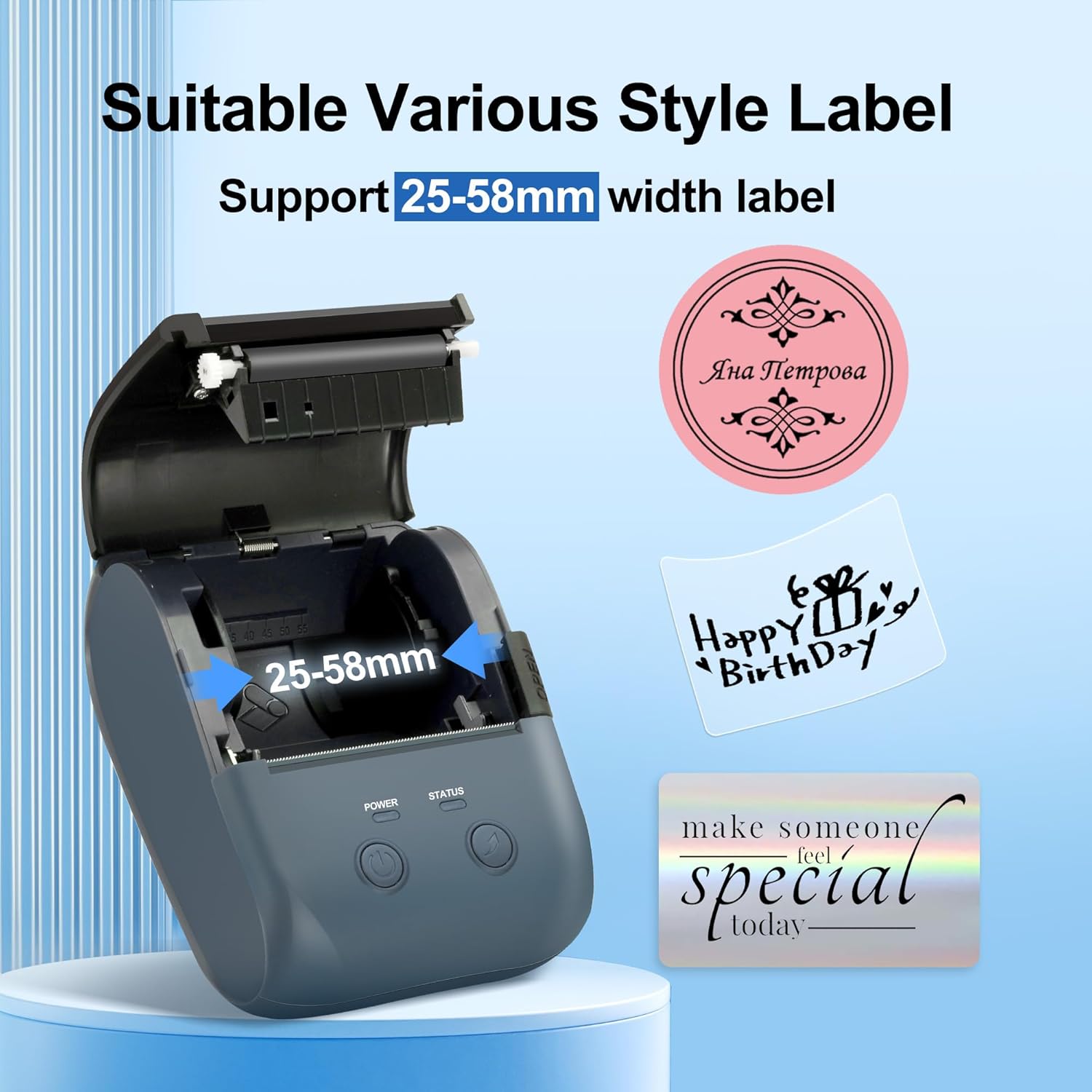
The Peweglow L7 Label Maker with its top cover open, revealing the label roll compartment and highlighting its compatibility with labels ranging from 25mm to 58mm in width.

A terperinci view of the label printer's internal mechanism, demonstrating how to properly load a label roll and emphasizing the supported label width of 0.98 to 2.28 inches for correct and clear printing.
4. Arahan Operasi
4.1 Menyambung melalui Bluetooth
- Ensure your L7 Label Maker is powered on.
- Dayakan Bluetooth pada telefon pintar atau tablet anda.
- Open the "4Barcode" app. The app will automatically search for nearby devices.
- Select "L7" from the list of available devices to establish a connection.

A user interacting with the Peweglow L7 Label Maker via Bluetooth, demonstrating the wireless connectivity and ease of use with a smartphone.
4.2 Using the "4Barcode" App
The "4Barcode" app provides a user-friendly interface for designing and printing labels. You can create various types of labels, including product labels, ingredient labels, apparel labels, and address labels.
- teks: Add custom text with various font types and sizes.
- Imej: Import images to be printed on your labels. Note that images will be converted to black and white due to the thermal printing technology.
- QR Codes & Barcodes: Generate and print QR codes and various barcode formats directly from the app.
- templat: Utilize pre-designed templates for quick label creation.
- Penyesuaian: Adjust label size, shape, borders, and other elements to fit your needs.
4.3 Label Percetakan
The L7 Label Maker features Direct Thermal Technology, enabling fast printing at 60mm/s with a resolution of 203 DPI. This ensures clear black and white prints without the need for ink or toner.
- After designing your label in the "4Barcode" app, select the print option.
- Confirm print settings such as quantity and label size within the app. For the included 50x30mm labels, use the 1.97" x 1.18" setting for proper sizing.
- The printer will automatically feed and print the labels.

The Peweglow L7 Label Maker in action, demonstrating its super fast printing capability at 60mm/s and clear output with 203 DPI resolution.
4.4 Supported Label Types and Applications
The L7 Label Maker is compatible with various shapes and styles of Peweglow thermal labels, including:
- Transparent Labels
- Holographic Silver Labels
- Circle Labels
- Colorful Labels
- White Labels
This versatility makes the printer suitable for a wide range of occasions, from organizing items at home and in the kitchen to professional use in offices and small businesses.

An array of label types supported by the Peweglow L7 Label Maker, showcasing options like colored, square, holographic, and transparent labels for diverse labeling needs.

Illustrations of the Peweglow L7 Label Maker's versatility, demonstrating its suitable applications for home organization, office filing, and business product labeling.
5. Penyelenggaraan
5.1 Membersihkan Pencetak
Since the L7 Label Maker is an inkless thermal printer, it requires minimal cleaning. Regularly wipe the exterior with a soft, dry cloth. If dust or debris accumulates inside the label compartment, gently remove it using a soft brush or compressed air. Avoid using liquid cleaners or abrasive materials.
5.2 Label Storage
Thermal labels are sensitive to heat and light. Store unused label rolls in a cool, dry place away from direct sunlight and excessive heat to preserve their quality and ensure optimal printing results.
6. Penyelesaian masalah
If you encounter issues with your Peweglow L7 Label Maker, please refer to the following common problems and solutions:
- Wasted Label Upon Power On: The printer automatically feeds out one label every time it is turned on. This is a normal operational behavior and cannot be prevented.
- Skipped Lines/Compressed Text When Switching Between Graphics and Text: When transitioning between graphic and text elements within a label design, the printer may skip a few lines or compress them, potentially wasting a label. This is a known characteristic of the app's rendering process.
- Printer Stops Printing or Prints Poorly with Non-Peweglow Labels: The L7 Label Maker is designed to work exclusively with Peweglow thermal labels. Using labels from other brands may cause the printer to stop functioning or result in unsatisfactory print quality. Ensure you are using genuine Peweglow labels.
- Text Not Super Crisp/Sharp: As a thermal printer, the L7 produces clear black and white prints, but the text may not be as crisp or sharp as that from an inkjet or laser printer. This is inherent to thermal printing technology.
- QR Codes Not Scanning: If QR codes are not scanning after printing, ensure that you expand the 'default crop' setting within the 4Barcode app when importing QR code images. The app may slightly crop the edges, which can prevent the code from being scannable. Adjusting the crop area will resolve this.
- Offset Printing: If your labels are printing with an offset, the 4Barcode app includes an offset adjustment function. You may need to experiment with different offset values to find the correct alignment for your specific label size and design. This may require printing a few test labels.
- App Clunkiness/Difficulty on Phone: Some users report the 4Barcode app can feel clunky, especially on mobile devices. Ensure your app is updated to the latest version. Familiarization with the app's interface through practice can improve the user experience.
- Tiada Sambungan Bluetooth: Ensure Bluetooth is enabled on your mobile device and the printer is powered on. Try restarting both the printer and your mobile device. Verify that you have selected "L7" in the app's device list.
7. Spesifikasi
| Ciri | Spesifikasi |
|---|---|
| Nama Model | L7 |
| Jenama | Peweglow |
| Teknologi Percetakan | terma |
| Teknologi Ketersambungan | Bluetooth |
| Kelajuan Cetak | 60mm/s |
| Resolusi | 203 DPI |
| Label Width Compatibility | 0.98" - 2.28" (25-58mm) |
| Jenis Dakwat | Inkless (Thermal) |
| Dimensi (L x W x H) | 2.28 x 3.54 x 4.72 inci |
| Berat Barang | 14.4 auns |
| Bateri | 1 Litium Ion (termasuk) |
| ASIN | B0DT8M4R96 |

The compact dimensions of the Peweglow L7 Label Maker, measuring 8.8cm (3.46in) in length, 12cm (4.72in) in height, and 5.8cm (2.28in) in width, highlighting its portability and ease of storage.
8. Waranti dan Sokongan
For information regarding warranty coverage, technical support, or service inquiries for your Peweglow L7 Label Maker, please refer to the official Peweglow website or contact their customer support directly. Contact details are typically available on the manufacturer's packaging or official product pages.


