pengenalan
Thank you for choosing the CRUA 27-inch 4K UHD 144Hz IPS Gaming Monitor. This monitor is designed to deliver an immersive visual experience with its high resolution, fast refresh rate, and vibrant color reproduction. This manual provides essential information for the proper installation, operation, and maintenance of your new monitor. Please read it thoroughly before use and retain it for future reference.
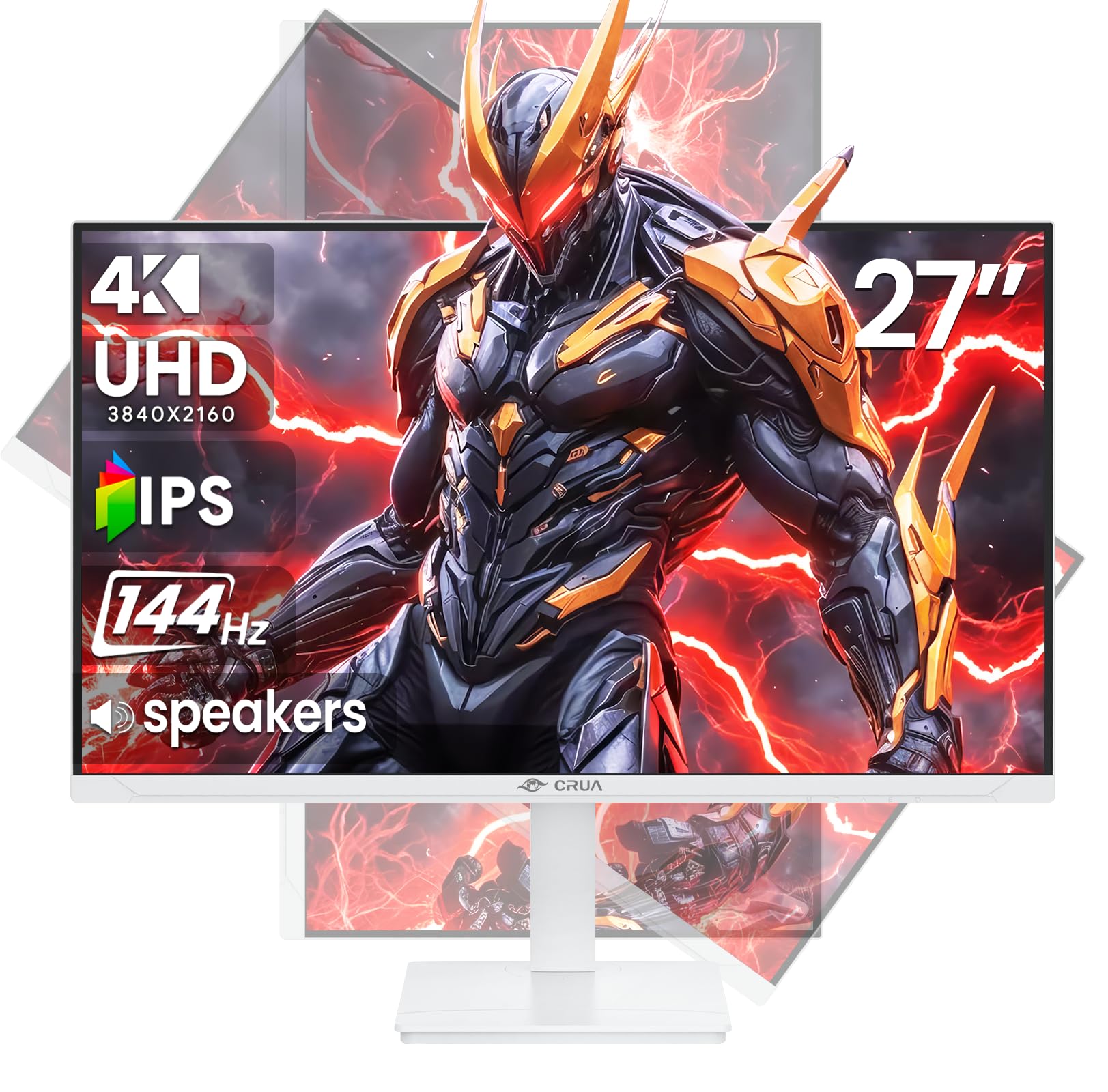
Imej: Depan view of the CRUA 27-inch 4K UHD 144Hz IPS Gaming Monitor.
Apa yang ada dalam Kotak
Sila semak kandungan pakej anda. Jika ada barang yang hilang atau rosak, hubungi peruncit anda.
- Monitor 27 inci
- Kabel DP
- Base and Support
- Manual Pengguna
- Bekalan Kuasa
Ciri-ciri Produk
- 27" 4K Display with IPS Panel: Experience ultra-clear visuals with a 3840x2160P resolution.
- Kadar Refresh 144Hz: Enjoy fluid and sharp motion, ideal for competitive gaming and fast-paced content.
- Ketepatan Warna 120% sRGB: Delivers rich and accurate tones with 350cd/m² brightness and 1000:1 high-contrast.
- Pembesar Suara Terbina dalam: Provides clear audio for daily use.
- Full Ergonomic Adjustment: Features height, pivot, tilt, and rotation adjustments for optimal viewsudut-sudut.
- Pelbagai Pilihan Kesambungan: Equipped with 2x HDMI 2.1 and 2x DP 1.4 ports.
- AMD FreeSync Support: Synchronizes the monitor's refresh rate with your GPU for tear-free gaming.
- Boleh Dipasang di Dinding: Supports VESA 75mm x 75mm wall mounts for flexible installation.
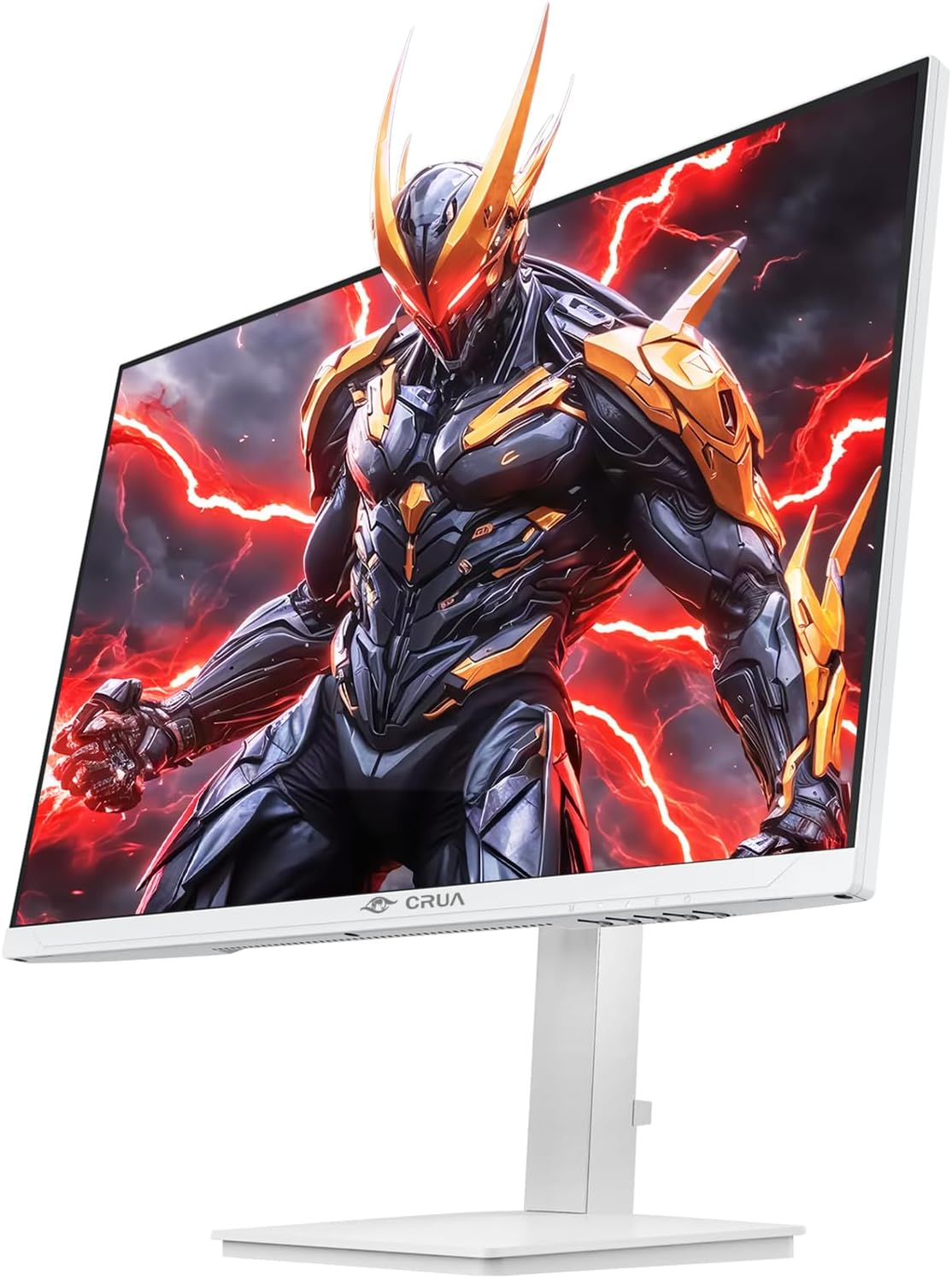
Imej: Depan view of the CRUA 27-inch 4K UHD 144Hz IPS Gaming Monitor displaying a game scene.

Imej: Belakang view of the CRUA 27-inch 4K UHD 144Hz IPS Gaming Monitor showing the stand and RGB lighting.

Imej: Belakang view of the CRUA 27-inch 4K UHD 144Hz IPS Gaming Monitor highlighting the input ports (2x DP 1.4, 2x HDMI 2.1, and 3.5mm Audio Port).

Image: Diagram illustrating the adjustable height (110mm), tilt (-5° to +15°), swivel (±30°), and pivot (90°) features of the CRUA 27-inch 4K UHD 144Hz IPS Gaming Monitor.
Arahan Persediaan
1. Memasang Pendirian
- Keluarkan komponen monitor dan berdiri dengan berhati-hati daripada pembungkusan.
- Pasangkan leher pendirian pada panel monitor. Pastikan ia klik dengan selamat pada tempatnya atau diikat dengan skru jika disediakan.
- Attach the base to the stand neck, securing it with the thumb screw or other fasteners.
- Letakkan monitor yang dipasang pada permukaan yang stabil dan rata.
2. Pemasangan Dinding (Pilihan)
The monitor supports VESA 75mm x 75mm wall mounts. Remove the stand before attaching a compatible wall mount bracket (not included). Follow the instructions provided with your wall mount.
3. Menyambung Kabel
- Kuasa: Connect the power supply to the monitor's power input and then to a power outlet.
- Input Video: Connect one end of the provided DP cable (or an HDMI cable) to the corresponding port on your computer's graphics card and the other end to a DP 1.4 or HDMI 2.1 port on the monitor.
- Output Audio (Pilihan): If using external speakers or headphones, connect them to the 3.5mm audio jack on the monitor.
4. Hidupkan Kuasa Awal
Press the power button on the monitor. The monitor should automatically detect the input signal. If not, you may need to manually select the input source using the OSD menu.
Arahan Operasi
1. Hidupkan/Mati Kuasa
Press the power button located on the monitor to turn it on or off.
2. OSD Menu Navigation
The On-Screen Display (OSD) menu allows you to adjust various monitor settings. Navigate the menu using the joystick or buttons typically located on the back or bottom of the monitor.
- Press the joystick/button to open the OSD menu.
- Move the joystick up/down or use corresponding buttons to navigate through menu options.
- Move the joystick left/right or use corresponding buttons to adjust values or enter sub-menus.
- Press the joystick/button again to confirm selections or exit sub-menus.
3. Pemilihan Sumber Input
If the monitor does not automatically detect the correct input, open the OSD menu, navigate to "Input Source," and select the active input (e.g., HDMI1, HDMI2, DP1, DP2).
4. Melaraskan Tetapan Paparan
Within the OSD menu, you can customize settings such as:
- Kecerahan/Kontras: Laraskan tahap pencahayaan dan kontras keseluruhan.
- Tetapan Warna: Tala halus suhu warna, gamma dan nilai RGB individu.
- Kualiti gambar: Select preset modes (e.g., Standard, Game, Movie) or customize sharpness and dynamic contrast.
- Resolusi & Kadar Penyegaran: Ensure your computer's display settings match the monitor's native 4K UHD (3840x2160P) resolution and 144Hz refresh rate for optimal performance.
- AMD FreeSync: Enable FreeSync in the OSD menu and your graphics card control panel for adaptive synchronization.
5. Tetapan Audio
Adjust the volume of the built-in speakers or connected external audio devices through the OSD menu's audio section. You can also mute the audio if desired.
6. Pelarasan Ergonomik
Laraskan monitor mengikut pilihan anda viewkedudukan:
- Ketinggian: Tolak atau tarik monitor ke atas atau ke bawah perlahan-lahan di sepanjang pendirian.
- Condong: Tilt the screen forward or backward.
- Pusing: Putar monitor ke kiri atau kanan pada tapaknya.
- Pivot: Rotate the screen 90 degrees for vertical orientation.
Penyelenggaraan
Membersihkan Skrin
- Always turn off the monitor and unplug the power cord before cleaning.
- Gunakan kain lembut yang tidak berbulu dampdiisi dengan air atau pembersih skrin khusus.
- Jangan sembur pembersih terus ke skrin.
- Avoid using abrasive cleaners, alcohol, or ammonia-based solutions, as they can damage the screen surface.
Penjagaan Am
- Jauhkan monitor daripada cahaya matahari langsung, sumber haba dan habuk yang berlebihan.
- Pastikan pengudaraan yang mencukupi di sekeliling monitor untuk mengelakkan terlalu panas.
- Jangan letakkan objek berat pada monitor atau kabelnya.
- Elakkan daripada menyentuh skrin dengan objek tajam.
Menyelesaikan masalah
| Masalah | Penyelesaian yang Mungkin |
|---|---|
| Tiada gambar di skrin |
|
| Tiada suara dari pembesar suara |
|
| Kelipan atau herotan imej |
|
| Butang tidak bertindak balas |
|
For further assistance, please refer to the CRUA support webtapak atau hubungi perkhidmatan pelanggan.
Spesifikasi
| Ciri | Perincian |
|---|---|
| Nombor Model | CR270E |
| Saiz Skrin | 27 Inci |
| Resolusi | 4K UHD (3840 x 2160 Piksel) |
| Kadar Segar Semula | 144Hz |
| Jenis Panel | IPS |
| Nisbah Aspek | 16:9 |
| Warna Gamut | 120% sRGB |
| Kecerahan | 350 Candela (cd/m²) |
| Nisbah Kontras | 1000:1 |
| Ketersambungan | 2x DP 1.4, 2x HDMI 2.1, 1x 3.5mm Audio Jack |
| Penyegerakan Adaptif | AMD FreeSync |
| Ergonomik | Height, Pivot, Tilt, Rotate Adjustable |
| Lekap di dinding | VESA 75mm x 75mm |
| Pembesar Suara Terbina dalam | ya |
| Dimensi Produk | 2.5 x 24 x 14 inci |
| Berat Barang | 11.38 paun |
Waranti dan Sokongan
CRUA provides high-quality computer monitors and premium services. For warranty information, technical support, or any questions regarding your monitor, please visit the official CRUA website or contact their customer service team. Details can typically be found on the product packaging or the CRUA brand store on Amazon.
Maklumat Hubungan: Refer to your purchase documentation or the CRUA official weblaman web untuk mendapatkan butiran hubungan sokongan terkini.


