1. Pengenalan
This manual provides essential instructions for setting up, operating, maintaining, and troubleshooting your CRUA 32-inch 4K UHD 160Hz Curved Gaming Monitor (Model CR320A). Please read this manual thoroughly before using the product to ensure proper functionality and to prevent damage.
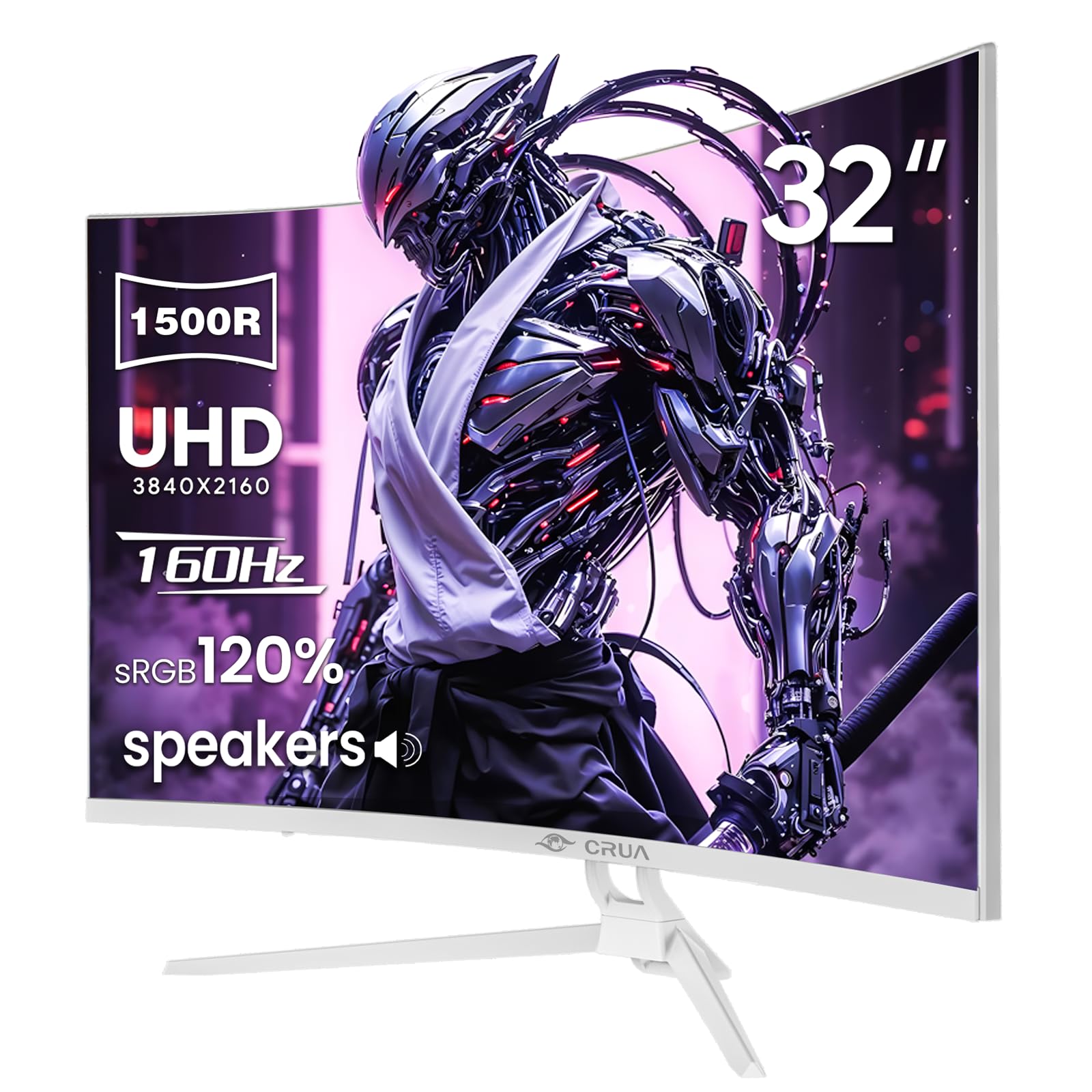
Rajah 1: Depan view of the CRUA 32-inch 4K UHD 160Hz Curved Gaming Monitor.
2. Apa yang ada di dalam Kotak
Sahkan bahawa semua komponen terdapat dalam pembungkusan:
- CRUA 32-inch Monitor
- Monitor Base and Support
- Kabel DisplayPort (DP).
- Unit Bekalan Kuasa
- Manual Pengguna (dokumen ini)
3. Persediaan
3.1 Memasang Pendirian
- Carefully remove the monitor from its packaging, placing it face down on a soft, clean surface to prevent screen damage.
- Attach the monitor support arm to the back of the monitor. Ensure it clicks securely into place or is fastened with screws if provided.
- Connect the base to the support arm and secure it with the provided screw(s).
Note: The included stand is fixed and does not offer height, tilt, or swivel adjustments. For adjustable positioning, the monitor supports VESA wall mounting (75mm x 75mm) using a compatible VESA mount (sold separately).

Rajah 2: Belakang view of the monitor with stand attachment area and RGB lighting.
3.2 Menyambung Kabel
- Connect the DisplayPort (DP) cable from your computer's graphics card to the DP 1.4 port on the monitor. Alternatively, use an HDMI 2.1 cable for compatible devices.
- Connect the power supply unit to the monitor's power input, then plug the power cord into an electrical outlet.
- Pastikan semua sambungan selamat.

Figure 3: Monitor connectivity ports including HDMI 2.1, DP 1.4, and audio out.
4. Mengendalikan Monitor
4.1 Hidupkan/Mati Kuasa
Press the power button, usually located on the back or bottom right of the monitor, to turn the monitor on or off. The power indicator light will illuminate when the monitor is on.
4.2 Menu Paparan Pada Skrin (OSD).
The OSD menu allows you to adjust various monitor settings. Use the navigation buttons (joystick or individual buttons) typically found on the back or bottom of the monitor to access and navigate the OSD.
- Sumber Input: Pilih antara input DisplayPort dan HDMI.
- Tetapan Gambar: Laraskan kecerahan, kontras, ketajaman dan suhu warna.
- Tetapan Warna: Fine-tune color gamut (120% sRGB), gamma, and color depth (8-bit).
- Tetapan Permainan: Enable/disable AMD FreeSync, adjust refresh rate (144Hz/160Hz), and other gaming-specific features.
- Tetapan Audio: Control volume for the built-in speakers or connected external audio devices.
- Pencahayaan RGB: Customize the RGB lighting effects on the back of the monitor.

Figure 4: Visual representation of color and brightness capabilities.
4.3 AMD FreeSync
This monitor supports AMD FreeSync technology, which synchronizes the monitor's refresh rate with your graphics card's frame rate to eliminate screen tearing and stuttering. Ensure FreeSync is enabled in both the monitor's OSD and your graphics card's control panel for optimal performance.

Figure 5: Visualizing the benefit of 160Hz refresh rate and FreeSync.
4.4 Curved Display (1500R)
The 1500R curvature of the screen provides an immersive viewing experience, reducing eye strain and enhancing depth perception, especially beneficial for gaming and multimedia content.

Figure 6: The 1500R curved screen design.
5. Penyelenggaraan
5.1 Membersihkan Monitor
- Sentiasa matikan monitor dan cabut palam kuasa sebelum membersihkan.
- Gunakan kain lembut dan tidak berbulu sedikit dampdisalut dengan air atau pembersih skrin yang tidak melelas.
- Jangan sembur pembersih terus ke skrin. Sapukan pada kain terlebih dahulu.
- Elakkan menggunakan alkohol, ammonia atau pembersih yang kasar, kerana ini boleh merosakkan permukaan skrin.
5.2 Penjagaan Am
- Jauhkan monitor daripada cahaya matahari langsung, haba berlebihan dan kelembapan.
- Pastikan pengudaraan yang mencukupi di sekeliling monitor untuk mengelakkan terlalu panas.
- Elakkan meletakkan objek berat pada monitor atau kabelnya.
6. Penyelesaian masalah
6.1 Tiada Kuasa
- Periksa sama ada kord kuasa disambungkan dengan selamat ke kedua-dua monitor dan alur keluar kuasa.
- Sahkan bahawa soket kuasa berfungsi dengan betul dengan memasang peranti lain.
- Pastikan butang kuasa monitor ditekan.
6.2 Tiada Isyarat
- Confirm that the video cable (DP or HDMI) is securely connected to both the monitor and your computer/device.
- Pastikan sumber input yang betul dipilih dalam menu OSD monitor.
- Check if your computer/device is powered on and outputting a signal.
- Cuba kabel atau port video lain jika tersedia.
6.3 Screen Flickering or Tearing
- Ensure AMD FreeSync is enabled in both the monitor's OSD and your graphics card settings.
- Verify that your graphics card drivers are up to date.
- Check the refresh rate setting in your operating system's display settings; it should be set to 144Hz or 160Hz.
6.4 Washed Out Colors or Poor Picture Quality
- Access the OSD menu and adjust picture settings such as brightness, contrast, and color temperature.
- Tetapkan semula monitor ke tetapan lalai kilang melalui menu OSD.
- Ensure your graphics card output settings are correctly configured for the monitor's resolution (3840x2160) and color depth.
6.5 No Sound from Built-in Speakers
- Check the volume level in the monitor's OSD menu.
- Verify that the audio output on your computer/device is set to the monitor.
- Ensure the video cable (DP or HDMI) supports audio transmission.
7. Spesifikasi
| Ciri | Spesifikasi |
|---|---|
| Nombor Model | CR320A |
| Saiz Skrin | 32 Inci |
| Jenis Panel | VA |
| Kelengkungan | 1500R |
| Resolusi | 4K UHD (3840 x 2160 Piksel) |
| Nisbah Aspek | 16:9 |
| Kadar Segar Semula | 144Hz / 160Hz |
| Kecerahan | 320 Candela (cd/m²) |
| Nisbah Kontras | 3000:1 |
| Warna Gamut | 120% sRGB |
| Kedalaman Warna | 8-bit |
| Permukaan Skrin | Matte |
| Ketersambungan | HDMI 2.1, DisplayPort 1.4 |
| Audio | Pembesar Suara Terbina dalam |
| Keserasian Gunung VESA | 75mm x 75mm |
| Dimensi Produk (L x W x H) | 1 x 28 x 16.6 inci |
| Berat Barang | 16.57 paun |
8. Waranti dan Sokongan
8.1 Product Assurance
CRUA is committed to providing high-quality computer monitors and premium services. We offer assurances for our products to ensure customer satisfaction.
8.2 Sokongan Pelanggan
If you encounter any issues or have questions regarding your CRUA monitor, please contact our customer support team. We are available to assist you and resolve any problems you may experience.
For support, please refer to the contact information provided on the official CRUA webtapak atau dokumentasi pembelian anda.


