1. Pengenalan
This manual provides essential information for the safe and efficient operation of your NexiGo PJ40 Ultra Outdoor Netflix Projector. Please read this manual thoroughly before using the projector and retain it for future reference.
2. Maklumat Keselamatan
Patuhi langkah berjaga-jaga keselamatan berikut untuk mengelakkan kerosakan pada projektor dan memastikan keselamatan pengguna:
- Jangan halang bukaan pengudaraan. Pastikan aliran udara yang mencukupi di sekitar projektor.
- Jangan dedahkan projektor kepada hujan, lembapan atau suhu yang melampau.
- Gunakan hanya penyesuai kuasa yang dibekalkan dengan projektor.
- Elakkan melihat terus ke dalam kanta projektor apabila lamp sedang aktif.
- Jauhkan projektor daripada sumber haba dan cahaya matahari langsung.
- Putuskan sambungan kord kuasa semasa ribut petir atau apabila tidak digunakan untuk tempoh yang lama.
3. Kandungan Pakej
Sahkan bahawa semua item terdapat dalam pakej:
- NexiGo PJ40 Ultra Projector
- Remote Control (with 2x AAA batteries)
- Penyesuai Kuasa
- Kabel HDMI
- AV kabel
- Kain Pembersih Lensa
- Spare Air Filter
- Manual Pengguna
4. Produk Lebihview
The NexiGo PJ40 Ultra is a high-performance projector designed for versatile entertainment. It features native 1080p resolution, 800 ANSI lumens brightness, and AI image enhancement for clear, vibrant visuals. Integrated 20W speakers provide immersive audio. The projector includes officially licensed streaming apps like Netflix, YouTube, and Prime Video, along with comprehensive connectivity options.

Figure 4.1: NexiGo PJ40 Ultra Projector with projected Netflix screen.
Ciri-ciri Utama:
- Resolusi 1080p asli: Delivers crisp images with incredible detail.
- 800 ANSI Lumens Brightness: Provides clear visuals in various lighting conditions.
- AI Picture Quality Enhancement: Optimizes clarity, detail, and color reproduction with HDR and HLG support.
- Officially Licensed Streaming: Pre-installed Netflix, YouTube, and Prime Video for immediate access to content.
- AI-Enhanced Surround Sound: 20W speakers with DSP decoding for immersive audio.
- Pembetulan Auto Keystone: Melaraskan herotan imej menegak secara automatik.
- Pencerminan Skrin Wayarles: Supports iOS, Android, and Windows devices via 5 GHz Wi-Fi.
- Pelbagai Pilihan Kesambungan: Includes 2 USB ports, 2 HDMI inputs, AV port, and 3.5mm audio jack.
5. Persediaan
5.1 Hidupkan Kuasa Awal
- Connect the power adapter to the projector's power input and then to a power outlet.
- Tekan butang kuasa pada projektor atau alat kawalan jauh untuk menghidupkannya.
- Follow the on-screen instructions for initial language and network setup.
5.2 Placement and Screen Size
Position the projector on a stable, flat surface. The projection distance affects the screen size. Refer to the table below for recommended distances.

Figure 5.1: Recommended Projection Distances.
| Screen Diagonal (in.) | Jarak Unjuran (kaki) |
|---|---|
| 72 | 7.68 |
| 100 | 10.5 |
| 120 | 12.4 |
| 150 | 15.52 |
| 300 | 30.18 |
Note: Sizing measured by NexiGo Laboratory. Test measurements do not include the screen border size.
5.3 Fokus dan Pembetulan Keystone
- Pelarasan Fokus: Rotate the focus wheel on the projector until the image is clear.
- Batu Kunci Menegak Automatik: The projector features automatic vertical keystone correction. Ensure this setting is enabled in the menu for automatic adjustment.
- Manual 4D Correction: For horizontal or more precise adjustments, navigate to the manual keystone settings in the menu.
- Fungsi Zum: Use the zoom function in the settings to shrink the screen size from 100% down to 60% without moving the projector.
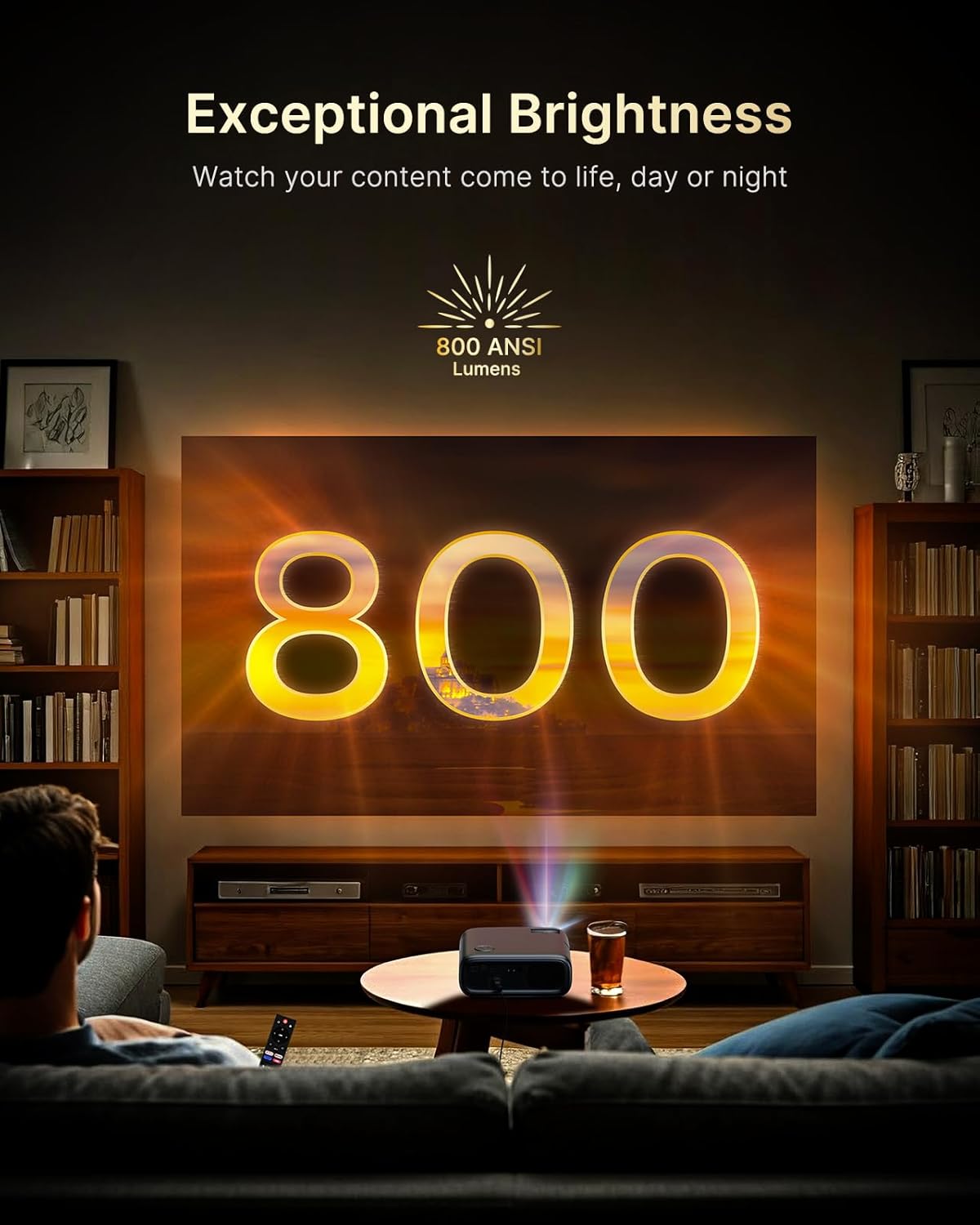
Figure 5.2: Keystone Correction and Zoom Options.
5.4 Sambungan Rangkaian
To access streaming services and screen mirroring, connect the projector to a Wi-Fi network:
- Navigasi ke menu 'Tetapan'.
- Pilih 'Rangkaian' atau 'Wi-Fi'.
- Pilih rangkaian Wi-Fi yang anda inginkan daripada senarai dan masukkan kata laluan.

Figure 5.3: Dual-Band Wi-Fi Connectivity.
5.5 Menyambung Peranti Luaran
The PJ40 Ultra offers various ports for connecting external devices:
- Port HDMI (HDMI 1, HDMI 2): Connect gaming consoles (PS5, Nintendo Switch), TV sticks, laptops, or other HDMI-enabled devices. HDMI 1 supports ARC & CEC, HDMI 2 supports CEC.
- Port USB: Connect USB flash drives or hard drives for media playback.
- Port Input AV: Connect older devices using the included AV cable.
- Bicu Audio 3.5mm: Sambungkan fon kepala atau pembesar suara luaran.

Rajah 5.4: Port Kesambungan.
6. Arahan Operasi
6.1 Remote Control Navigation
Use the included remote control to navigate the projector's interface. The remote allows you to power on/off, adjust volume, select input sources, and access settings and applications.
6.2 Aplikasi Penstriman
The projector comes with pre-installed and officially licensed applications:
- Netflix: Access your Netflix library directly.
- YouTube: Browse and watch videos from YouTube.
- Video Perdana: Stream content from Amazon Prime Video.
To use these apps, ensure the projector is connected to the internet and log in with your respective account credentials.

Figure 6.1: Officially Licensed Streaming Applications.
6.3 Pencerminan Skrin
The PJ40 Ultra supports wireless screen mirroring for various devices:
- Peranti iOS (AirPlay): Connect your iPhone or iPad to the same Wi-Fi network as the projector and use AirPlay to mirror your screen.
- Android Devices (Screen Mirror): Use the Screen Mirroring feature on your Android device to connect wirelessly.
- Windows Devices (Windows Cast): Utilize Windows Cast functionality for screen sharing from compatible Windows computers.
Note: Due to copyright restrictions, some streaming apps (e.g., Netflix, Amazon Prime, Hulu) may not support direct screen mirroring.
6.4 Tetapan Audio
The projector features built-in 20W speakers with DSP decoding for enhanced audio. You can also connect external audio devices:
- Sambungan Bluetooth: Pair Bluetooth speakers or headphones for a wireless audio experience.
- Bicu Audio 3.5mm: Sambungkan fon kepala berwayar atau pembesar suara luaran.

Figure 6.2: AI-Enhanced Surround Sound.
7. Penyelenggaraan
7.1 Membersihkan Lensa
Use the provided lens cleaning cloth to gently wipe the projector lens. Avoid using abrasive cleaners or materials that could scratch the lens surface.
7.2 Penyelenggaraan Penapis Udara
The projector includes an air filter to prevent dust accumulation. Periodically check and clean the air filter to maintain optimal performance and cooling. A spare air filter is included for replacement when necessary.
7.3 Penjagaan Am
- Simpan projektor di persekitaran yang bersih dan kering.
- When not in use, cover the lens with the protective cap.
- Avoid dropping or subjecting the projector to strong impacts.
8. Penyelesaian masalah
Isu dan Penyelesaian Biasa:
- Tiada Kuasa: Ensure the power adapter is securely connected to both the projector and a working power outlet. Try a different outlet.
- Tiada gambar:
- Periksa sama ada projektor dihidupkan.
- Sahkan bahawa sumber input telah dipilih dengan betul (cth., HDMI 1, HDMI 2).
- Ensure the connected device is powered on and outputting a signal.
- Imej Kabur: Adjust the focus wheel on the projector until the image is sharp. Check keystone correction settings.
- Tiada Bunyi:
- Tingkatkan kelantangan pada projektor dan peranti sumber yang disambungkan.
- Check if external speakers or headphones are properly connected or paired via Bluetooth.
- Pastikan tetapan output audio pada peranti sumber adalah betul.
- Isu Kesambungan Wi-Fi:
- Pastikan kata laluan Wi-Fi dimasukkan dengan betul.
- Restart the projector and your Wi-Fi router.
- Move the projector closer to the Wi-Fi router to improve signal strength.
- Projector Randomly Powers On: Some users have reported the projector powering on from standby mode unexpectedly. If this occurs, ensure the projector is fully powered off at the main power switch or unplugged when not in use to prevent unintended operation. Check for any available firmware updates that might address this behavior.
9. Spesifikasi
| Ciri | Spesifikasi |
|---|---|
| Jenama | NexiGo |
| Nombor Model | PJ40 Ultra |
| Dimensi Produk | 11.3 x 10.78 x 4.8 inci |
| Berat Barang | 7.99 paun |
| Resolusi Paparan | 1920 x 1080 (Native 1080p) |
| Kecerahan | 800 ANSI Lumen |
| Teknologi Ketersambungan | HDMI, USB, Wi-Fi |
| Ciri Khas | Official Netflix-Licensed, Built-in 20W Speaker, HDMI CEC Support, Wireless Screen Mirroring, Auto Keystone, 4K Support Input |
| Pengeluar | Nextight INC |
| Tarikh Mula-mula Tersedia | 2 Januari 2025 |
10. Waranti dan Sokongan
NexiGo is committed to customer satisfaction and provides comprehensive support for its products.
- Sokongan Pelanggan: 24-hour customer support is available.
- Polisi Pemulangan/Pertukaran: Enjoy a 30-day return or exchange period.
- Sokongan Teknikal: Sokongan teknikal seumur hidup disediakan untuk produk anda.

Figure 10.1: NexiGo Customer Support Information.
For further assistance or to contact support, please visit the official NexiGo webtapak atau rujuk maklumat hubungan yang diberikan bersama pembungkusan produk anda.


