1. Pengenalan
This manual provides comprehensive instructions for the installation, operation, maintenance, and troubleshooting of your Sapphire Pulse AMD Radeon RX 9070 Gaming graphics card. Please read this manual thoroughly before installing and using your new graphics card to ensure proper functionality and to maximize its performance and lifespan.
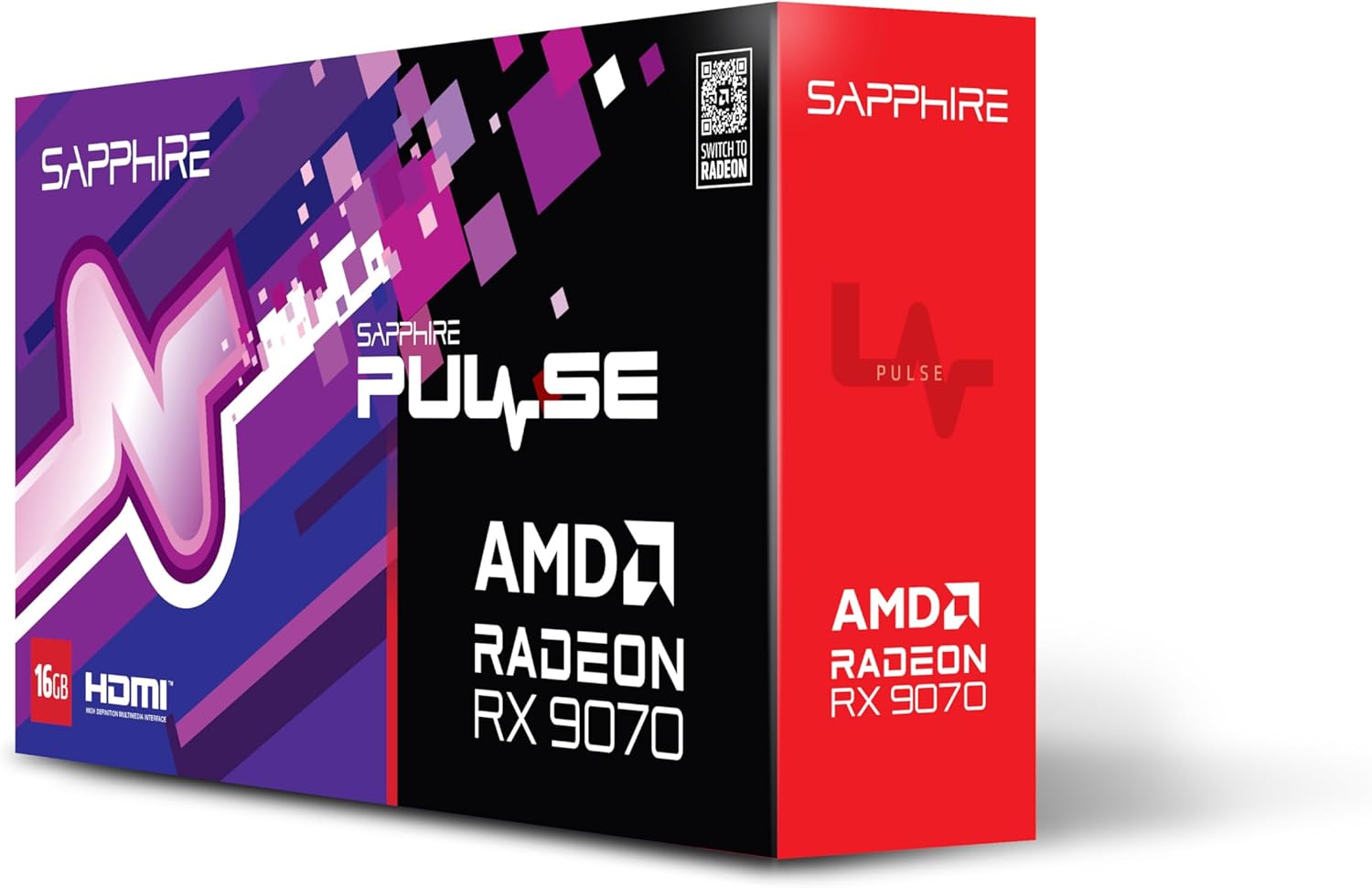
Imej 1.1: Depan view of the Sapphire Pulse AMD Radeon RX 9070 Gaming graphics card packaging, showcasing the product branding and model.
2. Kandungan Pakej
Verify that all items are present in your package. If any items are missing or damaged, please contact your retailer or Sapphire support.
- Sapphire Pulse AMD Radeon RX 9070 Gaming Graphics Card
- Quick Installation Guide or Documentation
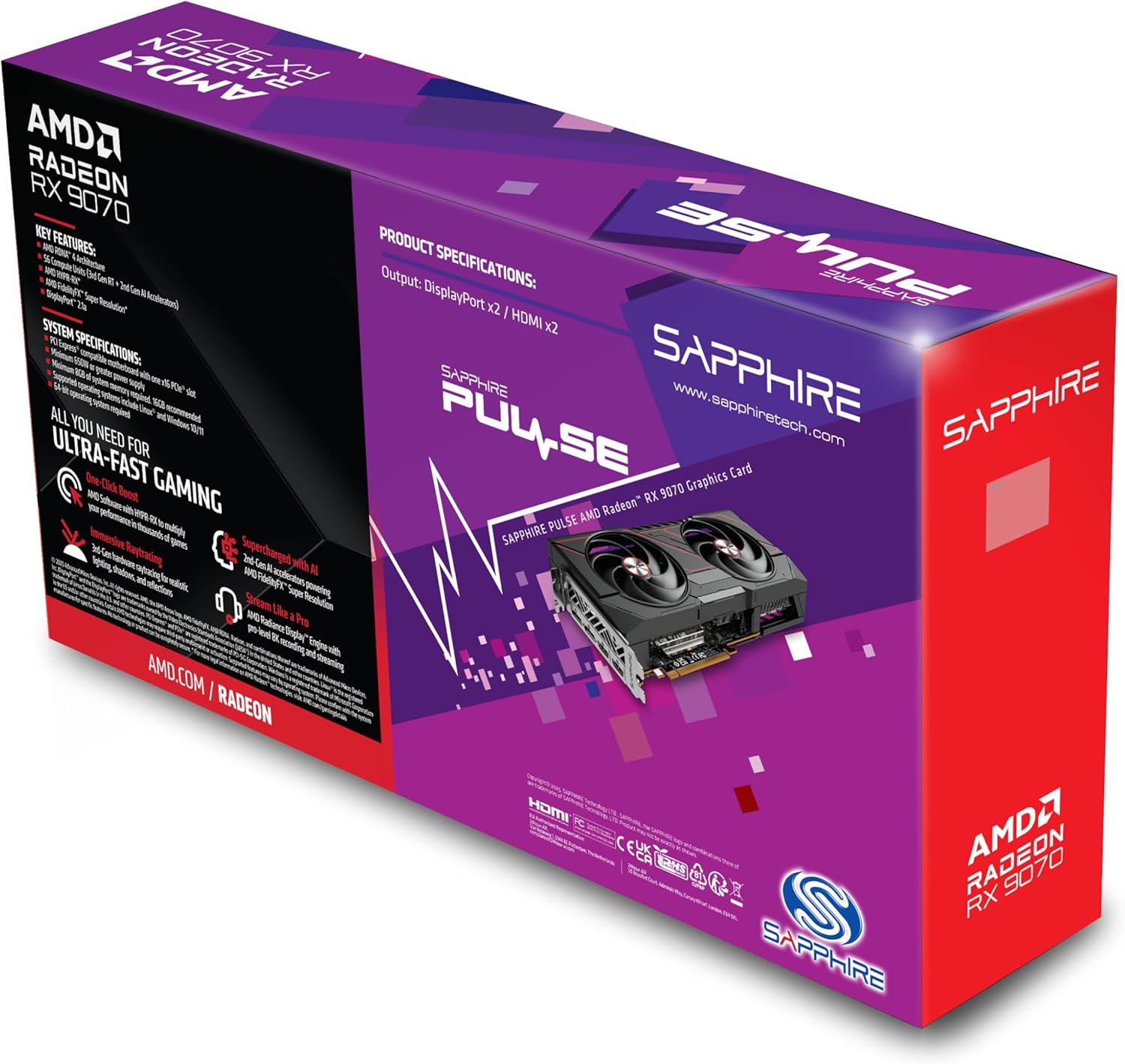
Imej 2.1: Belakang view of the Sapphire Pulse AMD Radeon RX 9070 Gaming graphics card packaging, displaying key features and specifications.
3. Keperluan Sistem
Sebelum memasang kad grafik, pastikan sistem anda memenuhi keperluan minimum berikut:
- PCI Express-compliant motherboard with one X16 graphics slot.
- Minimum 650W Power Supply Unit (PSU) with appropriate PCIe power connectors (e.g., 8-pin + 6-pin or dual 8-pin, depending on specific model). Refer to your PSU manual for details.
- Minimum 8GB System Memory (RAM); 16GB or more recommended for optimal performance.
- Sistem pengendalian: Windows 10/11 64-bit or Linux 64-bit.
- sambungan Internet for driver installation and updates.
- Paparkan monitor with DisplayPort or HDMI input.
4. Pemasangan
Follow these steps to install your Sapphire Pulse AMD Radeon RX 9070 Gaming graphics card:
- Sediakan Sistem Anda:
- Matikan komputer anda dan cabut kabel kuasa dari soket dinding.
- Buka bekas komputer anda.
- Ground yourself by touching a metal part of the case to discharge static electricity.
- Remove Existing Graphics Card (if applicable):
- Disconnect any power cables from the old graphics card.
- Unscrew the retaining screw(s) holding the card to the case.
- Carefully unlatch the PCIe slot retention clip and gently pull the old card straight out of the slot.
- Install the New Graphics Card:
- Cari slot PCI Express x16 yang tersedia pada papan induk anda.
- Remove the metal bracket cover(s) from the back of your computer case corresponding to the slot.
- Align the graphics card with the PCIe slot and press it firmly until it is fully seated and the retention clip locks into place.
- Secure the graphics card to the case with the retaining screw(s).
- Penting: This graphics card is substantial in weight. It is highly recommended to use a GPU support bracket to prevent sag and potential damage to the PCIe slot over time.
- Sambungkan Kabel Kuasa:
- Connect the appropriate PCIe power cables from your power supply to the power connectors on the graphics card. Ensure all connectors are securely attached.
- Tutup Kes dan Sambung Peranti:
- Tutup casing komputer anda.
- Sambungkan monitor anda ke output DisplayPort atau HDMI pada kad grafik.
- Reconnect the power cable to your computer and turn it on.
5. Pemasangan Pemandu
After physical installation, you need to install the latest drivers for your graphics card:
- Muat Turun Pemacu:
- Lawati AMD rasmi webtapak (www.amd.com/en/support) or the Sapphire support page (www.sapphiretech.com/en/support).
- Navigate to the driver download section and select your graphics card model (AMD Radeon RX 9070).
- Download the latest recommended drivers for your operating system.
- Pasang Pemacu:
- Run the downloaded driver installer.
- Follow the on-screen prompts to complete the installation. It is generally recommended to perform a "Clean Installation" to remove any previous driver remnants.
- Your screen may flicker or go black temporarily during the installation process. This is normal.
- Mulakan semula Sistem:
- Setelah pemasangan selesai, mulakan semula komputer anda.
- After restarting, your graphics card should be fully functional.
6. Mengendalikan Kad Grafik
Once installed and drivers are updated, your graphics card will automatically handle graphics processing for your system. You can further optimize its performance and settings using the AMD Radeon Software.
- AMD Radeon Software: This utility allows you to monitor performance, adjust game settings, manage display configurations (including FreeSync), and update drivers. Access it via the system tray icon or by right-clicking on your desktop.
- Sambungan Paparan: The card supports Dual HDMI and Dual DisplayPort outputs. Connect your monitors to the available ports. For multi-monitor setups, configure display arrangements within Windows Display Settings or AMD Radeon Software.
- Resolusi: The card supports a maximum screen resolution of 7680x4320. Ensure your monitor and cables support the desired resolution and refresh rate.
7. Penyelenggaraan
Proper maintenance helps ensure the longevity and optimal performance of your graphics card.
- Penyingkiran habuk: Periodically clean dust from the graphics card heatsink and fans using compressed air. Ensure the computer is powered off and unplugged before cleaning. Hold the fan blades gently to prevent over-spinning during cleaning.
- Aliran udara: Ensure your computer case has adequate airflow to prevent overheating. Keep cables tidy and ensure intake and exhaust fans are clear.
- Kemas Kini Pemandu: Regularly check for and install the latest graphics drivers from AMD or Sapphire to benefit from performance improvements, bug fixes, and new features.
8. Penyelesaian masalah
Jika anda menghadapi masalah dengan kad grafik anda, rujuk langkah penyelesaian masalah biasa berikut:
- Tiada Output Paparan:
- Ensure the monitor is connected to the graphics card, not the motherboard's integrated graphics port.
- Verify all power cables are securely connected to the graphics card and power supply.
- Letakkan semula kad grafik dalam slot PCIenya.
- Uji dengan kabel paparan atau monitor yang berbeza jika boleh.
- Ketidakstabilan atau Ranap Sistem:
- Pastikan unit bekalan kuasa (PSU) anda memenuhi had kuasa minimumtage keperluan.
- Lakukan pemasangan bersih pemacu grafik terkini.
- Monitor GPU temperatures using AMD Radeon Software to check for overheating.
- Check for BIOS/UEFI updates for your motherboard.
- Prestasi Lemah dalam Permainan/Aplikasi:
- Pastikan pemacu grafik terkini telah dipasang.
- Verify that the game/application is using the dedicated graphics card and not integrated graphics (if applicable).
- Semak tetapan dalam permainan; kurangkan resolusi atau kualiti grafik jika perlu.
- Monitor GPU utilization and temperatures to identify bottlenecks or thermal throttling.
- Bunyi Kipas:
- Kelajuan kipas yang tinggi adalah normal di bawah beban berat untuk mengekalkan suhu optimum.
- If fans are excessively loud at idle, check fan profiles in AMD Radeon Software.
- Ensure no cables or obstructions are interfering with fan rotation.
9. Spesifikasi
Key technical specifications for the Sapphire Pulse AMD Radeon RX 9070 Gaming graphics card:
| Ciri | Perincian |
|---|---|
| Nombor Model | 11349-03-20G |
| Pemproses bersama Grafik | AMD Radeon RX 9070 |
| Video Memory (RAM) | 16 GB GDDR6 |
| Kelajuan Memori | 950 MHz |
| Kekerapan Jam | 2520 MHz (as per card description) |
| Resolusi Skrin Maks | 7680x4320 |
| Antara Muka Keluaran Video | Dual DisplayPort, Dual HDMI |
| Dimensi Item (LxWxH) | 11.81 x 11.81 x 0.04 inci |
| Berat Barang | 2.99 paun |
| Pengeluar | nilam |
10. Waranti dan Sokongan
For warranty information, technical support, or service inquiries, please refer to the official Sapphire webtapak atau hubungi sokongan pelanggan mereka secara langsung.
- Sapphire Official Webtapak: www.sapphiretech.com
- Halaman Sokongan: www.sapphiretech.com/en/support
- Simpan bukti pembelian anda untuk tuntutan waranti.


