pengenalan
This manual provides detailed instructions for the AVerMedia Elite Go GC313PRO, a versatile device combining a 1080p60 HDMI video capture card, a 100W GaN USB-C fast charger, and a multi-port USB-C hub with 4K60Hz HDMI output. It is designed for users who require portable solutions for streaming, gaming, and charging multiple devices.
Kandungan Pakej
Sahkan bahawa semua item yang disenaraikan di bawah terdapat dalam pakej anda:
- AVerMedia GC313 ELITE GO USB-C Fast Charger (Capture Card) x1
- USB Type-C to Type-C Braided Cable (2m/6.56ft) x1
- Changeable AC Plug x1 (Region-specific)
- Quick Start Guide x1 (This document serves as the detailed user manual)

Image: The AVerMedia Elite Go GC313PRO unit, a USB-C to USB-C braided cable, and two interchangeable AC plugs (EU and UK types).
Produk Selesaiview
The AVerMedia Elite Go GC313PRO integrates multiple functionalities into a compact form factor:
- 1080p60 HDMI Video Capture: Record or stream Full HD video at 60 frames per second.
- 4-in-1 USB Charging Hub: Provides video output, charging, data transfer, and hardware expansion.
- 4K60Hz HDMI Output: Connect to external displays for high-resolution video.
- 100W GaN USB Charger: Efficiently power up to three devices simultaneously with overload protection.
- Keserasian Luas: Supports devices such as Nintendo Switch, ROG Ally, Steam Deck, MacBook Air/Pro, iPads, and iPhones.

Imej: Tamatview of the AVerMedia Elite Go GC313PRO's main features, including quick charging, GaN technology, video capture, protection, multi-device charging, and 4K HDMI display.
Persediaan
1. Sambungan Kuasa
- Select the appropriate AC plug for your region and attach it to the AVerMedia Elite Go GC313PRO.
- Pasangkan peranti ke soket dinding.
2. Connecting to a Source Device (e.g., Nintendo Switch, Steam Deck, Laptop)
Use the included USB Type-C to Type-C cable to connect your source device to the USB-C (Video Source) port on the GC313PRO.
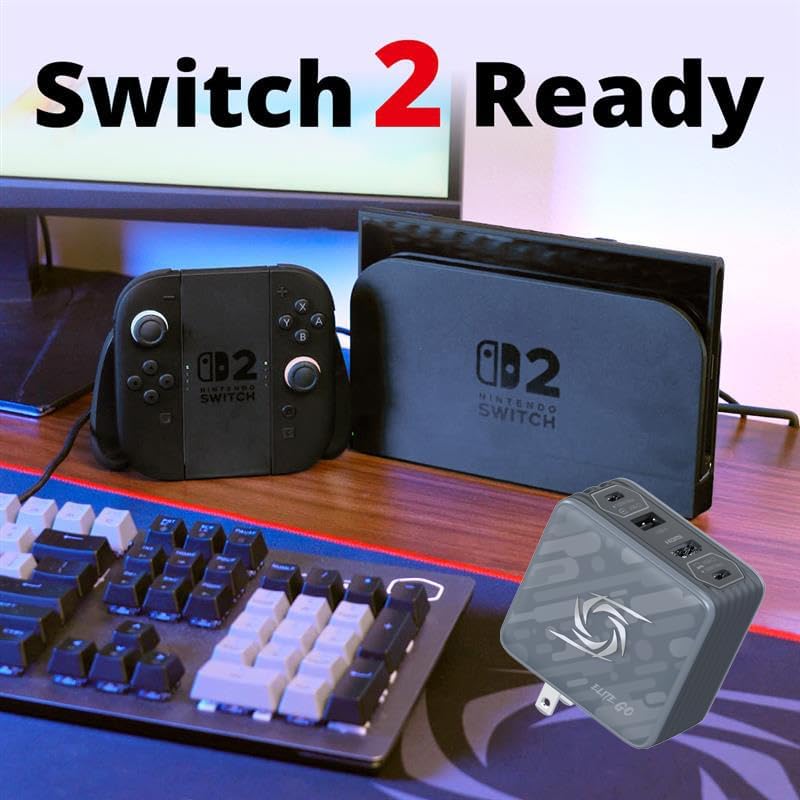
Image: The AVerMedia Elite Go GC313PRO positioned next to a Nintendo Switch 2 console and its dock, highlighting its compatibility.
3. Connecting to a Display (TV/Monitor)
Connect an HDMI cable (not included) from the HDMI output port on the GC313PRO to your TV or monitor. The device supports up to 4K60Hz output.
4. Connecting to a PC for Video Capture
To capture video, connect the GC313PRO to your computer using the USB-C (Video Capturing) port and the included USB Type-C to Type-C cable. Your computer will recognize the device as a webcam. Use compatible capture software (e.g., OBS Studio, VLC Media Player) to record or stream.

Image: A detailed diagram illustrating the various input and output connections of the AVerMedia Elite Go GC313PRO, including USB-C for video source, HDMI for monitors, USB-C for video capturing, and USB-A for peripherals.
5. Kemas Kini Perisian Tegar (Disyorkan)
For optimal performance and compatibility, especially with newer devices like the Nintendo Switch 2, it is recommended to update the device firmware. Firmware updates typically require a Windows PC. Refer to the AVerMedia official webtapak untuk perisian tegar terkini dan arahan kemas kini.
Arahan Operasi
Tangkapan Video
The GC313PRO captures video at 1080p resolution and 60 frames per second. Once connected to your PC via the USB-C (Video Capturing) port, open your preferred streaming or recording software. Select the GC313PRO as your video input device. Adjust settings within the software as needed for your desired output.
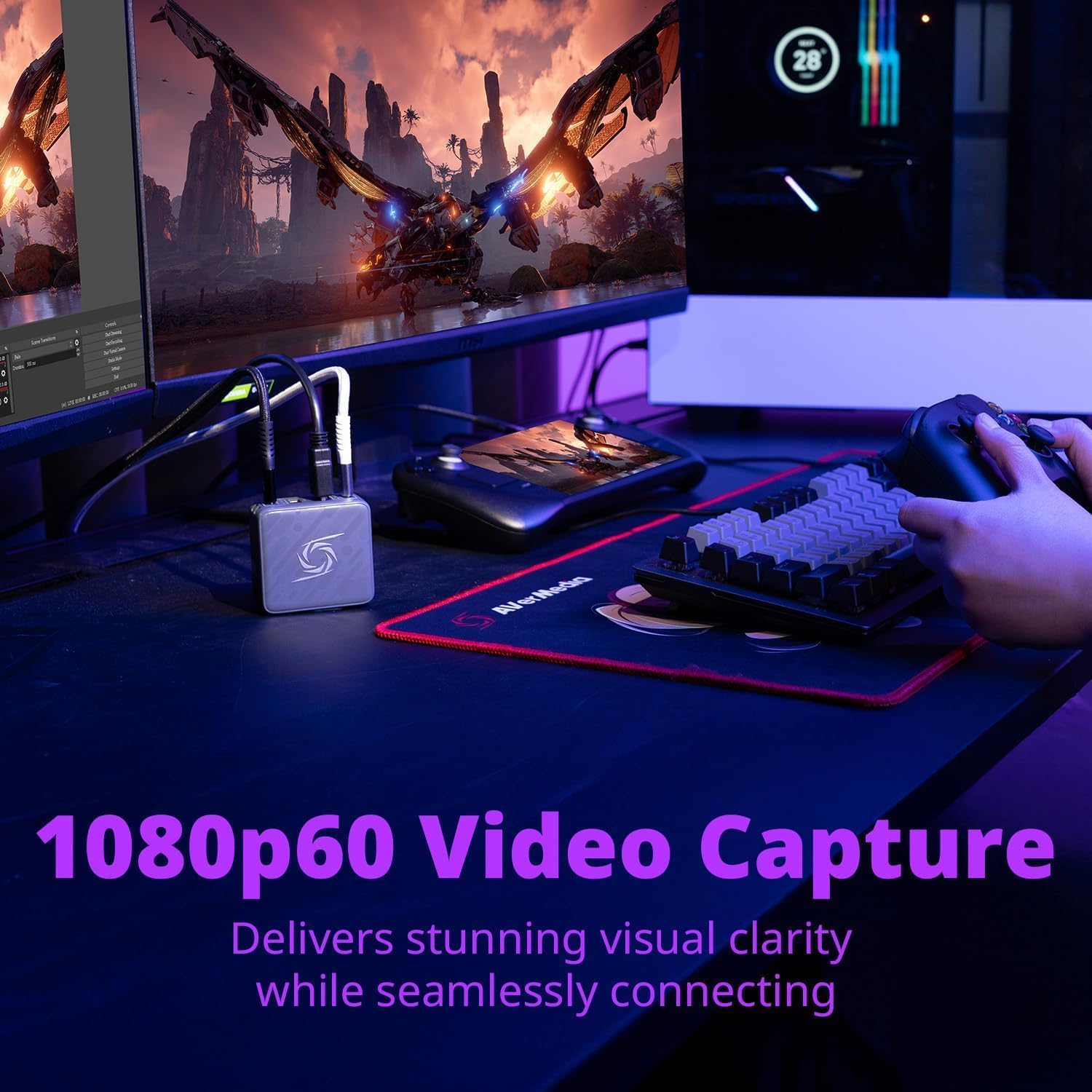
Image: A user playing a game on a handheld device, with the AVerMedia Elite Go GC313PRO connected to capture the gameplay to a laptop, demonstrating 1080p60 video capture.
Output HDMI
When connected to a compatible source device and an external display, the GC313PRO functions as a docking station, providing up to 4K60Hz HDMI output. This allows you to play games or view content from your handheld device or laptop on a larger screen.

Imej: Cthamples of the AVerMedia Elite Go GC313PRO providing HDMI 4K60 display for both handheld gaming and general entertainment on external monitors or TVs.
Fungsi Pengecasan
The 100W GaN charger supports fast charging for various devices. Power distribution varies based on the number of connected devices:
- Pengecasan Satu Port: One USB-C port can deliver up to 100W.
- Pengecasan Dua Port: Power is distributed, for example, 45W + 45W or 100W + 5W depending on the ports used.
- Pengecasan Tiga Port: Power is distributed, for example, 45W + 5W + 45W.
Refer to the 'Specifications' section for detailed power distribution diagrams.

Image: Fast charging capabilities of the AVerMedia Elite Go GC313PRO, showing devices like iPhone 16 Pro Max, iPad Pro 11, and Samsung S24 Ultra reaching 50% charge in 20-30 minutes.

Image: The AVerMedia Elite Go GC313PRO simultaneously charging a laptop, a tablet, and wireless earbuds, demonstrating its triple-device charging capability.
Fungsi Hab
The USB-A port supports connecting peripherals such as microphones, keyboards, mice, and USB drives for data transfer or control.
Penyelenggaraan
To ensure the longevity and optimal performance of your AVerMedia Elite Go GC313PRO:
- Pastikan peranti bersih dan bebas daripada habuk. Gunakan kain lembut dan kering untuk pembersihan.
- Elakkan daripada mendedahkan peranti kepada suhu yang melampau, kelembapan atau cahaya matahari langsung.
- Jangan cuba membuka atau membaiki peranti ini sendiri. Ini boleh membatalkan jaminan dan menyebabkan kerosakan.
- Ensure proper ventilation when in use, especially during prolonged operation or when charging multiple devices, as the unit may become warm.
Menyelesaikan masalah
No Video Output/Capture
- Semak Sambungan: Ensure all cables (USB-C, HDMI) are securely connected to the correct ports on the GC313PRO, source device, display, and PC.
- Bekalan Kuasa: Verify the GC313PRO is properly plugged into a working wall outlet.
- Source Device Settings: Confirm that your source device (e.g., Nintendo Switch) is configured to output video via USB-C/HDMI.
- Perisian PC: For capture, ensure your streaming/recording software recognizes the GC313PRO as a video input and that its settings are correct.
- Perisian tegar: Ensure the device firmware is up to date, especially for compatibility with newer consoles.
Isu Pengecasan
- Kualiti Kabel: Use the included USB-C cable or a high-quality, certified USB-C to USB-C cable that supports power delivery.
- Pengagihan Kuasa: Be aware that the 100W total power is shared across ports. If multiple devices are connected, the power to each device will be lower. Refer to the power output diagrams in the 'Specifications' section.
- Keserasian Peranti: Ensure your device supports USB Power Delivery (PD) for fast charging.
Device Becomes Warm During Use
It is normal for the GC313PRO to become warm during operation, especially when charging multiple devices or during video capture. The device includes over-heating protection. Ensure adequate ventilation and avoid covering the unit.

Image: An illustration of the safety features built into the AVerMedia Elite Go GC313PRO, including protection against overheating, short circuits, overcurrent, and over-voltage.
Spesifikasi
| Nombor Model | GC313 Pro |
| Jenama | AVerMedia |
| Dimensi | 7.56 x 4.69 x 2.91 inci |
| Berat Barang | 1.19 paun |
| Jenis Penyambung | USB Type A, USB Type C, HDMI |
| Jumlah Port USB | 3 (2x USB-C, 1x USB-A) |
| Input Voltage | 240 Volt |
| Amppemadam | 5 Amps |
| Resolusi Tangkapan Video | 1080p60 |
| Resolusi Output HDMI | Sehingga 4K60Hz |
| Ciri Khas | 1080p60 Video Capture, Fast Charging, Lightweight Design, Multi Device Charging, Short Circuit Protection |
| Peranti Serasi | Game Consoles (Nintendo Switch, ROG Ally, Steam Deck), Headphones, Monitors, PC, Tablets, Laptops, iPhones, iPads |
Power Output Distribution

Image: Visual representation of how the 100W power is distributed among the USB-C and USB-A ports when one, two, or three devices are connected simultaneously.
Waranti dan Sokongan
The AVerMedia Elite Go GC313PRO is manufactured by AVerMedia Technologies Inc.
For warranty information, technical support, driver downloads, and firmware updates, please visit the official AVerMedia webtapak atau hubungi sokongan pelanggan mereka secara langsung. Simpan resit pembelian anda untuk tuntutan waranti.
Pengeluar: AVerMedia Technologies Inc.


