1. Pengenalan
The Boogie Board Blackboard 2.0 Smart Scan Reusable Notebook offers an eco-friendly and efficient way to take notes. This LCD writing tablet provides a vibrant green writing experience on a dark display, designed to minimize paper waste and enhance productivity. Its smart features allow for easy digital storage of notes via a dedicated app, making it ideal for various settings from home offices to educational environments.
Ciri-ciri utama termasuk:
- Sustainable Note-Taking: Reusable LCD surface for vibrant green writing.
- Instant Digital Storage: Save notes as PDF or JPEG using the free Blackboard app.
- Focused Productivity: Designed for distraction-free note-taking.
- Always Ready for Use: No charging required, always on in dark mode.
- Travel-Ready Design: Integrated stylus lock-switch for secure transport.
2. Komponen Produk
Your Blackboard 2.0 package includes the following items:
- 1 x Blackboard 2.0 Smart Scan Reusable Notebook
- 1 x Digital Pen (Stylus)

Image: The Blackboard 2.0 Smart Scan Reusable Notebook with its accompanying digital pen.
3. Persediaan
The Blackboard 2.0 is designed for immediate use with minimal setup. No charging is required for the tablet itself, as it operates on a button cell battery with a long lifespan.
3.1 Stylus Placement
The digital pen (stylus) can be securely stored in the integrated magnetic stylus holder on the side of the notebook. Ensure the stylus is properly seated to prevent loss during transport.
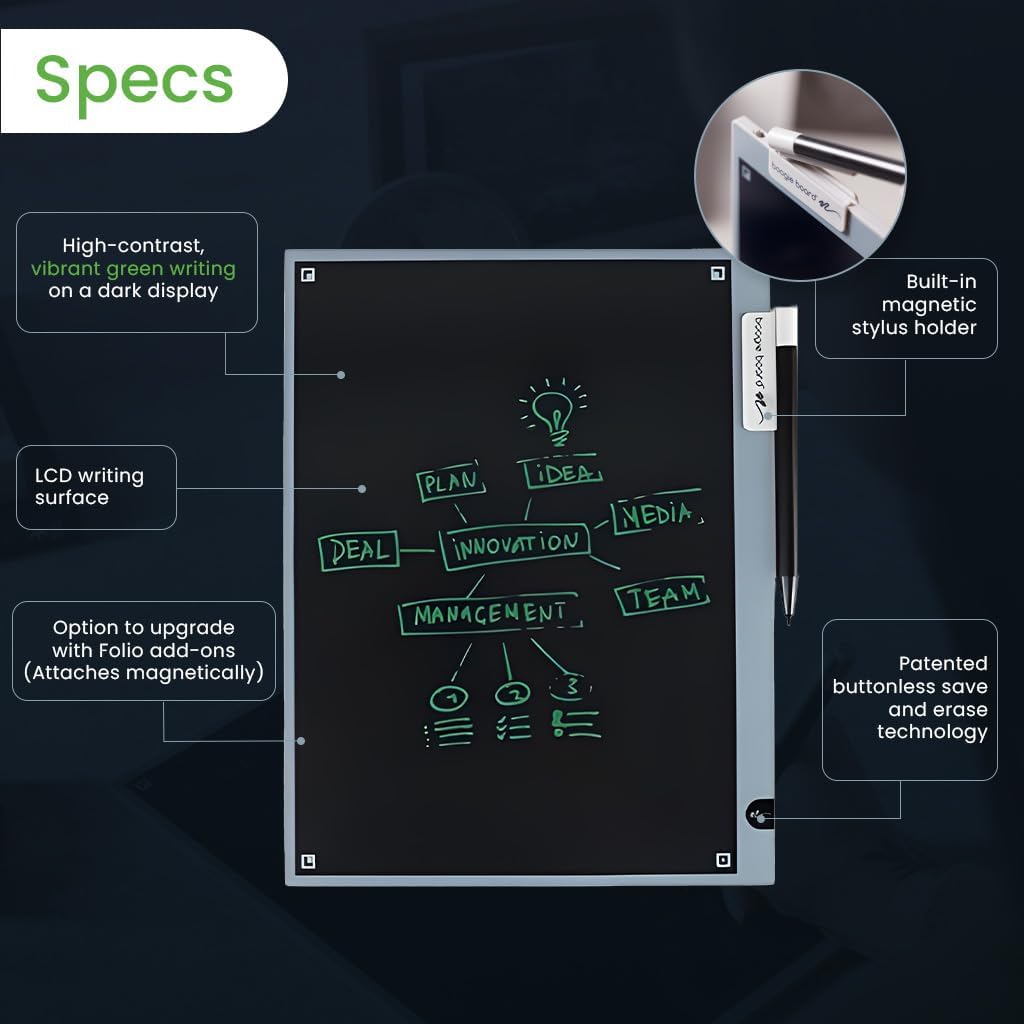
Image: Close-up of the Blackboard 2.0 highlighting the built-in magnetic stylus holder.
3.2 App Installation (Optional for Smart Scan)
To utilize the smart scan features, download the free Blackboard app from your device's app store. Follow the in-app instructions for pairing and initial setup.
4. Arahan Operasi
4.1 Writing on the Blackboard 2.0
Use the provided digital pen to write or draw directly on the LCD surface. The pressure-sensitive screen allows for varying line thickness based on how firmly you press the stylus.
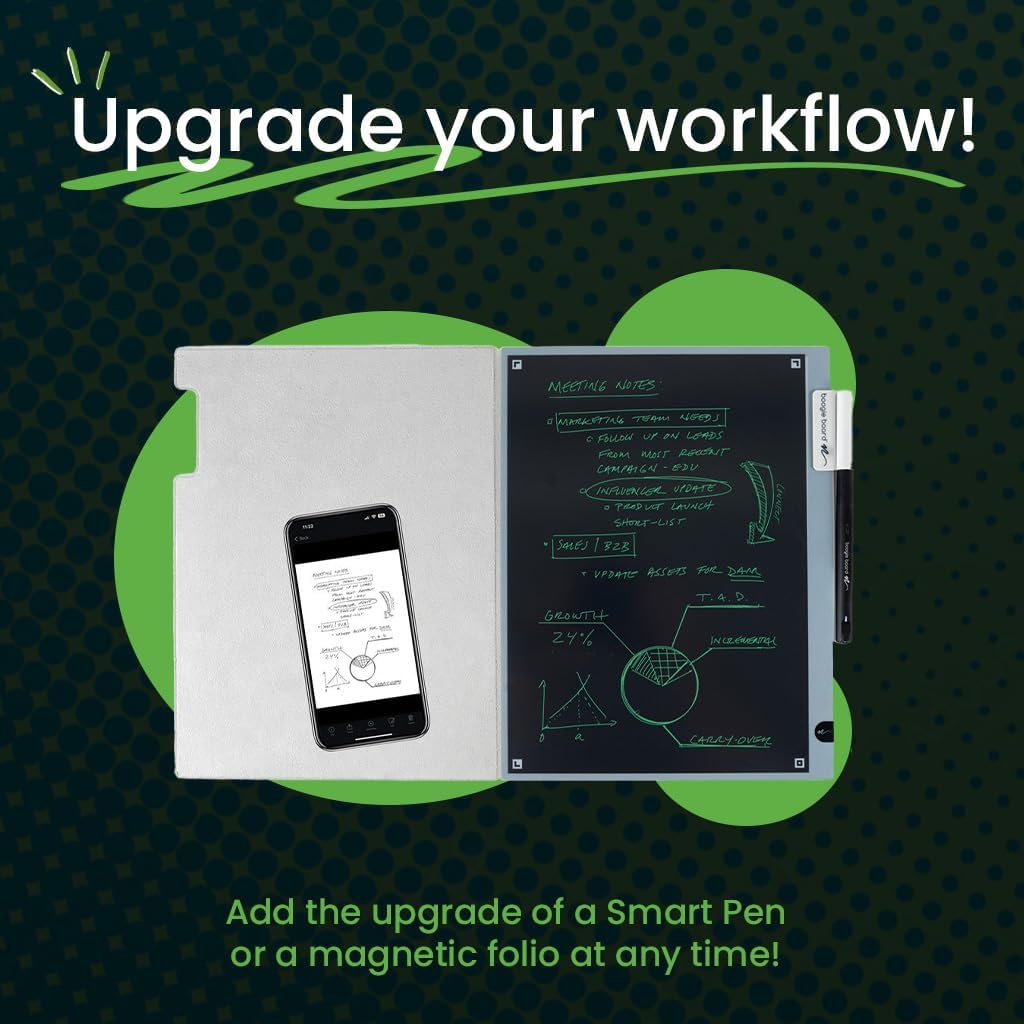
Image: A hand using the digital pen to write on the Blackboard 2.0's LCD surface.
4.2 Erasing Content
To erase the entire screen, tap the eraser-end of the stylus to the bottom right-hand corner of the tablet (marked with a small Boogie Board scribble). Alternatively, some models may feature a dedicated erase button on the side or bottom. The patented buttonless save and erase technology ensures a clean slate instantly.
Video: Demonstration of writing and one-click erasing on an LCD writing tablet. This video also shows the anti-delete lock button, magnetic pen storage, and battery replacement. It highlights the ease of use for quick notes and instant clearing of the screen.
4.3 Using the Stylus Lock-Switch
For travel or to prevent accidental erasure, engage the stylus lock-switch located on the side of the device. This will temporarily disable the erase function.
4.4 Smart Scan Functionality
Open the Blackboard app on your smartphone. Use the app's scanning feature to capture your notes. The app will automatically detect the edges of your Blackboard 2.0 and convert your handwritten notes into digital PDF or JPEG files. You can then organize, edit, and share your notes within the app.
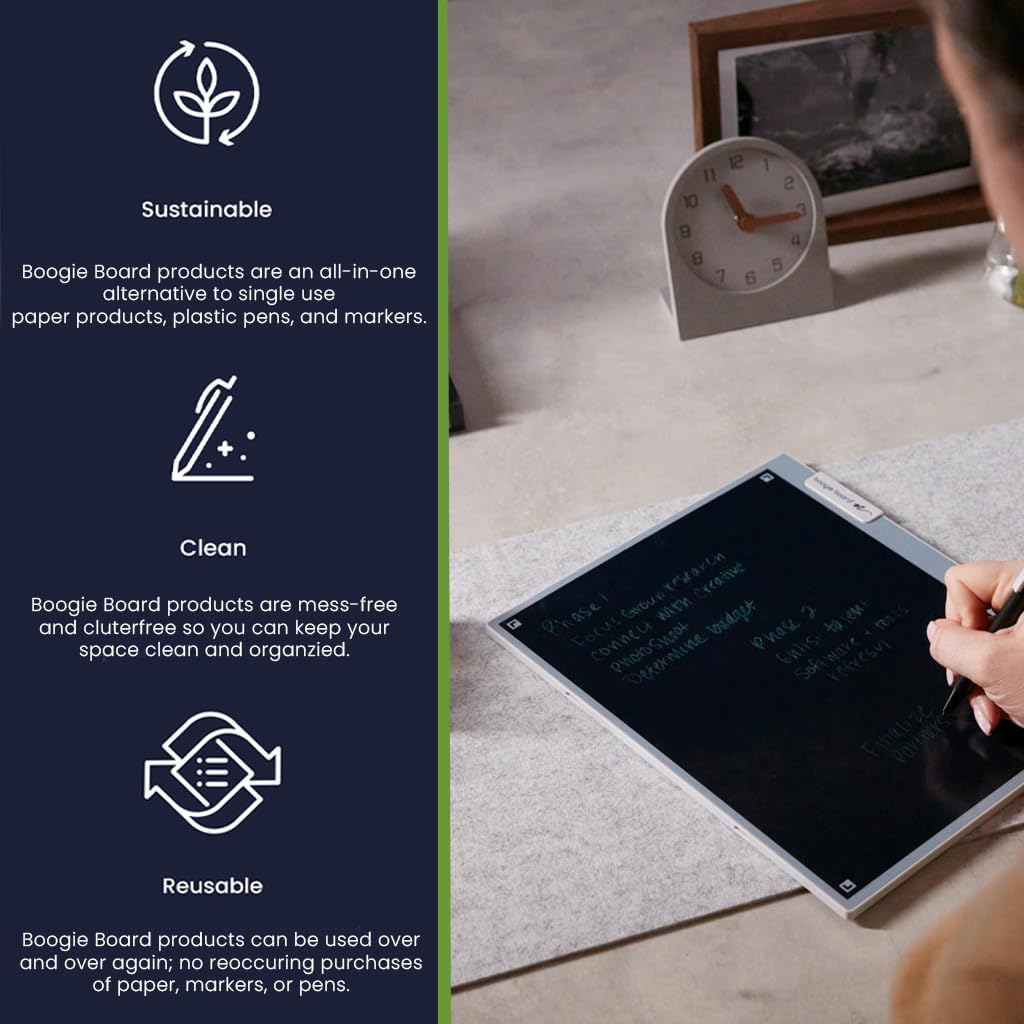
Image: A smartphone scanning notes from the Blackboard 2.0, demonstrating the digital storage feature.
5. Penyelenggaraan
5.1 Penggantian Bateri
The Blackboard 2.0 uses a replaceable CR2025 button cell battery. When the erase function becomes less effective, it may be time to replace the battery. Use a small screwdriver to open the battery compartment, replace the old battery with a new CR2025, and secure the compartment cover. Refer to the video in section 4.2 for a visual guide on battery replacement.
5.2 Membersihkan Skrin
To clean the LCD screen, use a soft, lint-free cloth. If necessary, slightly dampen the cloth with water or a mild, non-abrasive screen cleaner. Avoid harsh chemicals or abrasive materials that could damage the screen. The screen surface is designed to be resistant to water stains, as shown in the video in section 4.2.
6. Penyelesaian masalah
- Screen not erasing: Ensure the stylus lock-switch is in the unlocked position. If the issue persists, the battery may need replacement.
- Faint writing: This is normal for LCD writing tablets. The display is always on and does not require power to maintain an image. If writing is consistently too faint, ensure you are applying adequate pressure with the stylus.
- App not scanning correctly: Ensure good lighting conditions and that the entire Blackboard 2.0 is visible within your phone's camera frame. Clean the screen if there are smudges or glare.
- Accidental marks: Avoid resting your palm heavily on the screen while writing, as this can sometimes create unintended marks.
7. Spesifikasi
| Ciri | Perincian |
|---|---|
| Dimensi Produk | 12.33 x 10.32 x 0.75 inci |
| Berat Barang | 1.1 paun |
| Nombor Model Item | BD20160001 |
| Jenama | Papan Boogie |
| Teknologi Ketersambungan | Wi-Fi (for app features) |
| Sistem Operasi | Tablet Penulisan LCD |
| Ciri Khas | Extra-Slim, Magnetic Stylus Holder |
| Jenis Bateri | CR2025 (button cell) |

Image: Visual representation of the Blackboard 2.0 dimensions, showing 8.5 inches width, 11 inches height, and 13 inches diagonal.
8. Waranti dan Sokongan
For warranty information and customer support, please refer to the official Boogie Board webtapak atau hubungi perkhidmatan pelanggan mereka secara langsung. Simpan resit pembelian anda sebagai bukti pembelian.


