1. Pengenalan
This manual provides essential information for the safe and efficient use of your BenQ GW2791 27-inch Full HD 100Hz IPS Eye-Care Monitor. Please read it thoroughly before operating the device and retain it for future reference. The BenQ GW2791 is designed to deliver stunning visuals with advanced eye-care features for enhanced comfort during extended use.
2. Maklumat Keselamatan
- Sumber Kuasa: Use only the power adapter supplied with the monitor. Ensure the power outlet meets the specified voltage keperluan.
- Pengudaraan: Do not block ventilation openings. Maintain adequate space around the monitor for proper airflow to prevent overheating.
- penempatan: Place the monitor on a stable, flat surface. Avoid placing it in direct sunlight, near heat sources, or in environments with excessive dust or humidity.
- Pembersihan: Disconnect the power cord before cleaning. Use a soft, dry cloth to clean the screen and exterior. Avoid liquid cleaners or abrasive materials.
- Pengendalian: Kendalikan monitor dengan berhati-hati. Elakkan daripada menjatuhkan atau mendedahkannya kepada hentaman yang kuat.
- Pembongkaran: Jangan cuba membuka atau membaiki monitor sendiri. Rujuk semua servis kepada kakitangan servis yang berkelayakan.
3. Kandungan Pakej
Sahkan bahawa semua barang ada di dalam bungkusan. Jika terdapat barang yang hilang atau rosak, hubungi peruncit anda.
- Monitor BenQ GW2791
- Stand Monitor (Asas dan Leher)
- Kabel HDMI
- Penyesuai Kuasa
- Kord Kuasa
- Panduan Mula Pantas / Manual Pengguna
Video: Unboxing and First Impressions of the BenQ Eye Care Monitor. This video demonstrates the contents of the package and initial setup steps.
4. Persediaan
4.1 Memasang Stand Monitor
- Keluarkan komponen monitor dan berdiri dengan berhati-hati daripada pembungkusan.
- Attach the stand neck to the monitor panel by aligning the connectors and pressing firmly until it clicks into place.
- Pasangkan tapak penyangga pada leher penyangga. Kencangkannya dengan skru penahan yang terletak di bahagian bawah tapak.
- Letakkan monitor yang dipasang pada permukaan yang stabil dan rata.
Video: Demonstration of monitor stand assembly and initial power-on. This video illustrates the physical setup process.
4.2 Menyambung Kabel
- Connect the power cord to the power adapter, then connect the adapter to the monitor's power input. Plug the power cord into a wall outlet.
- Connect one end of the HDMI cable to the HDMI port on your computer and the other end to an available HDMI port on the monitor. Alternatively, use a DisplayPort cable for DisplayPort connections.
- If desired, connect external audio devices to the audio output port on the monitor.
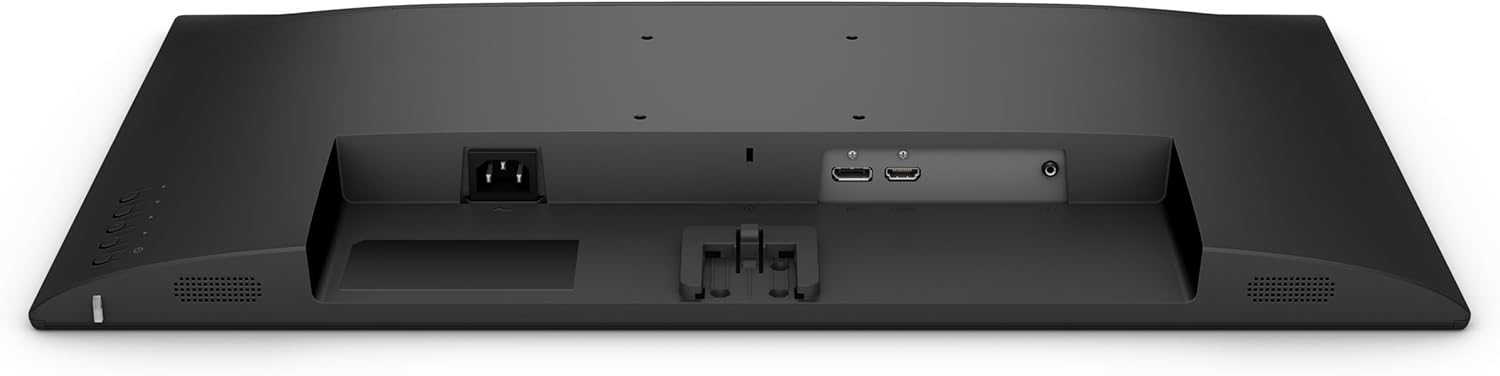
Imej: belakang view of the BenQ GW2791 monitor, highlighting the HDMI, DisplayPort, and power input connections.
5. Arahan Operasi
5.1 Hidupkan/Mati Kuasa
Tekan butang kuasa yang terletak di bahagian bawah kanan monitor untuk menghidupkan atau mematikannya. Lampu penunjuk kuasa akan menyala apabila monitor aktif.
5.2 Navigasi Menu Paparan Pada Skrin (OSD).
The OSD menu allows you to adjust various monitor settings. Use the joystick or buttons located on the bottom right of the monitor to navigate the menu:
- Tekan: Enter/Confirm selection.
- Atas bawah: Navigasi melalui pilihan menu.
- Kiri/Kanan: Adjust values or move between sub-menus.
5.3 Tetapan Utama
- Kecerahan/Kontras: Laraskan kecerahan dan kontras keseluruhan paparan.
- Mod Warna: Select from various preset color modes (e.g., Standard, Movie, ePaper, FPS) to optimize the display for different content types.
- Pemilihan Input: Manually switch between HDMI and DisplayPort inputs.
- Ciri-ciri Penjagaan Mata: Access and configure Flicker-Free, Low Blue Light Plus, and Eyesafe 2.0 settings.
6. Ciri Berakhirview
The BenQ GW2791 monitor incorporates several technologies to enhance visual quality and user comfort.
- Panel IPS: Provides accurate color and image reproduction with wide viewing angles (99% sRGB color space).
- Kadar Refresh 100Hz: Offers a smoother visual experience, reducing motion blur and improving responsiveness.
- Ultrathin Bezel Design: Minimizes distractions and allows for seamless multi-monitor setups.
- Mod eKertas: Optimizes display settings for reading, reducing eye strain during long sessions by simulating a paper-like appearance.
- TUV-Certified Eye-Care: Certified by TUV Rheinland for eye-friendly technologies.
- Teknologi Tanpa Kelipan: Menghilangkan kelipan skrin pada semua tahap kecerahan, mengurangkan keletihan mata.
- Cahaya Biru Rendah Plus: Filters out harmful blue-violet light while maintaining vivid colors, protecting your eyes from potential damage.
- Eyesafe 2.0: Ensures reduced blue light emission with vivid color retention.
- Perisian Eye-CareU: Integrated software for easy access and customization of eye-care features.

Imej: The BenQ GW2791 monitor showcasing its IPS panel, 99% sRGB color space, TUV certification, and Eye-Care features for stunning visuals.

Imej: Visual explanation of Low Blue Light Plus technology, demonstrating how it filters harmful blue-violet light to protect eyes.
7. Penyelenggaraan
- Pembersihan Skrin: Lap skrin perlahan-lahan dengan kain lembut yang tidak berbulu. Untuk tanda degil, ringankan dampen the cloth with water or a specialized screen cleaner (ensure it's alcohol-free) and wipe carefully.
- Pembersihan Luaran: Gunakan kain lembut dan kering untuk membersihkan monitor casing. Avoid harsh chemicals that may damage the finish.
- Storan: Apabila tidak digunakan untuk tempoh yang lama, simpan monitor di tempat yang sejuk dan kering, jauh dari cahaya matahari langsung dan suhu yang melampau.
8. Penyelesaian masalah
| Masalah | Kemungkinan Punca | Penyelesaian |
|---|---|---|
| Tiada gambar di skrin | Kabel kuasa diputuskan; Kabel video diputuskan; Input salah dipilih. | Pastikan kabel kuasa dan video disambungkan dengan selamat. Pilih sumber input yang betul melalui menu OSD. |
| Imej kabur atau herot | Resolusi yang salah; Kabel video longgar. | Set the display resolution to 1920x1080. Check video cable connection. |
| Skrin berkelip | Refresh rate issue; External interference. | Ensure refresh rate is set to 100Hz. Check for nearby electronic devices causing interference. |
| Tiada bunyi | Kabel audio terputus; Kelantangan terlalu rendah; Dibisukan. | Check audio cable connections. Adjust volume via OSD or connected device. Ensure not muted. |
9. Spesifikasi
| Ciri | Spesifikasi |
|---|---|
| Nama Model | GW2791 |
| Saiz Skrin | 27 Inci |
| Jenis Panel | IPS |
| Resolusi | 1920 x 1080 (FHD 1080p) |
| Kadar Segar Semula | 100Hz |
| Nisbah Aspek | 16:9 |
| Warna Gamut | 99% sRGB |
| Permukaan Skrin | Matte |
| Ketersambungan | HDMI, DisplayPort |
| Ciri Penjagaan Mata | TUV-Certified, Flicker-Free, Low Blue Light Plus, Eyesafe 2.0, Eye-CareU |
| Berat Barang | 12.14 paun |
| Dimensi Produk | 18 x 7 x 24 inci |
| warna | Hitam |
10. Waranti dan Sokongan
BenQ provides a limited warranty for its products. Please refer to the warranty card included in your package or visit the official BenQ webtapak untuk terma dan syarat waranti terperinci khusus untuk wilayah anda.
Untuk sokongan teknikal, pendaftaran produk atau pertanyaan perkhidmatan, sila lawati laman web Kedai BenQ di Amazon or the official BenQ support webtapak.


