1. Pengenalan
This manual provides detailed instructions for the Elitech RC-5+ and LogEt5T Digital USB Temperature Data Loggers. These devices are designed for reliable temperature monitoring in various applications, including cold chain logistics, pharmaceuticals, and food storage. Please read this manual thoroughly before operating the device to ensure proper usage and optimal performance.
2. Produk Lebihview
The Elitech RC-5+ and LogEt5T are advanced digital temperature data loggers that offer precise temperature measurement and convenient data reporting. Both models feature a built-in USB port for direct connection to a computer, enabling automatic PDF and Excel report generation without the need for specialized software.
2.1 Elitech RC-5+
The RC-5+ is a versatile PDF USB temperature data logger suitable for general temperature monitoring. It features a clear LCD display and simple button controls for starting and stopping data logging.
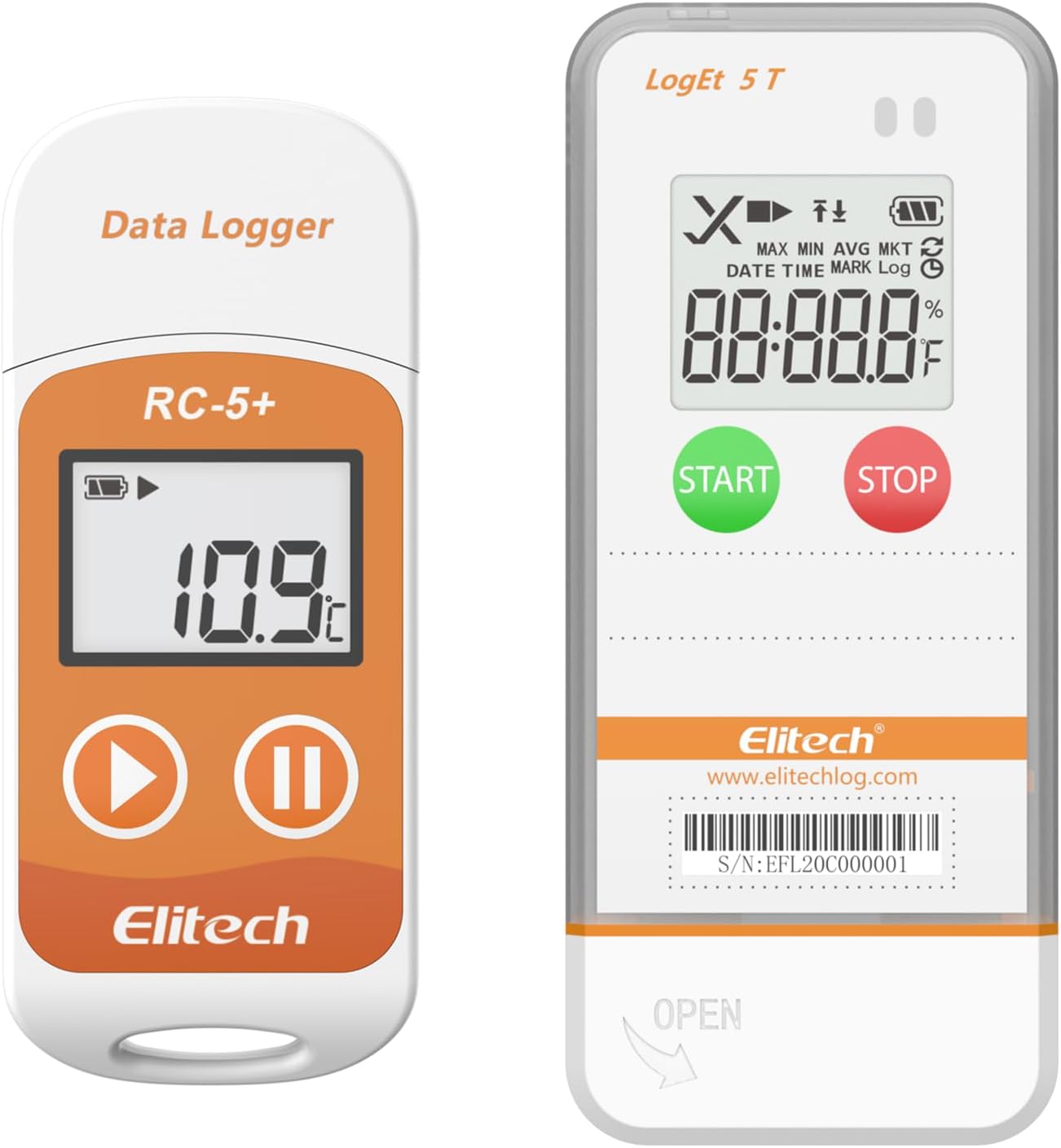
Image: Elitech RC-5+ (left) and LogEt5T (right) Digital USB Temperature Data Loggers.
2.2 Elitech LogEt5T
The LogEt5T is a digital USB temperature data logger designed for applications requiring higher accuracy and compliance with standards like FDA 21 CFR Part 11. It offers a detailed LCD screen displaying various data points and intuitive start/stop buttons.

Image: Elitech LogEt5T Data Logger with its internal sensor, LCD screen, buttons, and USB port labeled.
- ① Internal Sensor: Mengukur suhu ambien.
- ② LCD Screen: Displays current readings and status.
- ③ Button: Used for operation (Start/Stop/Mark).
- ④ USB Port: For data export and configuration.
- ⑤ External Sensor (Optional): For remote temperature measurement (not shown in this specific image, but part of the LogEt5T component diagram).
3. Ciri-ciri Utama
- Wide Temperature Measuring Range: Both models operate within -30°C to +70°C (-22°F to 158°F).
- Ketepatan Tinggi: LogEt5T offers ±0.1°C/±0.1°F, while RC-5+ offers ±0.9°F.
- Visualisasi Data: LCD screens display current, maximum, minimum, average, MKT values, date, time, and logging status.
- Parameter Settable: Customize temperature unit, alarm range, and logging interval.
- Automatic PDF/Excel Report: Generate reports directly upon USB connection to PC or Android phone, no software required for basic reports.
- Pasang dan Main USB: Easy data export and device configuration.
- Large Capacity Data Storage: Up to 32,000 data points. Data can be cleared and reused.
- Ketahanan: RC-5+ is IP67 rated, LogEt5T is IP65 rated, providing protection against dust and water ingress.

Image: Illustration of the 32,000 data point storage capacity of the LogEt5T data logger.
4. Persediaan
4.1 Pemeriksaan Awal
Upon receiving your data logger, inspect the packaging and device for any signs of damage. Ensure all included components, such as the data logger, calibration certificate, and user manual, are present.
4.2 Pemasangan Perisian (Pilihan untuk Ciri Lanjutan)
While basic PDF/Excel reports do not require software, for advanced functions such as detailed parameter settings, data query, chart comparison, and email backup, download the Elitechlog software from the official Elitech webtapak (www.elitechlog.com).
5. Operasi
5.1 Starting a Log
To begin recording temperature data, press and hold the MULAKAN button (LogEt5T) or the Main / Mulakan button (RC-5+) until the logging indicator appears on the LCD screen. The device will then start recording data at the preset interval.
5.2 Stopping a Log
Untuk berhenti merakam, tekan dan tahan BERHENTI button (LogEt5T) or the Jeda / Berhenti button (RC-5+) until the logging indicator disappears. The device will save the recorded data.
5.3 Viewing Data on LCD Screen
The LCD screen provides real-time information and recorded data summaries. Press the MULAKAN button (LogEt5T) or the Main / Mulakan button (RC-5+) briefly to cycle through displayed values such as current temperature, maximum, minimum, average, MKT, date, and time.

Image: Elitech LogEt5T LCD screen showing functions like MAX/MIN/AVG/MKT, DATE/TIME/MARK/Log, Over limit Alarm, Device Status, Battery Level, and Displayed Value.
5.4 Switching Temperature Units
To switch between Celsius (°C) and Fahrenheit (°F), connect the data logger to a computer and use the Elitechlog software, or refer to the device-specific instructions for direct unit switching if available.
6. Pengurusan Data
6.1 Menyambung ke Komputer
Remove the protective cap from the USB port and plug the data logger directly into a USB port on your PC or Android phone. The device will be recognized as a removable storage device.

Image: Elitech LogEt5T data logger connected to a laptop via its USB port, illustrating the plug-and-play functionality for data export.
6.2 Automatic Report Generation
Upon successful connection, the data logger will automatically generate a PDF report and an Excel (CSV) file containing the recorded temperature data. These files can be accessed and saved directly from the device's storage.

Image: Elitech LogEt5T demonstrating "Shadow Data" feature, passively recording data to ensure integrity, alongside a sample data report showing device and shipment information, configuration, and logging summary.
6.3 Using Elitechlog Software
The Elitechlog software provides enhanced data management capabilities:
- Data Query & Storage: View and store historical data.
- Chart Comparison: Compare data from multiple devices.
- Tetapan Parameter: Configure logging intervals, alarm thresholds, and other device parameters.
- Email Backup: Send data reports via email.
- FDA 21 CFR Part 11 Compliance: For LogEt5T, the software supports compliance requirements.
- Eksport Data: Export data in various formats (PDF, Excel).

Image: Diagram illustrating the features of Elitechlog software, including data query & storage, chart comparison, settable alarm range, FDA 21 CFR Part 11 compliance, data graph visibility, email backup, and temperature unit switch.
7. Penyelenggaraan
7.1 Pembersihan
Lap peranti dengan lembut, damp cloth. Do not use abrasive cleaners or immerse the device in water, despite its IP rating, to prevent potential damage to the USB port or internal components.
7.2 Persekitaran Operasi
Operate the data logger within its specified temperature range of -22°F to 158°F (-30°C to 70°C) to ensure accurate readings and prevent damage to the device. Avoid extreme temperatures, direct sunlight, and high humidity.
8. Penyelesaian masalah
- Device Not Starting: Ensure the battery is charged or the device is connected to a power source (USB). Press and hold the start button for the required duration.
- No Data Report Generated: Verify the device is properly connected to the USB port. Try a different USB port or computer. Ensure the logging process was started and stopped correctly.
- Bacaan Tidak Tepat: Check if the device is operating within its specified temperature range. Ensure the sensor is not obstructed. Recalibration may be required if persistent issues occur.
- Perisian Tidak Mengecam Peranti: Ensure Elitechlog software is installed correctly. Try restarting the software and reconnecting the device. Check for driver updates if necessary.
9. Spesifikasi
9.1 Elitech RC-5+

Image: Elitech RC-5+ data logger with its detailed specifications.
| Ciri | Spesifikasi |
|---|---|
| Julat Pengukuran Suhu | -30°C ~ +70°C (-22°F ~ 158°F) |
| Ketepatan Suhu | ±0.5°C / ±0.9°F (-20°C ~ +40°C); ±1°C / ±1.8°F (others) |
| Resolusi | 0.1 ° C / ° F |
| Kapasiti Data | 32,000 points (Max) |
| Kelas Perlindungan | IP67 |
| Ketersambungan | USB |
| Format Laporan | PDF, Excel (CSV) |
9.2 Elitech LogEt5T

Image: Elitech LogEt5T data logger with its detailed specifications.
| Ciri | Spesifikasi |
|---|---|
| Julat Pengukuran Suhu | -30°C ~ +70°C (-22°F ~ 158°F) |
| Ketepatan Suhu | ±0.5°C (-20~40°C); ±0.1°C (-100~150°C); ±2°C (others) |
| Resolusi | 0.1 ° C / ° F |
| Kapasiti Data | 32,000 points (Max) |
| Kelas Perlindungan | IP65 |
| Saiz | 97mm x 43mm x 12.5mm |
| Ketersambungan | USB |
| Format Laporan | PDF, Excel (CSV) |
| Pematuhan | FDA 21 CFR Part 11 |
10. Waranti dan Sokongan
Your Elitech data logger comes with a calibration certificate and a user manual. For warranty information, technical support, or service inquiries, please visit the official Elitech website or contact Elitech customer service directly. Retain your purchase receipt for warranty validation.
rasmi Webtapak: www.elitechlog.com


