1. Pengenalan
This manual provides detailed instructions for the safe and efficient use of your Phomemo A30 Thermal Transfer Label Printer. Please read this manual thoroughly before operating the device and retain it for future reference.
Produk Selesaiview
The Phomemo A30 is a compact, portable thermal transfer label printer designed for various labeling needs. It connects wirelessly via Bluetooth to smartphones and tablets, offering ink-free printing with customizable designs.

Image 1.1: The Phomemo A30 Label Printer, showcasing its design and various label outputs.
Ciri-ciri Utama
- Thermal Transfer Printing: Utilizes thermal transfer technology for durable, ink-free labels.
- Kesambungan Bluetooth: Seamless wireless connection to compatible smart devices.
- Reka Bentuk Mudah Alih: Compact and lightweight for easy transport and use.
- Bateri boleh dicas semula: Built-in 1200mAh battery for cordless operation.
- Label Tahan Lama: Labels are resistant to water, oil, and abrasion, suitable for indoor and outdoor use.
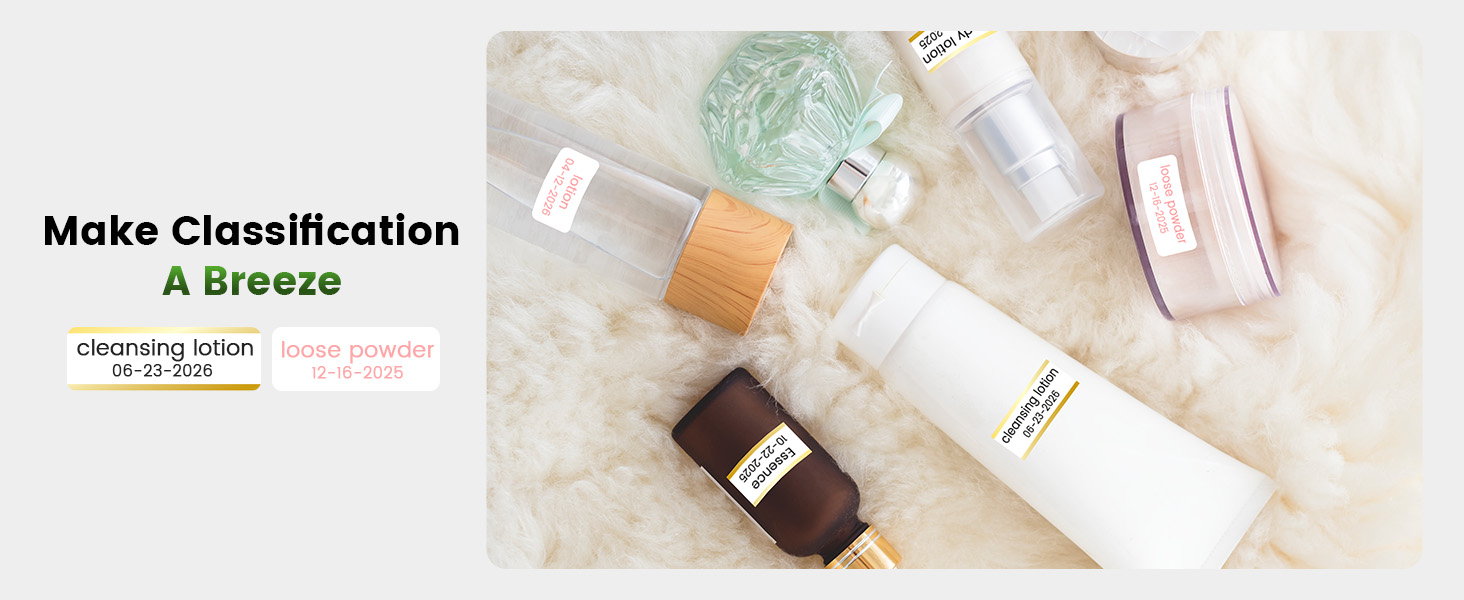
- Versatile Label Types: Supports pre-cut, continuous, patterned, magnetic, fabric iron-on, glitter, and luminous labels.
- Penyepaduan Apl Pintar: Features the 'Print Master' app with extensive customization options, including fonts, symbols, and templates.
2. Persediaan
2.1 Membuka Kotak dan Kandungan Pakej
Keluarkan semua barang dari kotak dengan berhati-hati. Pastikan komponen berikut ada:
- Phomemo A30 Label Printer
- Roll Paper for Printer (pre-installed or separate)
- Manual Pengguna (dokumen ini)
- Kabel USB (Jenis-C)
2.2 Mengecas Pencetak
Before first use, fully charge the printer. Connect the provided USB Type-C cable to the printer's charging port and a compatible USB power adapter (not included). The indicator light will show charging status.
2.3 Pemasangan Aplikasi
The Phomemo A30 operates via the 'Print Master' application. Download the app from your device's app store (iOS or Android) or scan the QR code provided in the quick start guide (if applicable).
2.4 Berpasangan Bluetooth
- Pastikan pencetak dihidupkan.
- Dayakan Bluetooth pada telefon pintar atau tablet anda.
- Buka aplikasi 'Print Master'.
- Within the app, search for available devices and select 'Phomemo A30' to connect. The app will indicate a successful connection.

Image 2.1: The Phomemo A30 printer demonstrating intelligent connectivity with a smartphone and laptop.
2.5 Loading Label Cartridge
The A30 printer uses label cartridges. Open the printer cover, insert the label cartridge according to the directional indicators, and ensure it clicks into place. Close the cover. The printer automatically recognizes compatible consumables within the supported size of 12mm (0.47 inch) width.
3. Arahan Operasi
3.1 Hidupkan/Mati Kuasa
- Hidupkan kuasa: Tekan dan tahan butang kuasa sehingga lampu penunjuk menyala.
- Matikan: Tekan dan tahan butang kuasa sehingga lampu penunjuk padam.
3.2 Using the 'Print Master' App
The 'Print Master' app is your primary interface for creating and printing labels. It offers a wide range of customization options:
- Input Teks: Enter desired text for your labels.
- Fonts & Styles: Choose from over 200 built-in fonts and adjust size, bold, italic, etc.
- Symbols & Icons: Access over 600 symbols to enhance your labels.
- templat: Utilize 200+ border templates and various pre-designed label templates for quick creation.
- QR Codes & Barcodes: Generate and print QR codes or barcodes directly from the app.
- Images & Timestamps: Insert images or add timestamps kepada label anda.

Image 3.1: The 'Print Master' app interface, illustrating the extensive customization options available.
3.3 Proses Mencetak
- Design your label within the 'Print Master' app.
- Ensure the printer is connected via Bluetooth.
- Tap the 'Print' button in the app.
- The printer will feed and print the label.
3.4 Menggunakan Pemotong Terbina Dalam
After printing, use the integrated paper cutter to cleanly separate the label from the roll. Slide the cutter lever across the label exit slot to achieve a straight edge.
3.5 Supported Label Types and Applications
The A30 supports a wide range of label types, expanding its utility:
- Pre-cut/Continuous Labels: Standard labels for general use.
- Patterned Labels: Labels with decorative designs.
- Refrigerator Magnetic Labels: For organizing items on magnetic surfaces.
- Fabric Iron-on Labels: For clothing and textile identification.
- Glitter Labels: For decorative purposes.
- Luminous Labels: Labels that glow in the dark for visibility in low light.

Image 3.2: The Phomemo A30 printer customizing gift ribbons with personalized content.
Imej 3.3: Cthample of magnetically sticking labels on a refrigerator for organization.
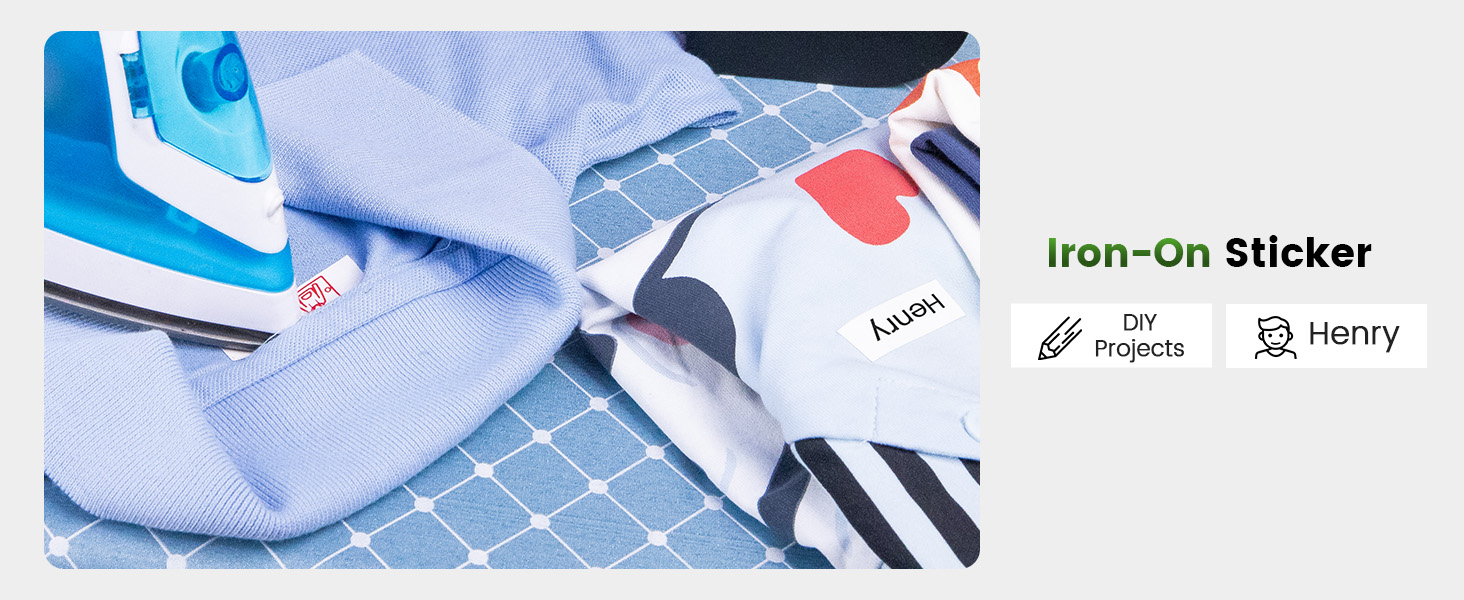
Image 3.4: Luminous labels applied to light switches for easy identification in the dark.

Image 3.5: An iron-on sticker being applied to clothing, demonstrating its use for fabric labeling.
4. Penyelenggaraan
4.1 Membersihkan Kepala Pencetak
Untuk memastikan kualiti cetakan yang optimum, bersihkan kepala cetakan terma secara berkala. Gunakan kain lembut dan bebas bulu dengan lembutampened with isopropyl alcohol. Gently wipe the print head surface. Ensure the printer is off and cool before cleaning.
4.2 Penjagaan Bateri
- Elakkan menyahcas sepenuhnya bateri dengan kerap.
- Cas pencetak secara berkala, walaupun tidak digunakan, untuk mengekalkan kesihatan bateri.
- Do not expose the printer to extreme temperatures, as this can affect battery life.
4.3 Penyimpanan
Store the printer in a cool, dry place away from direct sunlight and excessive dust. If storing for an extended period, ensure the battery is partially charged (around 50%) and recharge every few months.
5. Penyelesaian masalah
This section addresses common issues you might encounter with your Phomemo A30 printer.
| Masalah | Kemungkinan Punca | Penyelesaian |
|---|---|---|
| Pencetak tidak dapat dihidupkan | Bateri lemah; Butang kuasa tidak ditekan dengan betul | Charge the printer; Press and hold the power button firmly. |
| Tidak dapat menyambung melalui Bluetooth | Bluetooth off on device; Printer not in pairing mode; App issue | Ensure Bluetooth is enabled; Restart printer and app; Try pairing again. |
| Kualiti cetakan buruk (samar, kabur) | Kepala cetak kotor; Jenis label salah; Bateri lemah | Clean the print head (see Section 4.1); Ensure correct thermal transfer labels are used; Charge the printer. |
| Label tidak memberi makan dengan betul | Label cartridge improperly installed; Label jam | Reinstall the label cartridge; Open cover and clear any jammed labels. |
| App features require subscription | Some advanced templates/features are premium | Utilize free features or consider purchasing a subscription if desired. |
If the issue persists, please refer to the 'Print Master' app's help section or contact Phomemo customer support.
6. Spesifikasi
| Ciri | Perincian |
|---|---|
| Jenama | Phomemo |
| Nama Model | A30 (M836) |
| Teknologi Percetakan | Pemindahan Terma |
| Teknologi Ketersambungan | Bluetooth |
| Antara Muka Perkakasan | USB Jenis C |
| Output Pencetak | Monokrom |
| Monokrom Kelajuan Cetakan Maks | 5 ppm |
| Resolusi Cetakan Hitam dan Putih Maks | 203 dpi |
| Peranti Serasi | Telefon Pintar, Tablet (Android, iOS) |
| Saiz Media Maks | 15mm |
| Saiz Helaian | 14 milimeter |
| Jenis Dakwat Pencetak | No Ink (Thermal Transfer) |
| Bateri | 1 Bateri diperlukan (termasuk) |
| Dimensi Produk | 8.27 x 1.85 x 2.56 inci |
| Berat Barang | 5.6 auns (160 Gram) |
| Komponen yang Disertakan | Label Printer, Roll Paper for Printer, User Manual, USB Cable |
7. Waranti dan Sokongan
7.1 Maklumat Waranti
The Phomemo A30 Thermal Transfer Label Printer comes with a limited warranty. Please refer to the warranty card included in your package or the official Phomemo webtapak untuk terma dan syarat khusus mengenai perlindungan dan tempoh waranti.
7.2 Sokongan Pelanggan
For technical assistance, troubleshooting not covered in this manual, or warranty claims, please contact Phomemo customer support through their official webtapak atau maklumat hubungan yang diberikan bersama dokumentasi produk anda.


