1. Pengenalan
The Lemorele AC05 Video Capture Card is a versatile device designed for high-quality video recording and live streaming. It supports 1080P at 60Hz output and features USB-C connectivity with 5Gbps USB 3.0 data transfer and 100W Power Delivery charging. This manual provides detailed instructions for setup, operation, and troubleshooting to ensure optimal performance.

Image 1: The Lemorele AC05 Video Capture Card.
2. Ciri-ciri Produk
- 1080P 60Hz Video Recording: Provides 1080P 30fps high-quality recording and live broadcasting. Ideal for recording, editing, and streaming games at 1080P@30fps on platforms like OBS, AMCap, Xsplit, and VCL.
- Steam Deck Dock Replacement: Constructed from wear-resistant ABS material, this capture card also functions as a portable dock for the Steam Deck. Its small and lightweight design allows for easy transport.
- Multiple Functions and Ports: Features HDMI, USB 3.0, and 100W Power Delivery charging ports. Supports 1080P video output compatible with most HDTVs, monitors, and projectors. USB 3.0 offers data transfer speeds up to 5Gbps.
- USB Type-C Compatibility: Supports USB Type-C devices such as Nintendo Switch, Switch OLED, Steam Deck, phones, pads, and notebooks. No additional drivers are required for operation.
- PD 100W Charging Support: Allows simultaneous gameplay and charging, preventing interruptions due to low power. For TV mode operation, using the original charger is recommended.
- Samsung Dex Station Compatible: Transforms your mobile phone into a PC-like experience, enabling work and entertainment on a larger display. Compatible with Samsung Galaxy S10/S9/S8 Plus/Note 10/Note 9/Note 8, Tab S4/S5/S6 in Dex mode, and other devices with standard USB 3.1 ports. (Note: HDMI cable and power adapter are not included).
3. Kandungan Pakej
Sila sahkan bahawa semua item terdapat dalam pakej:
- Lemorele AC05 Video Capture Card
- USB-C to USB-A Cable (for host connection)
- Panduan Pemasangan (manual ini)
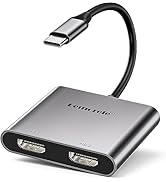
Image 2: Visual representation of the product packaging and included items.
4. Panduan Persediaan
4.1. Connecting for Video Capture
- Connect your video source (e.g., game console, camera, phone) to the Input HDMI port on the Lemorele AC05 using an HDMI cable.
- Connect a display (monitor, TV, projector) to the Output HDMI port on the Lemorele AC05 using an HDMI cable for video pass-through.
- Connect the Lemorele AC05 to your computer (laptop or desktop) using the provided USB-C to USB-A cable. Plug the USB-C end into the capture card and the USB-A end into an available USB 3.0 port on your computer.
- (Optional) For devices requiring power, connect a 100W PD charger to the PD 100W port on the capture card. This is essential for TV mode with devices like the Nintendo Switch.

Image 3: Diagram illustrating the connections for video capture, including USB-C input devices and HDMI output to a monitor.
4.2. Connecting for Docking Functionality (e.g., Steam Deck, Samsung Dex)
- Connect your USB-C device (e.g., Steam Deck, compatible smartphone) to the Input USB-C port on the Lemorele AC05.
- Connect a display (monitor, TV, projector) to the Output HDMI port on the Lemorele AC05 using an HDMI cable.
- (Optional) Connect USB 3.0 peripherals (e.g., portable SSD, U disk, mouse) to the USB 3.0 port pada kad tangkapan.
- Connect a 100W PD charger to the PD 100W port on the capture card to power your device and the docking functions.

Image 4: Diagram illustrating the connections for docking mode, showing USB-C input from a laptop or mobile device, HDMI output, and USB-A 3.0 peripherals.
5. Arahan Operasi
5.1. Recording and Streaming with OBS
The Lemorele AC05 is compatible with popular streaming and recording software like OBS Studio. No specific drivers are required; the device operates as a standard UVC (USB Video Class) device.
- Ensure all physical connections are made as described in the Setup Guide.
- Open your preferred recording/streaming software (e.g., OBS Studio) on your computer.
- In the software, add a new "Video Capture Device" source.
- Select "Lemorele AC05" or a similar name from the list of available devices.
- Configure video resolution (up to 1080P 60Hz for recording) and audio input settings within the software.
- Start recording or streaming as desired.

Image 5: A user recording gameplay from a console to a laptop via the capture card, with the output displayed on a large monitor.
5.2. Live Broadcast and Conference
The capture card can also be used for live broadcasts from cameras or for conference presentations.
- Connect your camera's HDMI output to the capture card's HDMI input.
- Connect the capture card to your computer via USB-C.
- Use streaming software to broadcast your camera feed.
- For conferences, connect a presentation source (e.g., laptop) to the HDMI input and display it on a projector or monitor via the HDMI output, while simultaneously capturing the feed on another computer.

Image 6: A user conducting a real-time recording or live stream using a smartphone connected to the capture card and a laptop.
6. Keserasian
- Sistem Operasi: Android, Mac OS, Windows, iPhone 15.
- Peranti yang Disokong: Nintendo Switch, Switch OLED, Steam Deck, various smartphones, tablets, and notebooks with USB Type-C ports.
- Samsung Dex Mode: Fully compatible with Samsung Galaxy S10/S9/S8 Plus/Note 10/Note 9/Note 8, Tab S4/S5/S6 for Dex mode functionality.
7. Spesifikasi Teknikal
| Antara muka | USB 3.2 Gen 1 (UVC) |
| Input & Output Video (Laluan) | HDMI 2.0 |
| Input & Output Audio (Laluan) | Bicu HDMI 2.0 / 3 kutub 3.5 mm |
| Maks. Resolusi Lulus | 2160p60, 1440p120, 1080p120 |
| Maks. Resolusi Rakaman | 2160p30, 1080p60 |
| Format Rekod | MPEG 4 (H.264 + AAC) |
| Dimensi (W x D x H) | 112.5 x 66.1 x 20.9 mm (4.43 x 2.6 x 0.82 inci) |
| Berat badan | 83 g (2.9 oz) |
8. Penyelesaian masalah
- Tiada Isyarat Video: Ensure all HDMI cables are securely connected to both the input source and the display. Verify that the video source is powered on and outputting a signal. Check your software settings to ensure the correct video capture device is selected.
- Tiada Audio: Confirm that audio settings in your recording/streaming software are correctly configured to capture audio from the device. Check physical audio connections if using 3.5mm jacks.
- Lag atau Gagap: Ensure your computer meets the minimum system requirements for recording/streaming. Use a USB 3.0 port for optimal performance. Close unnecessary applications to free up system resources.
- Power Delivery Issues: If your device is not charging or the docking features are unstable, ensure a 100W PD charger is connected to the capture card's PD port. Using the original charger for devices like the Nintendo Switch is recommended.
9. Panduan Video Produk
Watch this official product video for a visual guide on the Lemorele AC05 Video Capture Card's features and setup.
Video 1: Product Introduction and User Manual for the Lemorele AC05 Video Capture Card, demonstrating its features and basic connections.
10. Waranti dan Sokongan
For warranty information or technical support, please refer to the contact details provided in your product packaging or visit the official Lemorele website. Ensure you retain your proof of purchase for warranty claims.
Untuk maklumat lanjut, lawati Lemorele Store on Amazon.


